If your Sony TV is stuck on the startup screen, start with a full power cycle and disconnect every external device. These simple steps often clear a temporary startup failure without erasing your settings. If the TV still will not move past the Sony logo, work through the checks below in order.
The exact menus, button locations, indicator behavior, and reset procedure can vary between Sony TV models and operating systems. Use the instructions that match your television, and do not force a button or unplug the set repeatedly if it is installing an update.
1. Wait briefly and check the TV's status
First, give the TV a few minutes if it recently started, restarted, or displayed an update message. A television may take longer than usual to boot after a software update, a power interruption, or a change to connected equipment.
Look at the front indicator light and listen for normal startup sounds. A steady light, a blinking light, or no light at all can point to different problems, but the meaning varies by model. Do not rely on the light pattern alone unless your model's support documentation explains it.
If the screen remains frozen on the logo for several minutes with no visible progress, continue with a power reset.
2. Perform a complete power reset
A normal press of the remote's power button may only place the TV in standby. A complete power reset removes temporary electrical states that can prevent the operating system from loading.
- Turn the TV off using the remote if it responds.
- Unplug the TV's power cord from the wall outlet.
- Disconnect the power cord from a surge protector or power strip if one is being used.
- Leave the TV unplugged for at least one minute.
- While it is unplugged, press and hold the TV's physical power button for about 10 to 15 seconds, if the button is accessible.
- Reconnect the TV directly to a known-good wall outlet.
- Turn it on using the TV's physical power button rather than the remote.
Use the TV's own power cord whenever possible, and make sure the connection is fully seated. If the set starts normally after this procedure, the original problem may have been a temporary software or power-state error.
3. Disconnect external devices
A faulty HDMI device, USB accessory, soundbar, receiver, or network device can interfere with startup. HDMI control features can also make a TV switch inputs, wake another device, or repeatedly attempt to communicate with equipment that is not responding.
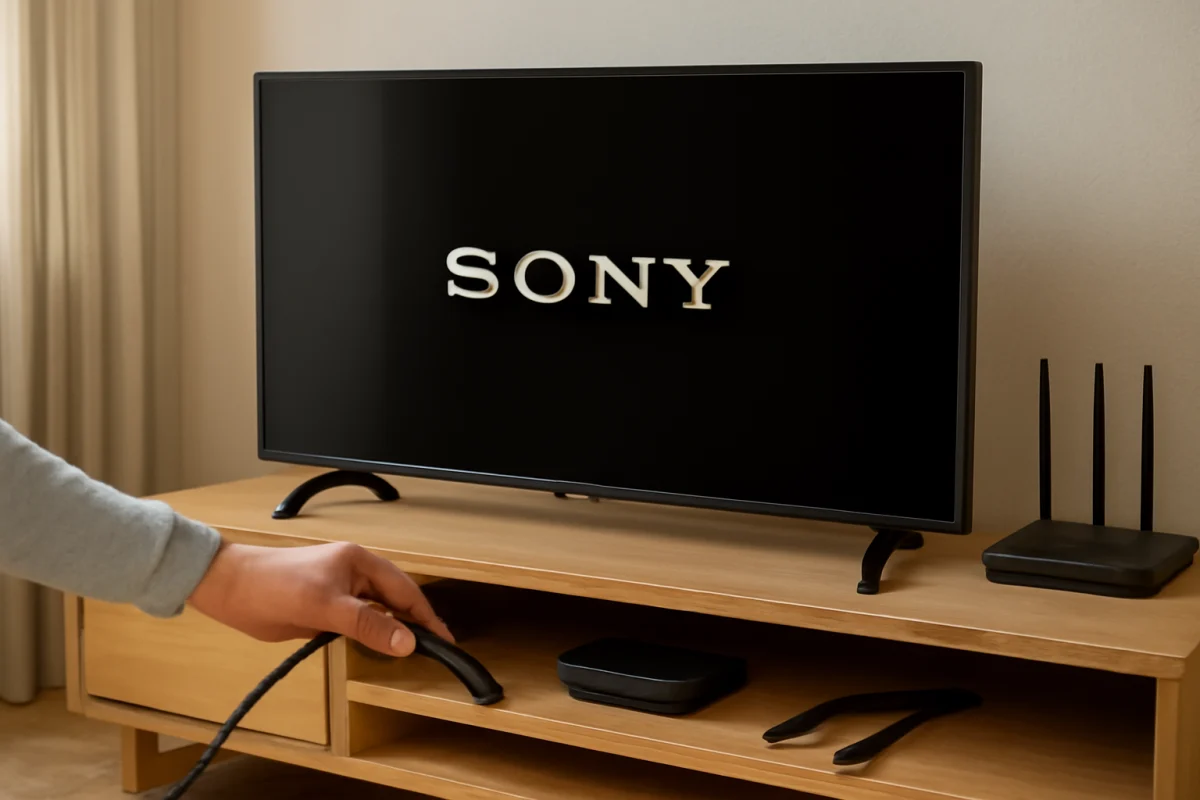
Turn the TV off and unplug all devices connected to it, including:
- Streaming sticks and media players
- Game consoles and Blu-ray players
- Soundbars, AV receivers, and cable or satellite boxes
- USB drives, webcams, and other USB accessories
- Ethernet cables and antenna cables, if practical for testing
Leave only the TV's power cable connected, then turn it on. If the startup screen disappears, reconnect the devices one at a time. Restart the TV after adding each device. The device connected immediately before the problem returns is a strong suspect.
When reconnecting equipment, try a different HDMI cable or port if available. Inspect the connectors for bent pins, looseness, or visible damage. Avoid using an inexpensive USB device or hard drive for testing if the TV begins normally without it.
4. Check the remote and physical controls
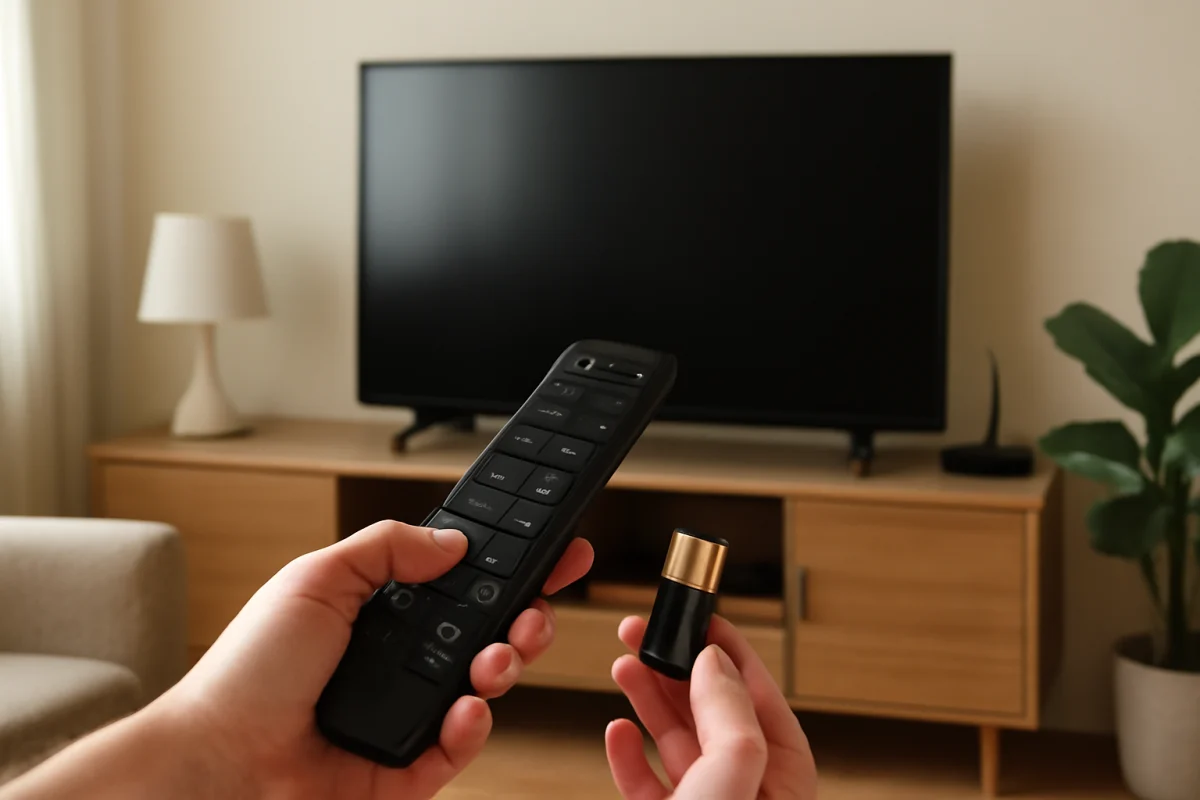
A stuck remote button can send repeated commands while the TV is starting. Remove the batteries from the remote and try turning on the television with its physical button. If the TV boots normally with the remote batteries removed, inspect the remote for a stuck power, home, input, or navigation button.
You can also test with fresh batteries after the TV has started. If you use a third-party remote, universal remote, or remote-control app, temporarily stop using it during diagnosis. For related remote troubleshooting, see the TV Fix Guide remote controls guide.
Make sure nothing is pressing against the TV's physical buttons. Depending on the model, the controls may be underneath the panel, on the side, or near the rear. Do not remove the back cover to reach them.
5. Test the wall outlet and power connection
A weak connection or overloaded power strip can cause a TV to start and then stop during boot. Plug a lamp or another small device into the same wall outlet to confirm that power is available. If possible, test the TV in a different wall outlet that is not controlled by a switch.
Do not use an extension cord or surge protector during this test. If the TV works only when connected directly to the wall, the accessory may be failing or overloaded. If other devices also lose power from the outlet, stop troubleshooting the TV and have the electrical issue checked safely.
Do not use a damaged, hot, frayed, or crushed power cable. Replace it only with a compatible cable recommended for your TV model. Never open the television or attempt to repair its internal power supply yourself.
6. Try starting the TV without a network connection
In some cases, a television can appear to freeze while trying to complete a network connection, restore an account, or communicate with an online service. After disconnecting external devices, temporarily disconnect the Ethernet cable. If you normally connect over Wi-Fi, move the TV farther from network equipment only as a test, or turn off the router briefly if doing so will not interrupt important services.
If the TV starts without a network connection, complete the initial screen and then reconnect the network from the television's settings. If the problem returns, restart the router and check whether another device is experiencing connection problems. The available network menu names differ by Sony model and software version.
For broader connection checks, you can review the Wi-Fi and network troubleshooting section.
7. Check whether the screen is actually frozen
Some startup problems are display problems rather than complete boot failures. Press the volume or input button and watch for any response. Listen for audio, notification sounds, or a change in the indicator light. If you hear sound or see menus briefly but the picture remains on the logo, the television may be starting while the display is failing to refresh.
Shine a flashlight at the screen from a short distance in a dim room, without pressing against the panel. If you can faintly see menus or changing images, the backlight or display hardware may be involved. This test is not definitive, and a damaged LCD or OLED panel should not be opened or repaired without the proper equipment.
8. Update the TV only if you can reach the settings
If the television eventually reaches the home screen, check its software settings for an available update. Use the update process provided for your exact model and keep the TV connected to reliable power while it runs. Do not unplug the set during an update unless the manufacturer's instructions specifically tell you to do so.
If the TV cannot reach the home screen, do not download random firmware files or use instructions for a different Sony model. USB update procedures, file requirements, and recovery options can vary. Use Sony's official support page for the exact model number printed on the label or original documentation.
9. Consider a factory reset as a last resort
A factory reset can resolve corrupted settings or a software configuration problem, but it should not be your first step. It may remove installed apps, account information, Wi-Fi details, picture settings, parental controls, and other personalized options. Any recordings or data stored on connected devices may also be affected by the device's own settings.
If you can reach the settings, look for the reset option in the system or device preferences area. The wording and location vary by model, so confirm the instructions for your exact Sony TV before selecting it. If the TV is frozen and the remote does not respond, some models support a button-based reset sequence, but the procedure is not universal. Do not guess the sequence from another model.
Before resetting, write down important account details and take photos of custom picture or audio settings. If you cannot access the menu, contact Sony support or consult the model-specific manual rather than repeatedly attempting button combinations.
10. When the problem is probably hardware
The issue is more likely to require service if the TV remains on the startup screen after a power reset, with all external devices disconnected, and after testing a known-good outlet. Other warning signs include repeated restarting, a clicking sound, an unusual odor, a hot power connector, visible screen damage, or an indicator light pattern that continues consistently.
Unplug the TV and stop using it if you smell burning, see smoke, notice sparking, or find damage to the power cord or outlet. Do not remove the back panel. Internal components can retain dangerous voltage even when the TV is unplugged.
When contacting Sony or a qualified repair professional, provide the full model number, a description of what appears on screen, the indicator-light behavior, and the steps you have already tried. Mention whether the issue began after a storm, power outage, software update, new HDMI device, or network change. This information can help distinguish a software startup problem from a power, main-board, backlight, or display fault.
How to prevent the startup problem from returning
After the TV works again, reconnect accessories one at a time and avoid leaving unnecessary USB devices attached. Use reliable power protection, keep ventilation openings clear, and install updates only through the TV's supported process or official model-specific instructions.
If the problem occurs only with one streaming device, game console, or soundbar, troubleshoot that equipment separately before blaming the television. You may also find related guidance in the Sony TV troubleshooting section and the streaming apps troubleshooting section.
In most cases, the safest path is to start with a complete power reset, remove every external connection, test the remote and outlet, and then add equipment back gradually. If those checks do not change the behavior, avoid unverified firmware or reset instructions and arrange model-specific support.
Comments
0No comments yet. Be the first to share a helpful note or question.
Leave a Comment
Your email address will not be published. Comments are reviewed before appearing on the site.