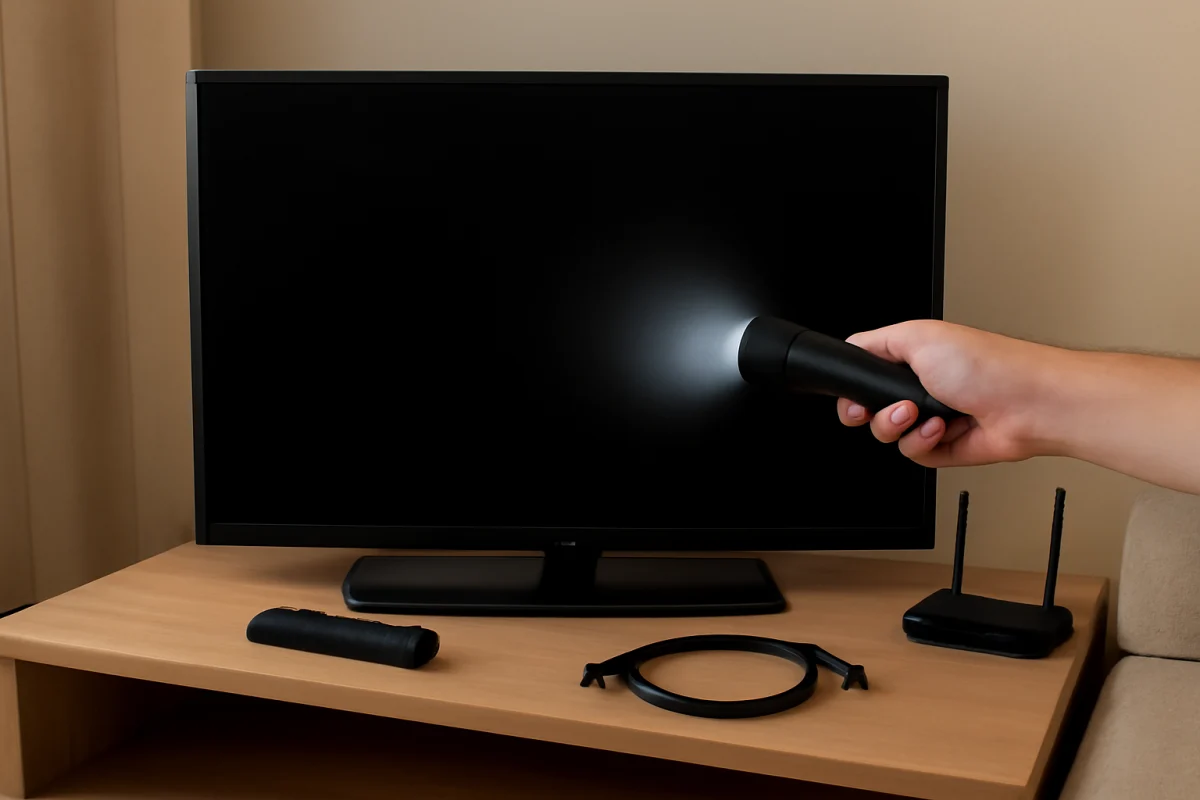
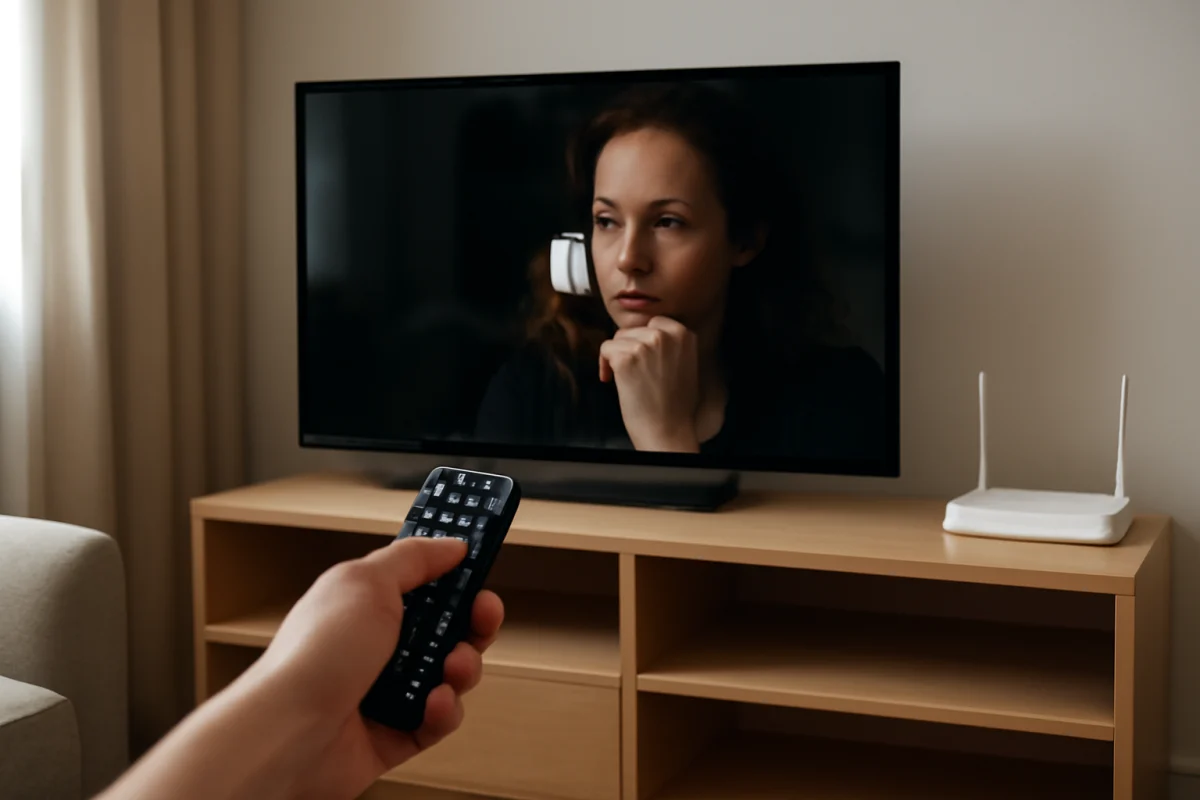
If your Sony TV has sound but no picture, start by checking whether the problem affects every source or only one device. Press the Home or Menu button on the remote and watch for an on-screen menu. If the menu appears, the panel is working and the problem is more likely related to an HDMI device, cable, input, or picture setting. If the screen stays completely black but you can still hear sound, continue with the power and display checks below.
1. Check whether the TV is actually producing an image
Before changing settings or resetting the television, shine a phone flashlight at the screen from a short distance while a video or TV channel is playing. Look closely for a very faint image.
- A visible but extremely dim image: The TV may have a failed backlight or a power problem affecting the backlight.
- No image at all: The issue could involve the panel, main board, display circuits, software, or the selected source.
- A menu or input label appears: The screen is capable of displaying an image, so focus on the source, cable, and picture settings.
Do not open the TV to inspect internal parts. Televisions contain components that can retain dangerous electrical charges even after they are unplugged. Internal repair is best handled by a qualified technician.
2. Select the correct input
A wrong input is one of the simplest causes of a black screen. If sound is coming from a cable box, game console, streaming stick, or other external device, the TV may be showing a different HDMI input.
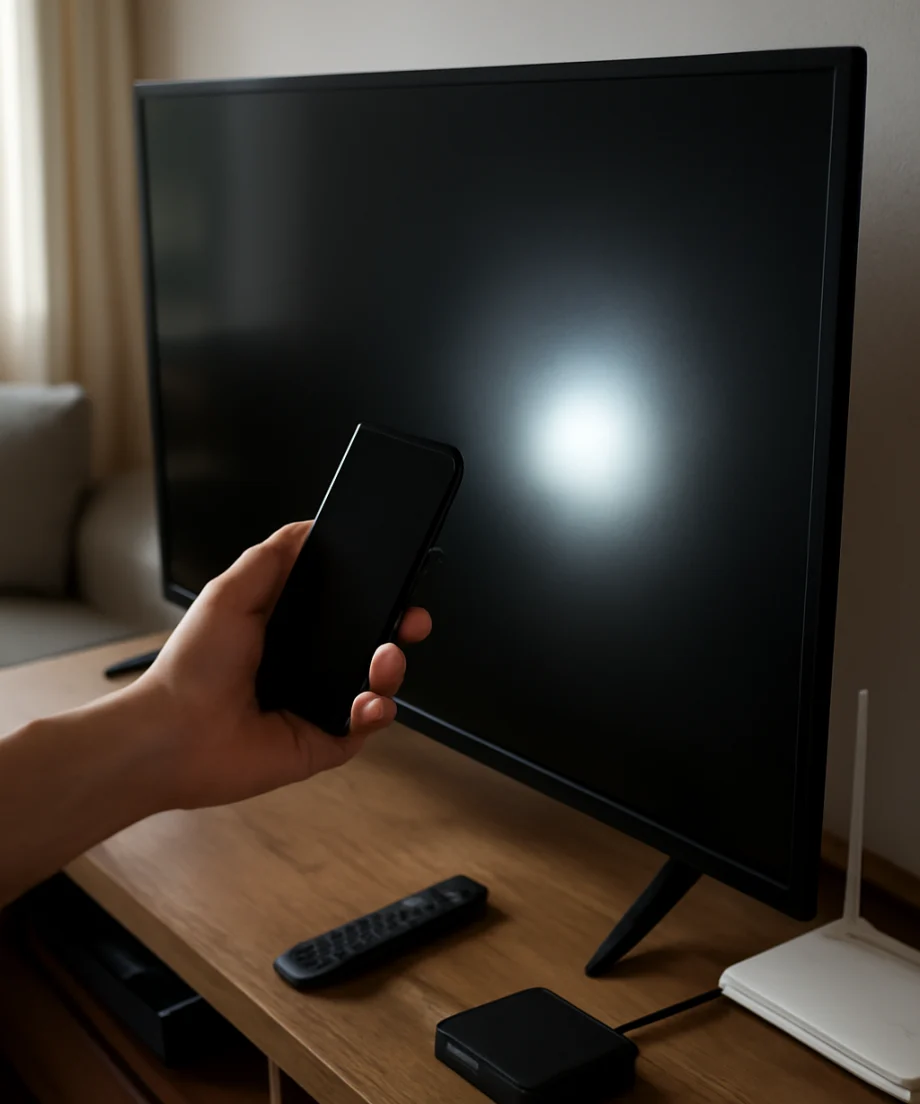
- Press the Input or Source button on the Sony remote.
- Move through the available inputs one at a time.
- Pause briefly on the input connected to your device.
- Check whether the device's picture appears.
If the TV has a built-in streaming system, press Home and open a built-in app. If the home screen or app picture appears, the panel is probably not the main problem. Instead, troubleshoot the external device, its HDMI connection, or the selected input.
3. Restart the TV and connected devices
A complete power cycle can clear a temporary software or HDMI communication problem. This is different from simply pressing the power button on the remote.
- Turn off the TV with the remote.
- Unplug the TV from the wall outlet.
- Disconnect the external device that is producing the sound, such as a cable box or game console.
- Wait at least 60 seconds.
- Plug the TV directly into a known-working wall outlet, if possible.
- Turn on the TV and wait for the home screen or picture.
- Reconnect and power on the external device after the TV is ready.
Some Sony models may respond to a physical power button or a longer press of the remote's power button, but the exact behavior varies by model. Do not repeatedly unplug the set while it is installing an update or performing another visible maintenance process.
4. Inspect the HDMI cable and source device
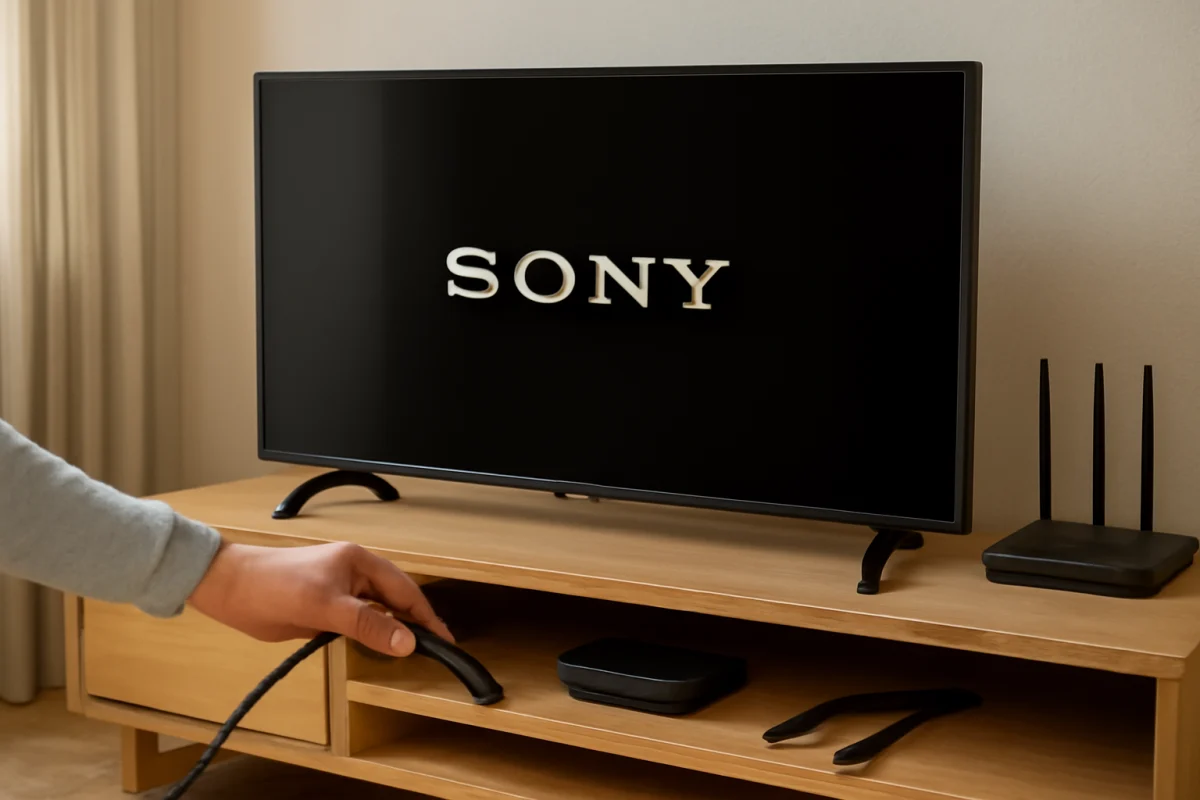
If the problem happens only with one device, the TV itself may be working normally. Remove and reconnect the HDMI cable at both ends, making sure the plugs are fully inserted. Then try these tests:
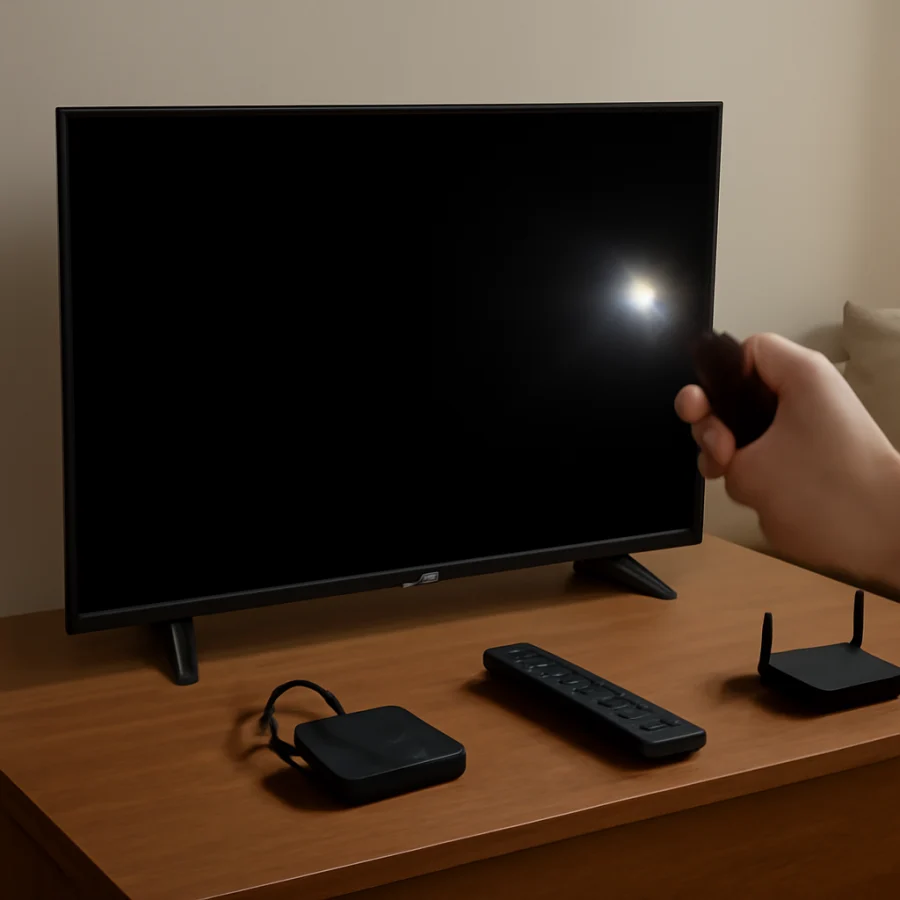
- Use a different HDMI cable that you know works.
- Connect the device to another HDMI input on the TV.
- Connect a different device to the original HDMI input.
- Restart the source device while the TV is already turned on.
- Check whether the source device is awake and set to output video.
If another device displays a picture on the same HDMI input, the original source device or cable is the likely cause. If no device works on one input but other inputs work, that particular port may be damaged or malfunctioning. Avoid forcing a cable into an HDMI port, especially if the connector feels loose or the port moves inside the housing.
For more help with source and display problems, see our picture and sound troubleshooting guide.
5. Check the TV's picture settings
A picture setting can sometimes make the screen appear black even though the TV is operating. This is more likely if the screen went dark after changing settings, enabling an energy-saving feature, or switching picture modes.
Press Home or Menu and look for the picture settings. The wording and location can differ between Sony models and software versions, so use the labels shown on your television rather than relying on an exact menu path. Check for the following:
- Brightness or backlight set unusually low.
- A screen-off, picture-off, or audio-only feature enabled.
- An accessibility or energy-saving option that reduces the display.
- Picture settings changed for the current input only.
If you can see the menu, restore only the picture settings first instead of resetting the entire TV. A full reset removes saved network information, accounts, app data, and other preferences, so it should not be the first step.
6. Test the built-in menu and apps
The built-in menu is a useful way to separate a TV problem from an external-device problem. Press Home, Menu, or the app button on the remote. The exact buttons vary by remote and model.
If the menu is visible
The display is producing an image. Focus on the external source, HDMI cable, receiver, or picture settings. Also check whether the black screen appears in only one app or input. If built-in apps show video but a cable box does not, the cable box or its connection needs attention.
If the menu is not visible
Try the physical controls on the TV if they are accessible. If the TV responds with sound or indicator changes but never shows menus, the problem is less likely to be limited to an HDMI source. Continue with the power cycle and flashlight test, then consider professional diagnosis if the display remains blank.
7. Check whether the remote is causing confusion
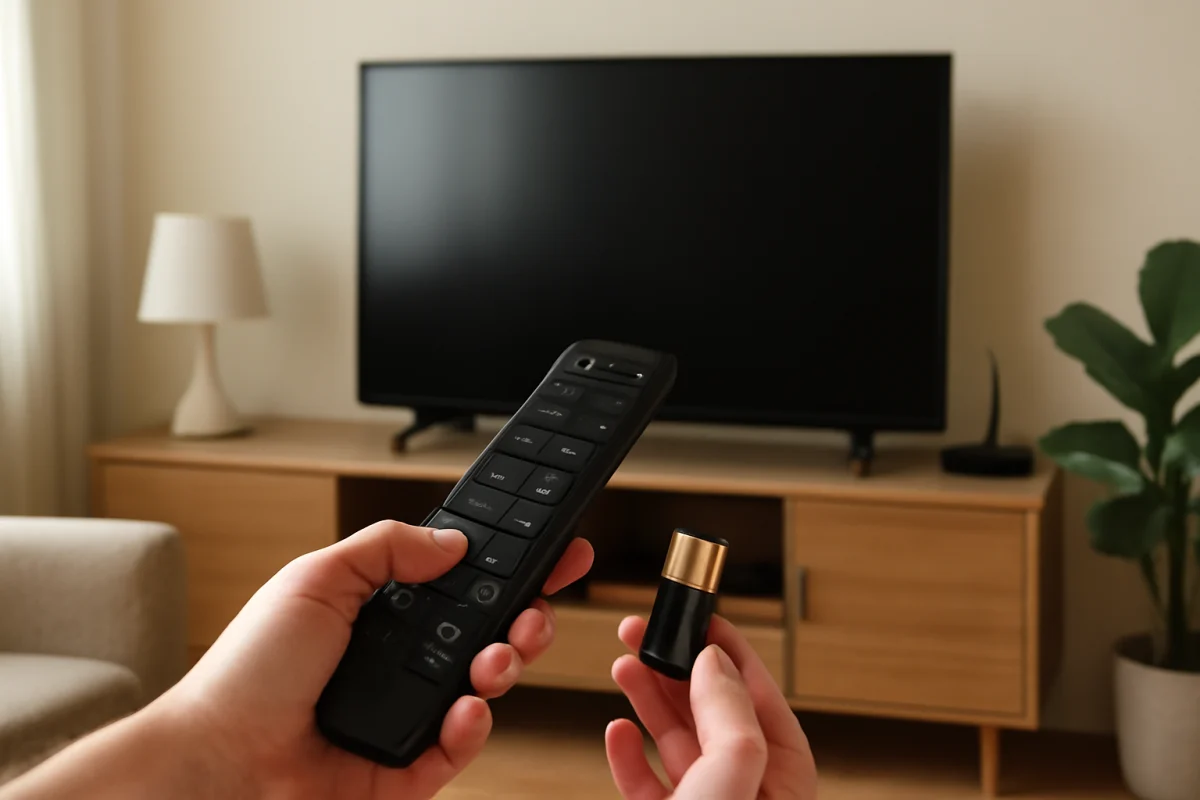
A remote can make the problem harder to diagnose if it is sending commands to the wrong device or if its buttons are sticking. Replace the batteries or test the TV's physical power and input controls. Make sure you are not controlling an AV receiver, cable box, or streaming device instead of the television.
If the TV responds inconsistently, remove batteries from other nearby remotes temporarily. Infrared remotes can sometimes control more than one compatible device, and a stuck button may repeatedly change the input or power state.
You can find additional device-control suggestions in our remote control troubleshooting guide.
8. Disconnect accessories and receivers
Sound may pass through a soundbar, AV receiver, cable box, or HDMI switch even when the video connection is failing. To simplify the setup, disconnect all external HDMI devices and connect only the TV's power cable. Then turn on the television and try to display its home screen or settings menu.
If the TV picture returns after accessories are removed, reconnect devices one at a time. The device that brings back the black screen may have an HDMI handshake problem, incompatible video output, or a defective cable. If an AV receiver or soundbar is involved, temporarily connect the source directly to the TV to isolate the receiver.
9. Consider a software or update issue
A temporary software failure can affect video output while audio continues to work. After the power cycle, check for a software update only if you can reliably see the TV's menus and keep the set connected to power. Update instructions, menu names, and available options vary by Sony model.
Do not interrupt an update by unplugging the TV. If the picture disappears during an update, wait for the process to finish according to the on-screen instructions. If the TV remains unusable afterward, use Sony's official support instructions for your exact model rather than applying steps intended for a different television.
10. When to reset the Sony TV
A factory reset may help when a software setting is preventing normal video output, but it is a last-resort software step. It will usually remove personal settings and may require you to sign in to apps and reconnect the TV to Wi-Fi. The reset process and menu wording differ by model.
Before resetting, record your important settings and confirm that the TV is not simply on the wrong input. If the screen is completely blank, you may not be able to complete a menu-based reset safely. In that situation, contact Sony support or a qualified repair technician for model-specific instructions.
What a flashlight test can tell you
If a faint picture is visible under a flashlight, the TV is receiving and processing video but the backlight may not be illuminating the panel. Possible causes include failed LED strips, a backlight power circuit, or another internal fault. Adjusting brightness or changing the HDMI cable will not repair a failed backlight.
If the screen has no faint image and the menus never appear, several internal faults are possible. The panel itself, display control circuitry, power board, or main board may be involved. A technician can test these parts more safely than a home repair attempt. The cost and practicality of repair depend on the model, screen size, age, and failed component, so avoid assuming that one specific part is at fault based only on a black screen.
When to stop troubleshooting
Stop and seek professional help if you notice a burning smell, popping sounds, visible damage, liquid exposure, repeated clicking, or a power light that behaves abnormally. Unplug the TV if it appears unsafe, but do not remove the back cover.
It is also time to arrange service when the TV has sound, no visible menu, and no picture after a direct-wall power cycle and flashlight test. Give the technician useful details: whether the screen is faintly visible, whether the issue affects every input, whether the TV's menu appears, and whether the problem began after a storm, power outage, update, or cable change.
For model-specific troubleshooting and related display issues, visit the Sony TV troubleshooting section. If the problem involves a streaming service rather than the television's own menus, our streaming app troubleshooting resources can help narrow down whether the app or the TV is responsible.
Comments
0No comments yet. Be the first to share a helpful note or question.
Leave a Comment
Your email address will not be published. Comments are reviewed before appearing on the site.