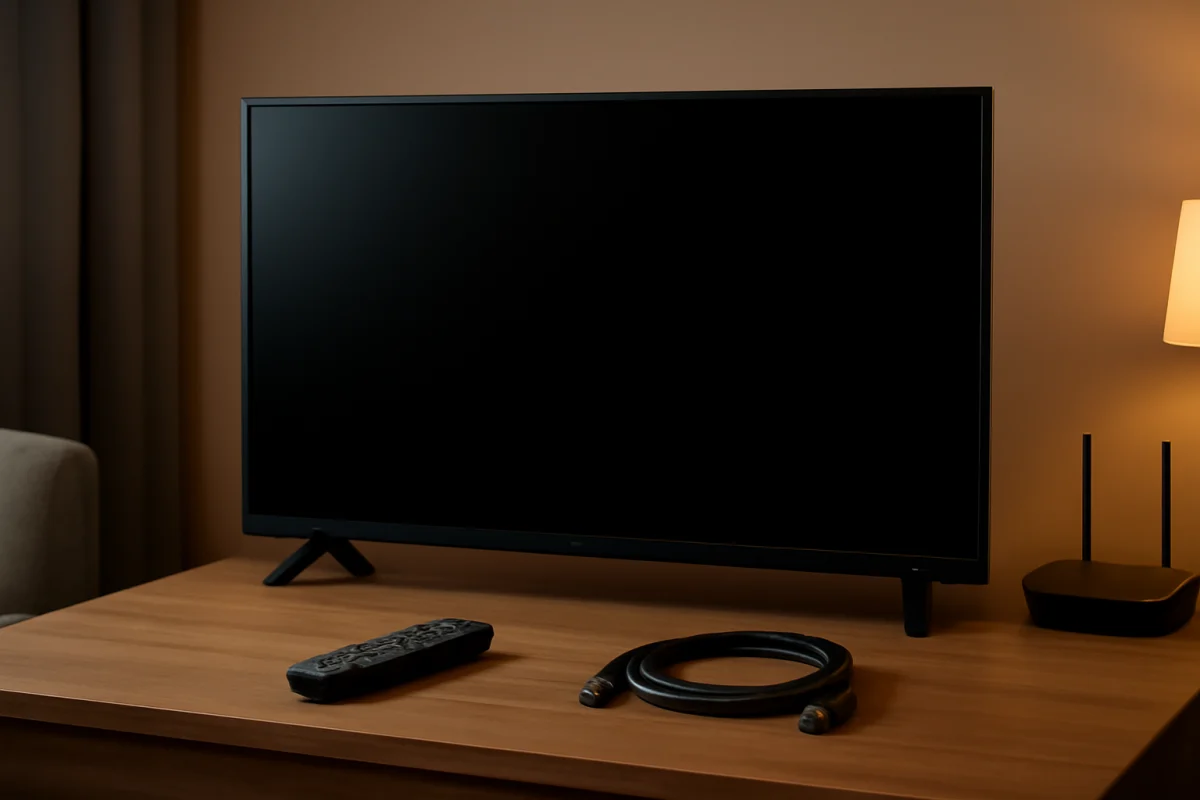
If your Philips TV screen goes black while the sound still works, the TV is receiving at least some power and processing audio, but the picture path is failing or being disabled. Start with the simple checks: increase the volume and confirm the TV is not muted, press the TV's menu or home button, and shine a flashlight at the screen in a dark room. These quick tests can help separate an input problem from a failed backlight, display connection, or other internal fault.
Check whether the TV's own menu appears
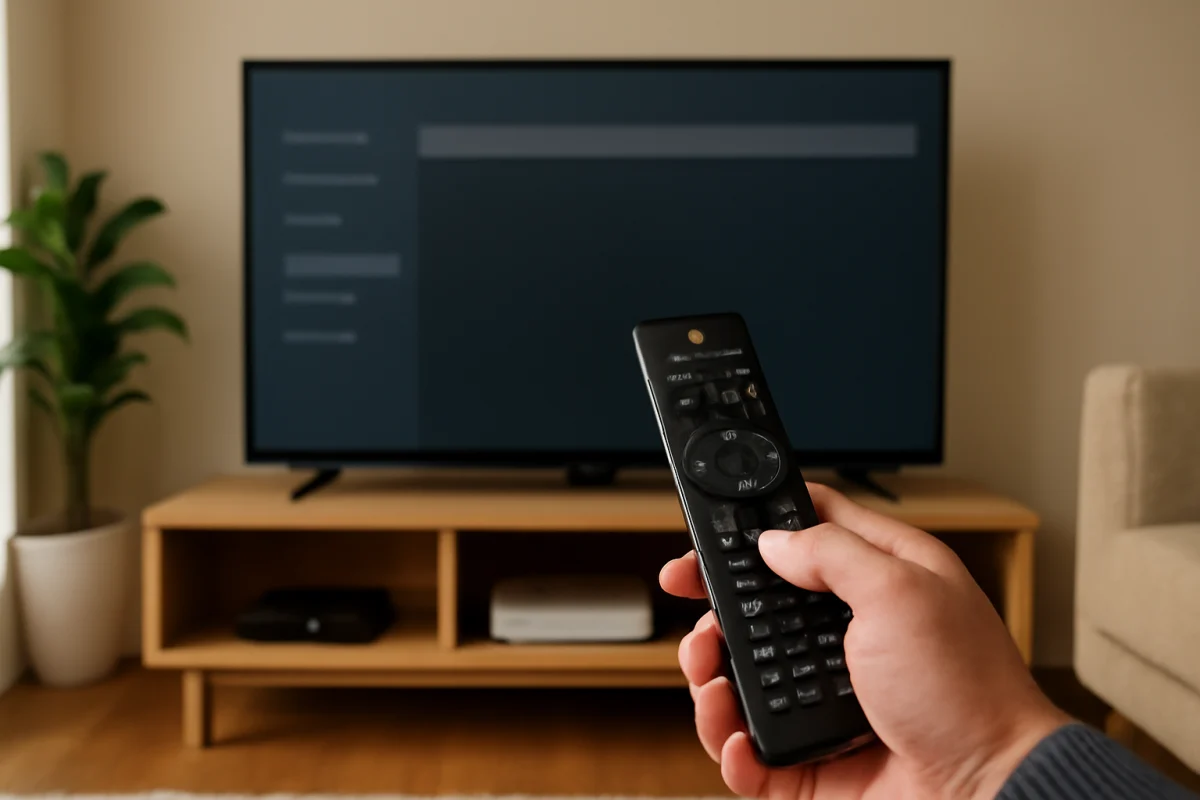
Press the Home, Menu, Settings, or similar button on the Philips remote. The exact button and menu layout can vary by model and software version. You can also try the buttons on the TV itself if the remote is not responding.
If the menu appears normally, the panel and backlight are probably working. The problem is more likely related to the connected device, HDMI cable, input selection, or an app. If the screen remains completely black and you cannot see the menu, continue with the power and flashlight tests below.
Perform a safe power reset
A temporary software or power-state problem can leave audio working while video stops. Try a full power reset:
- Turn the TV off with the remote or the TV's power button.
- Unplug the TV from the wall outlet.
- Disconnect external devices such as a streaming stick, cable box, game console, or Blu-ray player.
- Wait at least one minute.
- Plug the TV directly into a known-working wall outlet, rather than a switched power strip if possible.
- Turn the TV on and wait for the picture to appear.
Do not repeatedly unplug and reconnect the TV in rapid succession. If the picture returns after the reset but disappears again later, note what you were doing when it failed. Recurring black-screen problems may indicate a developing hardware fault rather than a one-time software glitch.
Check the input and HDMI connection
If the TV menu is visible but a device's picture is not, select the correct input and inspect the connection. A loose HDMI plug, damaged cable, or device that has stopped sending video can produce sound without a usable picture.
- Unplug and firmly reconnect the HDMI cable at both ends.
- Try another HDMI input on the TV.
- Try another HDMI cable if one is available.
- Restart the connected device while the TV is already on.
- Test the TV's built-in app or another source to see whether the issue affects every input.
If only one device has a black picture, troubleshoot that device first. If every HDMI source is black but the TV's own menus and apps work, the issue may involve the TV's external input circuitry, a video handshake, or the source equipment. For broader guidance, see TV Fix Guide's picture and sound troubleshooting section.
Use the flashlight test
The flashlight test can help identify a backlight problem, although it is not a complete diagnosis. Turn the TV on and play content that should produce a picture. In a dim room, hold a bright flashlight close to the screen and shine it at an angle. Look carefully for a very faint image, menu, or moving shapes.
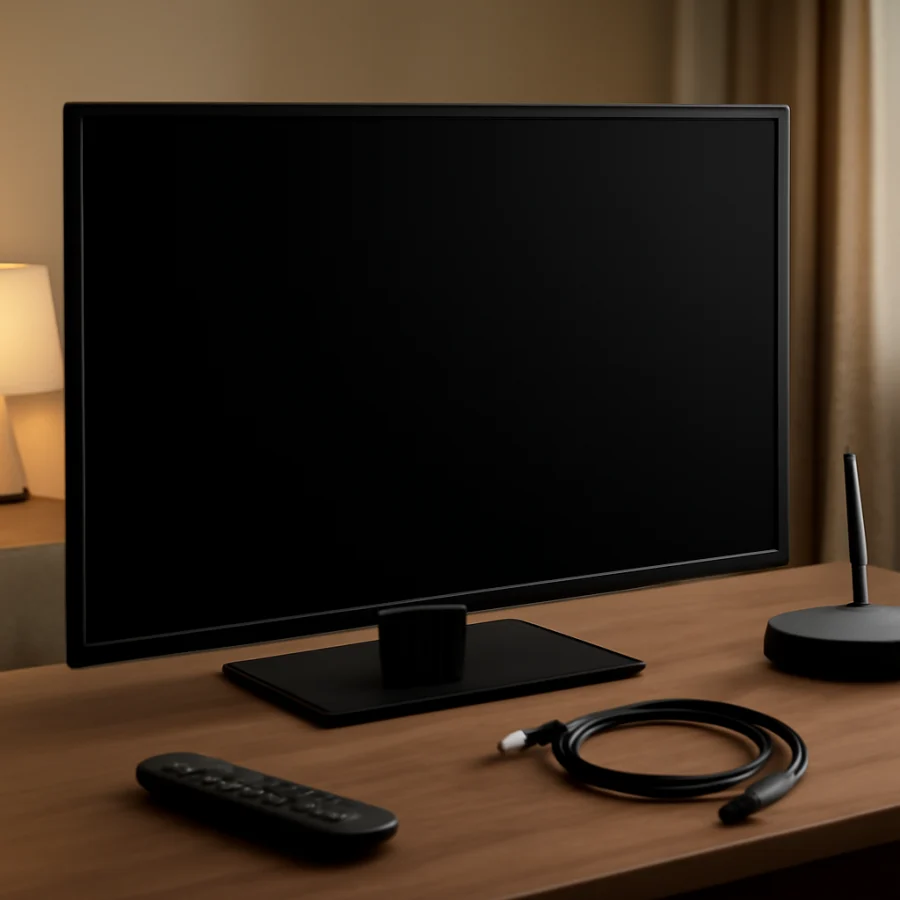
If you can barely see an image, the TV may be producing video but not illuminating the screen. The likely causes include failed LED backlights, a backlight power circuit, or related internal components. If there is no faint image at all, the fault could instead involve the main board, display timing circuitry, a panel connection, or the panel itself.
Do not press hard on the screen, remove the rear cover, or try to repair the LED strips without the proper experience. Flat-screen televisions can contain high-voltage areas and fragile display layers even after they have been unplugged.
Make sure the screen has not been turned off
Some Philips TV models and connected devices include a screen-off, audio-only, energy-saving, or accessibility-related setting. Names and locations vary, so avoid relying on instructions written for a different model. Open the picture, power, energy, and accessibility settings if the menu is visible, and look for an option that intentionally disables the display.
Also check whether a connected streaming device or cable box has its own screen-off feature. If the TV shows its menus but turns black only during playback, temporarily disable unusual picture-saving or screen-saving options and test again. Restore your preferred settings after identifying the cause.
Check brightness and picture settings carefully
A very low brightness or backlight setting usually does not make the screen completely black, but an unusual picture configuration can make the image appear missing. If you can see the menu, open the picture controls and use the model's available reset option for picture settings. The wording differs between Philips models, so choose the option that resets picture adjustments rather than erasing the entire TV.
Before changing advanced settings, write down any custom picture adjustments you want to keep. If the screen is black only in a particular app, close the app, restart the TV, and test another app or live source. An app-specific problem should not be treated as a failed panel without checking other content.
Test the TV without external devices
Disconnect every HDMI, USB, antenna, and other external connection except the power cord. Then turn the TV on and try to open its home screen or settings. This removes possible interference from a faulty device, cable, or HDMI control feature.
Results from this test are useful:
- Menus and built-in content work: the TV display is likely functional, and the problem is connected to a source, cable, input, or app.
- Sound works but menus remain black: a backlight or internal video fault becomes more likely.
- The TV restarts, clicks, or shuts down: stop repeated testing and consider a power-related or internal hardware problem.
Check for a brief picture during startup
Watch the screen closely when the TV first powers on. A picture that appears for a second and then disappears often points toward a backlight circuit or LED strip problem. A screen that never produces even a startup logo or menu may have a broader display, main-board, or power problem.
These signs are clues, not a definitive diagnosis. Several internal failures can create similar symptoms, and the exact repair depends on the Philips model and the failed component.
Consider a software update only if the menu is visible
If the TV's menus work and the black screen occurs only with certain apps or sources, check the TV's normal software-update area and follow the instructions shown for your model. Use only a compatible update method and stable power. Do not interrupt an update once it has started.
If the display is entirely black, forcing an update through an unofficial file or procedure is risky and may make the TV harder to recover. Model-specific update steps can differ, so verify the instructions for the exact model number before proceeding.
When to try a factory reset
A factory reset can help when corrupted settings or software behavior causes the display problem, but it should not be the first step. It removes accounts, installed apps, network information, and customized settings. Try it only after confirming that the TV's menu is visible and that simpler checks have failed.
If the screen is black and you cannot navigate the menu, do not guess at button sequences from another Philips model. Reset procedures vary, and an incorrect sequence may not solve the problem. If you do reset the TV, complete the setup again and test it before reconnecting all external devices.
When the problem likely needs repair
Professional service is more appropriate when the TV has sound but no visible menu, the flashlight test reveals a faint image, the picture flashes briefly and disappears, or the screen stays black after a power reset with every external device disconnected. A technician can test the backlight system, power board, main board, display connections, and panel.
Do not open the TV unless you are trained to work safely around television power circuits. The rear cover can expose hazardous areas, and the LCD or LED panel is easy to crack or damage. If the TV is still covered by a retailer, manufacturer, credit-card, or service plan, check the applicable documentation before attempting any repair. Coverage and service procedures vary by purchase and model.
What the symptoms usually mean
A black screen with working sound does not automatically mean the entire TV is dead. If the TV menu is visible, focus on the source, HDMI cable, input, app, or picture settings. If a faint image appears under a flashlight, suspect the backlight system. If no menu or faint image appears from any source, an internal video or panel-related failure is more likely.
Record the exact model number, whether the screen ever flashes, whether menus appear, and which tests you have completed. This information can make a service diagnosis faster. For additional brand-specific troubleshooting, visit the Philips TV repair section on TV Fix Guide.
Comments
0No comments yet. Be the first to share a helpful note or question.
Leave a Comment
Your email address will not be published. Comments are reviewed before appearing on the site.