If your Philips TV has sound but the screen is black, the TV is receiving at least some power and may still be processing the audio signal. The most common causes are a wrong input, a loose connection, a frozen TV system, disabled picture settings, or a failed backlight. Start with the simple checks below before resetting the TV or opening the case.
First, check whether the TV menu appears
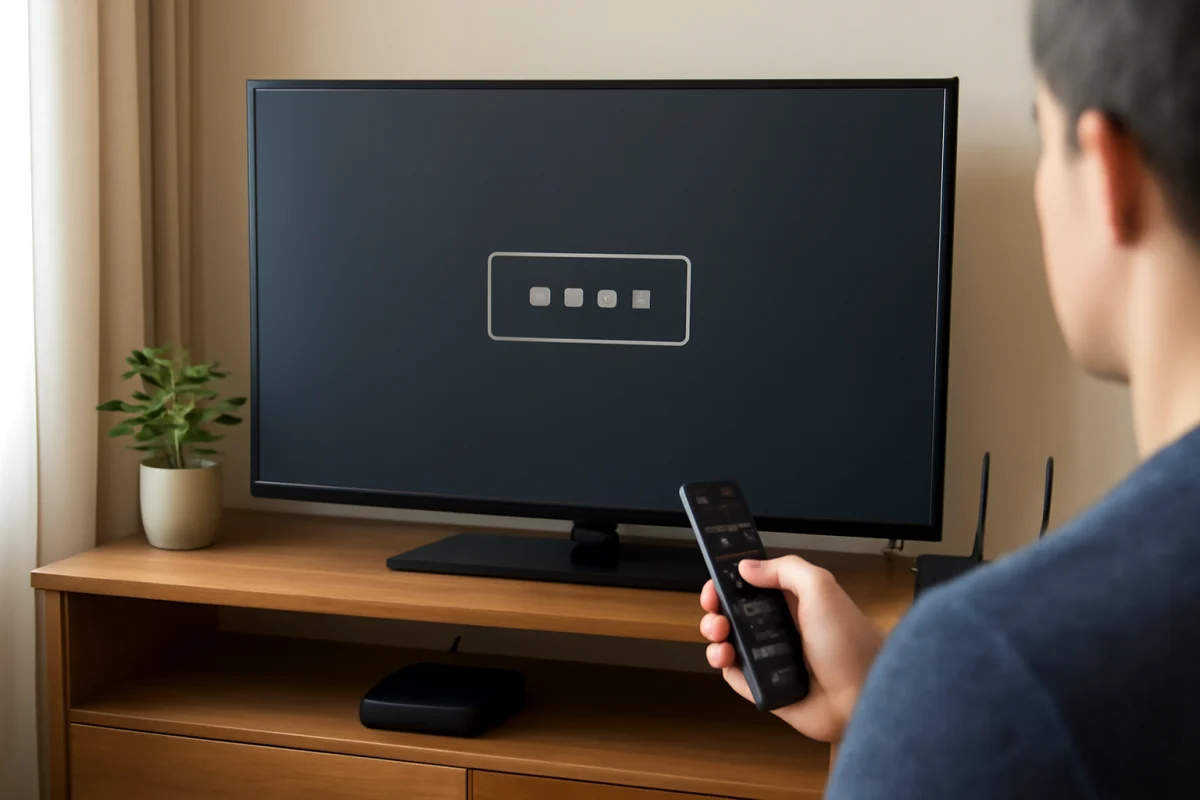
Press the Home, Menu, or volume button on the Philips remote. Watch the screen closely while pressing the buttons.
- If the menu or volume indicator appears: the panel can display an image, so the problem is more likely related to the input source, an external device, or the selected picture settings.
- If there is still no visible menu: the issue may involve the backlight, display panel, power circuitry, or the TV's internal software.
The exact button names and menu layout can vary by Philips TV model and software version. If the remote does not respond, try the physical control button on the TV. Its location and functions also vary by model.
Power-cycle the Philips TV
A temporary software or power-state problem can leave the audio working while the picture remains unavailable. A proper power cycle is a low-risk first step.
- Turn the TV off using the remote.
- Unplug the TV from the wall outlet.
- Wait at least 60 seconds.
- While the TV is unplugged, press and hold its physical power button for about 10 to 15 seconds if one is available.
- Plug the TV directly into a known-working wall outlet.
- Turn it on and wait several minutes for the startup process to finish.
Avoid judging the result immediately if the TV takes time to restart. If the picture returns after this process but disappears again later, a software issue, overheating, unstable power, or an external device may be involved.
Verify the input and external devices
A Philips TV can play sound from one source while displaying a blank screen from another, especially when a streaming box, game console, cable receiver, or computer is connected.
Press the Source or Input button and select a different source. Try the TV's built-in home screen or another input rather than testing only the device that was already connected.
If the home screen appears but the connected device is black, check the device instead of the television first:
- Confirm that the external device is powered on and not asleep.
- Disconnect and reconnect the HDMI cable at both ends.
- Try another HDMI input on the TV.
- Try another HDMI cable if one is available.
- Restart the external device with its own power button or unplug procedure.
- Connect the device directly to the TV, temporarily removing an AV receiver, HDMI switch, soundbar, or capture device.
Some devices output a resolution or refresh format that a particular TV or cable does not handle correctly. If the device has video settings, temporarily choose an automatic or standard output option. The names of these settings depend on the device.
For related troubleshooting across streaming equipment, see the streaming apps troubleshooting guide or the Roku troubleshooting section if a Roku player is involved.
Check the picture settings
If you can see menus but programs remain dark, the picture may be affected by a setting rather than a hardware failure. Open the picture settings and look for controls related to brightness, backlight, contrast, energy saving, or automatic picture behavior.
Do not immediately change many settings at once. First, switch to a standard or normal picture mode if that option is available. Then raise the brightness or backlight only enough to determine whether a faint image returns. Menu labels differ between Philips models, so use the closest matching option rather than following an exact menu path from another model.
Also check whether an accessibility feature, screen-off function, audio-only mode, or energy-saving setting is enabled. These options are not present or named the same way on every Philips television.
Use the flashlight test
A flashlight test can help distinguish a failed backlight from a problem with the video signal. It does not prove which internal part has failed, but it is useful when no menu or picture is visible.
- Turn on the TV and play a channel or video that normally produces sound.
- Dim the room if possible.
- Shine a flashlight at an angle against the screen from very close range.
- Look for a very faint image, shapes, or movement.
If you can see a faint picture with the flashlight, the TV may be producing video but failing to illuminate the screen. A defective LED backlight, backlight driver, power board, or related connection can cause this symptom. The exact failed part cannot be identified safely from the flashlight test alone.
If you see no faint image, the problem could still be the backlight, but it may also involve the main board, display circuitry, panel, firmware, or a connection inside the TV. Do not press hard on the screen or remove the back cover to investigate.
Check for a momentary picture
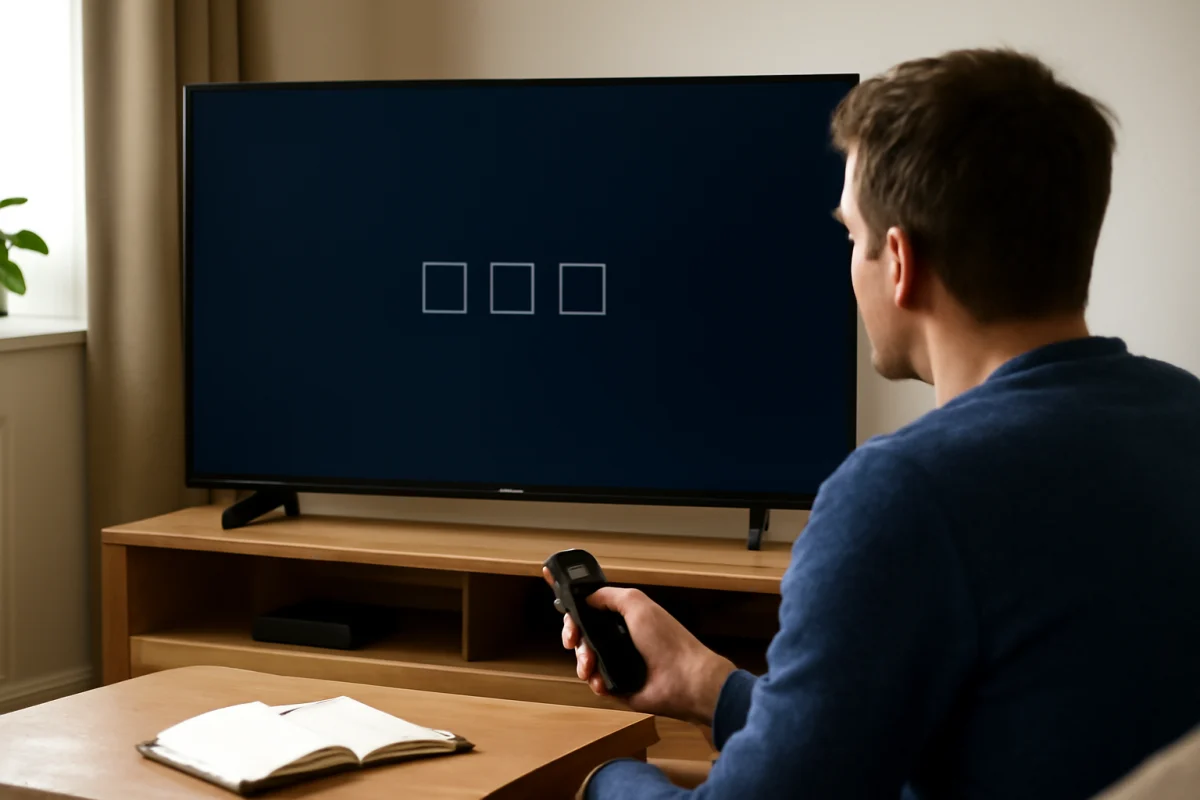
Watch the TV during startup. Does the Philips logo or a picture appear briefly and then go dark? A picture that flashes on for a second before disappearing often points toward a backlight or backlight-power problem. A screen that stays black from the beginning can have a wider range of causes, including an input problem or an internal video fault.
Listen for unusual clicking, repeated restarts, a ticking sound, or a power indicator that changes in an unexpected pattern. These observations can help a repair technician, but do not rely on indicator behavior as a specific error code unless your exact model documentation confirms it.
Disconnect accessories and test the TV by itself
External equipment can interfere with startup or send a blank video signal. Turn the TV off and disconnect all HDMI devices, USB drives, antennas, audio equipment, and other accessories. Leave only the power cable connected, then turn the TV on.
If the home screen or setup screen returns, reconnect devices one at a time. The last device or cable connected before the screen goes black is a strong suspect. If the screen remains black with everything disconnected, the cause is more likely inside the TV or in its basic software state.
When to consider a reset
A factory reset can correct corrupted settings, but it erases stored preferences, network details, app sign-ins, and other personal configuration. It should not be the first step when you cannot see the menu clearly.
Consider a reset only after power-cycling, checking inputs, testing cables, and disconnecting accessories. The reset procedure varies by Philips model. Use the instructions for your exact model from the owner's documentation or official support resources. If the screen is completely black and you cannot navigate the menus, do not guess at a button sequence from a different Philips TV.
When the problem is probably hardware
Professional service is more appropriate when the screen stays black with the TV's own menus unavailable, the flashlight test reveals a faint image, the picture flashes briefly and disappears, or the TV repeatedly clicks or restarts. These symptoms may involve high-voltage areas, the power supply, LED strips, the main board, display connections, or the panel.
Unplug the TV and stop using it if you notice a burning smell, smoke, sparks, liquid inside the set, unusual heat, or visible damage to the power cord. Do not open the back cover unless you are trained to work safely with television power circuits. Unplugging a TV does not guarantee that every internal component is immediately safe to touch.
Before contacting a repair shop, record the TV model number, what appears on the screen during startup, whether sound works from every source, and whether a faint image is visible with a flashlight. Also note any recent power outage, storm, cable replacement, software change, or connected-device change. This information can make diagnosis faster.
What the symptoms usually mean
| Symptom | More likely causes |
|---|---|
| Sound and TV menus are visible | Input selection, external device, HDMI cable, or source settings |
| Sound works but no menus appear | Backlight, display circuitry, software failure, or power-related fault |
| Faint picture appears under a flashlight | Backlight or backlight power problem |
| Picture appears briefly, then goes dark | Possible backlight protection or LED failure |
| Screen is black only on one HDMI source | Source device, cable, HDMI input, or output-format problem |
| TV restarts or clicks repeatedly | Possible power, board, or protection-circuit issue |
If you need more Philips-specific troubleshooting, visit the Philips TV repair section. For broader image-related symptoms, the picture and sound troubleshooting guide can help you compare similar problems.
In many cases, a black screen with working sound is resolved by selecting the correct input, replacing a bad HDMI cable, restarting the connected device, or completing a full power cycle. If none of those checks restores the TV's own menus, treat the problem as a likely internal hardware fault and arrange a qualified inspection rather than repeatedly resetting or opening the television.
Comments
0No comments yet. Be the first to share a helpful note or question.
Leave a Comment
Your email address will not be published. Comments are reviewed before appearing on the site.