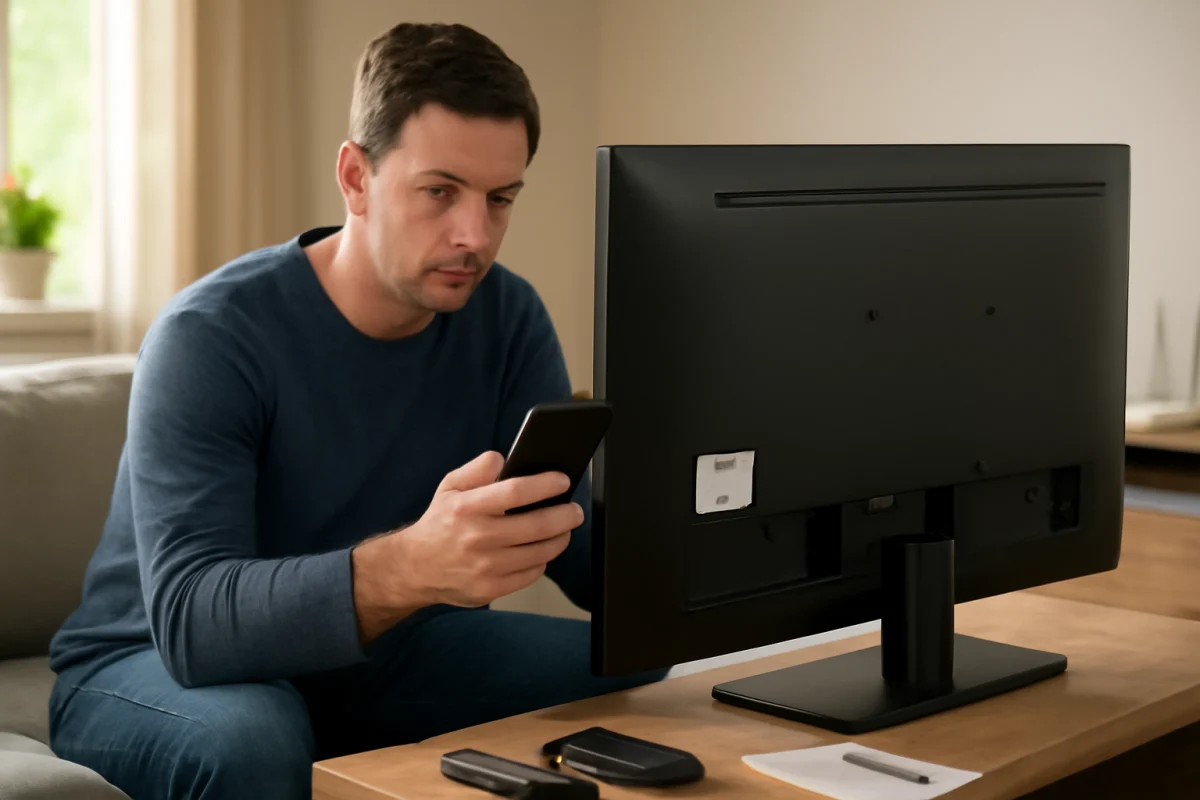
For Philips TVs in the United States, the commonly listed customer service number is 1-866-309-3263. Because Philips TV support can depend on the model, sales region, and the company handling that product line, verify the current number on the official Philips television support page or in your TV’s documentation before sharing personal or payment information.
Philips-branded TVs sold in the USA may be supported through a television licensing or manufacturing partner rather than the same support channel used for Philips medical equipment, appliances, lighting products, or personal electronics. Choosing the wrong product category can send you to an unrelated department. Have your exact TV information ready, and describe the problem clearly so the representative can determine whether you need troubleshooting, replacement parts, warranty help, or repair service.
How to verify the Philips TV support number
Phone numbers and support arrangements can change. Before calling, use one of these safer verification methods:
- Open the official Philips website and select the television or home-entertainment product category.
- Use the support page for your country or region rather than a search result for another country.
- Check the TV’s original manual, warranty card, or paperwork for a support contact.
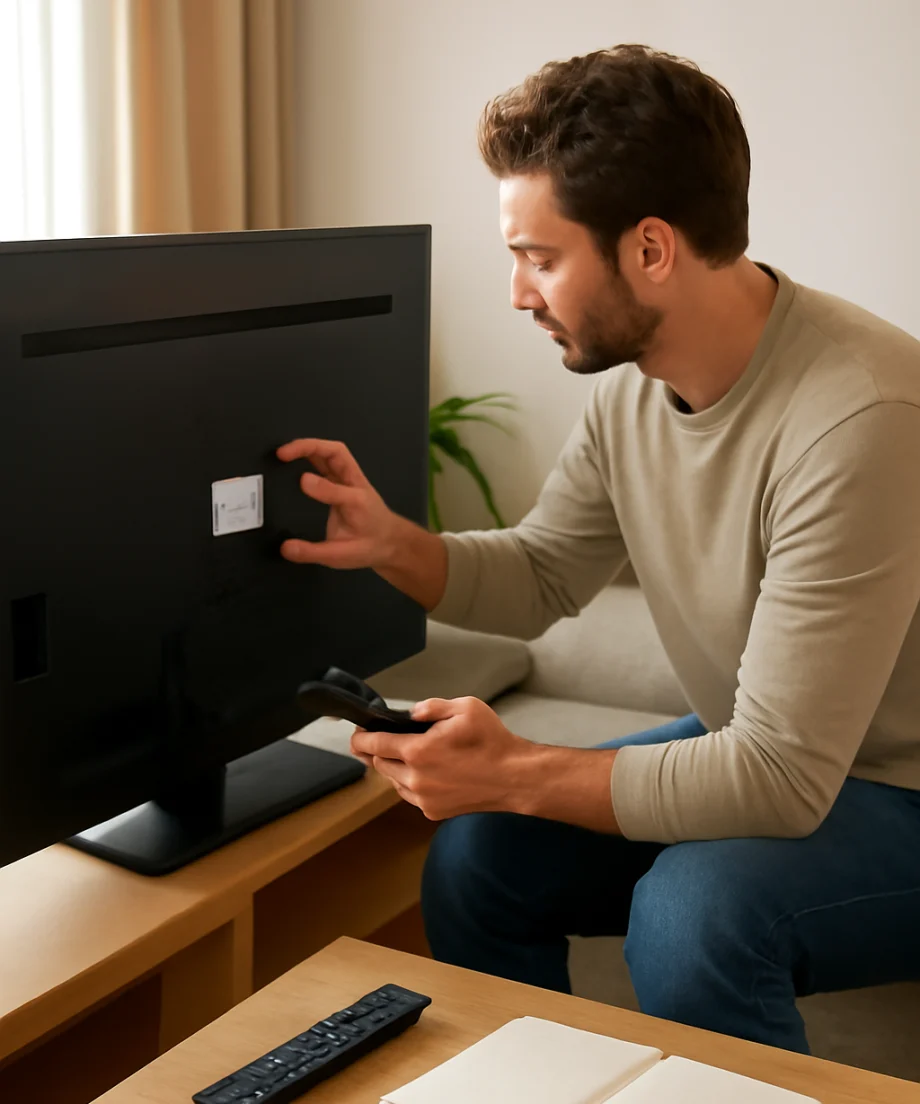
- Look at the label on the back of the TV or the original box for the model and product information.
- Be cautious with phone numbers shown in unsolicited pop-ups, social media messages, or unofficial repair advertisements.
A legitimate support representative should not need unrestricted access to your computer or ask you to install unknown remote-control software just to troubleshoot a television. Never provide a one-time security code, banking password, or full payment-card details to an unverified caller.
What to collect before calling Philips support
A support call is usually faster when you have the important details in front of you. You do not need to guess the TV’s specifications; read the information from the label or documentation.
- Exact model number: The model label is commonly located on the rear of the TV, although its position varies.
- Serial number: Have it available if the representative requests it, but do not post it publicly online.
- Purchase information: Keep the receipt, retailer name, and approximate purchase date nearby if warranty coverage may be involved.
- Problem description: Explain what happens, when it started, and whether the issue affects every input or only one app.
- Previous steps: Note whether you changed cables, restarted the TV, changed network settings, or performed a reset.
- Proof of the symptom: A short photo or video can help when the problem is intermittent, such as flickering, a flashing indicator, or a distorted picture.
If the TV displays an on-screen message, write down the exact wording. Do not replace letters with similar-looking numbers or paraphrase the message if you can avoid it. Model-specific menus and messages can differ, so the exact model remains important.
Try these low-risk checks before calling
You may be able to resolve a simple power, input, cable, or network problem without changing advanced settings. Start with the least disruptive checks.
Check power and the remote
Confirm that the power cord is firmly connected to the TV and the wall outlet. If the TV is connected through a surge protector, power strip, or switched outlet, make sure that device is turned on. Test the outlet with another small appliance if you are unsure whether it has power.
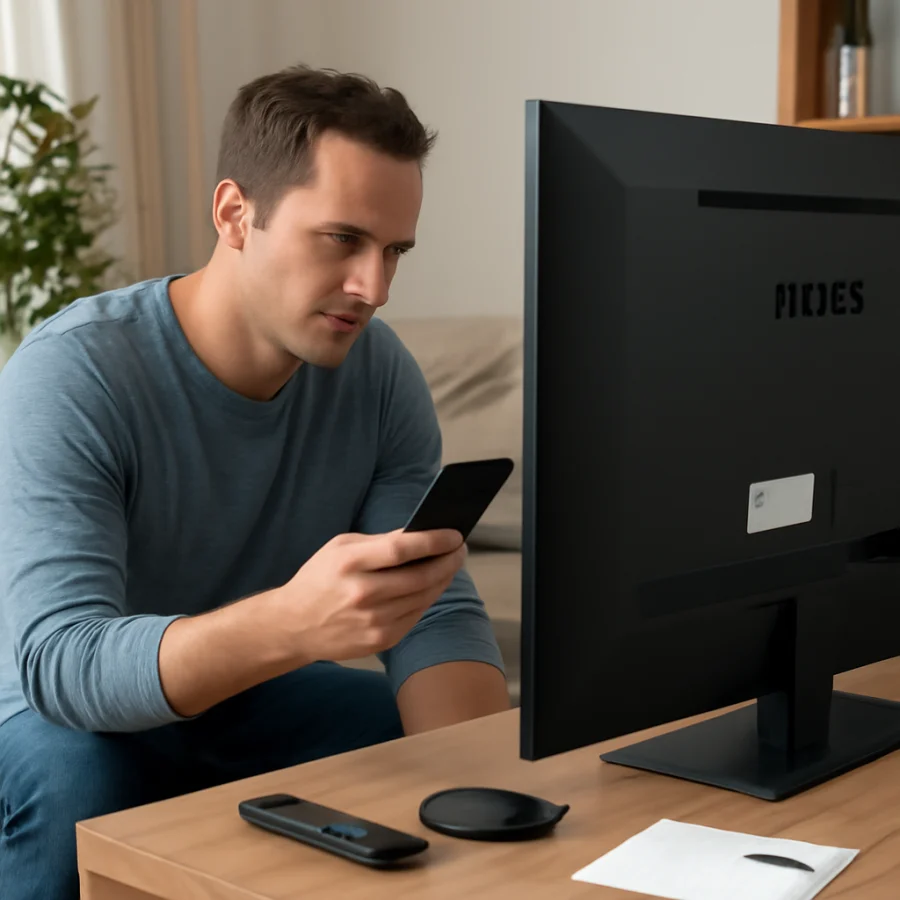
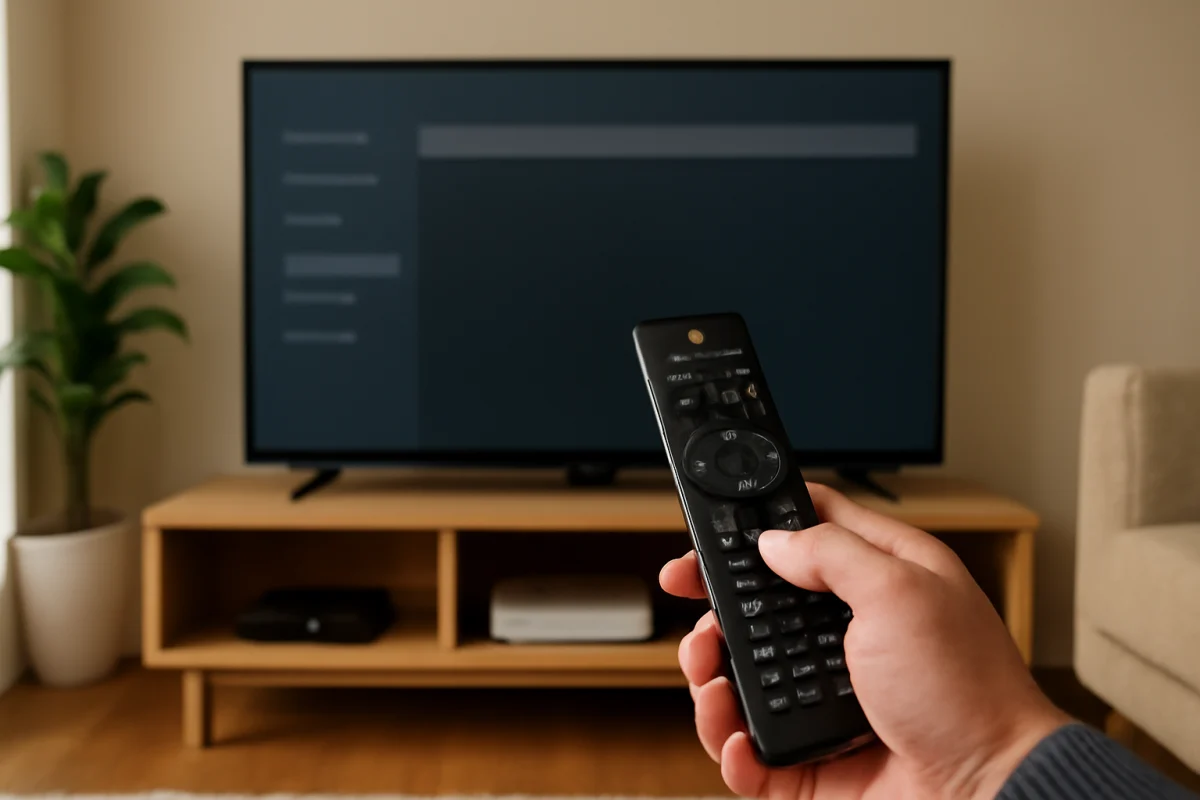
Try the TV’s physical power button if it has one. If the button works but the remote does not, replace the remote batteries with a fresh matching set and make sure nothing is blocking the remote sensor. A remote problem can look like a TV power failure, especially when the standby light remains on.
Restart the TV and connected equipment
Turn off the TV and unplug it from the wall for about one minute. While it is unplugged, disconnect external devices such as a cable box, game console, soundbar, or streaming stick. Reconnect the TV first and test it by itself. If it starts normally, reconnect the other devices one at a time to identify a possible HDMI, power, or device conflict.
A restart is different from a factory reset. A normal power cycle usually does not erase apps, accounts, picture settings, or network information. Avoid a factory reset until you understand what it will remove and have your account and Wi-Fi details available.
Confirm the input and cables
If the TV turns on but shows “no signal,” a blank screen, or the wrong picture, press the input or source control and select the connection used by your device. The wording and location of this control vary by remote and model.
Reseat the HDMI cable at both ends. If possible, try another HDMI cable or another input, but change only one item at a time. This makes it easier to identify whether the problem comes from the TV, cable, external device, or selected input. If the TV’s built-in menus appear correctly, the panel may be working and the issue may be limited to an external source.
Check Wi-Fi and streaming apps
If live TV or HDMI devices work but streaming apps do not, test the internet connection on another device connected to the same home network. Restart the router only if other devices also have connection problems. If only one app fails, the issue may be related to that app or its service rather than the Philips TV itself.
Do not repeatedly enter passwords if the TV rejects them. Confirm that you are using the correct Wi-Fi network and password, and remember that the network menu can differ by model and software version. For broader network troubleshooting, see our Wi-Fi and network troubleshooting guide.
When you should stop troubleshooting
Unplug the TV and stop using it if you notice smoke, a burning smell, sparking, liquid inside the cabinet, a damaged power cord, or unusual heat. Do not remove the back cover. Televisions contain components that can retain dangerous electrical charges even after the set is unplugged.
Contact Philips support or a qualified technician when the TV repeatedly shuts down, will not start after a proper power check, shows persistent lines or dark areas, has a cracked screen, loses sound after basic checks, or produces a symptom that returns after every restart. A cracked panel is generally not a safe do-it-yourself repair, and opening the TV can affect warranty or service options.
Questions to ask the support representative
Once you reach the correct department, ask which steps apply specifically to your model. Useful questions include:
- Is this model supported directly by Philips or by a television service partner?
- Does the symptom suggest a settings problem, an external-device problem, or a hardware fault?
- Will the recommended reset erase apps, accounts, Wi-Fi details, or personal settings?
- Is service available in my area, and what information is required to arrange it?
- Which documents are needed for a warranty or retailer claim?
- Can you provide a case number or written summary of the recommended next step?
Ask the representative to repeat any model-specific instructions before you perform them. Menu names and reset procedures can vary, and an incorrect procedure may erase settings without fixing the underlying problem.
Use the correct support path
If you are unsure whether your issue is caused by the TV, a remote, a streaming device, or an external source, begin with simple isolation tests. Our Philips TV repair guides cover common picture, sound, power, remote, and connection symptoms. You can also browse our remote-control troubleshooting guide when the TV works from its physical controls but not from the remote.
The key point is to use 1-866-309-3263 only after confirming that it is the current USA support contact for your Philips TV product category. Keep the model information private, start with low-risk checks, and avoid factory resets or opening the cabinet unless official instructions or a qualified professional make that step necessary.
Comments
0No comments yet. Be the first to share a helpful note or question.
Leave a Comment
Your email address will not be published. Comments are reviewed before appearing on the site.