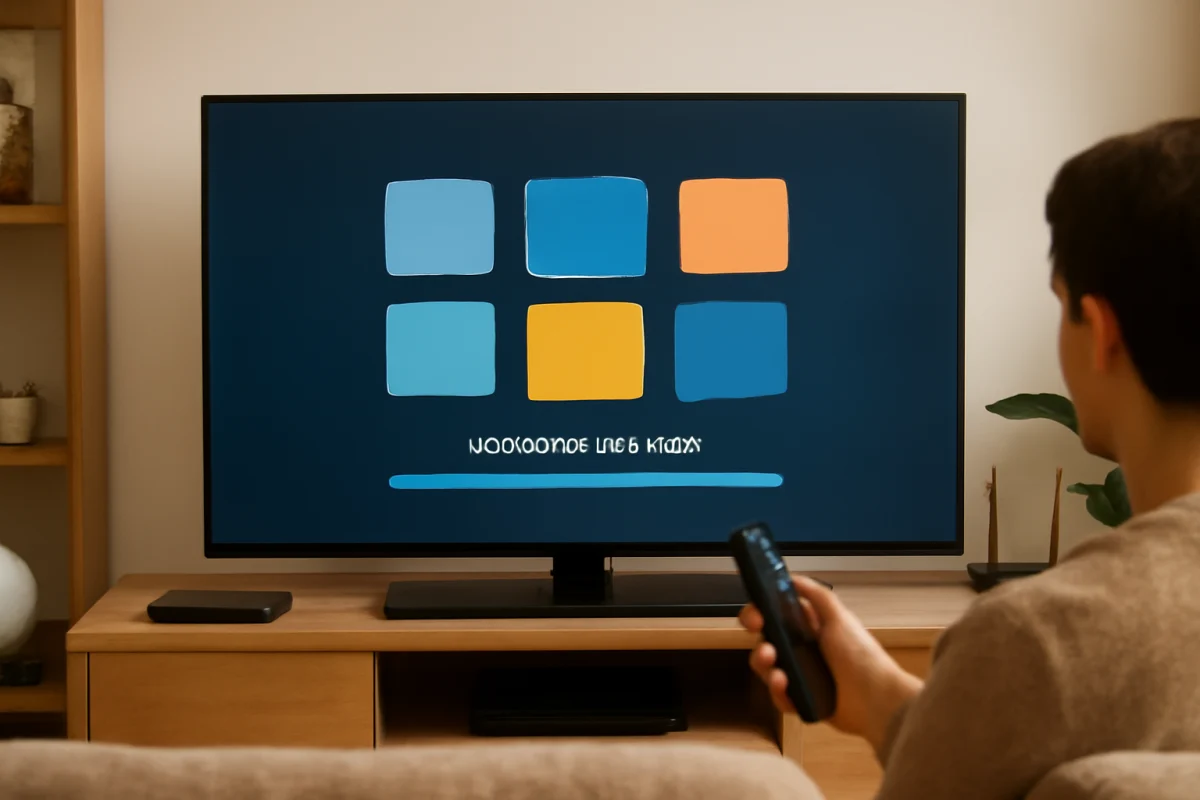
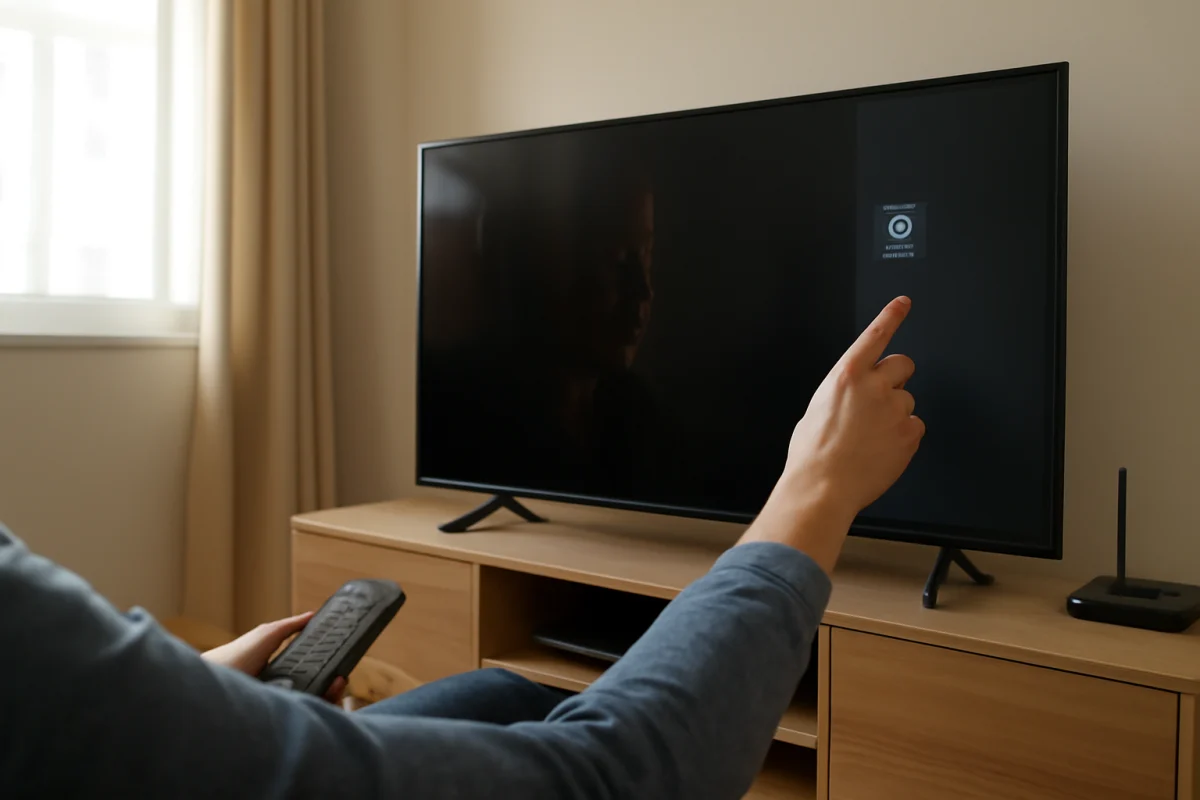
To update apps on a smart TV, open the TV’s app store or app management screen, find the available updates, and choose the option to update them. The exact menu names vary by brand, operating system, and model. If you cannot find an update option, first check that the TV is connected to the internet, the correct user account is signed in, and the television’s date and time are accurate.
Most smart TVs can update apps automatically, but automatic updates may be disabled, delayed, or limited by the TV’s software. The steps below start with the safest checks and then move to practical troubleshooting if an app will not update.
Check Your Internet Connection First
App updates require a working internet connection. A TV may still display its home screen even when the connection is too weak or unstable to download an update. Open another streaming app and try to play a video. If the video repeatedly buffers, fails to start, or shows a network message, solve the connection problem before trying to update the app.
On most televisions, you can check the connection from a Settings menu related to Network, Internet, or Connection. The wording differs by manufacturer. Confirm that the TV is connected to the intended Wi-Fi network or to an Ethernet cable.
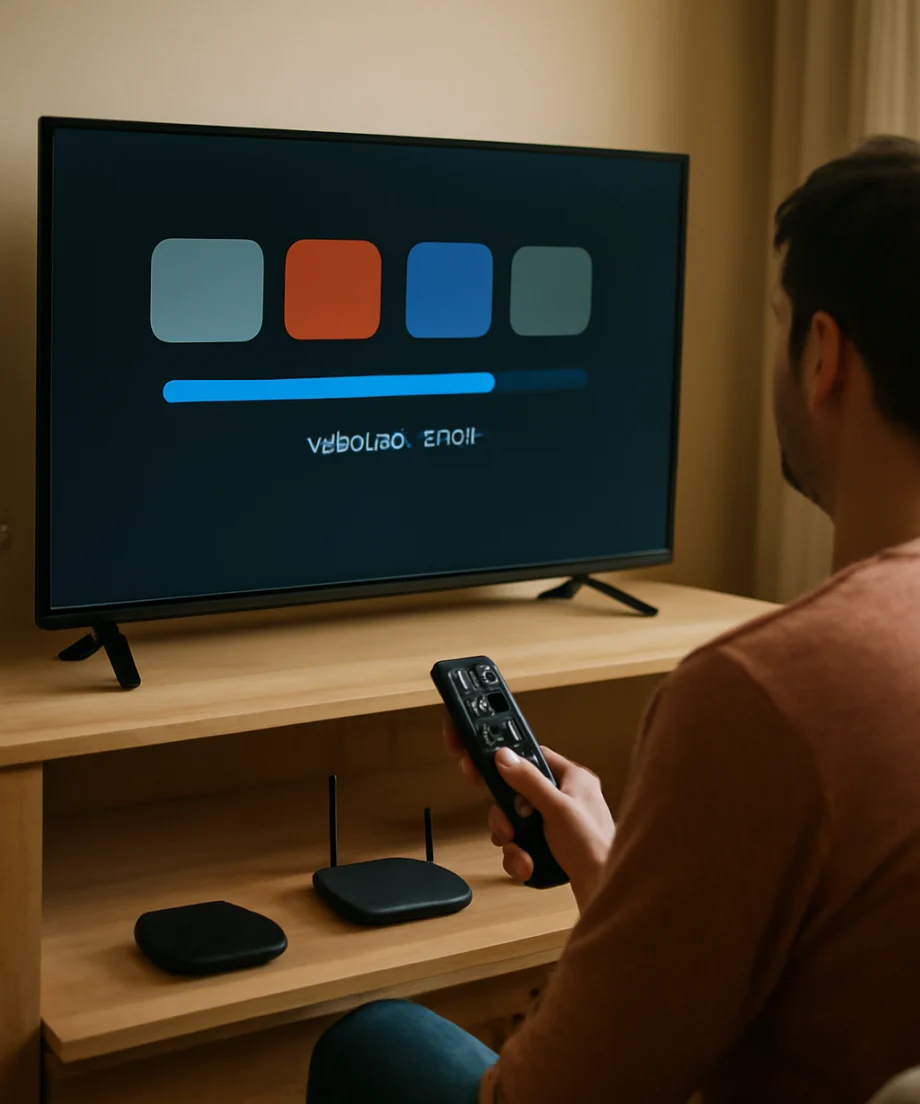
- Move the TV or router closer together if the wireless signal is weak.
- Pause large downloads or other high-bandwidth activity on your network.
- Restart the router by unplugging it briefly, then allow it several minutes to reconnect.
- Try the TV again after the network is fully online.
If other devices also have trouble reaching websites or streaming services, the issue may be with the home network or internet service rather than the television. For more help, see the Wi-Fi and network troubleshooting guides on TV Fix Guide.
Update Apps Through the TV’s App Store
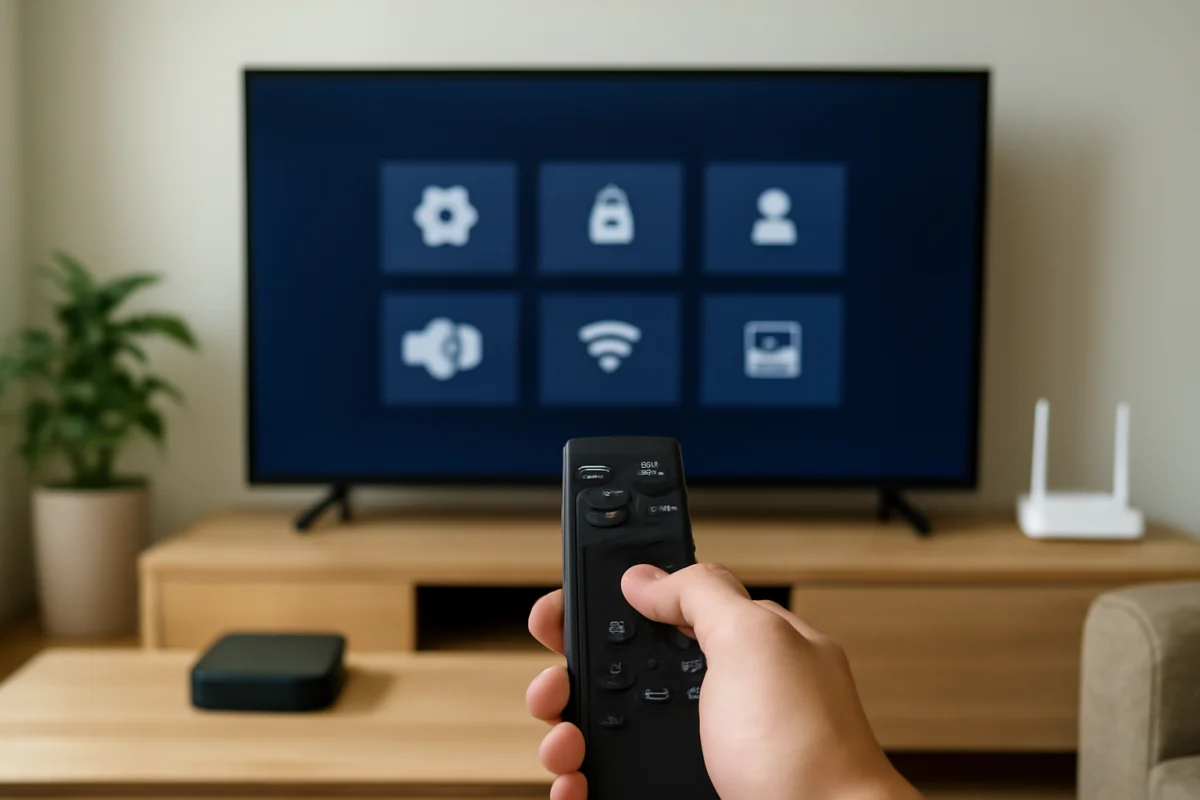
The most common method is to use the app store built into the TV. Look for an icon labeled App Store, Apps, Store, or a similar name on the home screen. Some televisions place app management under Settings instead.
General steps
- Turn on the TV and make sure it is connected to the internet.
- Open the TV’s app store or app management area.
- Look for a section such as My Apps, Updates, Manage Apps, or Available Updates.
- Select the app you want to update, or choose an option to update all eligible apps.
- Wait for the download and installation to finish before opening the app.
Do not turn off the television or disconnect it from the network while an update is installing. A short delay is normal, especially if the app is large or the connection is slow. If the update appears to be frozen for a long time, allow the TV a few more minutes before taking action.
Some apps are built into the TV’s operating system and may not appear in the same list as downloaded apps. Those apps may update with the TV’s system software rather than through the app store. In that situation, check for a separate software update option in the TV’s settings.
Turn On Automatic App Updates
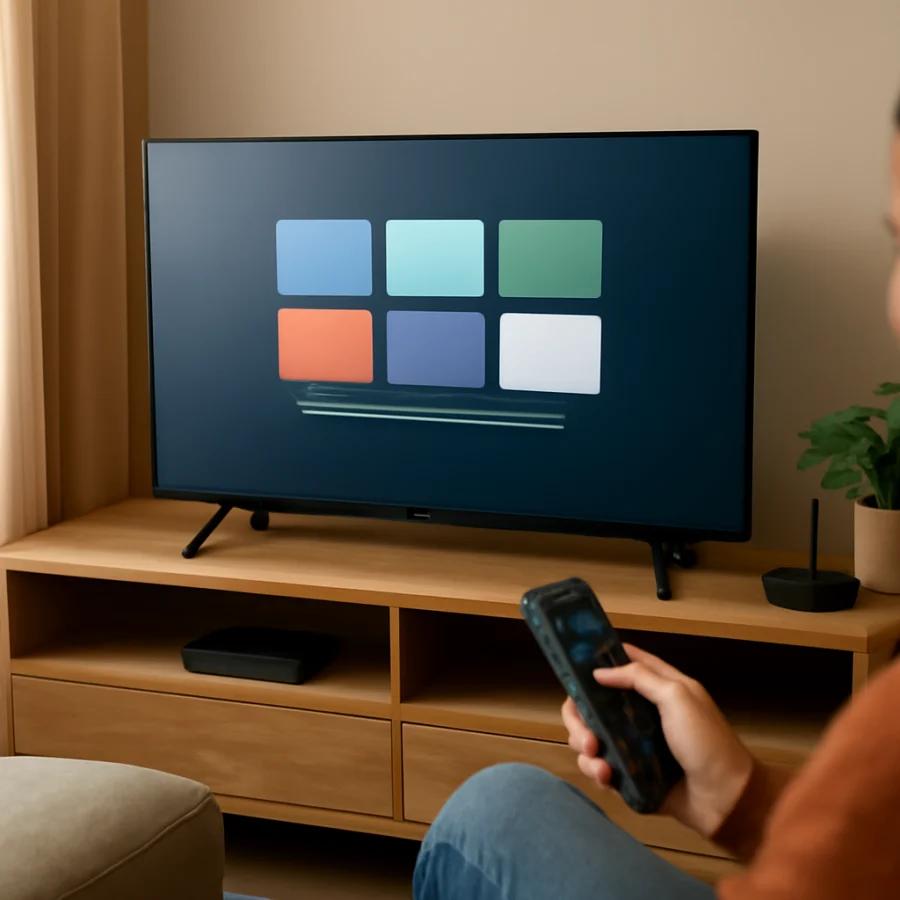
Many smart TVs offer automatic app updates, although the feature may be enabled or disabled depending on the model. Automatic updates usually require the TV to be connected to the internet and may work only when the television is in standby or turned on at certain times.
To look for the setting, open the app store or Settings menu and search for an option related to automatic updates. It may be located under app preferences, system settings, or account settings. Turn it on if you want the TV to install compatible updates without asking each time.
Automatic updates do not guarantee that every app will update immediately. The app developer, TV manufacturer, available storage, network connection, and device compatibility can all affect when an update appears. If one app remains outdated, update it manually from the app store.
How Updates Work on Popular TV Platforms
The basic process is similar across brands, but the interface is not. Samsung, LG, Sony, Hisense, TCL, Vizio, Roku TV, and Fire TV devices may use different app stores and different update controls. A step that works on one platform may not appear on another.
On some platforms, apps update from a central app store. On others, selecting an app from the home screen opens a details page with an update or check-for-update control. Streaming devices connected to a TV can also manage their own apps separately from the television.
For platform-specific guidance, browse the Samsung TV help section, the LG TV help section, or the Roku troubleshooting section. Always compare the instructions with what you see on your screen, because menus can change after a software update or differ between model years.
What to Do When an App Will Not Update
If an update fails, start with simple checks instead of immediately resetting the TV. A temporary network problem, low storage, or a service interruption can prevent an otherwise compatible app from updating.
Restart the TV completely
Use the TV’s normal power control first. If the television remains stuck, unplug it from the wall for about a minute, then plug it back in and turn it on. This clears temporary system activity without deleting your apps or settings. After the TV restarts, check the app store again.
Check available storage
Some televisions need free space to download and install an update. If the TV has a storage management screen, remove apps you no longer use. Avoid deleting an important app until you know you can download it again and remember the sign-in details required to use it.
Check the date and time
An incorrect date or time can interfere with secure connections to an app store or streaming service. Open the TV’s time settings and use an automatic network-based setting when available. If you set the time manually, confirm the date, time, and time zone are correct.
Sign in to the correct account
Some app stores require an account before downloads or updates can be completed. Confirm that the TV is signed in to the account associated with the device. If the account password recently changed, the TV may need you to sign in again.
Try updating another app
If only one app fails while other apps update normally, the problem may be limited to that app. Check whether the app opens, whether it has enough storage, and whether the TV supports the latest version. Older TVs may eventually stop receiving new versions of certain apps because of compatibility limits.
When Reinstalling an App Helps
If an app will not update or remains stuck on an old version, uninstalling and reinstalling it can refresh the app files. This is more disruptive than restarting the TV, so use it after the lower-risk steps above.
Before removing the app, make sure you know the email address, password, or other sign-in information needed to access it again. Uninstalling an app can also remove local preferences, downloads, or saved settings. Open the TV’s app management screen, remove the affected app, restart the TV if necessary, and install the app again from the official store.
If the app is built into the television and the uninstall option is unavailable, do not force the removal. Use the TV’s built-in repair, reset, or reinstall option only if the manufacturer provides one for that model.
Check for a TV Software Update
An outdated TV operating system can prevent newer app versions from installing. Look in Settings for a software, system, support, or device update section. The exact wording and location depend on the TV model.
Keep the TV connected to power and the internet during a system update. Do not interrupt the process unless the on-screen instructions specifically tell you to. A system update may restart the television and can change menu locations, but it should not normally be treated as a factory reset.
If the TV says it is already up to date but a particular app is still unavailable, the app may no longer support that model or region. The app developer or TV manufacturer may provide compatibility information, but do not assume that an app can be installed from an unofficial source.
Why an App Update May Not Be Available
An update may not appear for several reasons:
- The app is already running the newest version available for the TV.
- The update is being released gradually and has not reached your device yet.
- The TV model or operating system is not compatible with the newer version.
- The app is not offered in your region or on your particular platform.
- The TV has insufficient storage or a temporary connection problem.
- The app service or app store is temporarily unavailable.
These situations do not always mean the television is defective. If the app has stopped working after an update, check the app’s status on another device and review the streaming app troubleshooting guides for service-specific steps.
When to Consider a Factory Reset
A factory reset should be a last resort. It erases installed apps, account information, network settings, and personal preferences, and the setup process must be completed again afterward. It is rarely the first solution for one app that will not update.
Consider a reset only when multiple system functions are failing, the TV’s software is severely corrupted, or the manufacturer’s support instructions specifically recommend it. Before proceeding, record your Wi-Fi password and confirm that you can sign in to your streaming accounts. If the television is still under warranty or the problem involves repeated system failures, contacting the manufacturer may be safer than performing advanced repairs.
Keep Your Smart TV Apps Working
For reliable updates, leave the TV connected to a stable network, keep automatic updates enabled when practical, and install system updates when they become available. Periodically remove apps you no longer use to preserve storage. If an update fails, restart the TV, verify the connection, check storage and time settings, and then try the official app store again.
When the issue affects several apps rather than one, focus on the TV’s network and system software. When only one app is affected, compatibility, account access, or a temporary service problem is more likely. For additional step-by-step help with smart TVs, streaming devices, and home entertainment problems, visit TV Fix Guide.
Comments
0No comments yet. Be the first to share a helpful note or question.
Leave a Comment
Your email address will not be published. Comments are reviewed before appearing on the site.