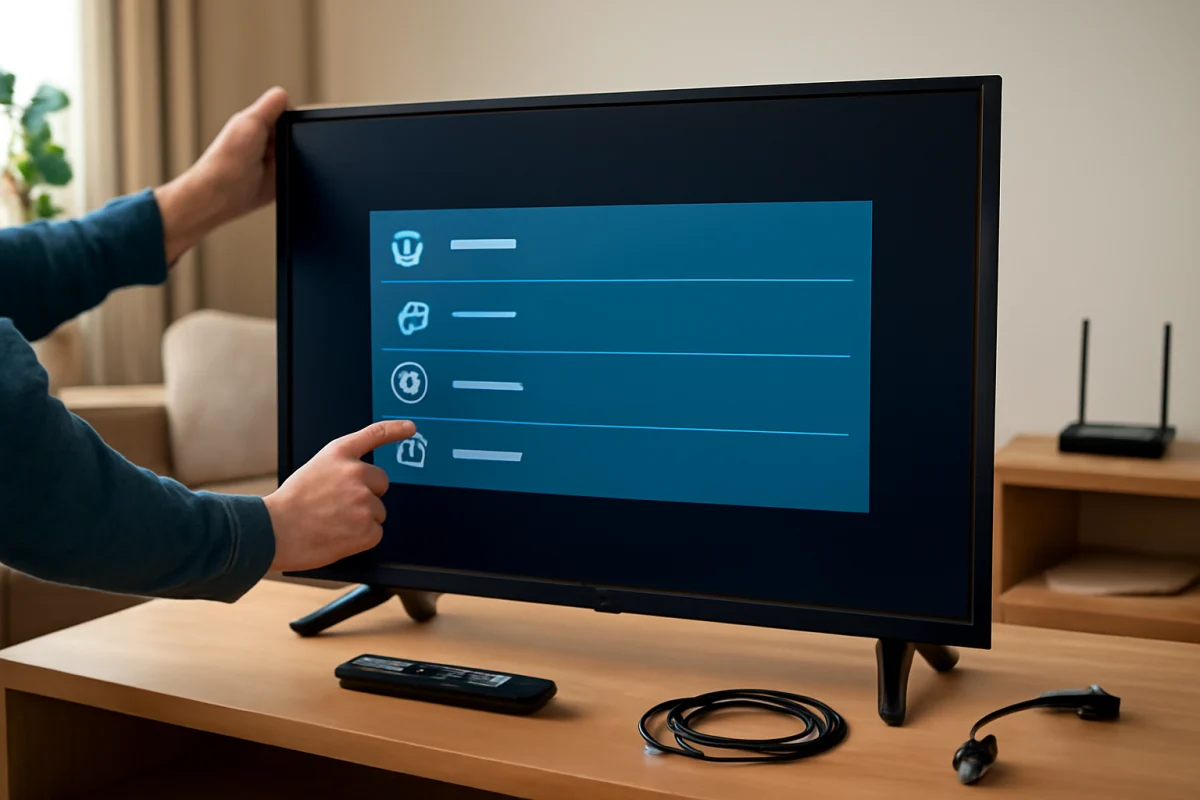
To repair a Philips TV, start with the safest checks: confirm the TV has power, select the correct input, test another source, and restart the TV completely. Many problems that look like hardware failures are caused by a loose cable, a frozen software process, a muted audio setting, a weak remote battery, or a temporary network issue.
Philips TVs use different operating systems, remote controls, and menu layouts depending on the model and region. The names and locations of settings may therefore differ. Use the instructions below as a practical troubleshooting sequence, and check your TV's on-screen help or user manual when a menu option is not available.
Start with a safe power and cable check
Before changing advanced settings or opening the TV, check the basics:
- Make sure the power cord is firmly connected to the TV and the wall outlet.
- Plug a lamp or another small device into the same outlet to confirm that it works.
- If the TV is connected to a surge protector or power strip, test it directly from a working wall outlet.
- Disconnect external devices such as game consoles, streaming sticks, soundbars, and cable boxes temporarily.
- Check the HDMI, antenna, optical, and Ethernet cables for loose connections or visible damage.
Next, unplug the TV from the wall. Leave it disconnected for about 60 seconds, then plug it back in and try the physical power button on the TV. The button may be underneath the screen, along the side, or on the back. Its location varies by model. This test helps separate a remote-control problem from a TV power problem.
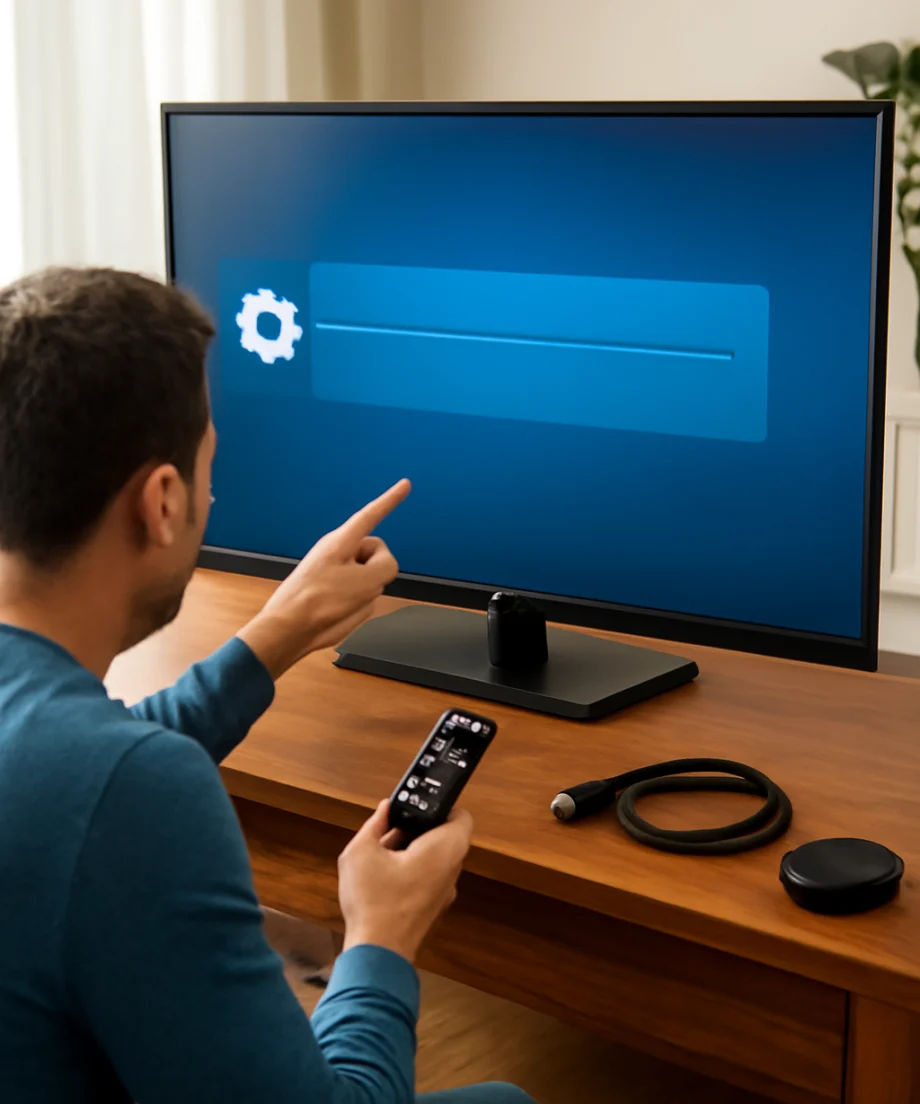
Do not remove the back cover. A television can contain high-voltage components even after it has been unplugged, and internal repairs should be handled by a qualified technician.
What to do when a Philips TV will not turn on
If the TV remains completely unresponsive, observe what happens when you press the power button. A standby light, a brief screen flash, a clicking sound, or a repeated restart can point to different causes, but none of these symptoms identifies a failed part by itself.
Check the remote and the TV's controls
Replace the remote batteries with a fresh pair and confirm that they are installed in the correct direction. Remove anything blocking the front or lower edge of the TV, where the remote sensor is usually located. Then try the TV's physical button again.
If the TV turns on with the physical control but not with the remote, the problem is probably related to the remote, its batteries, pairing, or an obstruction. If your Philips remote uses pairing or voice features, the recovery process can vary by model. Use the instructions supplied with that remote rather than applying a reset sequence from a different Philips TV.
Look for signs of a restart loop
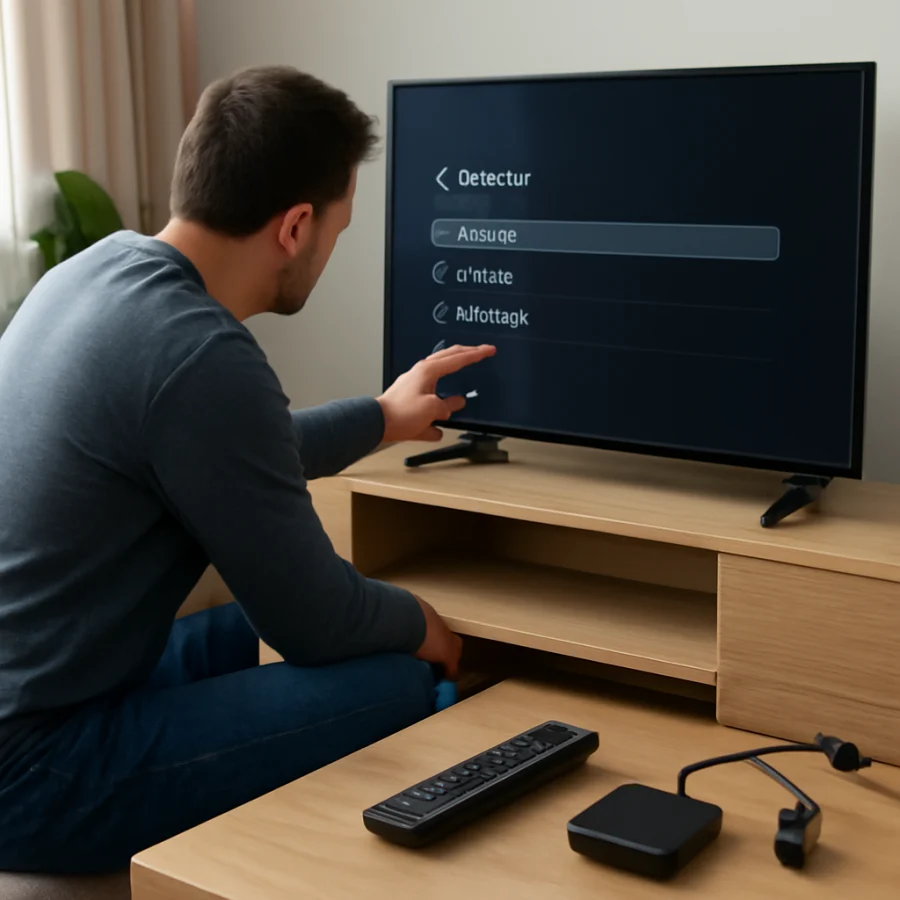
A TV that turns on and off repeatedly may be affected by an external device, a temporary software fault, or a hardware problem. Disconnect every HDMI and USB device, unplug the TV briefly, and test it with nothing attached. If it works normally afterward, reconnect devices one at a time to identify the trigger.
If the TV still cycles on and off with no external equipment connected, avoid repeatedly forcing it to start. Record the behavior, including any indicator-light pattern or message, and contact Philips support or a reputable repair professional. Exact indicator meanings vary by model.
Fix a Philips TV with a blank or black screen
A black screen does not always mean the display panel has failed. First, press a menu, home, volume, or input button. If menus or volume indicators appear, the screen is working and the issue may be related to the selected source or an external device.
Check the input and source device
Use the input or source control to select the HDMI port, antenna input, or other source you actually use. If you see a “no signal” message, check the source device itself. Confirm that the cable box, console, or streaming device is powered on, then try another HDMI cable or another HDMI port if available.
Test the TV's built-in menu or a different source. A single device that produces no picture is more likely to have a source, cable, or compatibility problem than a TV display problem. If every source is blank but the TV still produces sound, the fault may involve the backlight, display electronics, or panel. Those parts generally require professional diagnosis.
Check for a dim image
If you can faintly see a picture when shining a flashlight at the screen from an angle, the backlight may not be working correctly. Do not use this test as a repair method, and do not open the TV. A failed backlight can require disassembly and specialized parts, so arrange service if the symptom remains after a full restart.
Also check whether an energy-saving, ambient-light, or picture mode has made the screen unusually dark. Setting names and controls differ between Philips models. Return picture settings to a normal or standard mode only if you can access the relevant option, and avoid changing several settings at once.
Restore sound when the picture works
When video works but there is no sound, press the volume-up button and make sure the TV is not muted. Check whether headphones or a Bluetooth audio device is connected, since audio may be redirected away from the built-in speakers.
If you use a soundbar or receiver, check its power, selected input, volume, and cable. Temporarily change the TV's audio output to its internal speakers, if that option is available, to determine whether the problem is limited to the external audio system.
For HDMI sources, disconnect and reconnect the cable after turning the source device off. Try another source, such as a built-in app or antenna channel. If only one source has no sound, review that device's audio settings. If all sources are silent, restart the TV and inspect the audio-output settings before considering service.
Advanced digital-audio settings may not be compatible with every soundbar or receiver. If an external system stopped working after a setting change, select a basic or automatic audio format when available. The exact choices depend on the TV and connected equipment.
Troubleshoot picture quality problems
For a picture that is blurry, flickering, tinted, or filled with lines, first determine whether the problem appears in the TV's menus, built-in apps, and every connected source. If it appears only on one source, replace the cable and test another input.
For broadcast or antenna problems, check the antenna cable and run the channel scan again only if channels are missing. Channel-scan steps vary by model and broadcast system. For streaming video, poor Wi-Fi or an overloaded service can cause low resolution, buffering, or momentary artifacts. Test another app and, if possible, connect the TV temporarily to a more reliable network.
Do not press, tap, or rub the screen to fix lines or dark areas. Physical pressure can permanently damage the panel. Persistent vertical lines, large black areas, unusual color patches, or a cracked screen usually need professional assessment rather than a settings change.
Fix Wi-Fi and streaming problems
If apps will not load or the TV keeps disconnecting, restart the TV and your router. Unplug the router briefly, wait for it to reconnect, and then test the TV again. Move the router or TV away from obvious sources of interference, and check whether other devices on the same network have the same problem.
Confirm that the TV is connected to your intended network and that the password has not changed. If the TV shows a network but cannot reach online services, the issue may involve the router, internet connection, DNS behavior, or the app service rather than the TV hardware.
Test a built-in app and a different app. If only one service fails, look for an update or sign-in problem within that app. If every online feature fails, review the TV's network settings and reconnect to Wi-Fi. Avoid performing a factory reset until you have recorded your network password and confirmed that simpler steps did not help.
Restart, update, or reset the TV carefully
A normal restart is low risk and should come before a factory reset. Use the TV's power control to turn it off, unplug it for about a minute, and reconnect it. If the television is frozen, use the physical power button when possible rather than repeatedly removing power during startup.
Software updates may improve reliability, but the procedure and availability depend on the exact Philips model, operating system, and region. Check the TV's support area or Philips' official support resources using the model number printed on the TV or its documentation. Do not install firmware intended for another model, and do not interrupt an update once it has started.
A factory reset erases personal settings, saved network details, app sign-ins, and sometimes channel information. Use it only after less disruptive troubleshooting has failed. Because reset paths differ, follow the instructions for your specific model. A reset cannot repair a damaged panel, failed backlight, defective power board, or broken connector.
When professional repair is the safer choice
Arrange professional service if the TV smells burnt, makes repeated electrical clicking sounds, shows smoke, has liquid damage, displays a cracked panel, or remains dead after the outlet, cable, and power checks. Unplug it immediately if there is smoke or an unusual burning smell.
Before contacting a technician, write down the model number, the exact symptom, what appears on the screen, whether sound still works, and which tests you completed. A short video of a restart loop or blinking indicator may also help. Do not assume that a replacement board is the correct fix until the fault has been tested.
Use a simple troubleshooting order
The most efficient repair process is to change one thing at a time: power and outlet, remote or physical control, cables and input, source device, audio and picture settings, network connection, software update, and finally reset or service. This order reduces the risk of losing settings and makes it easier to identify the real cause.
For more guidance on related television problems, browse the Philips TV repair guide collection on TV Fix Guide. If the issue involves a streaming connection, the Wi-Fi and network troubleshooting section can help you test the connection without immediately resetting the TV.
Comments
0No comments yet. Be the first to share a helpful note or question.
Leave a Comment
Your email address will not be published. Comments are reviewed before appearing on the site.