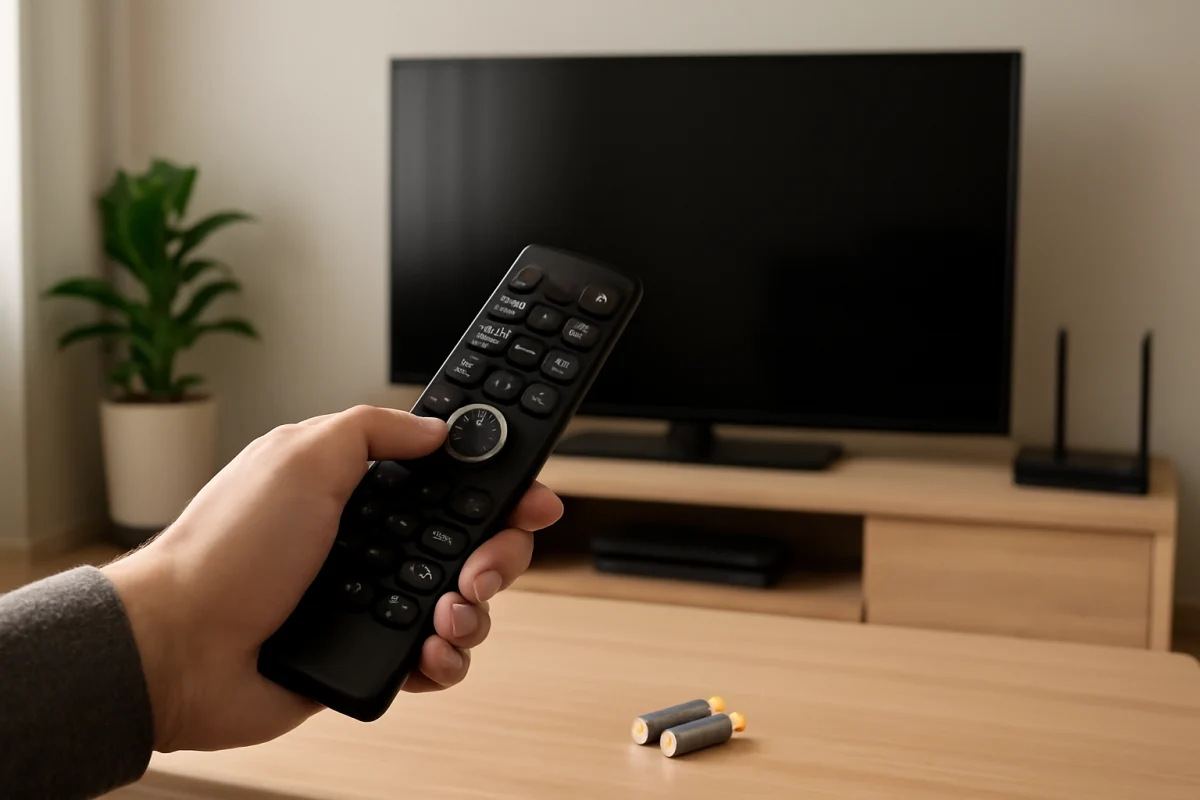
If your TV does not respond to a remote, start with the simple checks before trying to reset anything. Replace or reseat the batteries, make sure the remote is intended for your TV, and remove anything blocking the sensor. If the remote uses Bluetooth or another wireless connection, it may need to be paired again through the TV’s settings or by holding a specific button combination.
The exact pairing process depends on the remote, TV brand, and whether the remote communicates through infrared, Bluetooth, or a proprietary wireless connection. The steps below cover the most common situations without assuming a particular model or menu layout. For more remote-specific troubleshooting, visit the Remote Controls section of TV Fix Guide.
First, Identify What Kind of Remote You Have
Before pairing the remote, determine how it connects to the TV. This can save you from attempting a Bluetooth procedure on a basic infrared remote that does not support pairing.
Infrared remotes
Many standard TV remotes use infrared signals. They usually work when pointed toward a sensor on the front or lower edge of the TV. These remotes generally do not pair in the usual sense. If the batteries are good and the buttons work, the remote should communicate with the TV automatically.
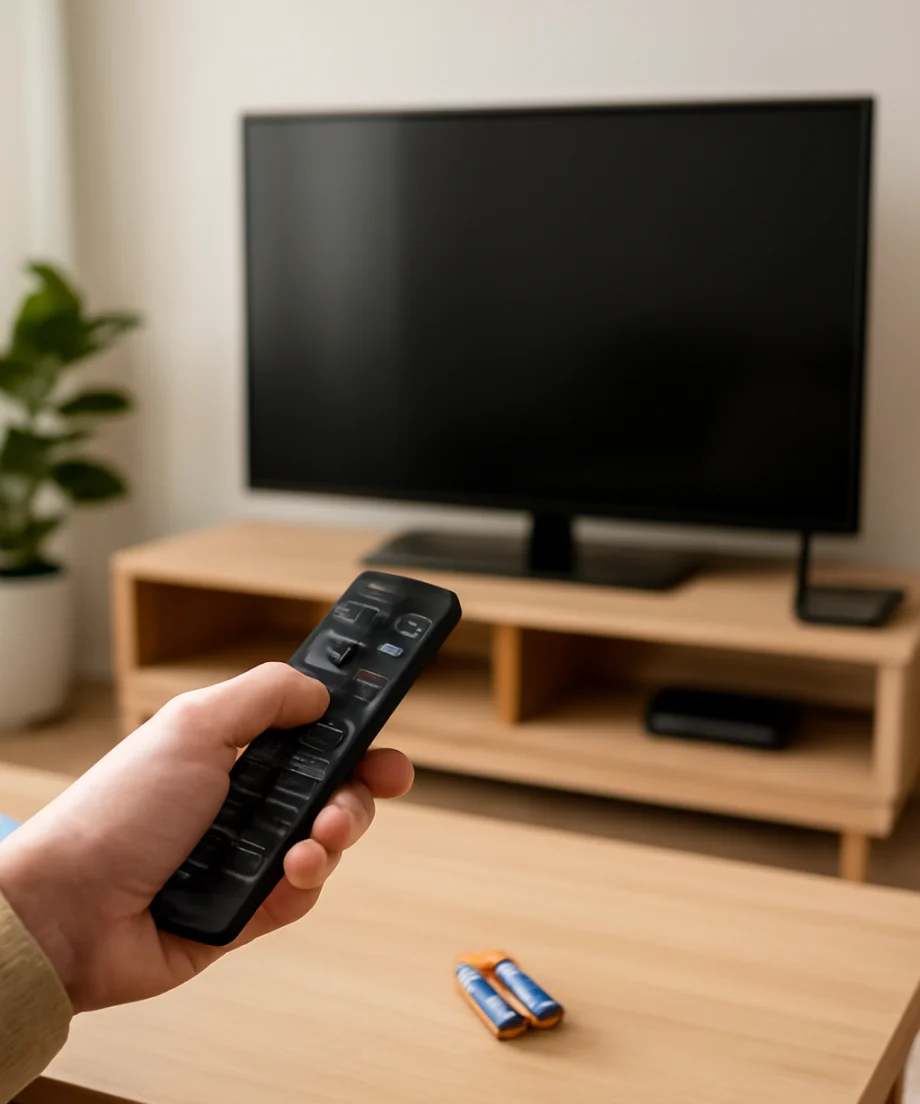
An infrared remote can fail if the TV sensor is blocked, the remote is pointed away from the screen, bright light interferes with the signal, or the remote has a damaged button or circuit. You may be able to use the TV’s physical controls or a mobile app temporarily while diagnosing the problem.
Bluetooth or wireless remotes
Voice remotes, motion-sensitive remotes, and many remotes supplied with streaming TVs use Bluetooth or another wireless connection. These remotes often need to be paired during the TV’s initial setup, after a factory reset, or when they are used with a different TV.
Wireless remotes may still have infrared functions, so some buttons can work even when the wireless connection is not active. Voice search, pointer movement, shortcut buttons, or other advanced features may not work until pairing is complete.
Check the Batteries and Remote Basics
Weak batteries are one of the most common reasons a remote will not pair or respond consistently. Use a fresh set of the correct battery type. Check the positive and negative markings inside the battery compartment, then close the cover securely.
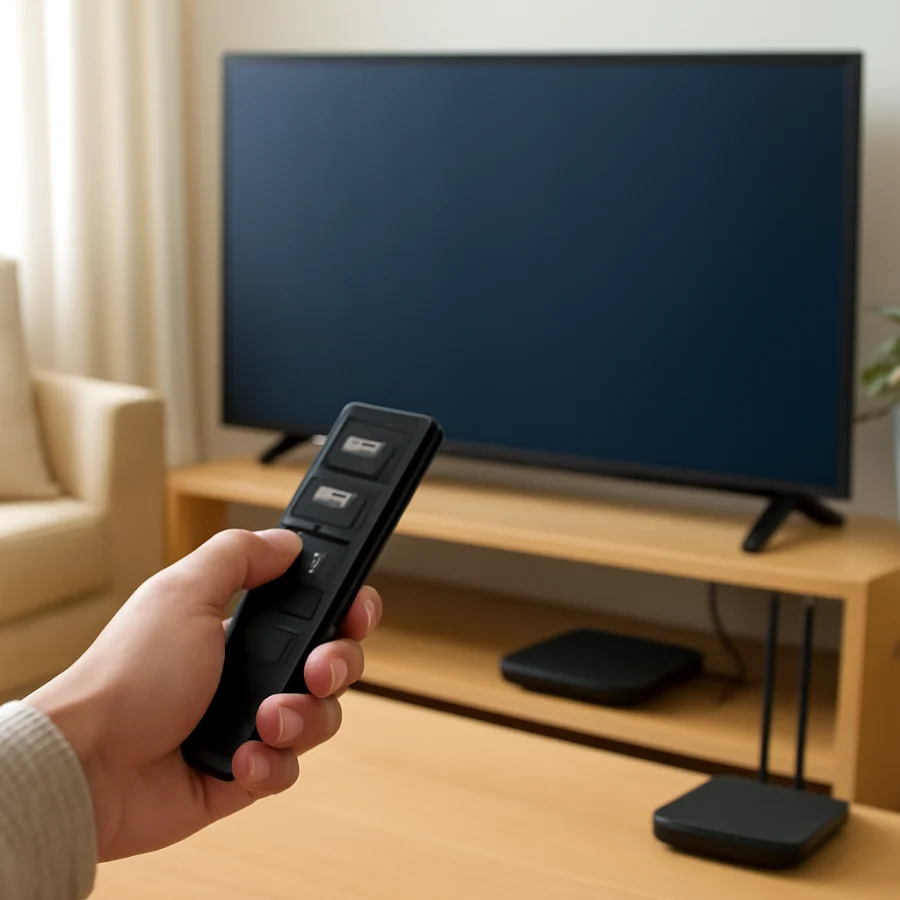
If the remote has a rechargeable battery, charge it for a reasonable amount of time before troubleshooting. A charging indicator may not appear on every model, so do not assume the remote is charging simply because it is connected to a cable. Try a different compatible cable or power source if the battery appears completely drained.
Next, remove protective shipping tabs if the remote is new. Press several different buttons, including the power button and directional controls. If only one button fails, the problem may be a worn or damaged switch rather than a pairing issue.
Keep the remote close to the TV during pairing. A distance of a few feet is usually better than attempting setup from across the room. Move other wireless accessories away temporarily, especially if several devices are trying to connect at the same time.
How to Pair a Wireless Remote With a TV
Most wireless remotes enter pairing mode when you hold one or more buttons for several seconds. However, the buttons vary by brand and model, so avoid relying on a button combination intended for a different remote.
- Turn on the TV using its physical button, the existing remote, or a connected device if necessary.
- Stand close to the TV and point the remote toward it, even if the remote normally uses Bluetooth.
- Press and hold the remote’s pairing or setup buttons if they are clearly labeled. On some remotes, pairing begins automatically when you hold the home, back, or another designated button combination. Check the remote’s manual or the manufacturer’s support page for the correct combination.
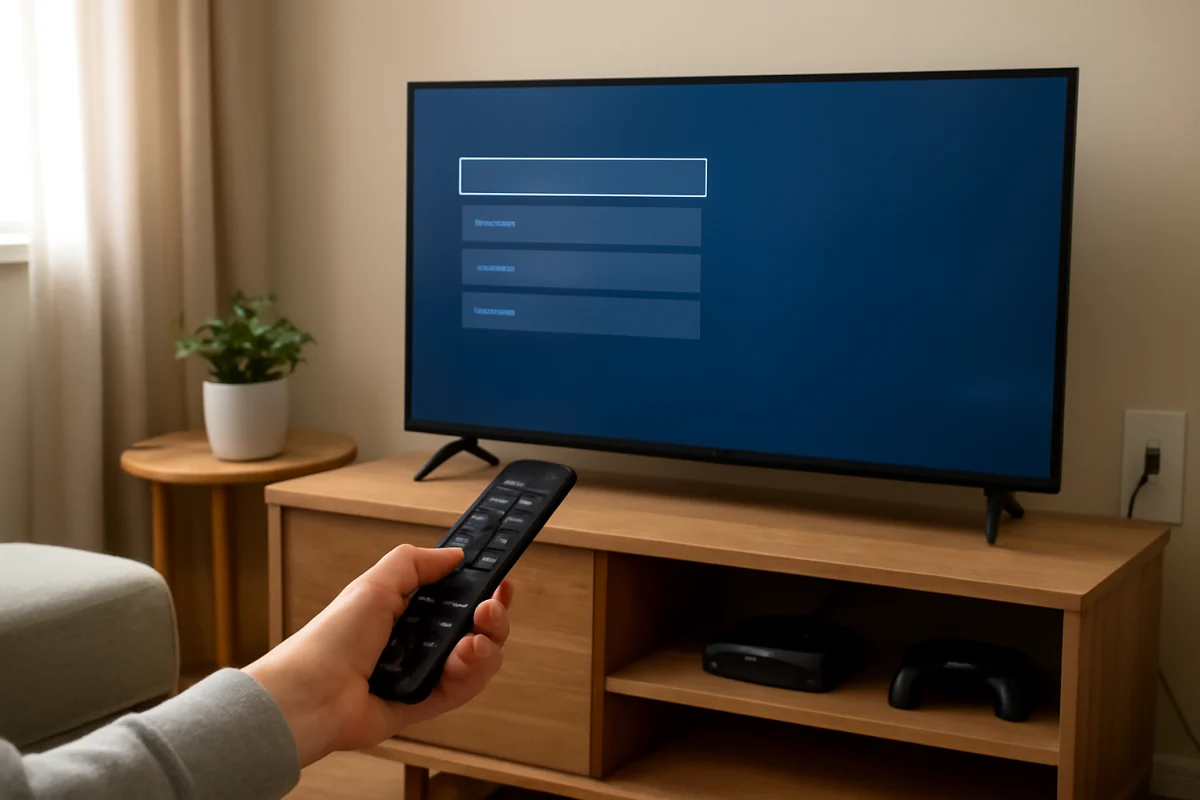
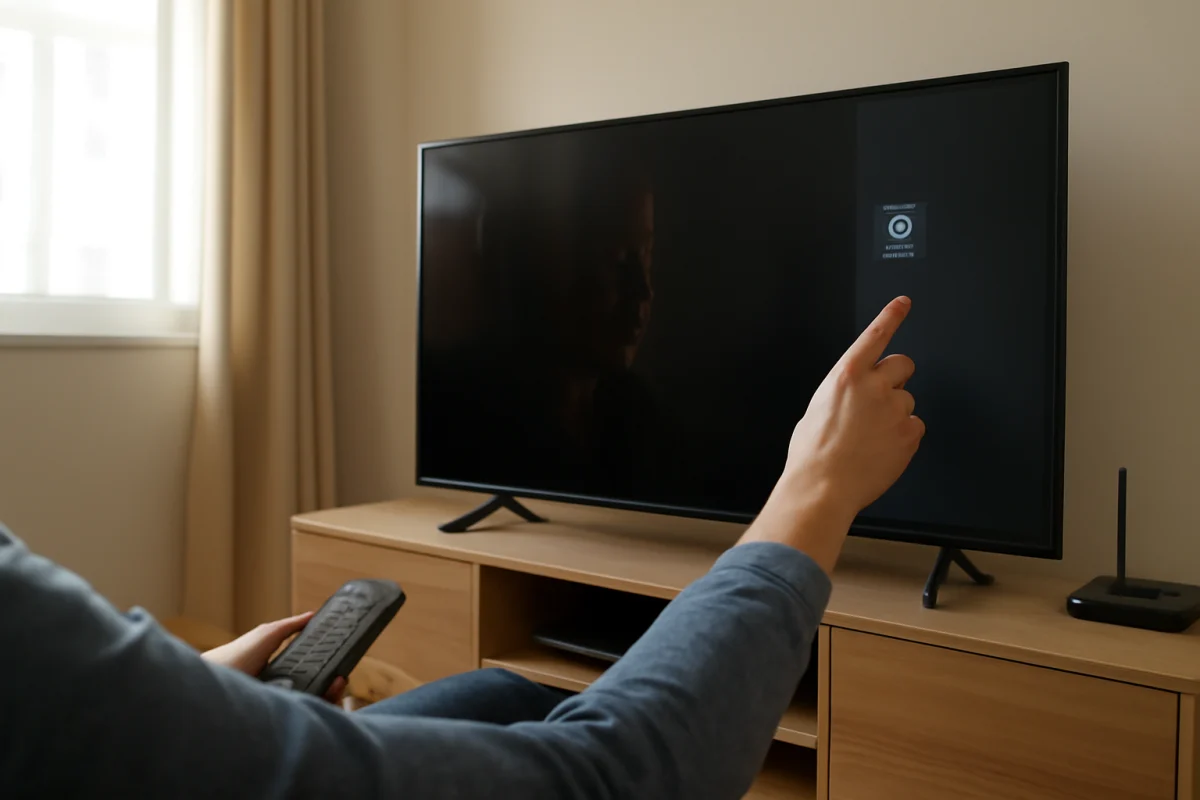
- Watch the TV screen for a pairing prompt. The wording and location of the prompt vary by model.
- Follow the on-screen instructions and wait for confirmation before testing the buttons.
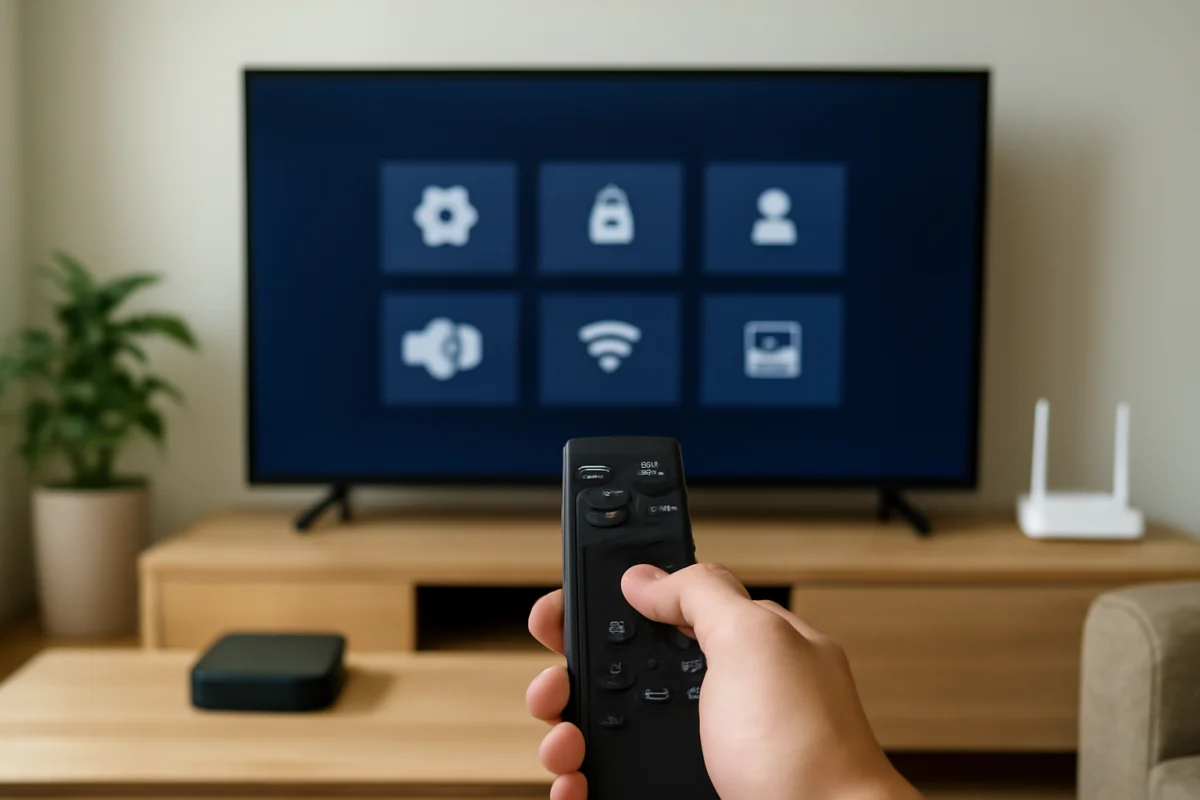
If the TV is already showing a remote setup screen, follow that screen first. Some TVs only accept pairing commands during initial setup or from a specific accessories menu. The menu name may differ between software versions, so look for wording such as remotes, accessories, controllers, Bluetooth devices, or wireless devices.
If the remote was paired with another TV, it may need to be disconnected from that device first. Turn off or move the other TV temporarily, then retry the pairing process near the TV you want to use.
Pairing a Remote After Replacing the TV
A remote that worked with an old TV may not automatically work with a replacement. This is especially common with Bluetooth remotes and remotes supplied with streaming platforms. The remote may still have enough battery power but remain linked to the previous device.
Start by placing the new TV in its setup or home screen. If the TV asks you to connect a remote, use the specified pairing procedure. If no prompt appears, open the settings area with the TV’s physical button, a temporary USB mouse, a compatible mobile app, or another working controller when supported.
Look for a section related to accessories, inputs, controllers, or connected devices. Remove an old remote from the list only if the TV provides that option and you are sure it is no longer needed. Then place the replacement remote into pairing mode.
Some manufacturer-specific remotes are limited to compatible TVs or devices. A remote made for one platform may control basic functions on another device but may not support voice control, input switching, or settings access. If the remote never appears during pairing, confirm that it is designed for your TV model or platform.
How to Program a Universal Remote
Universal remotes usually require programming rather than Bluetooth pairing. They may use a brand code, automatic code search, or an app-based setup process. The correct method depends on the remote brand and the type of device you want to control.
Begin by turning on the TV manually. Press the mode or device button for TV, then start the setup process described in the universal remote’s instructions. If the remote uses a code list, try the code options for the TV’s brand one at a time. Test the power, volume, channel, input, and navigation buttons after each attempt.
If only some buttons work, the remote may be programmed with a code that supports basic commands but not the TV’s full feature set. Try another code for the same brand. Some universal remotes also require a separate setup for soundbars, cable boxes, or streaming players.
Keep the original remote nearby when possible. A universal remote may not duplicate manufacturer-specific shortcuts or voice features, even when it controls power and volume successfully. For platform-specific help, you can also browse the Roku or Fire TV guides.
What to Do When Pairing Fails
If the remote will not pair, work through these low-risk checks in order:
- Replace the batteries or charge the remote fully.
- Move within a few feet of the TV.
- Remove objects in front of the TV’s sensor.
- Turn off nearby TVs or streaming devices temporarily.
- Unplug accessories that may be trying to connect to the TV.
- Restart the TV by turning it off, unplugging it briefly, and reconnecting it.
- Retry the manufacturer’s pairing procedure.
When you unplug the TV, wait long enough for it to shut down completely before reconnecting it. The standby light may remain on during part of the process, depending on the model. Do not repeatedly unplug the TV while it is installing an update or displaying a warning about an active process.
If the TV responds to infrared commands but not wireless features, the remote may need to be paired again rather than replaced. If no buttons work at all, test the remote with a phone camera only as a basic infrared check. Some phone cameras can display a flash from an infrared remote when you press a button, but this test does not work reliably with every phone or remote and cannot confirm Bluetooth operation.
When a TV App Can Help
A TV control app may provide temporary access to settings if your physical remote is unavailable. Most apps require the phone and TV to be connected to the same Wi-Fi network. They may not work if the TV has never connected to your network, the TV is offline, or the app does not support your model.
Use the app to open the remote or accessories settings, then attempt to pair the physical remote. If the TV is not connected to Wi-Fi, use its physical controls or another compatible input device instead. For network-related problems, see TV Fix Guide’s Wi-Fi & Network troubleshooting resources.
Do You Need to Reset the Remote?
A remote reset can help when it is stuck in pairing mode or linked to another device, but the reset procedure is not universal. Some remotes reset when you remove the batteries and hold the power button briefly. Others use a dedicated setup sequence or a small reset button. Follow instructions for the exact remote whenever possible.
Before resetting, write down any custom settings or device assignments you may need to recreate. A reset can erase universal remote programming, connected-device settings, or other preferences. Avoid performing a TV factory reset just because a remote will not pair; that step removes accounts, apps, network settings, and personal preferences without guaranteeing a remote repair.
Signs the Remote or TV May Need Replacement
Consider replacing or professionally inspecting the remote if it has liquid damage, cracked housing, corroded battery contacts, or multiple buttons that no longer respond. A replacement remote should match the TV’s brand and platform, but model compatibility still matters for advanced features.
The TV may be the source of the problem if it cannot detect any compatible remote, its physical controls are unresponsive, or other wireless accessories also fail to connect. Check the manufacturer’s support information for your exact model before buying hardware. Model-specific instructions can differ even within the same brand, so start with the simplest checks and confirm compatibility before performing a reset or service procedure.
For additional brand-focused help, browse the Samsung TV guides or visit the TV Fix Guide homepage for more troubleshooting topics.
Comments
0No comments yet. Be the first to share a helpful note or question.
Leave a Comment
Your email address will not be published. Comments are reviewed before appearing on the site.