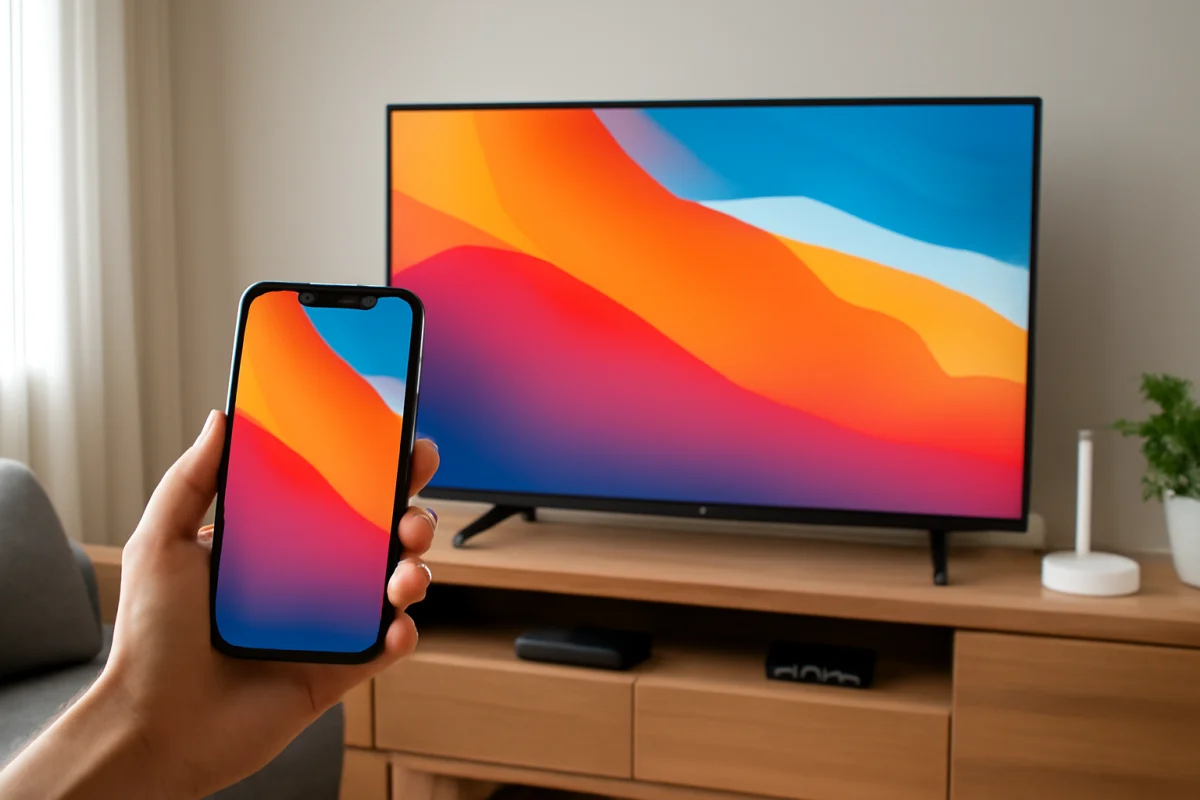
To mirror your phone screen to a TV, connect both devices to the same Wi-Fi network, open the phone’s screen-mirroring or casting feature, and select the TV. On an iPhone, this is usually Screen Mirroring through AirPlay. On Android, the feature may be called Cast, Smart View, Wireless Display, or something similar. The exact name and location depend on the phone, TV, and software version.
If your TV does not appear, start with the simple checks below before resetting anything. Screen mirroring can fail because the devices are on different networks, the TV is not compatible with the selected method, or the phone and TV are using different wireless standards.
Before you start
Check these basics first:
- Make sure the TV is powered on and connected to the internet or your home network.
- Connect the phone and TV to the same Wi-Fi network. Avoid using cellular data on the phone for the initial connection.
- Keep the phone reasonably close to the TV or wireless router while testing.
- Turn off any VPN on the phone temporarily. A VPN can prevent local devices from discovering one another.
- Check whether the TV supports AirPlay, Chromecast, Miracast, or another compatible mirroring method.
Some TVs support casting from certain apps but do not support full phone-screen mirroring. For example, a video app may show a cast button even when the TV cannot display the entire phone interface. If you need to show every app, menu, photo, or web page on the phone, confirm that the TV supports full screen mirroring or use a compatible streaming device.
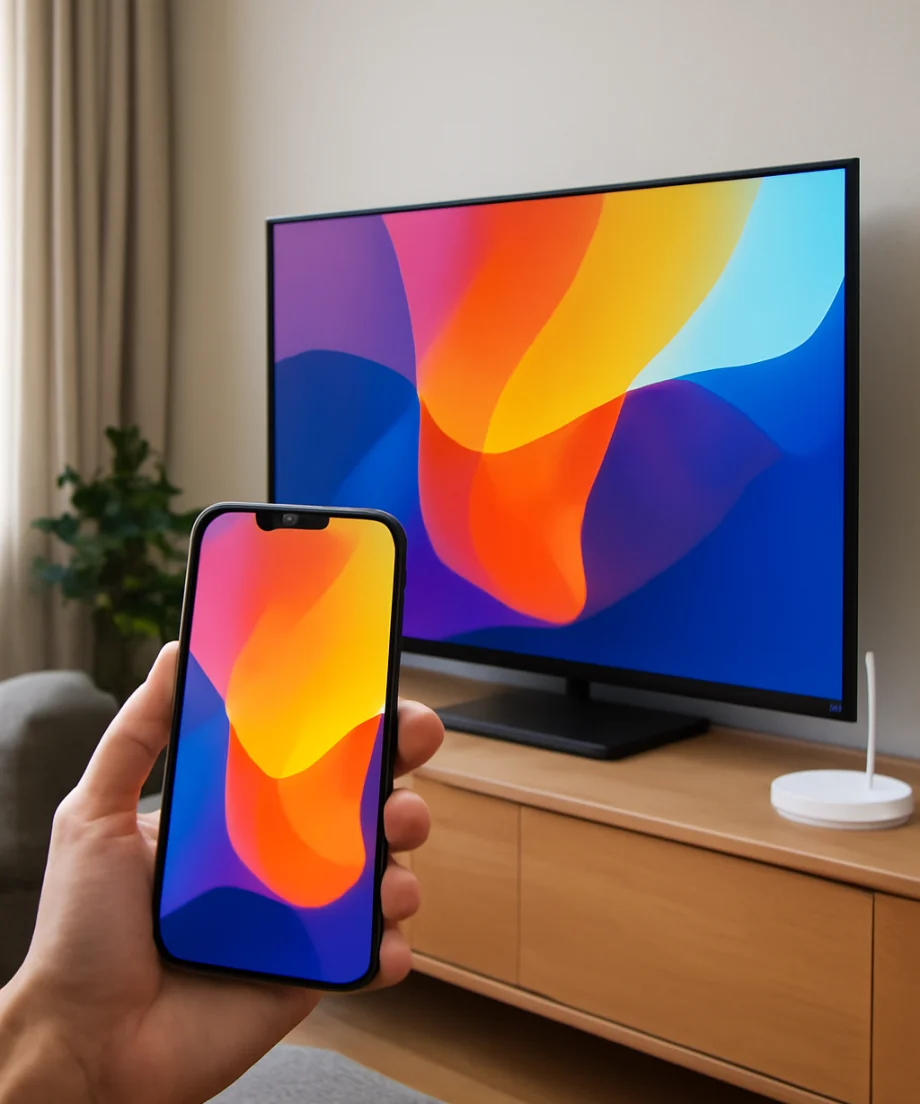
How to mirror an iPhone to a TV
The most common wireless method for an iPhone is AirPlay. The TV must support AirPlay or be connected to an Apple TV device that does.
Use AirPlay Screen Mirroring
- Connect the iPhone and TV to the same Wi-Fi network.
- Open Control Center on the iPhone. On newer iPhones, swipe down from the upper-right corner. On some older models, swipe up from the bottom edge.
- Tap Screen Mirroring.
- Choose the TV or Apple TV from the list.
- If a passcode appears on the TV, enter it on the iPhone.
The iPhone screen should appear on the TV after a short delay. To stop mirroring, open Control Center again, tap Screen Mirroring, and choose Stop Mirroring.
AirPlay availability varies by TV model and software. Some compatible TVs require AirPlay to be enabled in the TV’s settings before they appear on the iPhone. Look for an AirPlay, Apple AirPlay, or connected-device setting; the menu location differs by manufacturer.
Use the cast button in an iPhone app
If you only want to watch a video or listen to music, using the app’s built-in AirPlay or casting control may work better than mirroring the whole screen. Open the content, tap the AirPlay or cast icon, and select the TV. This sends the media directly to the TV and may provide smoother playback than full-screen mirroring.
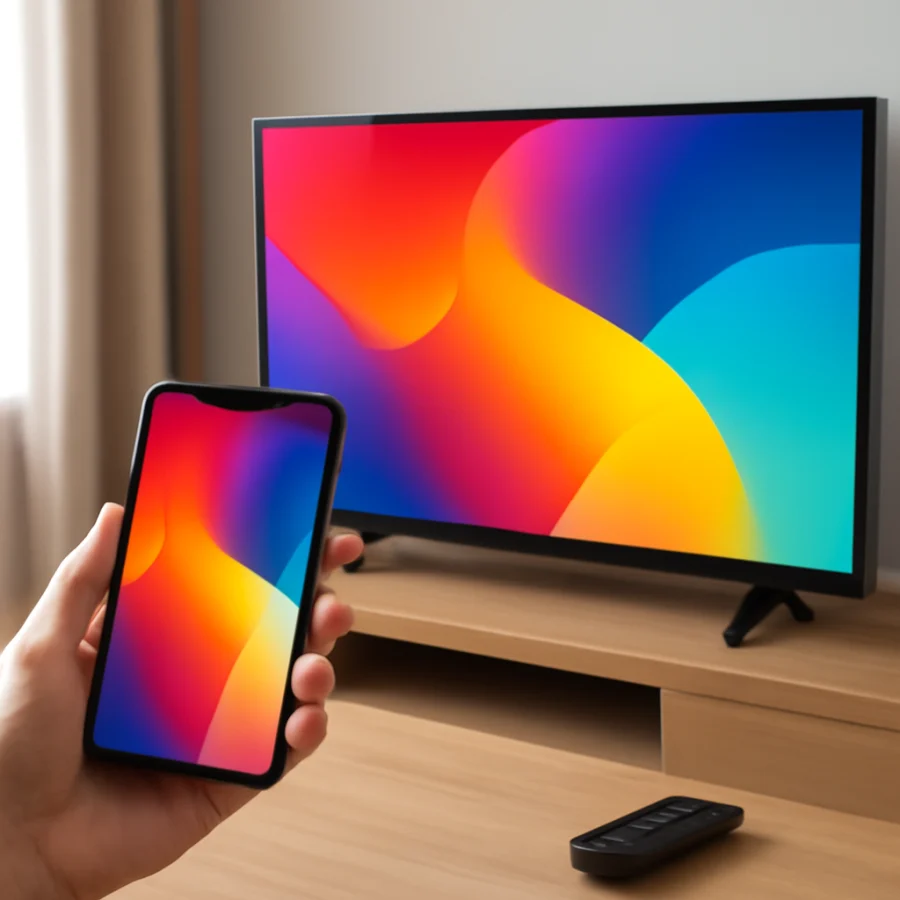
Not every app supports the same playback methods. An app may also restrict AirPlay for particular content. If the cast or AirPlay button is missing, update the app if an update is available, then check whether the TV supports the service directly.
How to mirror an Android phone to a TV
Android phones do not all use the same screen-mirroring name. Depending on the brand, you may see Cast, Smart View, Screen Share, Wireless Display, or another label.
Use the Quick Settings panel
- Connect the Android phone and TV to the same Wi-Fi network.
- Swipe down from the top of the phone screen to open Quick Settings.
- Look for a tile labeled Cast, Screen Cast, Smart View, or a similar option. You may need to swipe left or tap the edit button to find more tiles.
- Tap the mirroring option and select the TV.
- Accept the connection request on the TV or phone if one appears.
If your phone uses Google Cast, the TV may need built-in Chromecast support or a connected Chromecast-compatible device. If the phone uses Miracast or a manufacturer-specific feature, the TV must support that method. A TV and phone can both advertise wireless display features without being compatible with each other.
Cast from an Android app
For supported apps, open the video or audio content and tap the cast icon. Select the TV from the device list and wait for playback to begin. App casting is often more reliable than mirroring when your goal is simply to watch a supported service.
When the TV does not appear, confirm that the app and TV are connected to the same local network. Guest Wi-Fi networks and some public or apartment-managed networks can block communication between devices, even when both devices have internet access.
How to mirror your phone with a streaming device
A streaming device can add mirroring support when the TV does not have the feature built in. The phone and streaming device still need a compatible connection method.
- Apple TV: Usually works with AirPlay from an iPhone or iPad.
- Chromecast or Google TV devices: Commonly work with the cast button in compatible apps. Full Android screen casting may also be available through Google Home or the phone’s Cast control.
- Roku devices: Some models support AirPlay, while Android screen mirroring support can vary by model and phone. Check the device’s current settings and compatibility information.
- Fire TV devices: Compatibility depends on the Fire TV model and the phone. Some Android phones can use a wireless display feature, but not every phone supports the same protocol.
For device-specific troubleshooting, you can review the guides for Roku or Fire TV. Do not assume that a streaming stick supports every type of phone mirroring just because it can run streaming apps.
What to do when the TV does not appear
If the TV is missing from the phone’s device list, work through these checks in order.
Confirm the Wi-Fi connection
Open the network information on both devices and compare the network name. The names must match in most home setups. If the router has separate 2.4 GHz and 5 GHz network names, connect both devices to the same one while testing.
Also check for guest networks, Wi-Fi extenders, and mesh-network settings. Some configurations isolate wireless clients or place devices on different network segments. Restarting the router is a reasonable low-risk step, but allow it to finish reconnecting before testing again.
Restart the phone and TV
Restart both devices normally. This clears temporary discovery problems without removing accounts or changing settings. After the TV restarts, wait until its home screen and network connection are ready before opening the mirroring control on the phone.
Turn mirroring or AirPlay on
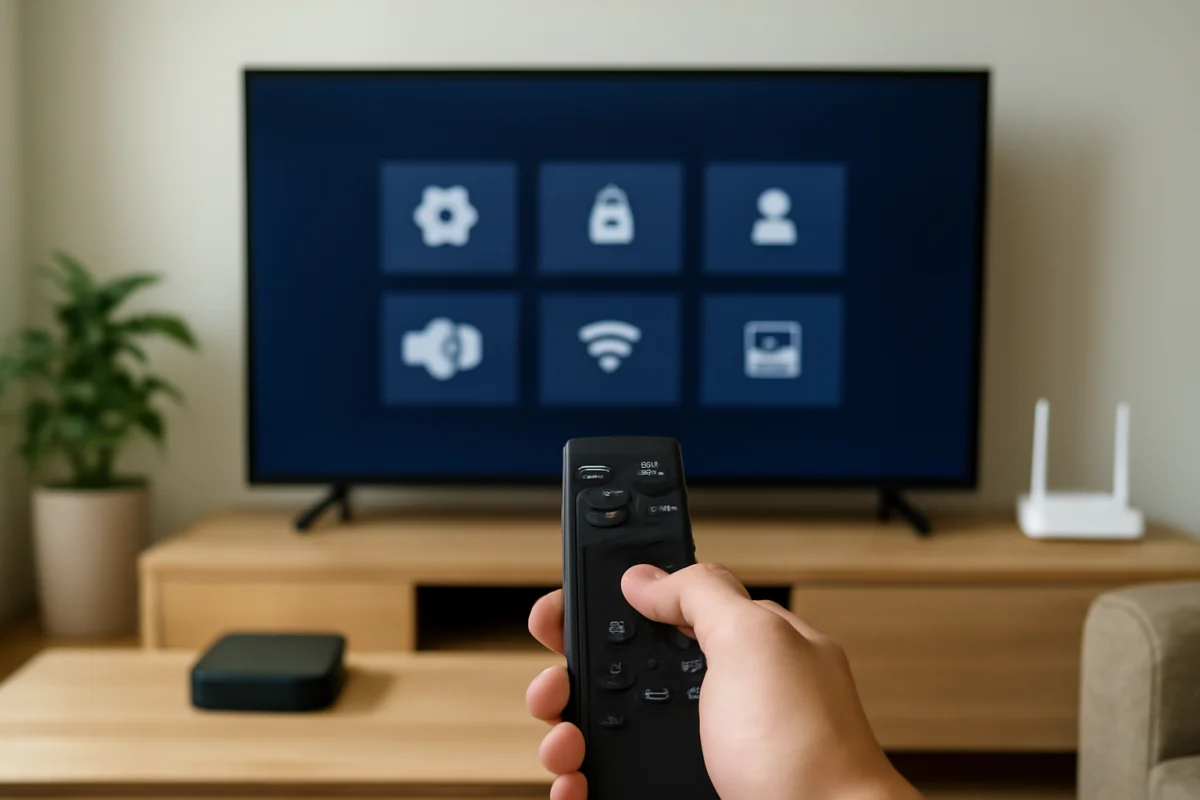
Some TVs have a setting that allows or blocks wireless connections. Look through the TV’s network, connected devices, AirPlay, casting, or screen-sharing sections. Menu names vary, so use the TV’s search function if it has one. If the TV is managed by a school, hotel, workplace, or parental-control system, wireless display features may be restricted.
Update only when appropriate
Install pending updates for the phone, TV, or streaming device if the manufacturer provides them and the device is otherwise stable. Updates can improve compatibility, but the menus and timing vary by model. Do not interrupt a TV update or unplug the device during the process.
Fix a connection that keeps dropping
A connection that starts and then disconnects usually points to Wi-Fi quality, interference, software compatibility, or an unsupported content type.
- Move the phone closer to the router or TV during a test.
- Pause large downloads, cloud backups, and other high-bandwidth activity.
- Remove thick cases or accessories only if they appear to interfere with a wired adapter or connector.
- Test a different photo or locally stored video to determine whether the problem affects all content or only one app.
- Close unused apps on the phone and try again.
- Check the TV’s picture and sound settings if the image connects but audio does not.
Screen mirroring can also feel delayed because the phone is encoding the display and sending it over Wi-Fi. A small delay may be normal, especially with games or live camera previews. For fast-response use, a wired connection is usually more dependable.
Use a wired connection instead
If wireless mirroring is unavailable or unreliable, use a phone-to-HDMI adapter that matches the phone’s port and operating system. Connect the adapter to the phone, connect an HDMI cable from the adapter to the TV, and switch the TV to the matching HDMI input.
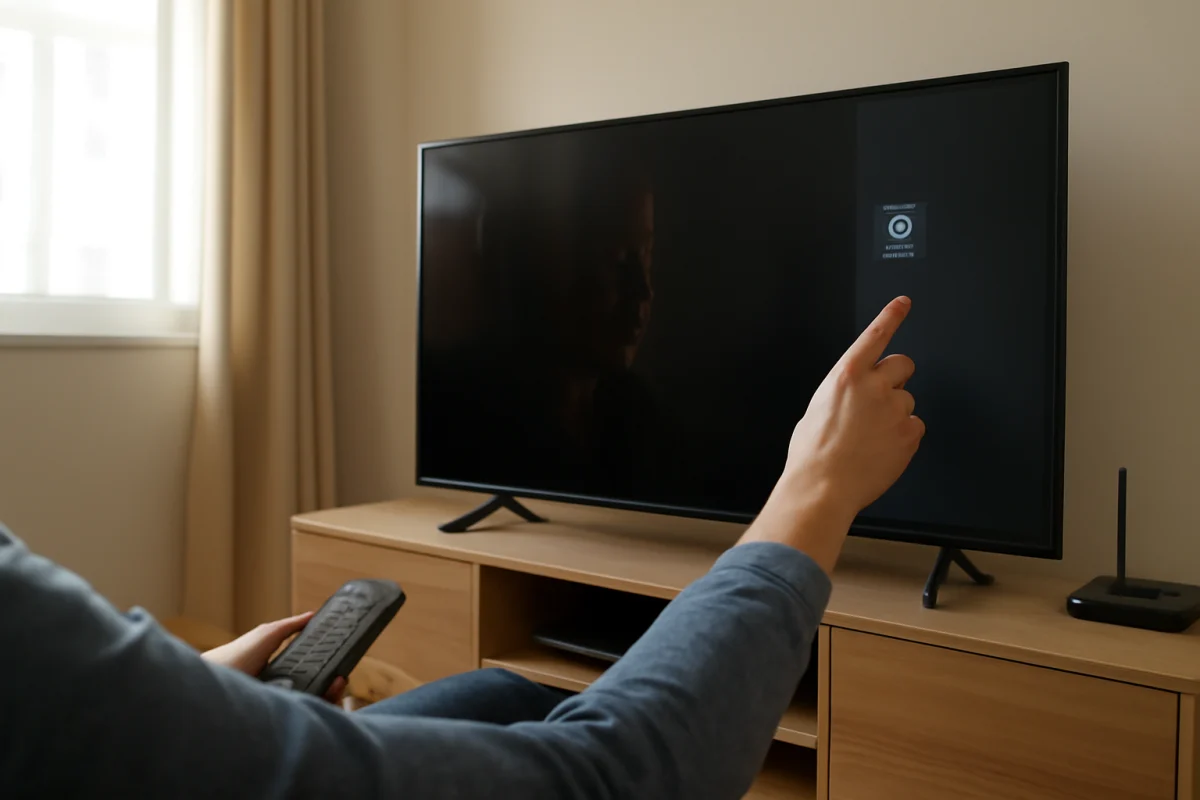
Adapter compatibility matters. Some phones support video output through their USB-C port, while others support charging and data only. iPhones also require an adapter designed for the phone’s connector. A cable that fits physically may not support video. If the TV shows “No signal,” confirm the selected HDMI input, reconnect the cable, and verify that the phone supports wired video output.
When mirroring is blocked or limited
Some protected movies, live events, and subscription content may display a black screen or refuse to mirror. This can be caused by content-protection rules rather than a fault with the phone or TV. In that situation, install the streaming app directly on the TV or streaming device and sign in there, if the service supports it.
For broader help with wireless connections, see the Wi-Fi and network troubleshooting guides. If the issue is limited to the picture, sound, or a particular app, the related picture and sound and streaming app resources may help narrow it down.
The safest approach is to identify which part is failing: device discovery, connection, video, audio, or one specific app. Once you know that, you can choose the correct mirroring method instead of repeatedly resetting the TV or phone.
Comments
0No comments yet. Be the first to share a helpful note or question.
Leave a Comment
Your email address will not be published. Comments are reviewed before appearing on the site.