To get help with your Toshiba TV, first identify the exact model and describe the problem clearly. Then check the power connection, remote, input source, cables, network, and connected devices before attempting a reset. If the TV still will not work, use the support information provided for your model or contact a qualified repair professional. Toshiba TV menus, software, warranty coverage, and support options can vary by model, region, and the company responsible for that particular television.
Start by identifying the TV and the problem
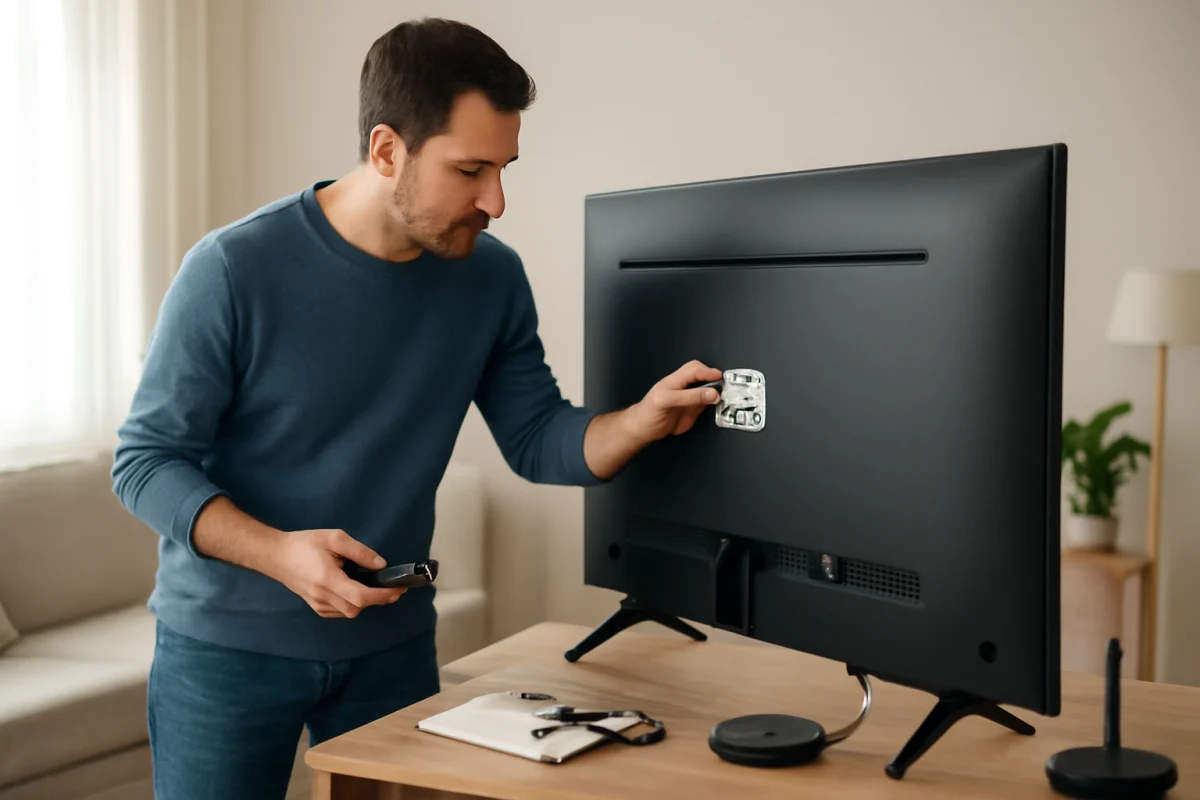
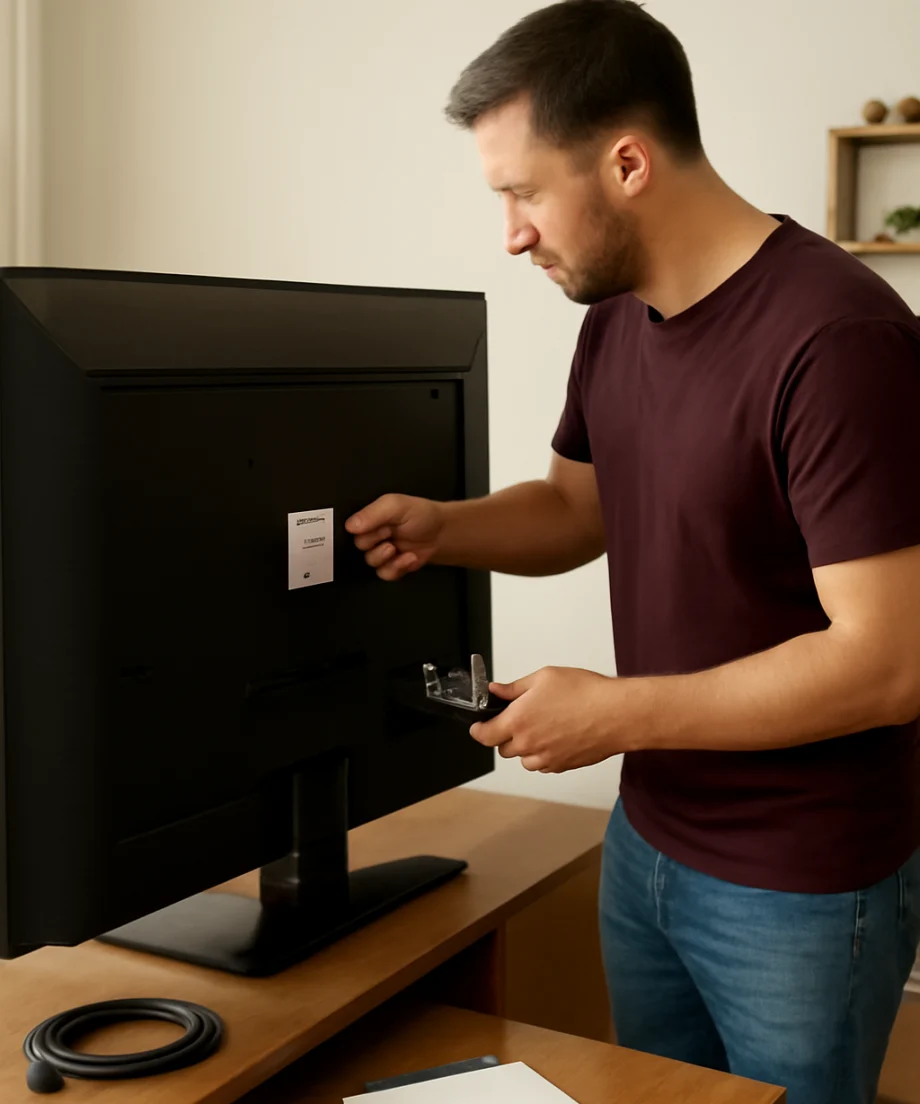
The model number is the most useful information when asking for Toshiba TV help. You may find it on a label on the back of the television, on the original box, on a purchase record, or in the TV's information section. The location and wording can vary, so do not assume that every Toshiba TV uses the same menu path.
Write down the model number exactly, including letters, numbers, and any regional suffix. Also record what happens when you try to use the TV. For example, “the screen is black but the power light is on” is more useful than “my TV is broken.” Note whether the issue affects every input or only one device, whether sound is still available, and whether the problem began after a power outage, software update, cable change, or move.
Before contacting support, gather any error message shown on the screen, the name of the connected device, and the steps you have already tried. Avoid guessing at a model number or copying instructions written for a similar-looking Toshiba television.
Perform these safe checks first
Check the power connection
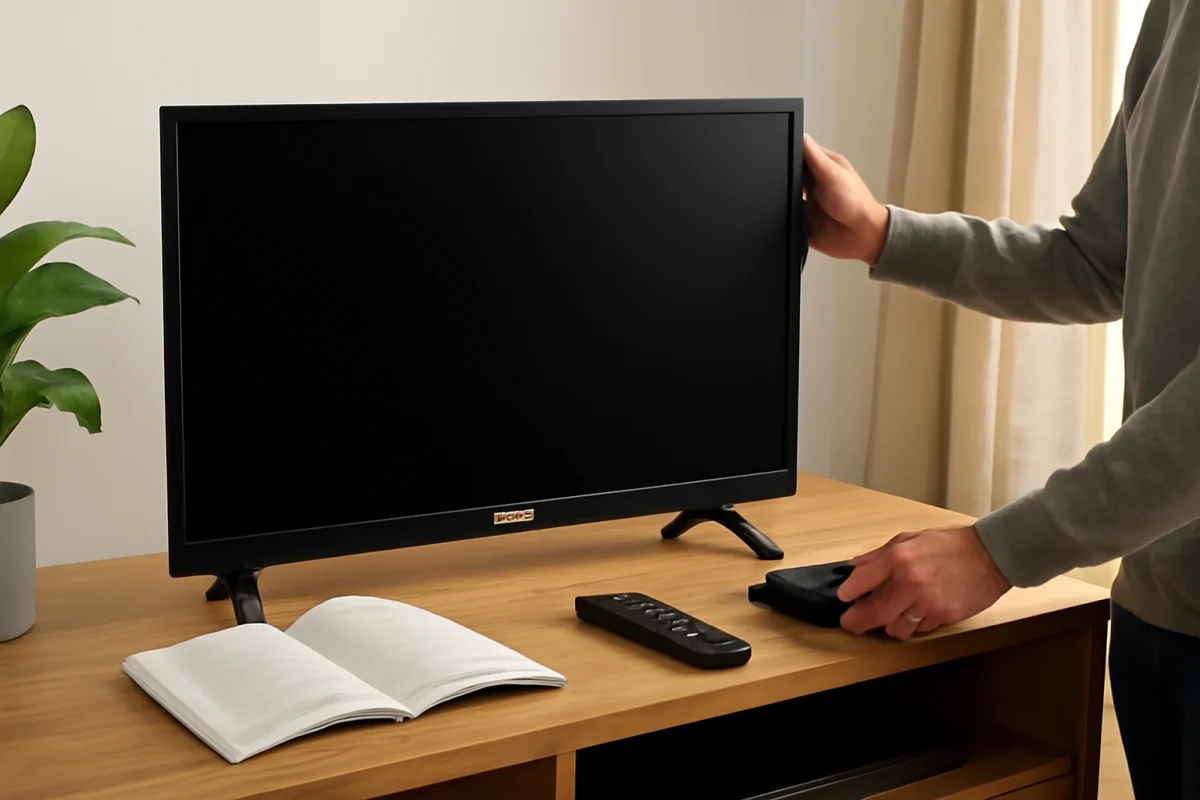
Make sure the TV's power cord is firmly connected at the wall and, if applicable, at the back of the television. If the TV is connected to a power strip, surge protector, or smart outlet, check that the accessory is switched on. Test the wall outlet with another small device that you know works, but do not use a damaged cord or outlet.
Disconnect the TV from power for about one minute, then reconnect it and try the physical power button on the television. This is a basic power cycle and is different from a factory reset. It does not normally erase accounts or settings. If the TV smells burnt, makes repeated clicking sounds, shows visible damage, or becomes unusually hot, unplug it and stop troubleshooting.
Test the remote and the TV's controls
If the TV does not respond to the remote, replace the batteries with a fresh matching pair and make sure they are installed in the correct direction. Remove objects that may block the remote sensor. If possible, try the physical button on the TV. A working physical button suggests that the television may be operating while the remote, batteries, or remote connection is the problem.
Do not open the remote or television to inspect internal parts unless you are trained to do so. Internal components can retain dangerous electrical charge even after the TV is unplugged.
Confirm the input and cables
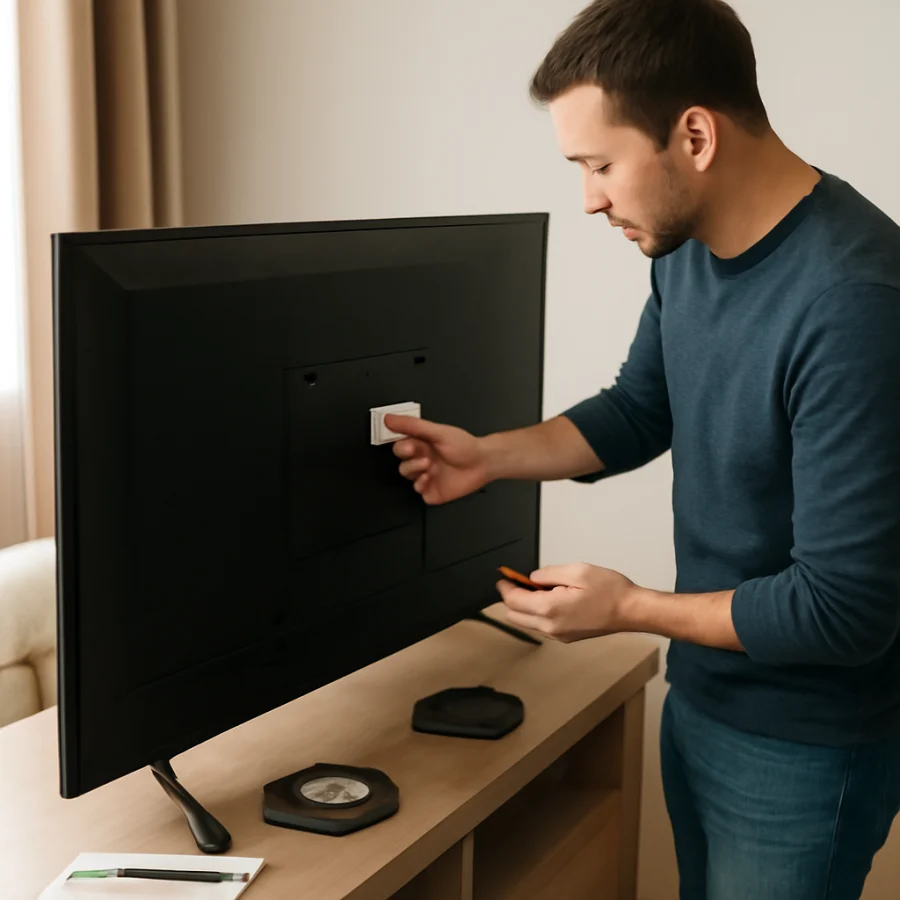
A black screen often comes from a wrong input, a loose cable, or a connected device that is turned off. Press the input or source control and select the port used by your cable box, game console, streaming player, or disc player. The exact button label and menu wording may differ by remote and TV model.
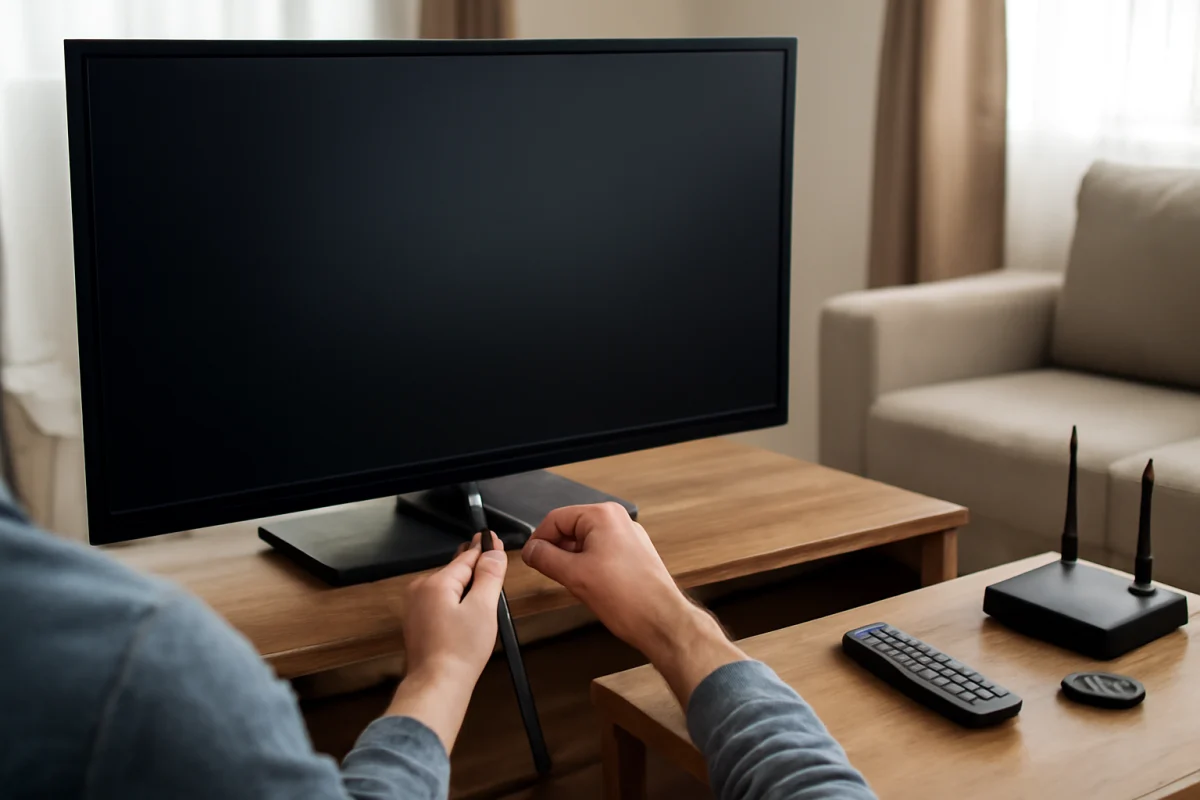
Disconnect and reconnect the video cable at both ends. If you have another compatible cable or input available, test it carefully. Also turn the connected device off and back on. If the TV's own menus appear but one external device does not, the television may be working and the problem may be limited to that device, cable, or connection.
For a related troubleshooting resource, see the picture and sound troubleshooting guides on TV Fix Guide.
What to do when the picture or sound is wrong
If you can hear sound but see no picture, check whether the TV's menus appear. A visible menu usually points toward an input, source device, or signal problem. If the menus also fail to appear, the issue may involve the TV itself, although a failed backlight or other hardware problem cannot be confirmed safely through visual checks alone.
For a dim or uneven picture, check whether the issue is present on every source. Temporarily disable any special picture modes or automatic brightness features only if you can easily find them and remember the original settings. Do not change several advanced picture controls at once, because that makes the cause harder to identify.
If there is no sound, check the TV volume, mute status, and any connected soundbar or receiver. Make sure audio is not being sent to a Bluetooth device or another output. Test a different source, such as the TV's built-in apps or another HDMI device, if available. A problem affecting only one source is less likely to be a general television hardware failure.
When the problem involves Wi-Fi or streaming apps
For a streaming problem, first determine whether the TV is connected to the network. Try another app or device on the same Wi-Fi connection. If several devices cannot connect, restart the router according to the internet provider's instructions and wait for the network to return before testing the TV again.
If other devices work normally, restart the TV and check the network connection in the TV's settings. The exact menu names differ between Toshiba models and operating systems. Avoid deleting saved network information unless you know the Wi-Fi password and are prepared to reconnect.
An app that freezes, signs out, or refuses to play video may have an account, service, network, or app-specific problem. Check whether the issue affects one app or all apps. Only use software updates offered through the TV's normal settings or the official support process for the exact model. Do not install firmware from an unrelated model or an unofficial download site.
You can find more network-related guidance in the Wi-Fi and network troubleshooting section.
Should you reset a Toshiba TV?
A restart or power cycle is usually a safer first step than a factory reset. A factory reset may remove installed apps, account information, Wi-Fi details, picture adjustments, parental controls, and other personal settings. Use it only after simpler checks fail and only when you understand what will be erased.
The reset procedure and menu wording can vary by Toshiba model, region, and smart TV platform. Read the on-screen confirmation carefully. If the TV cannot display its menus, do not repeatedly try random button combinations from instructions for another model. Contact support or a qualified technician instead.
Before resetting, write down your Wi-Fi password and make sure you know the sign-in details for important streaming services. If the television is managed by someone else, such as a household member, landlord, or business, ask before removing its settings.
How to contact Toshiba TV support
Use the official support route associated with your exact model and country. Start with the documentation that came with the TV or the manufacturer's current support site. Because Toshiba-branded televisions may be sold or supported differently in different markets, the available contact method, warranty process, repair network, and software instructions may not be the same everywhere.
When you contact support, provide the model number, serial number if requested, purchase date if available, country or region, and a concise description of the failure. Explain what you see when you press the power button, whether the standby light changes, whether menus appear, and which sources you tested. Include photos or a short video only when the support representative asks for them or when they help show the symptom.
Do not share passwords, payment details, or other sensitive information in a public forum. If a website asks you to download an unknown program, pay for an unverified remote repair, or provide unnecessary account credentials, stop and verify that you are using a legitimate support channel.
For more Toshiba-specific troubleshooting articles, visit the Toshiba TV repair section on TV Fix Guide.
When professional repair is the safest option
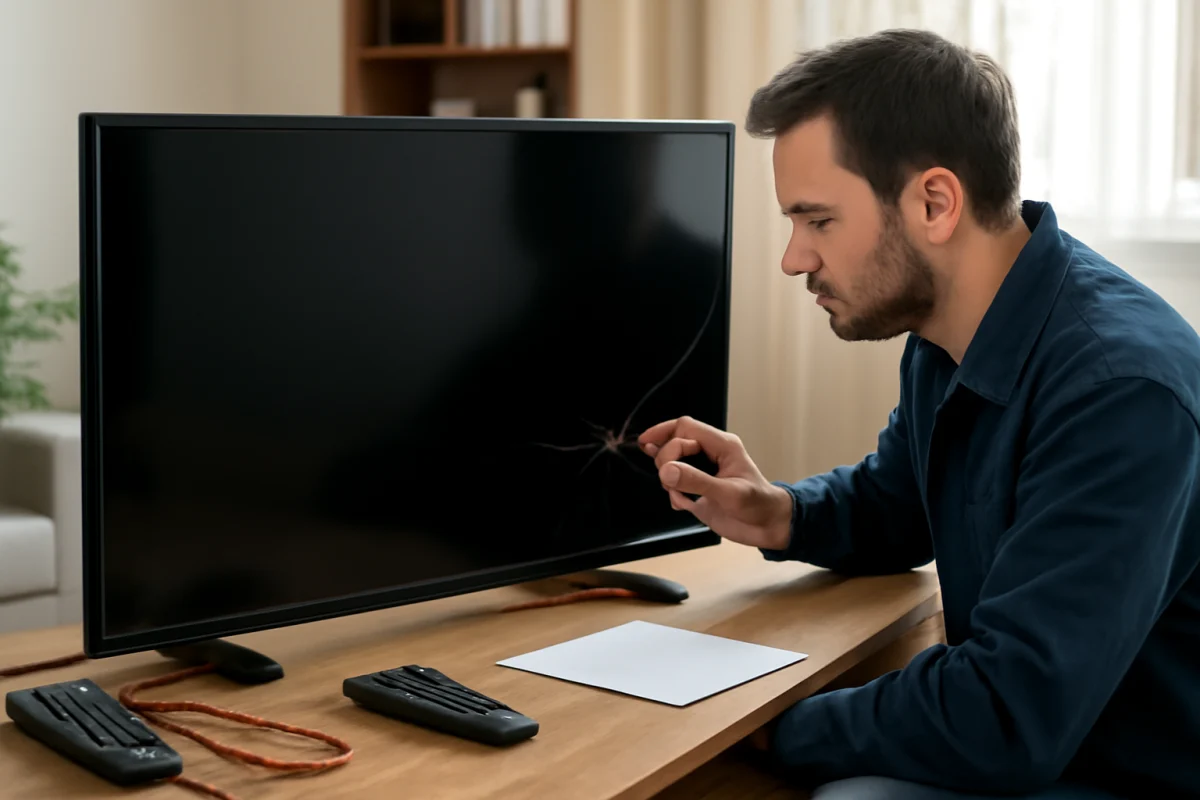
Arrange professional help if the TV has no response after safe power checks, shuts down repeatedly, displays lines or large areas of discoloration, has a cracked screen, or shows signs of liquid or electrical damage. A TV that clicks, smells burnt, sparks, or trips a circuit breaker should remain unplugged until it has been inspected.
Screen replacement is often a major repair, and the value of repairing a television depends on its age, size, damage, and local service costs. Do not assume that a replacement part or repair price is the same for every Toshiba model. Ask the technician for a diagnosis and written estimate before approving work.
If the TV may still be covered by a warranty or retailer protection plan, check the applicable terms before opening the set or using an unauthorized repair service. An independent repair attempt can affect available service options, depending on the applicable policy.
Make your support request easier to solve
The fastest support conversations usually include four details: the exact model, the symptom, when it started, and the checks already completed. Say whether the issue affects all inputs, built-in apps, or only one accessory. Mention recent power outages, moves, cable replacements, updates, or liquid exposure. This helps separate a source problem from a TV problem without unnecessary resets.
Keep the TV unplugged if it presents a safety risk, and do not remove the back cover. For ordinary problems, begin with power, remote, input, cable, and network checks; then move to model-specific software steps. That approach gives you the best chance of fixing a simple issue while avoiding changes that erase settings or create a new problem.
Comments
0No comments yet. Be the first to share a helpful note or question.
Leave a Comment
Your email address will not be published. Comments are reviewed before appearing on the site.