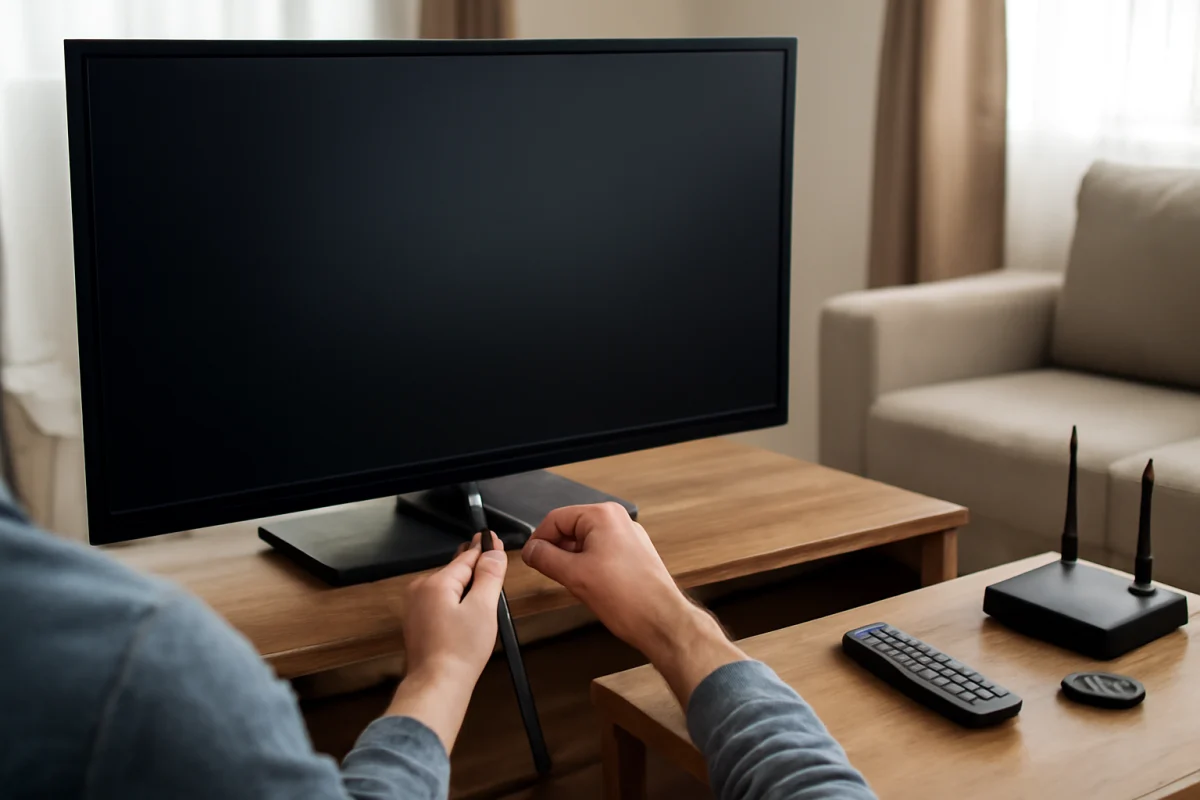
Common Toshiba TV problems usually come from a loose connection, an input mistake, a temporary software issue, a weak network signal, or a problem with an external device. Before changing advanced settings or performing a factory reset, check the power, cables, remote, selected input, and connected equipment. These simple checks can often restore normal operation without erasing your settings.
Toshiba has sold TVs with different smart TV platforms and menus over the years, so the exact troubleshooting steps can vary by model. Your TV may use a Toshiba smart interface, Roku TV, Fire TV, or another platform. If a menu name or setting described below is not visible, look for a similar option in your model’s user guide or on-screen settings.
Start with a safe basic check
First, confirm whether the TV is completely unresponsive or whether only one feature is failing. Press the TV’s physical power button, if it has one, instead of relying on the remote. Check for a standby light or any response on the screen. If the television turns on but shows a blank screen, the issue may be the input, cable, source device, or backlight rather than the main power supply.
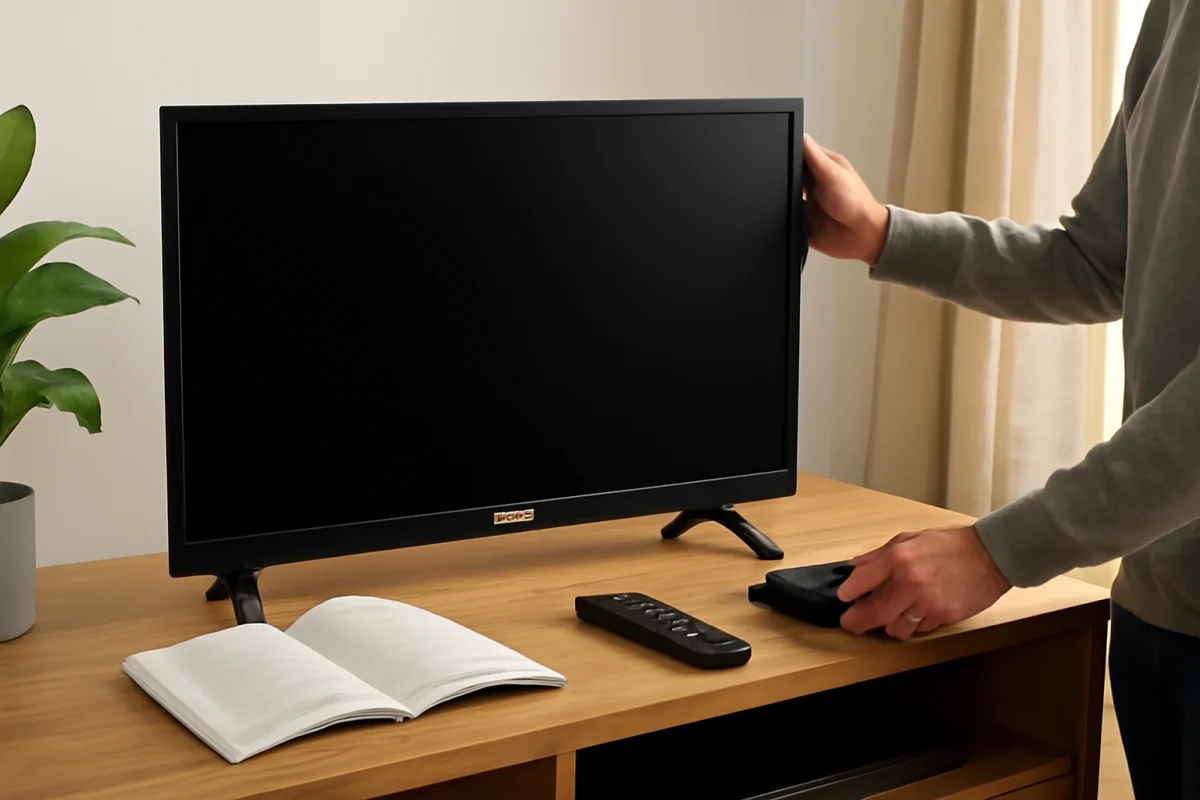
- Unplug the TV from the wall for about one minute, then reconnect it directly to a working outlet.
- Disconnect unnecessary HDMI devices and test the TV by itself.
- Make sure the power cable is firmly connected at both ends, where applicable.
- Try the TV’s physical controls if the remote does not work.
- Remove objects that may block an infrared remote sensor.
Avoid repeatedly unplugging the TV while it is installing an update or starting up. If an update appears to be in progress, allow it time to finish unless the screen has clearly frozen for an unusually long period.
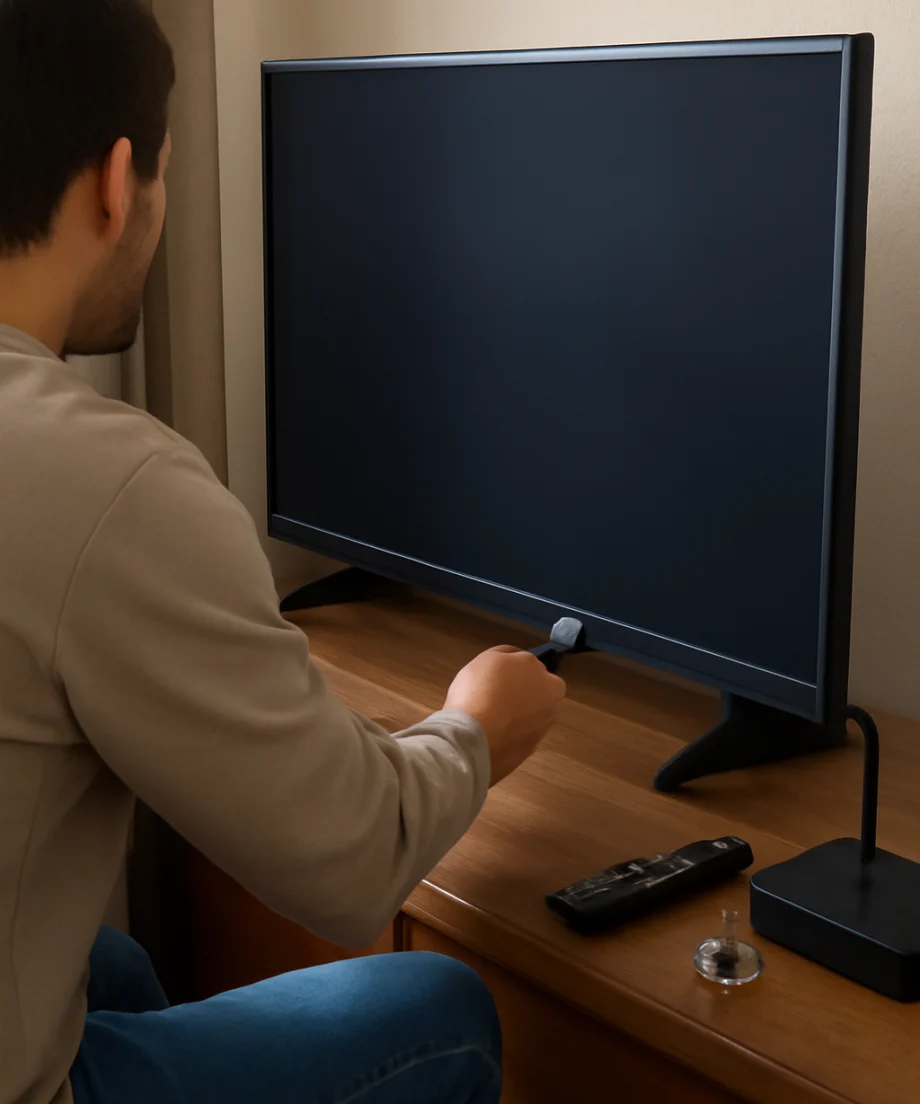
Toshiba TV turns on but has no picture
A black screen does not always mean the display panel has failed. Press the volume or menu button and watch for any on-screen response. If you can see a menu or volume indicator, the panel is working and the problem may involve the selected input or connected device.
Check the input and HDMI connection
Use the remote’s input or source control to cycle through the available inputs. Select the HDMI port connected to your streaming device, cable box, game console, or Blu-ray player. Confirm that the external device is powered on and awake. Some devices enter standby mode and may not send a picture until you press a button on their own remote.
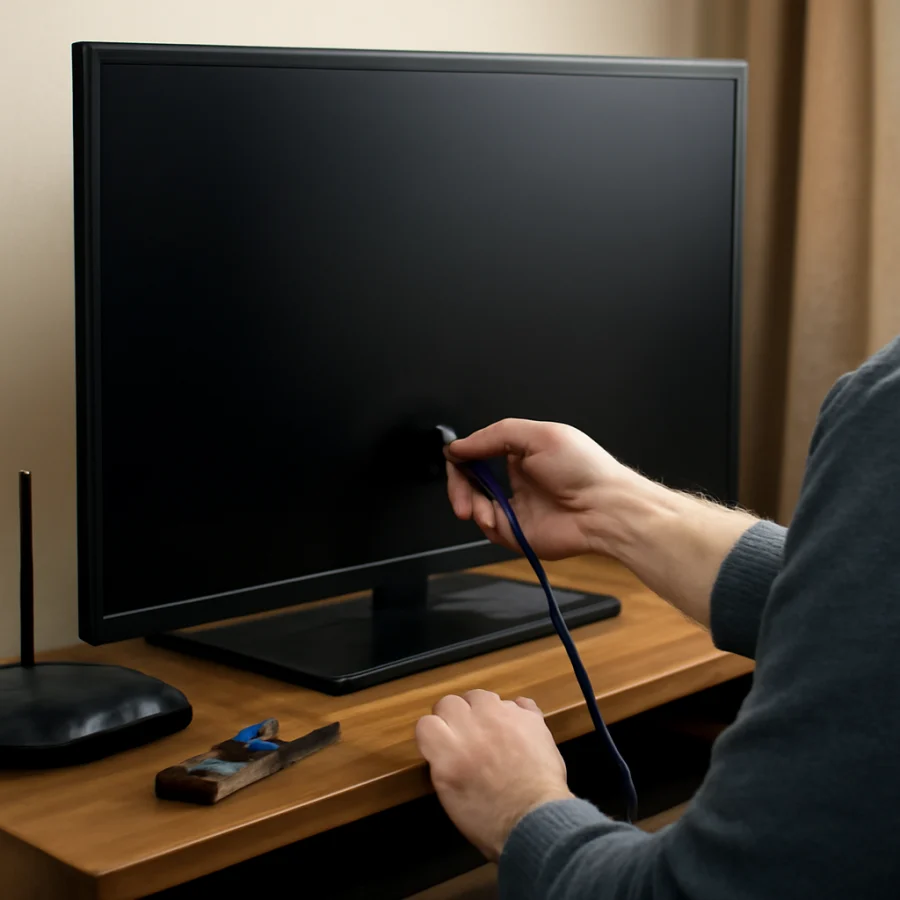
Disconnect and reconnect the HDMI cable at both ends. If possible, test another HDMI cable or another HDMI port. Also test the source device on a different TV, if available. This helps identify whether the failure follows the Toshiba TV, the cable, or the external equipment.
Check for a backlight or screen hardware problem
If you hear sound but the screen remains dark, shine a flashlight at the display from a short distance while content is playing. A very faint image can suggest a backlight problem, although this test is not definitive. Do not open the TV to inspect internal components unless you are trained to work safely with electronic equipment. TVs can retain dangerous electrical charges even after they are unplugged.
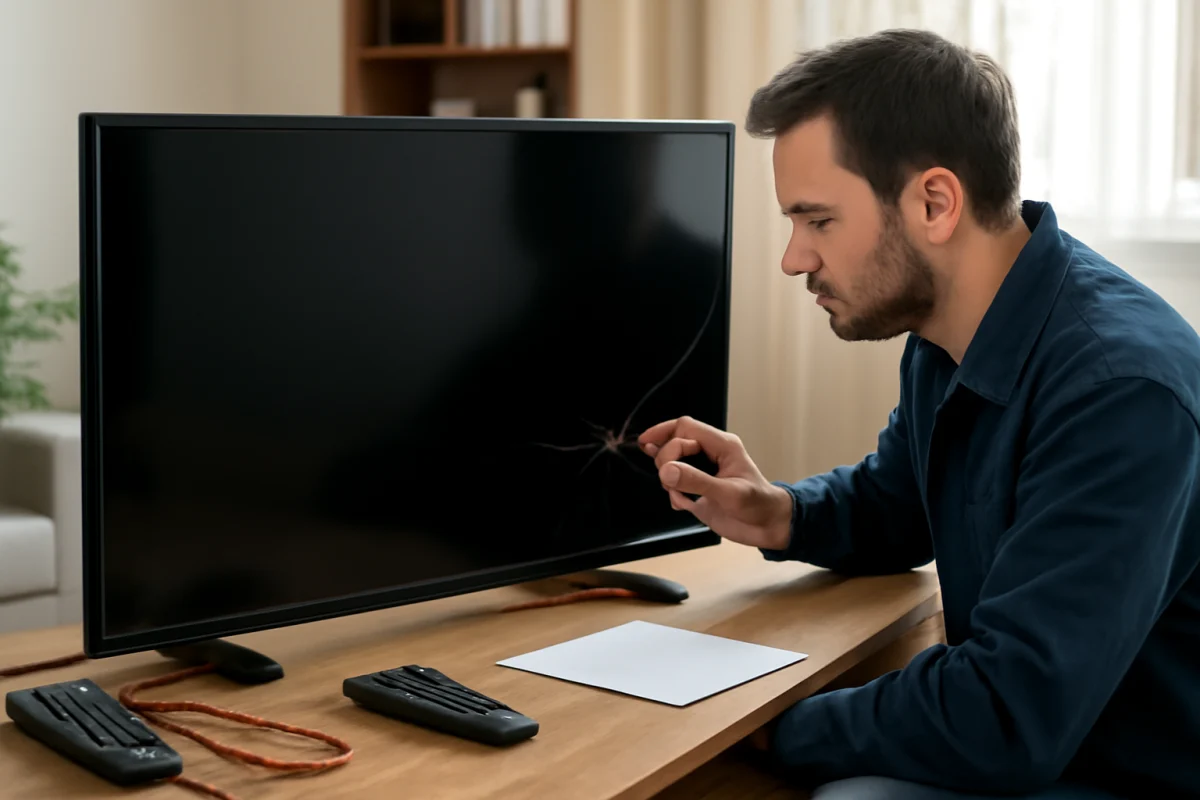
If the screen has visible cracks, vertical lines, large dark areas, or physical impact damage, software troubleshooting is unlikely to fix it. A repair assessment may be more practical than repeated resets, especially if the problem affects the entire screen.
Toshiba TV has no sound or the sound is too low
Begin by pressing the volume-up button on both the TV remote and any connected soundbar or receiver remote. Make sure the TV is not muted. If headphones, Bluetooth audio, a soundbar, or an optical cable is connected, disconnect it temporarily and test the built-in speakers.
Check whether the problem affects every source or only one app or HDMI device. If TV menus produce sound but a streaming app does not, close and reopen the app, then test another title. If an external device is silent, verify its own volume and audio output settings.
When using a soundbar or receiver, confirm that the correct input is selected on the audio system. Check that the audio cable is fully inserted and that the TV’s digital audio setting is compatible with the connected equipment. Available audio options vary by model, so choose an automatic or basic output mode for testing rather than assuming a particular surround format is supported.
Apps freeze, crash, or refuse to load
App problems are often caused by a temporary connection failure, a service outage, insufficient app storage, or outdated software. Test another app first. If only one service fails, the TV may be working normally and the issue may be limited to that app or its account.
- Close the affected app and open it again.
- Restart the TV using its normal power controls, then try the app again.
- Restart the home router and wait for the internet connection to return.
- Sign out and sign back in only if you know the account email and password.
- Check whether the app and TV have pending updates, if your model provides update controls.
Do not uninstall an app unless you can reinstall it on your TV. App availability and management options differ between Toshiba models and smart TV platforms. For broader streaming troubleshooting, see the streaming apps troubleshooting guide.
Toshiba TV will not connect to Wi-Fi
First, check whether other phones, computers, or streaming devices can use the same network. If every device is offline, restart the modem and router, then wait for the internet service to return. If only the TV has trouble, move it closer to the router temporarily or test a wired connection if the TV supports one.
Re-enter the Wi-Fi password carefully. Passwords are case-sensitive, and a small typing error can prevent the connection. If your router offers separate network names for different wireless bands, try the other available network. Compatibility and range can vary by TV model and router configuration.
Restart the TV after reconnecting to Wi-Fi. If the TV connects but apps buffer frequently, the problem may be weak signal strength, network congestion, or the internet service rather than the Toshiba hardware. More network checks are available in the Wi-Fi and network troubleshooting section.
The remote does not work
Replace both batteries with fresh ones installed in the correct direction. Test the remote close to the TV and make sure nothing blocks the sensor. If only certain buttons fail, the remote itself may be worn or damaged. Clean around the buttons and avoid using liquid directly on the remote.
If the TV responds to its physical controls but not the remote, try pairing or re-pairing the remote if your model uses a wireless or Bluetooth connection. Pairing instructions are platform-specific. A universal remote may control basic functions but may not support every smart TV feature.
You can also use a compatible phone remote app when the TV and phone are already connected to the same network. This will not help if the TV is offline or has not completed its initial setup.
The TV restarts, freezes, or turns off unexpectedly
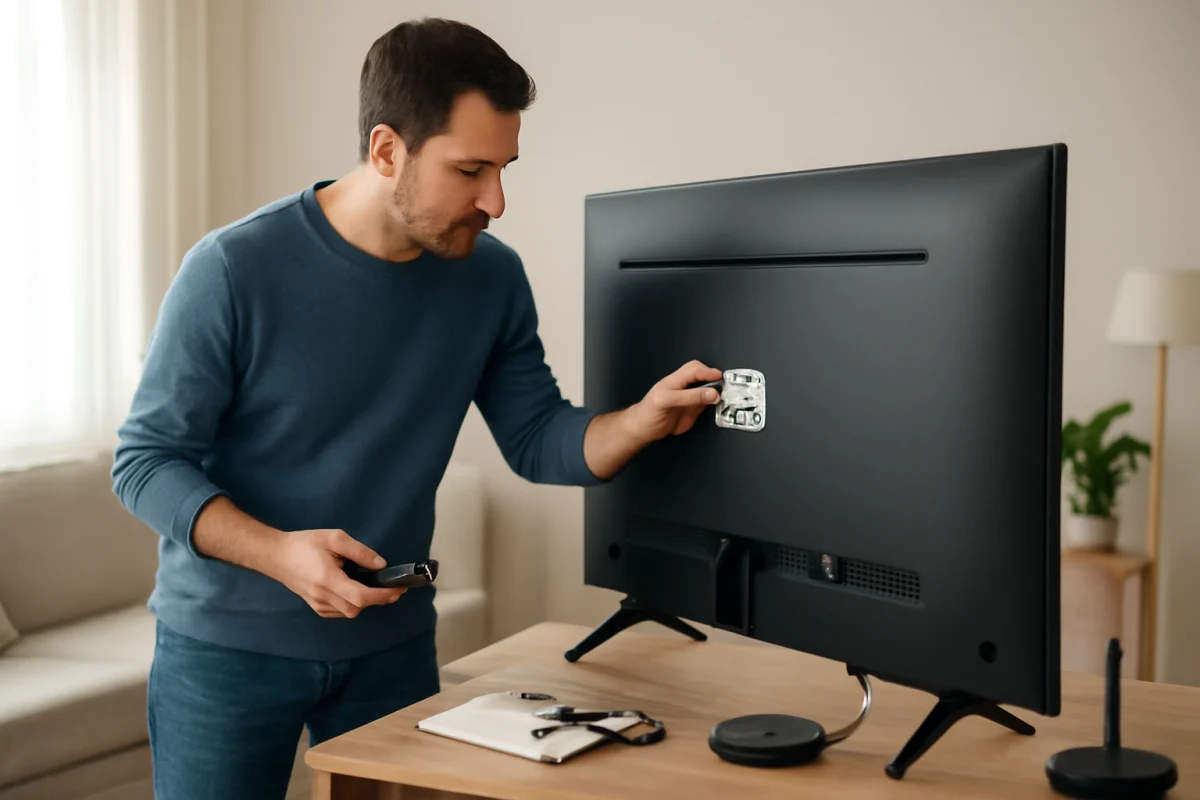
Check that the power plug is secure and that the outlet is not controlled by a loose switch or failing power strip. Connect the TV directly to the wall temporarily to rule out the strip. Disconnect external HDMI devices one at a time because a connected device can sometimes send power-control commands that turn the TV on or off.
Make sure ventilation openings are not covered by a wall, cabinet, cloth, or other object. Excessive heat can cause instability, but do not assume overheating is the cause if the TV is cool and well ventilated. Note whether the restart occurs during one app, after a particular device is connected, or at random intervals.
If the TV remains stable after disconnecting external devices, reconnect them individually to identify the trigger. If it still restarts with nothing connected, check for an available system update using the model’s own settings. Menu paths differ, so do not follow instructions intended for a different Toshiba platform.
Picture looks wrong, dim, or distorted
If the picture is too dark, too bright, stretched, or covered by unusual colors, first compare the TV menu with the video from an external source. If the menu also looks abnormal, review picture settings and disable temporary demonstration or energy-saving modes if they are affecting brightness. If only one source looks wrong, inspect that device’s video settings and cable.
Try restoring the picture mode to its default setting before changing individual controls. Avoid copying calibration values from another Toshiba model because panel behavior and menu options can differ. Motion smoothing, contrast enhancement, and noise reduction can also change how content appears, so adjust one setting at a time.
For persistent lines, flickering, color patches, or an image that changes when the TV warms up, document the behavior with a short video. This can help a repair technician determine whether the issue is related to the panel, internal boards, or an external signal.
When to consider a reset or professional repair
A factory reset can help with persistent software problems, but it removes saved Wi-Fi details, app sign-ins, preferences, and other personal settings. Use it only after basic power, input, cable, network, and app checks. Before starting, make sure you know your streaming account credentials and understand that the reset process may differ by Toshiba model.
Stop troubleshooting and seek professional help if the TV smells burnt, makes repeated clicking sounds, shows signs of liquid damage, has a damaged power cord, or has a cracked screen. Do not remove the back cover. If the TV is under a seller or manufacturer warranty, check the applicable documentation before attempting a repair.
For additional brand-specific articles, visit the Toshiba TV repair section. The most useful information to record is the exact TV model, the affected input or app, whether sound still works, what the standby light does, and which steps you have already tried.
Comments
0No comments yet. Be the first to share a helpful note or question.
Leave a Comment
Your email address will not be published. Comments are reviewed before appearing on the site.