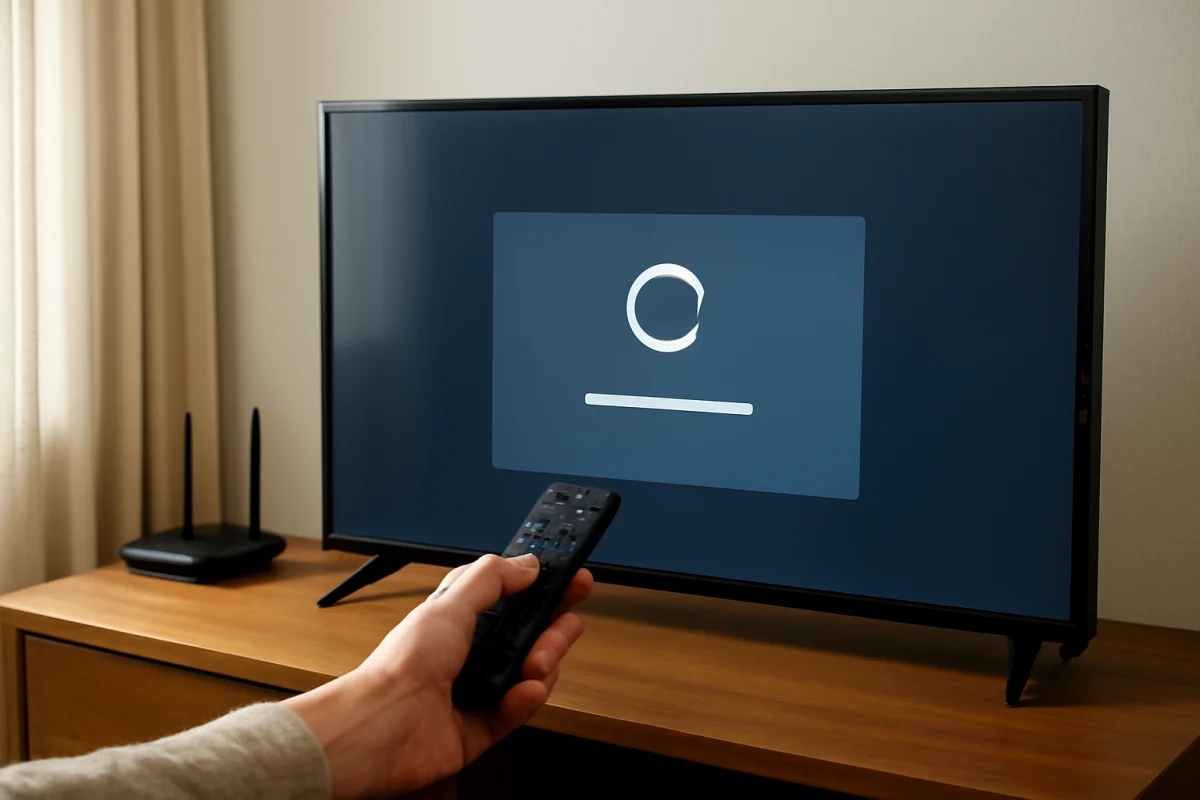
If your Vizio TV is frozen, repeatedly restarting, refusing to open apps, or behaving incorrectly after a settings change, a factory reset may help. Before resetting, try a complete power cycle and check whether the problem affects only one app, input, or network connection. A factory reset erases your personal settings and returns the TV to its initial setup state, so use it after lower-risk troubleshooting has failed.
The exact menu names and button layout can vary by Vizio model and software version. If a label in these instructions is different on your TV, look for a similar option under the system, reset, or administrative settings area.
What a factory reset does
A factory reset removes information and settings stored on the television. Depending on the model, this can include saved Wi-Fi details, installed or signed-in apps, picture and sound adjustments, input labels, parental controls, accessibility preferences, and other custom settings. You will usually need to complete the initial setup again and sign in to streaming services afterward.
A reset does not normally repair physical damage, a failed display panel, a bad power board, or a problem with an external device. It also does not replace a damaged HDMI cable or improve an unreliable internet connection. If the TV has no standby light, smells hot or burnt, shows physical damage, or makes unusual electrical noises, unplug it and arrange professional service rather than repeatedly resetting it.
Try these checks before resetting
Power cycle the TV
Turn the TV off, unplug it from the wall, and disconnect any unnecessary HDMI or USB devices. Leave it unplugged for about one minute. While it is unplugged, press and hold the TV's physical power button for several seconds if your model has one. Reconnect the TV directly to a known-working wall outlet and turn it on.
This process can clear a temporary software lockup without deleting your settings. If the TV works normally afterward, a factory reset may not be necessary.
Identify whether the problem is limited to one source
Open the TV's built-in menu or home screen. If the menu appears correctly but a cable box, game console, or streaming stick has a blank screen, troubleshoot that device and its HDMI connection first. Try another HDMI input, reconnect the cable firmly, and test the external device on a different display if possible.
If only one streaming app is failing, check the app's sign-in status and your internet connection before erasing the entire TV. For more network-focused steps, see the Wi-Fi and network troubleshooting guide.
Check the remote batteries
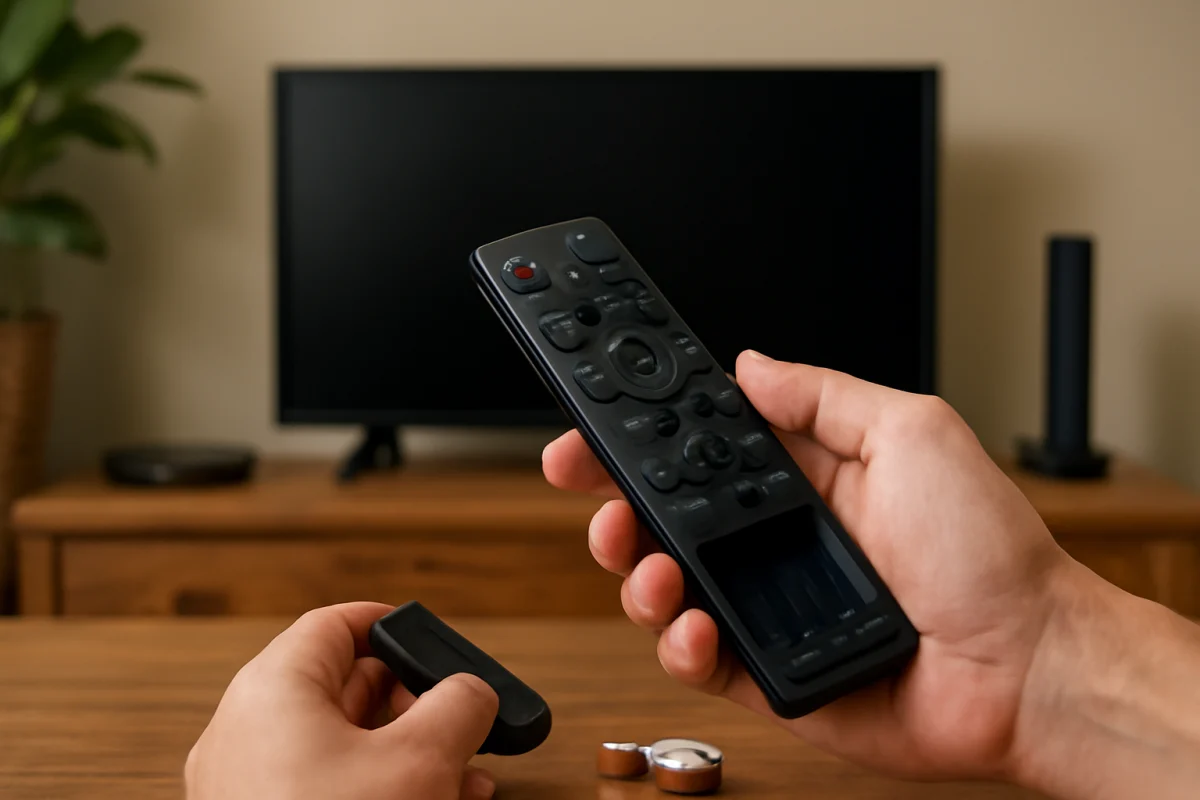
A remote that appears unresponsive may simply have weak batteries. Replace both batteries with a fresh matching pair, confirm their polarity, and remove anything blocking the sensor on the front of the TV. If the TV responds to its own buttons but not the remote, the reset may not be the real issue. Additional remote checks are available in the remote control troubleshooting guide.
How to factory reset a Vizio TV with the remote
Use the remote method when the TV can display its menus and respond to button presses. Keep in mind that the wording and location of the reset control differ among Vizio models.
- Turn on the Vizio TV and wait for the home screen or a picture to appear.
- Press the Menu or Home button on the Vizio remote.
- Open the area related to System, Admin, Reset, or Settings. The exact label depends on the model.
- Look for an option such as Reset TV to Factory Defaults, Reset to Factory Settings, or a similarly worded reset command.
- Select the reset option and read the warning on screen. Confirm only if you are ready to erase saved settings and accounts.
- If the TV asks for a parental-control or system PIN, enter it. If you created a custom PIN and cannot remember it, avoid guessing repeatedly; consult the model's documentation or Vizio support for the correct recovery procedure.
- Allow the TV to finish. Do not unplug it or press buttons while the reset is in progress.
The TV may restart more than once, show a setup screen, or take several minutes to become ready. Afterward, select your language and location if requested, connect to Wi-Fi, install or open the needed apps, and test the original problem before restoring every custom setting.
How to factory reset a Vizio TV without the remote
You may still be able to reset the TV if the remote is missing or broken. Vizio televisions commonly have one or more physical buttons, but their location and functions vary. Check the underside, rear edge, or side edge of the TV. Some models use a single multi-function button, while others have separate controls for power, volume, input, or menu navigation.
Use the TV's physical buttons
First, turn the TV on and press the physical Menu or input-related button if your model provides one. Use the volume or channel buttons to move through the on-screen menu, and use the power or input button to select an item when the button arrangement supports that function.
Navigate to the system or reset section and choose the factory-reset command. Because the button functions are not identical on all models, do not assume that holding a particular combination will reset every Vizio TV. If the buttons only turn the TV on and off or change the volume, they may not provide access to the full settings menu.
Try the Vizio mobile app when supported
Some Vizio models can be controlled from a Vizio mobile app, but compatibility depends on the television, software, phone, and network connection. The phone and TV generally need to be connected to the same network, and the TV must be powered on and discoverable. If the app was not already set up and the TV cannot connect to Wi-Fi, it may not be a practical replacement for the remote.
If you can control the TV through the app, open its settings and look for the same system or reset area available on the physical television. App controls and menu names may change, so follow the labels shown for your particular model rather than relying on a generic button sequence.
Use a replacement or universal remote
If the TV's buttons cannot reach the reset menu, a compatible replacement remote is often the simplest option. Choose one that specifically supports your Vizio model or Vizio smart-TV functions. A basic universal remote may operate power and volume but lack the Menu, Home, or navigation commands required for a factory reset.
When buying or borrowing a remote, check the model number printed on the TV's label, the original remote if available, or the television's documentation. Avoid assuming that every Vizio remote uses the same layout.
What to do after the reset
Complete the setup process before deciding whether the reset worked. Connect the TV to a reliable network, allow any available on-screen setup process to finish, and test the built-in menu first. Then try one streaming app and one external input. This makes it easier to determine whether the original fault was caused by the TV or by another device.
Reconnect external devices one at a time. If the problem returns only after you connect a specific soundbar, console, cable box, or streaming player, investigate that device, its cable, and its HDMI settings rather than resetting the TV again.
Restore picture, sound, accessibility, and privacy settings gradually. Write down important settings before making major changes in the future. Keep your streaming account credentials available, but do not share them with anyone helping you troubleshoot.
When a factory reset does not fix the TV
If the same problem remains immediately after the reset, the cause may be hardware, power, a connected device, or a network issue rather than corrupted settings. A black screen with sound, vertical lines, flickering, uneven backlighting, random shutdowns, or a TV that will not stay powered on can point to a hardware fault. A TV that freezes only when one device is connected may instead have an HDMI or source problem.
Run the TV with external devices disconnected and observe its built-in menu. If the menu itself is unstable, the TV cannot complete setup, or it repeatedly restarts after a clean reset, record the model number and symptoms and contact Vizio support or a qualified repair professional. Do not open the television unless you are trained to work safely with electronics; internal components can retain dangerous electrical charge even after the TV is unplugged.
For related troubleshooting, you can browse the Vizio TV help section or review guides for picture and sound problems. The safest reset method is the one that matches your model's available controls, followed by a careful test before you reconnect all of your equipment.
Comments
0No comments yet. Be the first to share a helpful note or question.
Leave a Comment
Your email address will not be published. Comments are reviewed before appearing on the site.