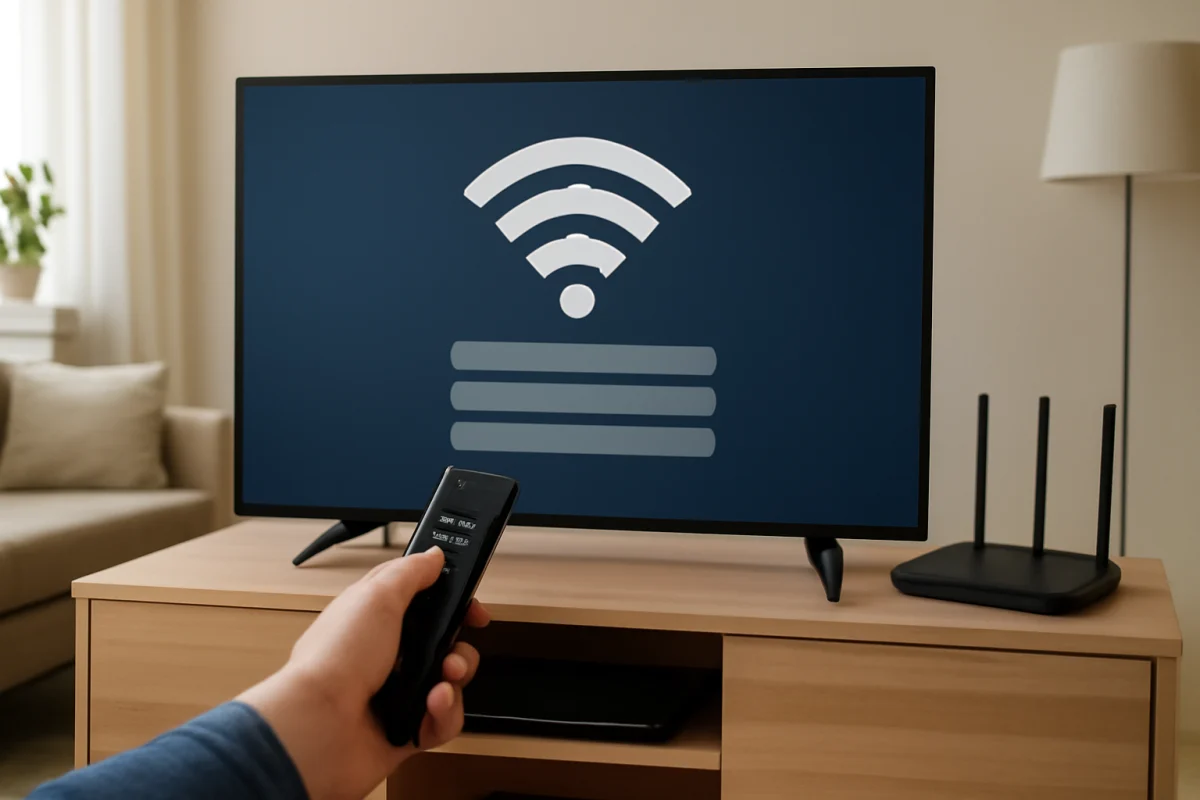
To connect a smart TV to Wi-Fi, open the TV’s network settings, choose your home wireless network, enter the Wi-Fi password, and wait for the connection confirmation. The exact menu names vary by brand and model, but the process is similar on most Samsung, LG, Sony, Roku, Fire TV, Hisense, TCL, and Vizio televisions.
If the TV cannot find your network, rejects the password, or connects without internet access, start with the simple checks below. Avoid resetting the TV or changing advanced router settings until you have confirmed that the problem is not caused by a temporary connection issue.
Before connecting the TV
Have the name of your Wi-Fi network and its password ready. The network name may also be called the SSID. Wi-Fi passwords are case-sensitive, so check uppercase letters, numbers, and special characters carefully.
Keep these points in mind before you begin:
- Make sure your home internet works on a phone or computer connected to the same Wi-Fi network.
- Place the TV within reasonable range of the wireless router, especially during the initial setup.
- Remove unnecessary spaces if you are typing the password with the remote.
- Check that the router is powered on and that its wireless function has not been disabled.
- If you recently changed the Wi-Fi name or password, the TV may still be trying to use the old network details.
For more network-specific troubleshooting, see the Wi-Fi and network troubleshooting guide on TV Fix Guide.
How to connect a smart TV to Wi-Fi
1. Open the TV’s settings
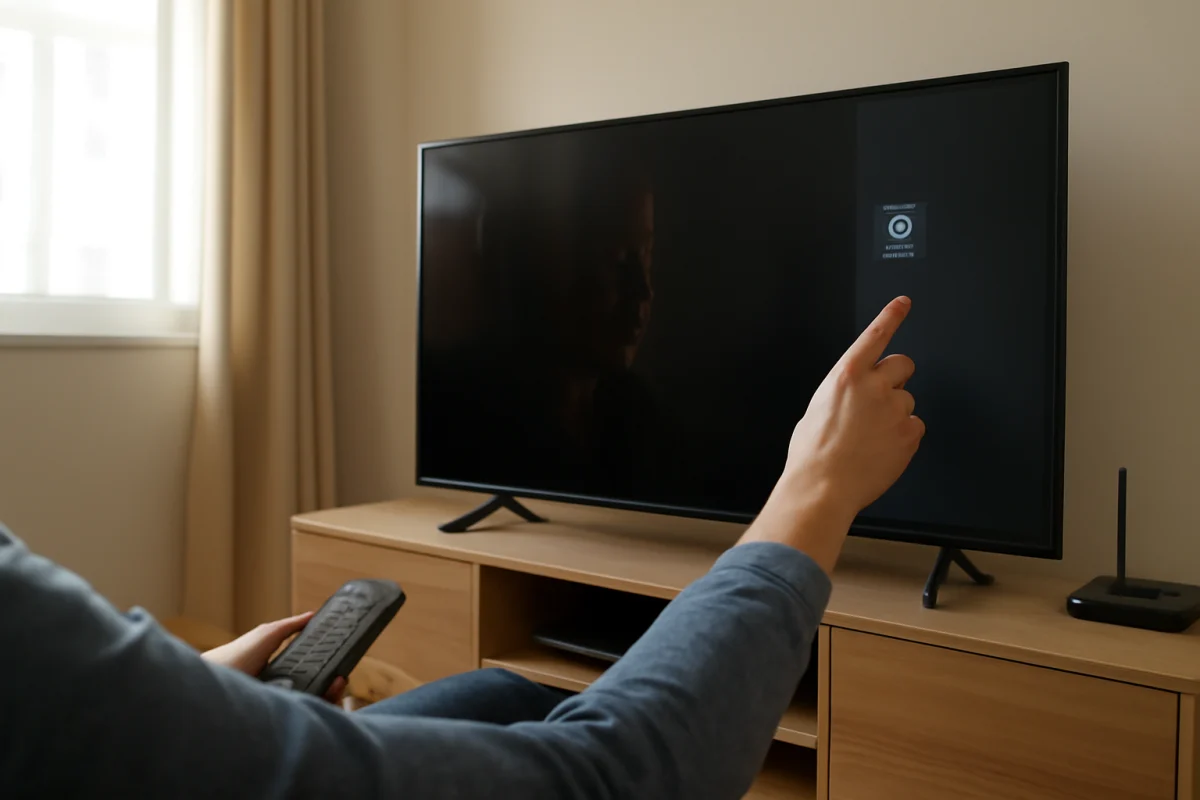
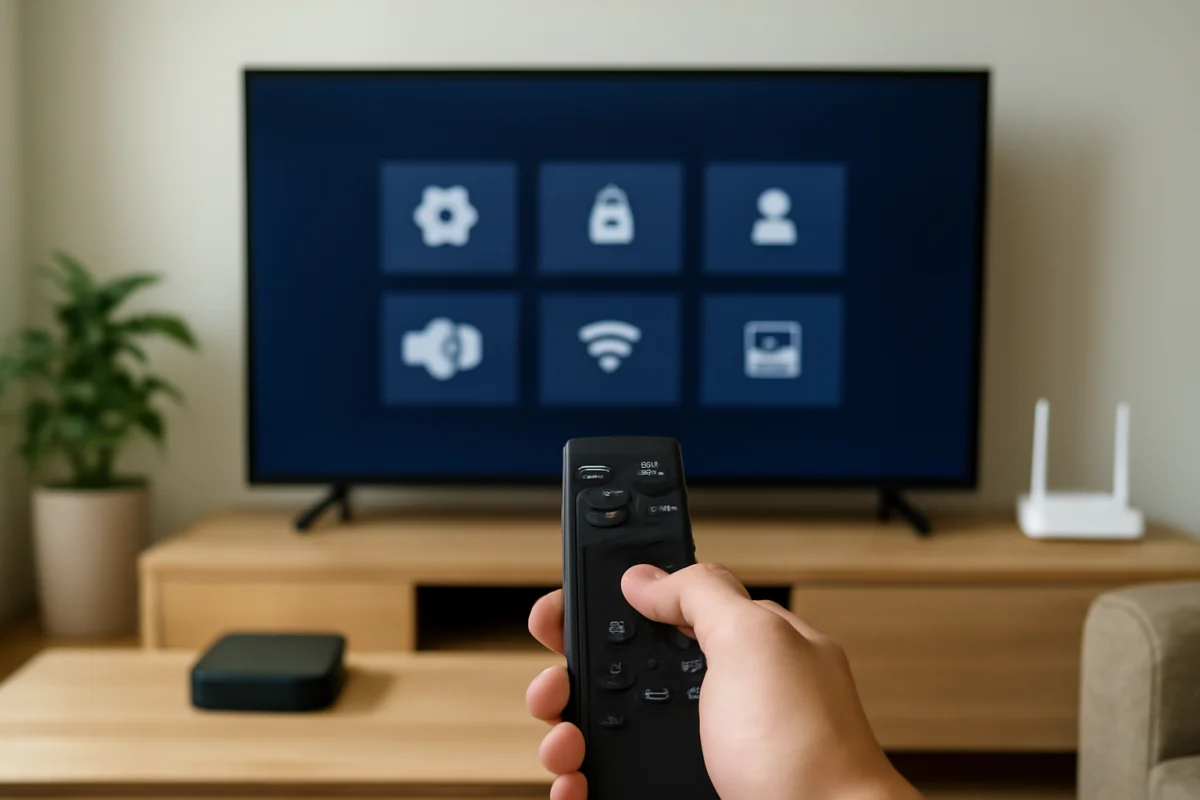
Turn on the TV and press the Settings, Home, or Menu button on the remote. Look for a section named Network, Connection, Internet, Wireless, or Network Settings. The wording and location can vary by model.
On some televisions, you may need to open a general Settings menu first and then select All Settings or a similar option. Streaming devices connected to a TV may have their own network menu, so confirm whether you are changing the TV’s connection or the device’s connection.
2. Select the wireless network option
Choose an option such as Wi-Fi, Wireless, Wi-Fi Connection, or Set Up Connection. If the TV asks whether you want a wired or wireless connection, select wireless.
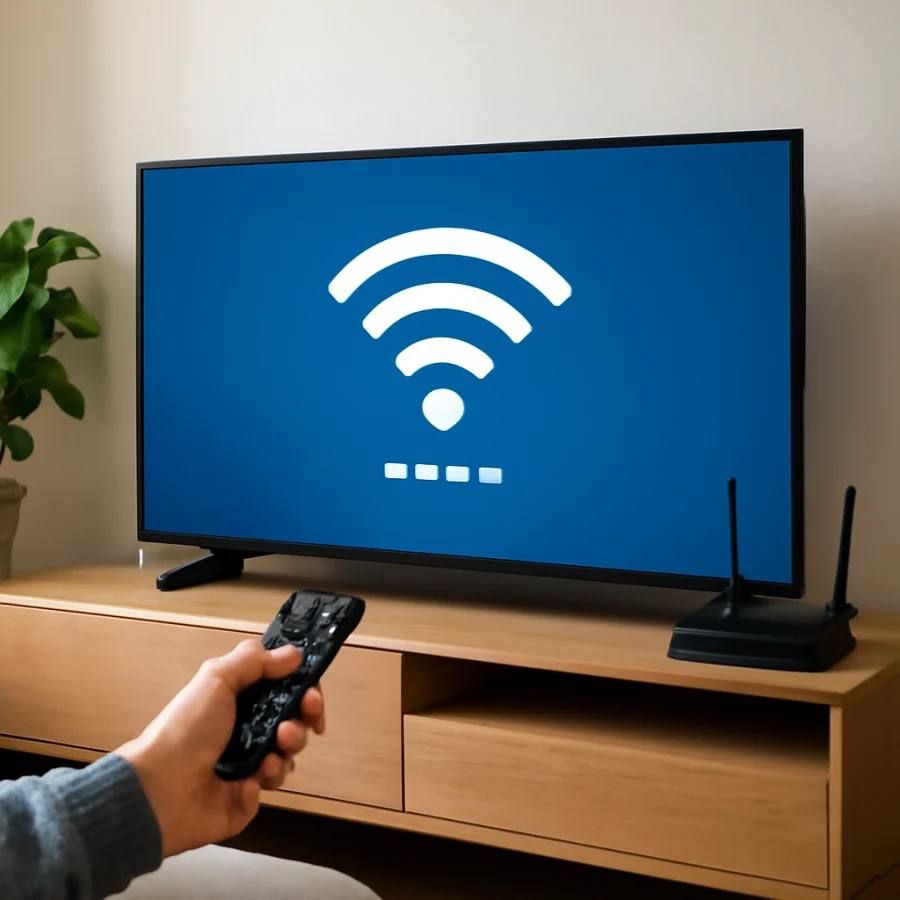
The TV should scan for nearby networks. This can take a short time. Select your home network from the list, making sure it is not a neighbor’s network with a similar name.
If your network does not appear, wait briefly and look for an option to refresh or scan again. If the TV is far from the router, move the router or temporarily bring the TV closer if possible. Do not make permanent placement changes until you know signal strength is the cause.
3. Enter the Wi-Fi password
Use the on-screen keyboard to enter the password. Take your time because entering a password with a remote can be easy to get wrong. Use the option that reveals the characters, if available, to check the entry before submitting it.
Pay particular attention to:
- Capital and lowercase letters
- The number zero and the letter O
- The number one, lowercase L, and uppercase I
- Hyphens, underscores, and other symbols
- Accidental spaces at the beginning or end of the password
After submitting the password, wait for the TV to test the connection. A successful setup may show a check mark, a connected message, or network details. If the TV reports that it is connected but streaming apps do not work, continue with the troubleshooting steps below.
If the TV cannot find your Wi-Fi network
Start by checking whether other devices can see and use the network. If no phone, tablet, or computer can find it, the issue is probably with the router or internet service rather than the TV.
If other devices work normally, try these low-risk checks:
- Open the TV’s Wi-Fi list again and refresh the scan.
- Confirm that the router is close enough and not blocked by thick furniture or other electronics.
- Restart the TV using its normal power control, then try the scan again.
- Restart the router by unplugging it from power, waiting about a minute, and plugging it back in. Allow it time to restore service before testing the TV.
- Check whether the TV can detect a phone’s mobile hotspot. Use this only as a short diagnostic test, not necessarily as a permanent connection.
If the TV sees the hotspot but not your home network, the issue may involve router compatibility, wireless-band settings, or the home network configuration. Router options vary, and changing them can affect every connected device, so check the router manufacturer’s documentation before making advanced changes.
If the TV rejects the Wi-Fi password
A password error usually means the password was entered incorrectly, even when it appears right at first glance. Re-enter it slowly and verify the characters. If the password was recently changed, remove the saved network from the TV if that option is available, then connect again as a new network.
Some TVs offer a setting to forget, remove, or delete a saved network. The exact wording varies by model. Use that option only for the affected network; there is usually no need to reset the entire TV.
You can also check the password by connecting another device to the same network. Avoid sharing the password publicly or sending it through an unsecured channel. If you manage the router and cannot remember the password, consult the router’s documentation or its management app rather than guessing repeatedly.
If the TV connects to Wi-Fi but has no internet
A TV can connect to the router while still being unable to reach the internet. This often points to a router, modem, service, or DNS-related problem rather than an incorrect TV setup.
First, test another device on the same Wi-Fi network. If that device also has no internet, restart the modem and router if they are separate units. Check for an internet service interruption through your provider’s official website or app, using mobile data if necessary.
If other devices work but the TV does not, try the following:
- Restart the TV normally and test the connection again.
- Open another app on the TV to determine whether the problem affects one app or the entire connection.
- Check the TV’s date and time settings if secure apps fail to connect. Incorrect time settings can interfere with some internet services.
- Move the TV closer to the router or reduce obstacles between them.
- Test the TV with a mobile hotspot for a brief period. If the hotspot works, the home network may need further investigation.
Do not assume that a failed streaming app proves the TV has no Wi-Fi. App outages, account problems, and service-specific errors can look like network failures. For app-related issues, visit the Streaming Apps section for targeted troubleshooting.
How to improve a weak Wi-Fi connection
If the TV connects but video buffers, drops quality, or disconnects, signal strength may be the problem. A wireless connection can be affected by distance, walls, interference, congestion, and the router’s location.
Place the router in an open, central location rather than inside a cabinet or behind large objects. Keep it away from sources of interference when practical. If the TV is in a different room or on another floor, a wired Ethernet connection may be more stable if both the router and TV support it.
You can also reduce the load on the network by pausing large downloads and disconnecting devices that are not in use. If several devices are streaming at once, test the TV when the network is less busy.
Mesh systems and Wi-Fi extenders may help in larger homes, but they need to be positioned correctly. Installing additional equipment is not always the first or best solution, so test the TV near the main router before buying anything.
Try an Ethernet connection if Wi-Fi remains unreliable
Many smart TVs include a network port for a wired Ethernet connection, although available ports and supported features vary by model. Connect a suitable Ethernet cable from the router to the TV, then open the network settings and choose the wired or automatic connection option if required.
A wired connection can help determine whether the problem is limited to wireless communication. If Ethernet works reliably while Wi-Fi does not, focus on wireless range, interference, router settings, or the TV’s Wi-Fi hardware.
When to update or reset the TV
Only consider a software update after the basic connection checks are complete. If the TV can connect through Ethernet or a temporary hotspot, check its support or system-update menu. Menu names and update procedures vary by manufacturer, so follow instructions for the exact model.
A factory reset should be a last resort. It can erase installed apps, accounts, picture settings, parental controls, and other personal preferences. Before using it, write down important settings and confirm that you know the login details needed to set up the TV again.
If the TV cannot connect to any network, fails with both Wi-Fi and Ethernet, or repeatedly loses its connection after basic troubleshooting, the issue may require manufacturer support or hardware service. Record what you tested, including whether other devices work and whether a hotspot or Ethernet connection succeeded.
Connect the TV without the original remote
Some televisions can be controlled through a manufacturer’s mobile app, a physical button on the TV, or a compatible replacement remote. However, a phone-control app may require the TV and phone to already be on the same network, which makes it less useful during an initial Wi-Fi setup.
If the TV has never been connected to your current network, use the TV’s physical controls or a compatible remote when possible. The available buttons and setup options differ by model. For remote-related help, visit the Remote Controls section.
For brand-specific troubleshooting and setup guidance, you can also browse TV Fix Guide and select the category that matches your television. The most reliable approach is to begin with the network name, password, router status, and signal strength before moving on to updates, advanced router settings, or a factory reset.
Comments
0No comments yet. Be the first to share a helpful note or question.
Leave a Comment
Your email address will not be published. Comments are reviewed before appearing on the site.