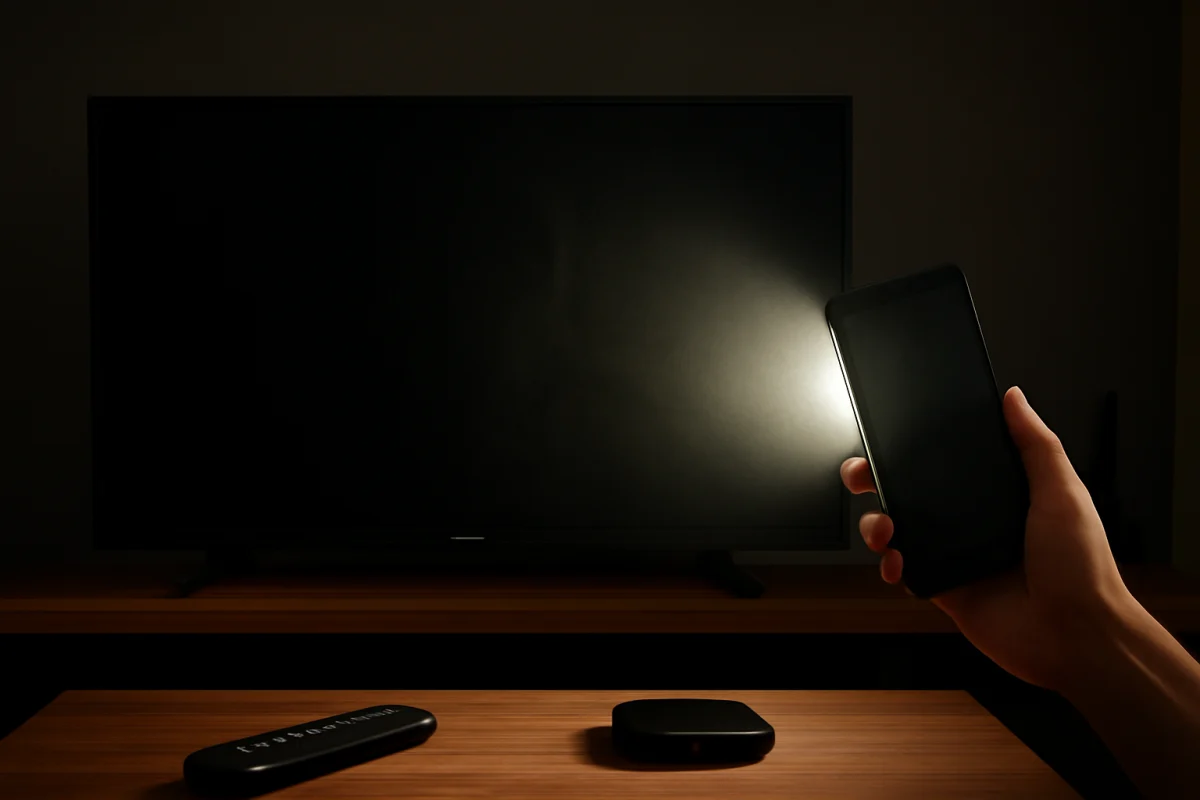
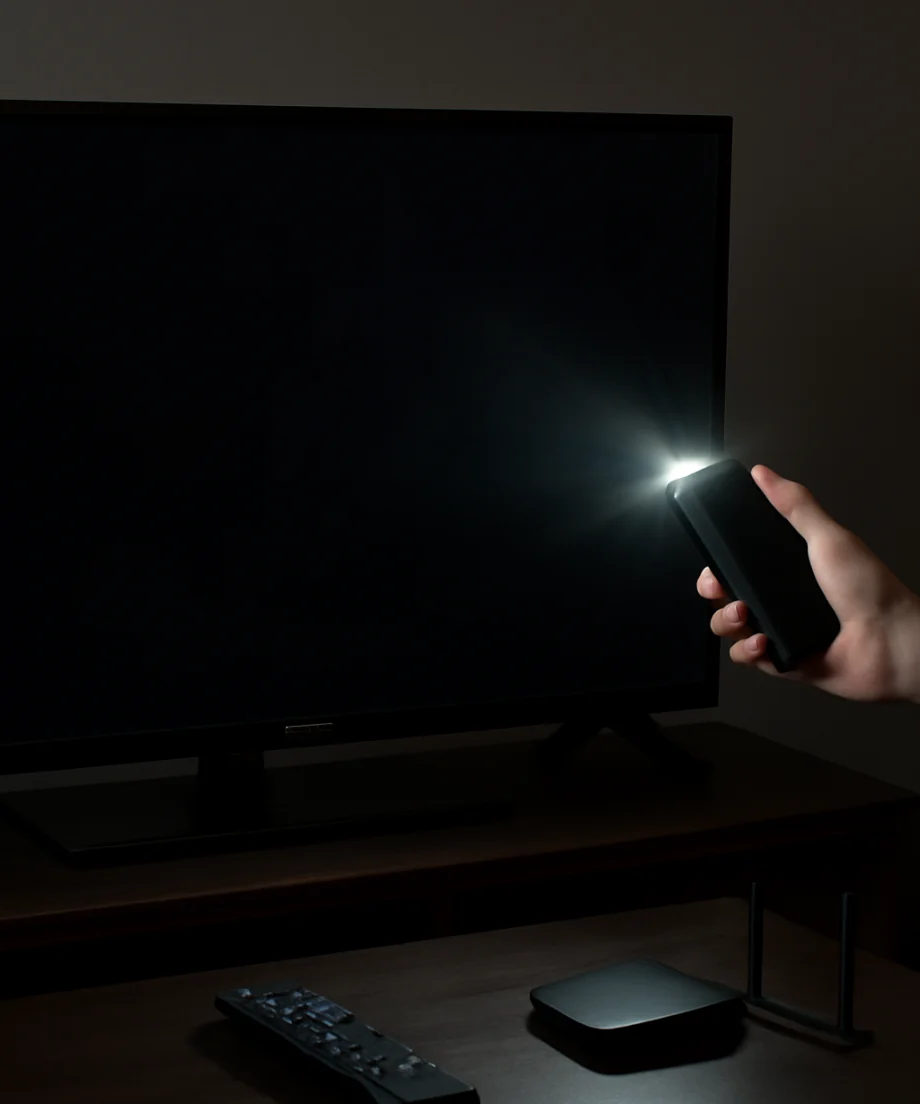
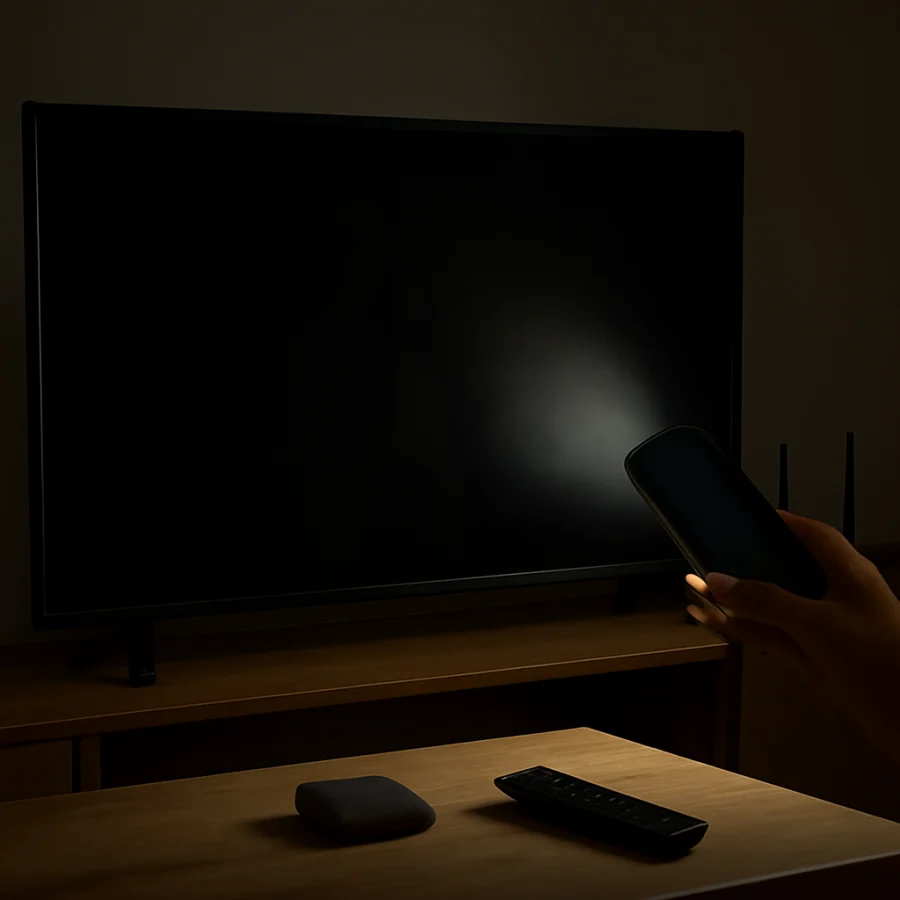
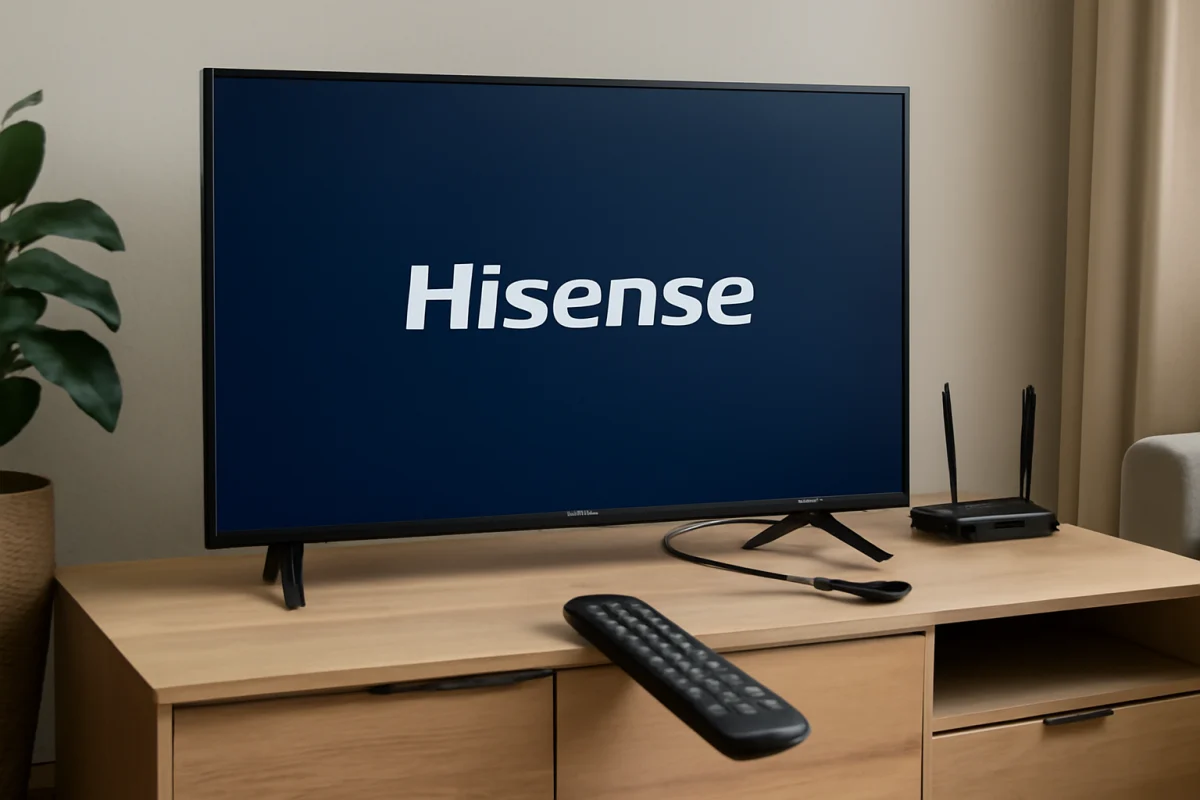
If your Hisense TV still plays sound but the picture is dark, black, or barely visible, start by checking whether the TV itself is producing an image. Turn on the TV and shine a phone flashlight at an angle across the screen. If you can faintly see menus or moving video, the TV may have a backlight problem. If you cannot see any image at all, the cause may be the input, a connected device, a software issue, or a display failure.
Before changing advanced settings or resetting the television, work through the low-risk checks below. Hisense menu names and available options can vary by model, screen type, and software version, so use the closest matching option on your TV rather than looking for an exact menu label.
1. Check whether the TV menu is also dark
Press the Home, Menu, or settings button on the Hisense remote. Watch the screen while the menu appears.
- If the TV menu is bright but a show or HDMI device is dark, the problem is probably related to the source, input, app, cable, or picture settings.
- If the menu is also extremely dark, the issue is more likely to involve the TV's picture settings, software, power delivery, or display hardware.
- If the screen is completely black but sound continues, use the flashlight test before assuming the panel is defective.
Also check whether the picture changes when you increase the volume or press buttons. A response on the screen, even a very faint one, is useful evidence that the display is receiving an image.
2. Raise the picture brightness and backlight controls
A picture can become difficult to see after a picture mode change, an accidental adjustment, or an automatic power-saving feature. Open the TV's picture settings and look for controls such as Brightness, Backlight, Panel Brightness, Contrast, or a similar display control.
Raise the brightness and backlight-related control temporarily to test the screen. These controls do different things: brightness usually changes the level of dark areas, while backlight or panel brightness changes the light produced behind the image. Increasing only contrast may not fix a dark screen and can make shadow detail harder to see.
Try a standard or normal picture mode if the current mode is unusually dim. Cinema, filmmaker, theater, or energy-saving modes may intentionally produce a darker image. The exact names differ between Hisense models. Disable any energy-saving, automatic brightness, ambient-light, or eye-comfort feature temporarily if one is available, then check the picture again.
Do not judge the result using a very dark movie scene. Open a bright menu or test a well-lit channel so you can tell whether the screen has improved.
3. Power-cycle the Hisense TV completely
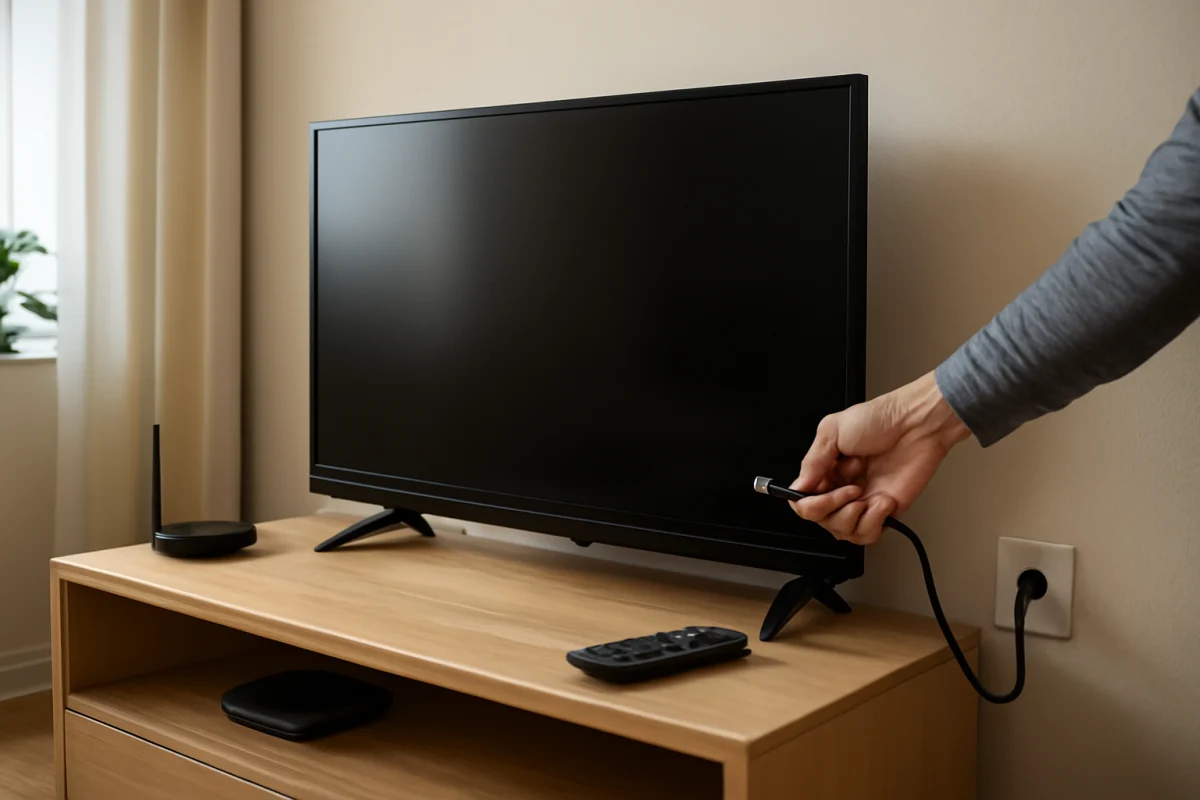
A normal press of the power button may place the TV in standby without fully clearing a temporary fault. Perform a complete power cycle:
- Turn off the TV with the remote.
- Unplug the TV's power cord from the wall outlet.
- Wait at least 60 seconds.
- While the TV is unplugged, press and hold its physical power button for about 10 to 15 seconds if the button is accessible.
- Plug the TV directly into a known-good wall outlet and turn it on.
Avoid using a power strip or surge protector during this test if possible. This does not prove that the accessory is faulty, but it removes one variable. Give the TV a short time to start before testing an app or external device.
4. Test the correct input and connected devices
If the home screen looks normal but the picture from a cable box, game console, Blu-ray player, or streaming stick is dark, focus on that device and its connection.
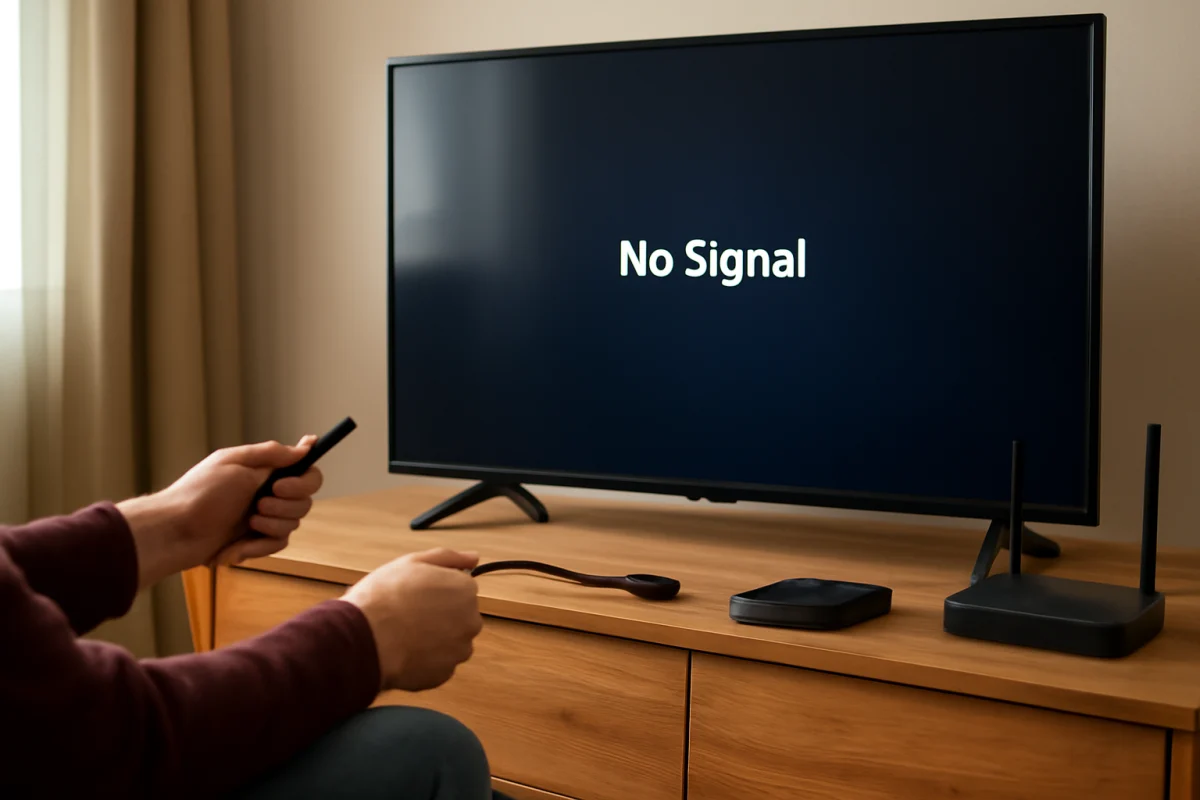
Use the Input or Source button to select the port that the device is actually connected to. Disconnect the device and open the TV's home screen or another built-in app. If the built-in content is bright, the TV panel is less likely to be the main problem.
Then try these checks:
- Unplug and reconnect the HDMI cable at both ends.
- Test a different HDMI input on the TV.
- Try a different HDMI cable if one is available.
- Restart the connected device, not just the TV.
- Temporarily remove HDMI splitters, receivers, adapters, and capture devices.
- Check the external device's own video, HDR, brightness, and power-saving settings.
If only one device produces a dark picture, do not reset the TV first. The source device may be sending an unusual video format or may have its own dimming setting enabled.
5. Check whether one app or all content is affected
Streaming apps can show a black or very dim video area while menus and sound continue normally. Open another built-in app, a live TV source, or the TV's home screen. If only one app is affected, close it and reopen it. Signing out and back in may also help, although this is not necessary for a first test.
Restart the TV after closing the app. If the problem returns only in one service, check whether the app has an update available through the TV's app area. App controls and update steps vary by Hisense platform, so follow the options shown on your model.
When a movie or show is dark but the app menus are normal, also check whether the content uses HDR or another high-dynamic-range format. Some TVs and sources can produce an unexpectedly dim picture when the signal format, picture mode, or connected equipment does not work together properly. Testing the same app with different content can help identify that pattern.
6. Inspect the screen without opening the TV
Look closely at the screen in a normally lit room. Do not press, tap, or bend the panel. Make sure nothing is covering the screen, and clean it only with a soft, dry microfiber cloth if needed. Avoid spraying cleaner directly onto the display.
Notice whether the screen has any glow when the TV is on. A completely unlit screen with working sound can point toward a failed backlight or a related power circuit. A faint image that becomes visible under a flashlight is a particularly important clue. It suggests that the TV is generating video but the light behind the LCD panel may not be working correctly.
Some Hisense televisions use different display technologies, so the likely hardware fault depends on the exact model. Do not assume that every dark-screen problem is a backlight failure, especially if the screen is dim rather than completely unlit.
7. Check accessibility and display-related settings
Review any settings related to accessibility, screen dimming, automatic brightness, or reduced light output. A setting intended to help with eye comfort or energy use can make the image seem too dark. If the TV has separate picture settings for each input, adjust the active input rather than assuming one change affects every source.
Some models also remember different picture settings for individual apps, inputs, or content types. If the screen is dark only on one HDMI port or in one app, compare its picture mode with a source that looks normal.
8. Update the TV software carefully
If the TV menu is visible and the television is connected to the internet, check its software-update area. The location and wording of this option vary by Hisense model and operating system. Install an update only through the TV's built-in process or instructions intended for your exact model.
Do not unplug the TV while an update is installing. Do not use firmware files from another model, even if the television looks similar. An incorrect update can create additional problems. If the screen is too dark to navigate reliably, skip this step and use the model's official support instructions instead.
You can also review the troubleshooting information for Hisense TVs on TV Fix Guide for related problems involving power, picture, and inputs.
9. Use a picture reset before a full factory reset
If the problem began after changing picture settings, look for an option that restores picture settings to their defaults. This is usually safer than a full factory reset because it may leave accounts, apps, network details, and other personal settings untouched. The exact wording and location differ by model.
After restoring picture settings, test the home screen, a built-in app, and an external input. If the picture returns, change settings one at a time so you can identify which adjustment caused the problem.
A full factory reset should be a later step. It erases personal configuration and requires you to set up the TV again. Before using it, make sure you know the passwords and account details needed to reconnect your services. If the TV has no visible picture, a factory reset is unlikely to repair a failed backlight or panel.
10. When the dark picture indicates a hardware problem
Professional service is more appropriate when the TV has sound but remains dark on the home screen, built-in apps, and every input after a power cycle and picture-setting check. A faint picture visible with a flashlight is another strong sign that the backlight system or its power circuitry needs inspection.
Other warning signs include a picture that flashes briefly and then goes dark, a screen that becomes dim after the TV warms up, repeated clicking or restarting, or a narrow bright area with the rest of the screen unlit. These symptoms can involve the backlight strips, power board, main board, display connections, or panel itself. The correct diagnosis requires testing, not just replacing a part based on the symptom.
Do not remove the back cover unless you are trained to work safely around mains-powered electronics. The TV can contain hazardous voltages even after it has been unplugged. If the television is still covered by a retailer or manufacturer service arrangement, check the applicable support route before opening it or paying for repair.
How to narrow down the cause quickly
Use this short decision guide:
- Home screen and menus are bright, but one HDMI device is dark: check the source device, HDMI cable, input, and source picture settings.
- One app is dark while other apps are normal: restart or update that app and test different content.
- All TV content is dim, but menus are visible: check picture mode, brightness, backlight, energy-saving, and automatic brightness settings.
- Sound works and a faint image appears under a flashlight: arrange professional diagnosis for a likely backlight-related fault.
- No image appears anywhere after a complete power cycle: the issue may involve the TV's display electronics or panel and should be assessed by a qualified technician.
When troubleshooting does not restore a normal picture, record what you tested: whether menus were visible, whether the flashlight revealed an image, which inputs failed, and whether the screen changed after warming up. These details can help a technician avoid repeating basic checks and determine whether the problem is limited to a source or originates inside the Hisense TV.
Comments
0No comments yet. Be the first to share a helpful note or question.
Leave a Comment
Your email address will not be published. Comments are reviewed before appearing on the site.