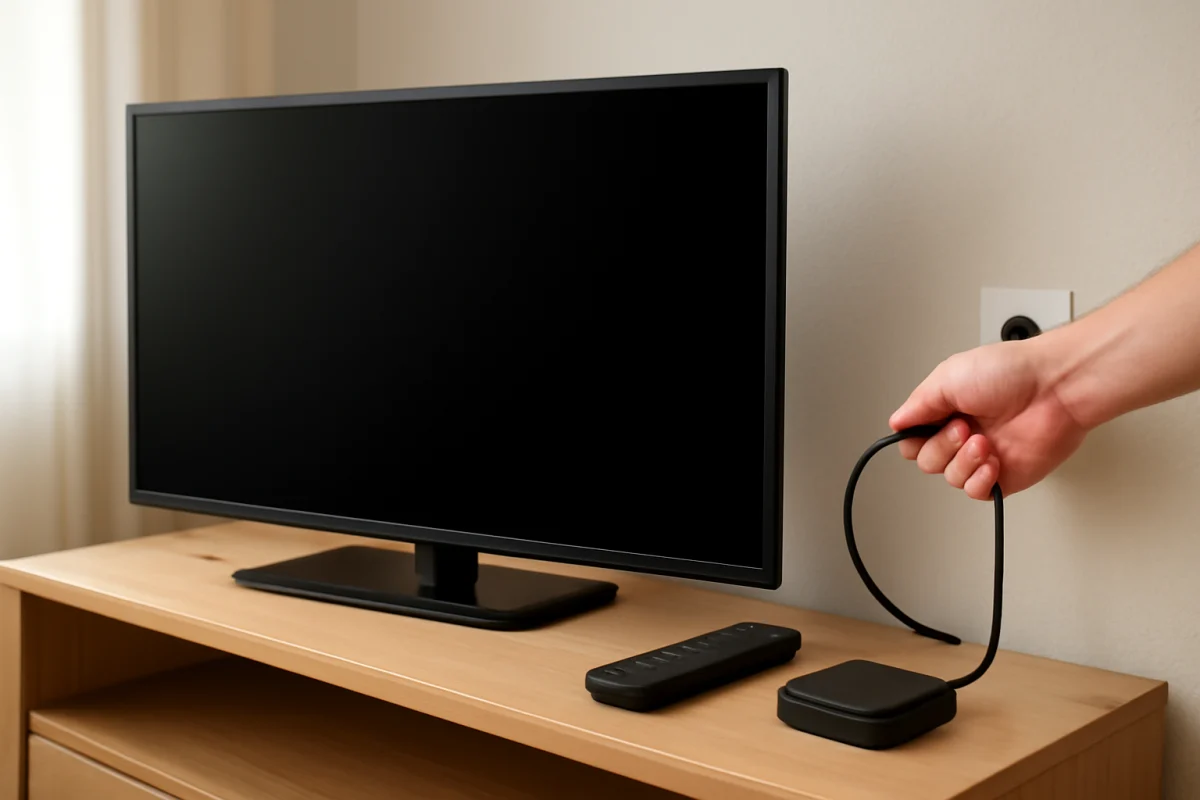
If your Philips TV has a black screen, start with a power reset and a few simple checks before attempting a factory reset. A black screen can be caused by a frozen system, the wrong input, a failed external device, a remote-control problem, or a hardware issue. If the TV still responds to buttons or shows a menu, you may be able to reset it through the settings. If there is no picture at all, a button-based reset may be possible on some models, but the exact procedure varies.
Because Philips has released many TV models with different software and control layouts, there is no single hard-reset button sequence that works for every set. Use the steps below in order, and stop if your TV begins working again.
What to check before resetting the TV
Confirm that the TV is receiving power
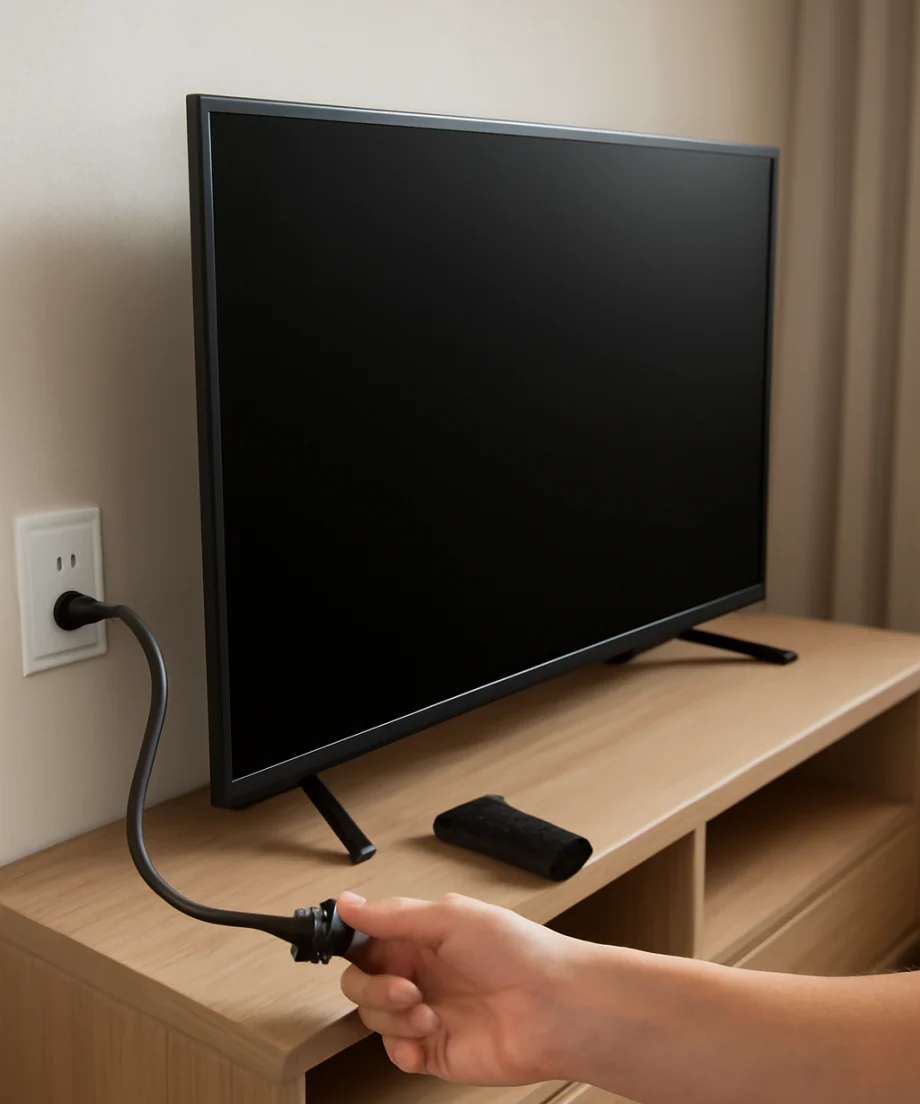
Look for the standby indicator on the front or underside of the TV. Its color and behavior vary by model, so treat it only as a general clue. If there is no light, check that the power cord is firmly connected to both the TV and the wall outlet. If the TV uses an external power adapter, check both ends of that connection as well.
Test the outlet with another small device, such as a lamp, but do not use a damaged power cord or a loose outlet. If the TV is connected to a surge protector or power strip, plug it directly into a known-working wall outlet temporarily. This eliminates the strip as a possible cause.
Use the TV's physical controls
Try pressing the power button on the TV itself instead of using the remote. Depending on the model, the button may be underneath the screen, along the side, or on the rear panel. Some Philips TVs use a small joystick-style control rather than separate buttons.
If the physical control turns the TV on but the remote does not, the black screen may be related to the remote rather than the television. Replace the remote batteries, make sure nothing blocks the sensor, and try the power or home button again. You can find more remote troubleshooting guidance in our remote control troubleshooting guide.
Check whether the screen is actually on
In a dark room, shine a flashlight at an angle across the screen while the TV is powered on. Look for a very faint menu, logo, or moving image. If you can see a dim picture, the TV may have a backlight problem rather than a software freeze. Do not open the TV to inspect internal components unless you have the appropriate training; televisions can retain dangerous electrical charges even after they are unplugged.
Perform a safe power reset
A power reset is not the same as a factory reset. It does not normally erase apps, accounts, picture settings, or network information. It simply removes power long enough to clear a temporary software or power-state problem.
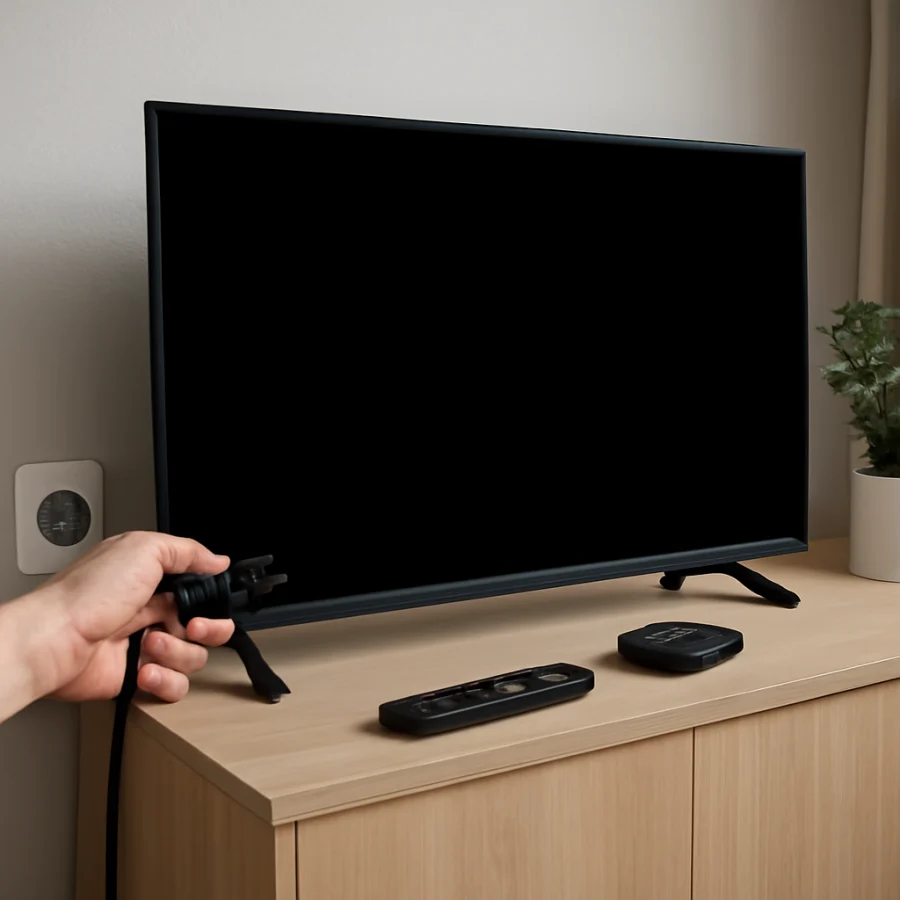
- Turn the TV off if it responds. If it is frozen, continue to the next step.
- Unplug the TV from the wall outlet.
- Disconnect HDMI devices, USB drives, antennas, soundbars, and other accessories.
- Wait at least one minute. Waiting several minutes can also be reasonable if the TV appears completely unresponsive.
- While the TV remains unplugged, press and hold its physical power button briefly. This can help discharge residual power, although the result varies by model.
- Plug the TV directly into a known-working wall outlet.
- Press the TV's physical power button and allow extra time for it to start.
If the picture returns, reconnect external devices one at a time. This helps identify whether a cable, streaming device, game console, or soundbar caused the problem. If the screen goes black again after reconnecting one device, remove it and test the TV by itself.
Check the input and connected devices
A TV can appear to have a black screen when it is set to an unused HDMI input. Press the input or source button on the remote, then select the input connected to your cable box, streaming player, console, or other device. If the remote does not work, use the TV's physical controls if they provide input selection.
Test the TV with all external devices disconnected. If the TV displays its startup logo or on-screen menu without any HDMI equipment attached, reconnect each device separately. Also try a different HDMI cable and, if available, another HDMI port. Do not assume that a black screen proves the TV itself has failed.
If only one app or external device produces a black picture, the issue is probably limited to that source. For broader picture and sound checks, see the TV picture and sound troubleshooting guide.
How to factory reset a Philips TV when you can see the menu
If the picture comes back after the power reset, use the on-screen settings to restore the TV. The wording and location of the reset option vary by model, region, and software version. Look for a settings area related to system, device preferences, installation, setup, or reset. The option may be labeled with wording such as factory reset, restore settings, or reinstall TV, but do not assume your model uses any particular label.
Before selecting a reset, read the confirmation screen carefully. A factory reset can remove saved Wi-Fi details, installed apps, account sign-ins, channel lists, parental controls, picture adjustments, and other personal settings. Write down important network information and make sure you know the passwords for accounts that will need to be added again.
- Open the TV's settings using the remote or physical controls.
- Find the system, setup, installation, or device-management section.
- Look for the reset or restore option.
- Read the warning and confirm only if you are ready to erase the TV's saved settings.
- Leave the TV connected to power while the reset runs.
The TV may restart more than once. Do not unplug it during the reset unless the screen remains unchanged for an unusually long time and the manufacturer's instructions for your model say otherwise. If you cannot find the option, search for the exact model number in the TV's manual or Philips support documentation. Menu names should not be guessed because an incorrect selection could change important setup information.
Can you hard reset a Philips TV with a black screen?
Sometimes, but the answer depends on the model. Certain Philips TVs may support a reset using a physical power button, a combination of buttons, or a remote-control sequence. Other models require visible access to the settings menu, a working remote, or a specific recovery procedure. Using a button sequence from a different Philips model may do nothing or may place the TV into a service or recovery mode that is not intended for normal users.
For this reason, first identify the full model number from the label on the back of the TV, the original box, the purchase record, or any visible startup information. Then consult documentation specifically for that model. Do not press random combinations of buttons, and do not enter a service menu unless the instructions clearly apply to your exact television.
If the TV has a reset button
Some televisions include a recessed control, but its purpose and location vary. If your model's documentation confirms that it has a reset control, follow the stated procedure precisely. Use only the recommended tool, avoid forcing the button, and do not hold it longer than instructed. A reset may erase settings or start a recovery process, so keep the TV connected to stable power during the procedure.
What the black screen tells you
The TV's behavior can help separate a software problem from a hardware fault:
- Standby light changes, but there is no picture: The TV may be on while the input, backlight, display panel, or video circuitry has a problem.
- You hear sound but see no image: A backlight or display-related fault is possible. The flashlight test can provide a useful clue, but it is not a complete diagnosis.
- The startup logo appears and then disappears: The TV may be freezing during startup, or an attached device may be causing a signal or power issue.
- The screen is black only on one HDMI input: Check that device, its cable, and the selected input before resetting the TV.
- There is no standby light or response at all: Check the outlet, cord, power strip, and physical power button. A power-supply fault is possible if those checks fail.
If the TV displays a faint image with a flashlight but never produces normal brightness, a factory reset is unlikely to repair the underlying fault. Likewise, if the set repeatedly clicks, shuts down, smells hot, shows burn marks, or has liquid damage, unplug it and stop testing.
When to stop and seek repair
Contact qualified TV repair service when the TV remains black after the power reset, has no response from either the remote or physical controls, or shows evidence of a backlight, power-board, main-board, or panel problem. Avoid opening the back cover unless you are trained to work safely around high-voltage electronics.
If the TV is still covered by a retailer or manufacturer service arrangement, check the applicable documentation before attempting any internal repair. Keep the model number, serial number, purchase information, and a description of the symptoms available. These details can help a technician determine whether the problem is related to power, software, the display system, or an external source.
In short, begin with a direct wall outlet, a one-minute power reset, disconnected accessories, and an input check. If the picture returns, use the model-specific menu to perform a factory reset only when necessary. If the screen stays black and the TV cannot display a logo or menu, the problem may be hardware-related rather than something a reset can solve. You can find additional brand-specific troubleshooting at TV Fix Guide's Philips TV repair section.
Comments
0No comments yet. Be the first to share a helpful note or question.
Leave a Comment
Your email address will not be published. Comments are reviewed before appearing on the site.