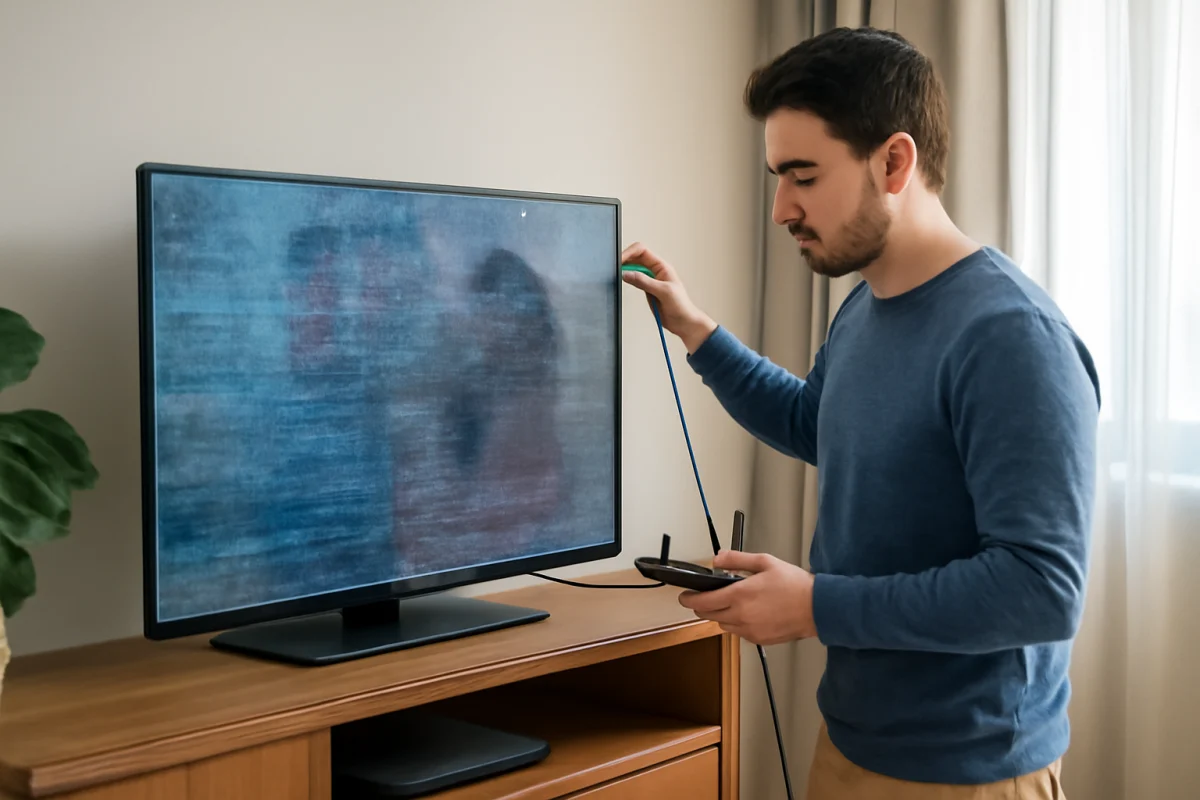
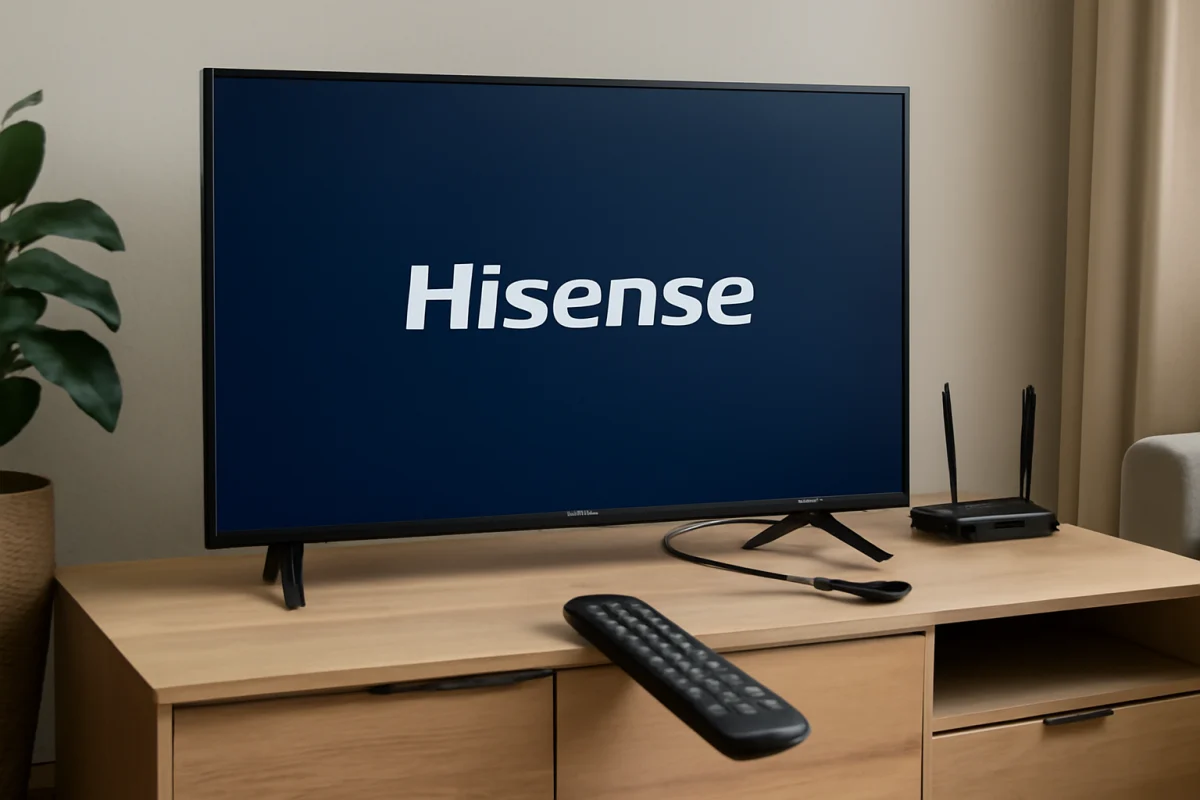
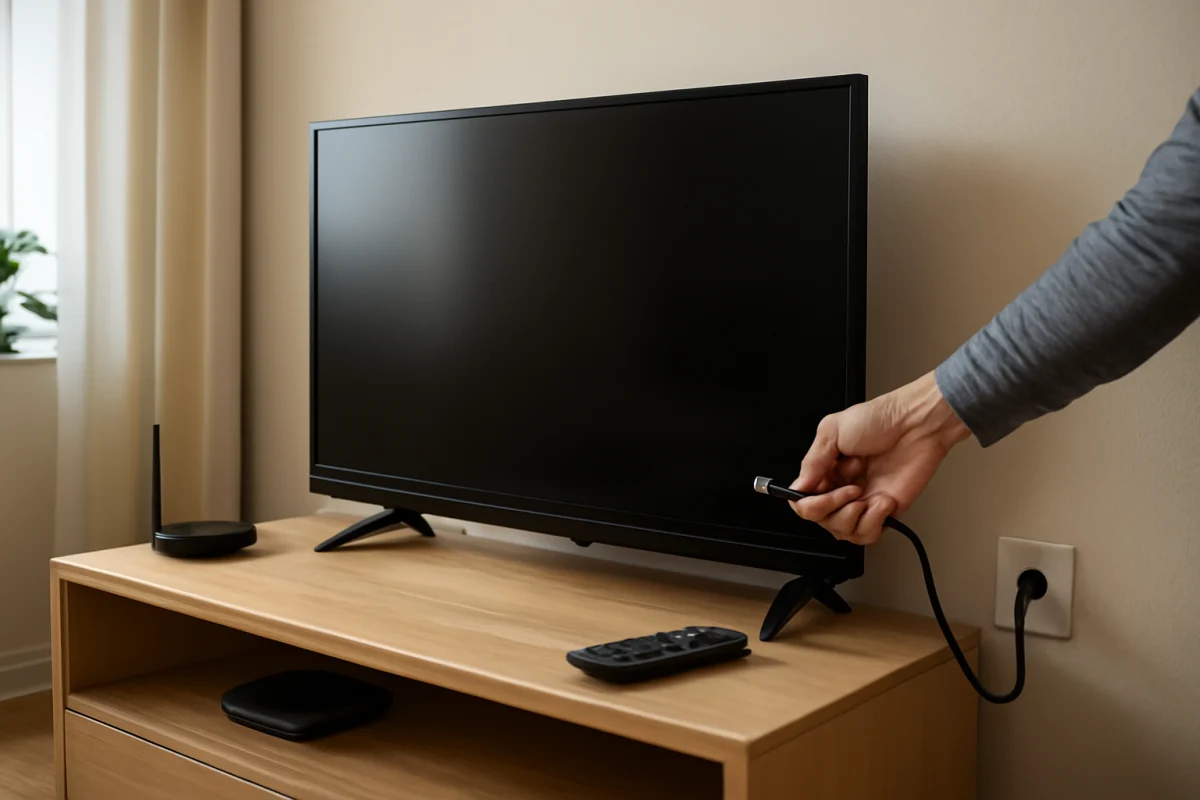
If your Hisense TV is frozen, start with the simplest test: press a few buttons on the TV itself, not just the remote. If the TV responds to its physical control but not the remote, the remote or its batteries may be the problem. If neither responds, unplug the TV from the wall, wait at least 60 seconds, and plug it back in. This power cycle often clears a temporary software or input problem without erasing your settings.
A frozen screen can have several causes. The TV may be stuck while launching an app, an HDMI device may have stopped communicating, the remote may be sending repeated commands, or the television may need a more complete reset. Work through the checks below in order, because the safest solutions should come before any step that can remove apps, accounts, or personal settings.
Check whether the TV is actually frozen
First, look closely at what is happening on the screen. A paused movie, a loading animation, and a completely unresponsive home screen can look similar, but they point to different problems.
- Press the volume, input, or power button on the Hisense TV if those controls are accessible.
- Try the remote's Home or Back button once, then wait several seconds. Avoid rapidly pressing many buttons.
- Watch for a volume indicator, input banner, menu movement, or any other response.
- Check whether the picture is frozen while the sound continues. That may indicate a streaming app or source-device problem rather than a total TV lockup.
Do not repeatedly press the power button if the TV is still processing an operation. Give it a short moment to respond. If the screen remains unchanged and no control works, continue with a power cycle.
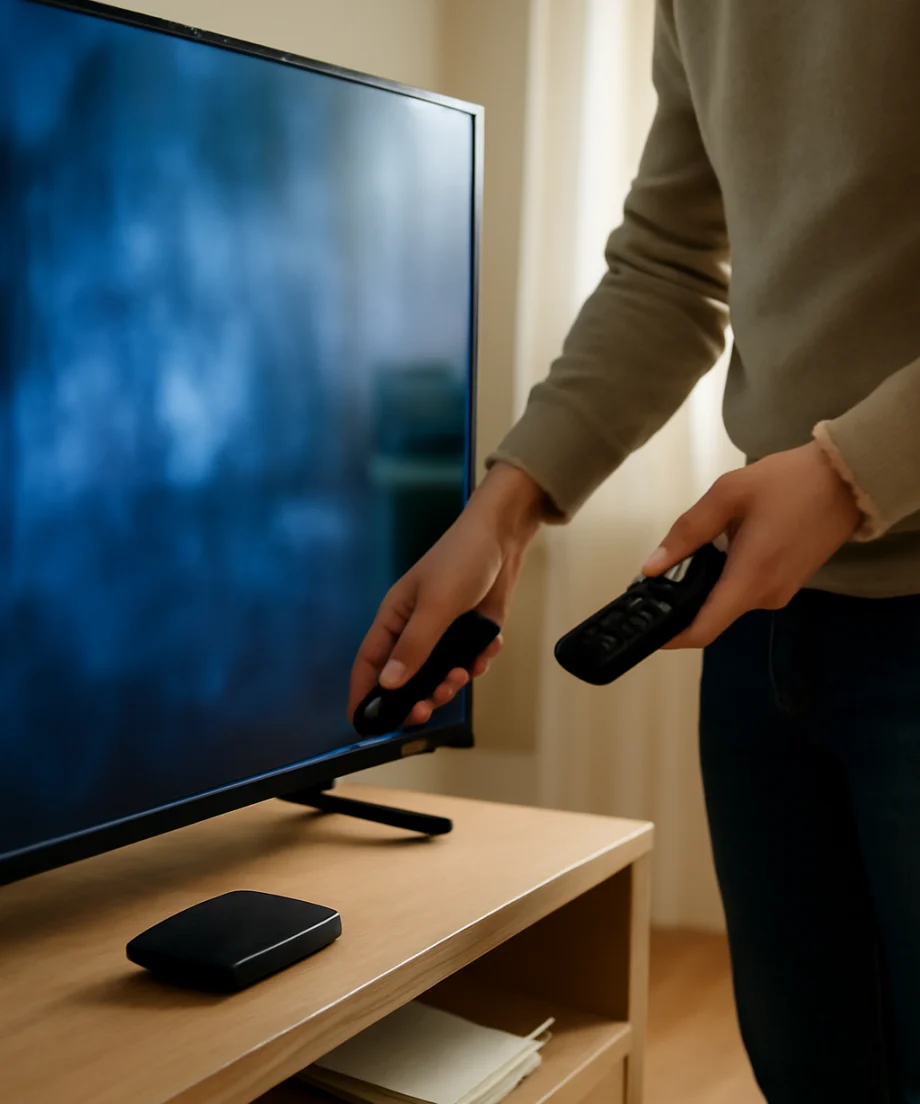
Power cycle the Hisense TV
A power cycle is different from simply putting the TV into standby. It removes power long enough for temporary system processes to stop and restart.
- Turn the TV off if it responds. If it does not, proceed to the next step.
- Unplug the TV's power cord from the wall outlet or surge protector.
- Leave it unplugged for at least 60 seconds.
- While it is unplugged, press and hold the TV's physical power button for about 10 to 15 seconds if the button is available. This is optional and may not apply to every model.
- Reconnect the TV directly to a known-working wall outlet for the test.
- Wait for the TV to start fully before opening an app or reconnecting other devices.
Do not disconnect the power while the TV is visibly installing an update or displaying a message that it is completing an update. Interrupting that process can create additional problems. If there is no update message and the TV is simply stuck, the power cycle is generally a reasonable first troubleshooting step.
Test the remote and physical controls
A remote can make a working TV appear frozen. A stuck button, weak batteries, or interference can prevent normal control.
Replace or reseat the batteries
Remove the batteries from the remote, wait briefly, and install a fresh matching pair. Check the battery orientation against the markings inside the compartment. If a button is physically stuck, gently press it several times without forcing it. Keep the remote pointed away from the TV while you power the television back on, then test one command at a time.
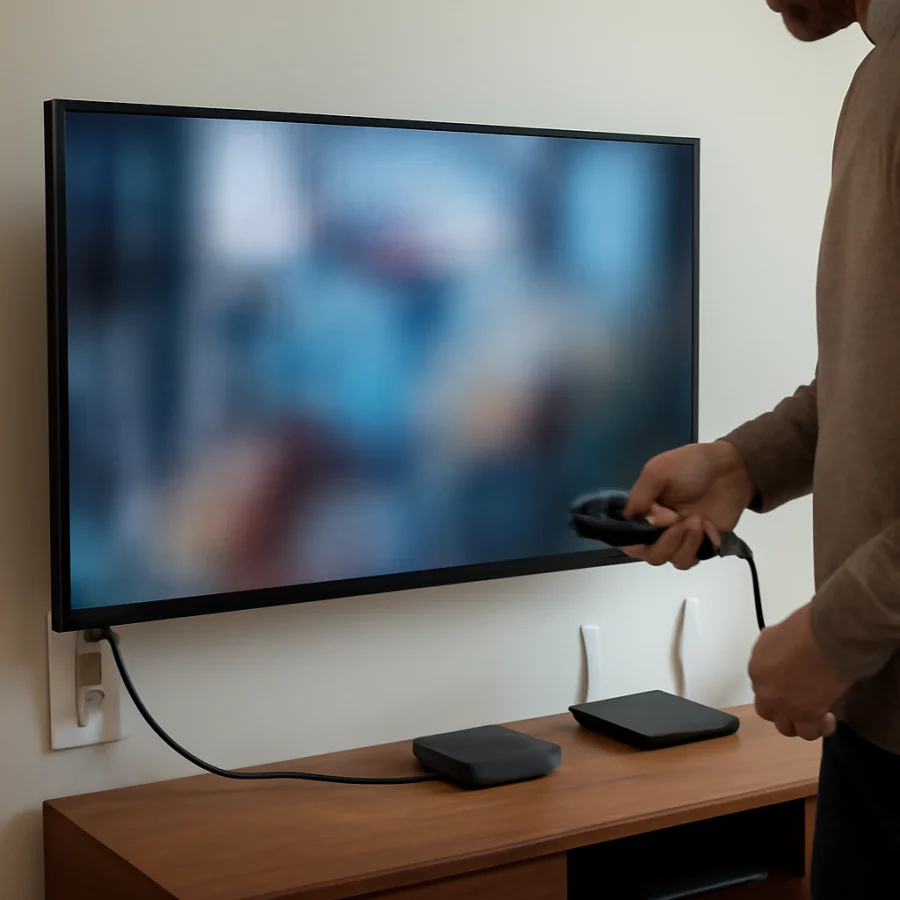
If the TV works from its own controls but not from the remote, focus on the remote rather than repeatedly resetting the television. Depending on the Hisense model, the remote may use infrared, Bluetooth, or another wireless connection. Pairing and reset procedures can vary, so use the instructions for the exact remote and TV model instead of assuming one procedure works for every Hisense set. More remote troubleshooting is available in this remote controls guide.
Disconnect external devices
A cable box, game console, Blu-ray player, soundbar, streaming stick, or HDMI switch can cause the TV to hang while changing inputs or negotiating a connection. To check whether an external device is involved, disconnect all HDMI, USB, antenna, Ethernet, and other accessory cables. Leave only the TV's power cord connected.
Power the TV on and test its built-in menu. If the TV is responsive with everything disconnected, reconnect devices one at a time. After connecting each device, switch inputs and wait to see whether the freeze returns. The last device or cable connected is a strong suspect, although the HDMI port itself may also be involved.
If the problem occurs only when using a particular input, try a different HDMI cable and another available HDMI port. Make sure the cable is firmly inserted at both ends, but do not force the connector. If the TV freezes only when a game console or cable box wakes up, restart that device as well and check its video-output settings.
Determine whether an app is responsible
If the TV freezes inside one streaming app but the home screen and other apps work normally, the app may be the cause. Start by closing the app if the TV allows it, then restart the TV with the power cycle described above.
Check whether the problem affects only one title or every title in that service. A single video can fail to load because of a temporary service, account, or network issue. If other apps also buffer, stop responding, or fail to open, test the home network before blaming the TV.
Restart your modem and router if other devices are also having trouble. If possible, test the TV with a different network or a temporary phone hotspot. A hotspot is useful as a short diagnostic test, not necessarily as a permanent solution. For broader connection checks, see the Wi-Fi and network troubleshooting guide.
Check for overheating and ventilation problems
Turn the TV off and check that its vents are not blocked by a wall, cabinet, dust, fabric, or another device. Do not cover the back of the television, and avoid placing heat-producing equipment directly against it. If the TV becomes unusually hot, shuts down, or freezes after running for a while, let it cool before testing again.
Never open the TV's case to clean internal parts or inspect the power board. Even when unplugged, a television can contain components that hold dangerous electrical charge. External cleaning should be limited to the manufacturer's care instructions, using a soft, dry cloth and no liquid sprayed directly onto the screen or cabinet.
Install available system updates when the TV responds
If the TV becomes usable after a restart, check its software settings for an available system update. The wording and location of update controls differ among Hisense models and operating systems, so do not rely on a menu path from a different television. Look for the update option in the main settings area, or consult the support documentation for the exact model number.
Keep the TV connected to reliable power and the internet during an update. Avoid turning it off or unplugging it unless the on-screen instructions specifically tell you to do so. If the TV repeatedly freezes during updates, note what happens and contact Hisense support before attempting unofficial firmware files or procedures.
Try a factory reset only as a last resort
A factory reset can help when corrupted settings or persistent software errors keep returning, but it should not be the first response to a single frozen screen. A reset can remove installed apps, signed-in accounts, network details, picture settings, and other preferences. Make sure you know your streaming account passwords before starting.
The reset process varies by Hisense model and operating system. If the TV is responsive, use the reset option in its settings and read the warning carefully. If the TV will not reach its menus, some models have a physical button combination or recovery procedure, but these steps are not universal. Use the exact instructions for your model from reliable manufacturer documentation rather than trying random button combinations.
Do not perform a factory reset if the TV is in the middle of a confirmed software update. Also avoid repeated resets when the same freeze returns immediately afterward. That pattern suggests a deeper software, hardware, power, or connected-device issue.
When a frozen screen may indicate hardware trouble
Arrange professional help if the TV freezes repeatedly after a power cycle, remains unresponsive with every external device disconnected, or shows other symptoms such as repeated restarts, a burning smell, clicking sounds, lines across the picture, or a blank screen with no normal response. Stop using the TV if you smell burning, see smoke, notice sparking, or find a damaged power cord.
Before contacting support, record the exact model number, what was on screen when the freeze occurred, whether sound continued, how often it happens, and which troubleshooting steps you already tried. Also note whether the problem affects the built-in menus, one app, or a specific HDMI input. Those details can help separate an app or accessory problem from a TV-level fault.
For more Hisense-specific troubleshooting, visit the Hisense TV troubleshooting section. If the frozen image is accompanied by unusual colors, missing sound, or a dim picture, the picture and sound troubleshooting section may help identify the related symptom.
Comments
0No comments yet. Be the first to share a helpful note or question.
Leave a Comment
Your email address will not be published. Comments are reviewed before appearing on the site.