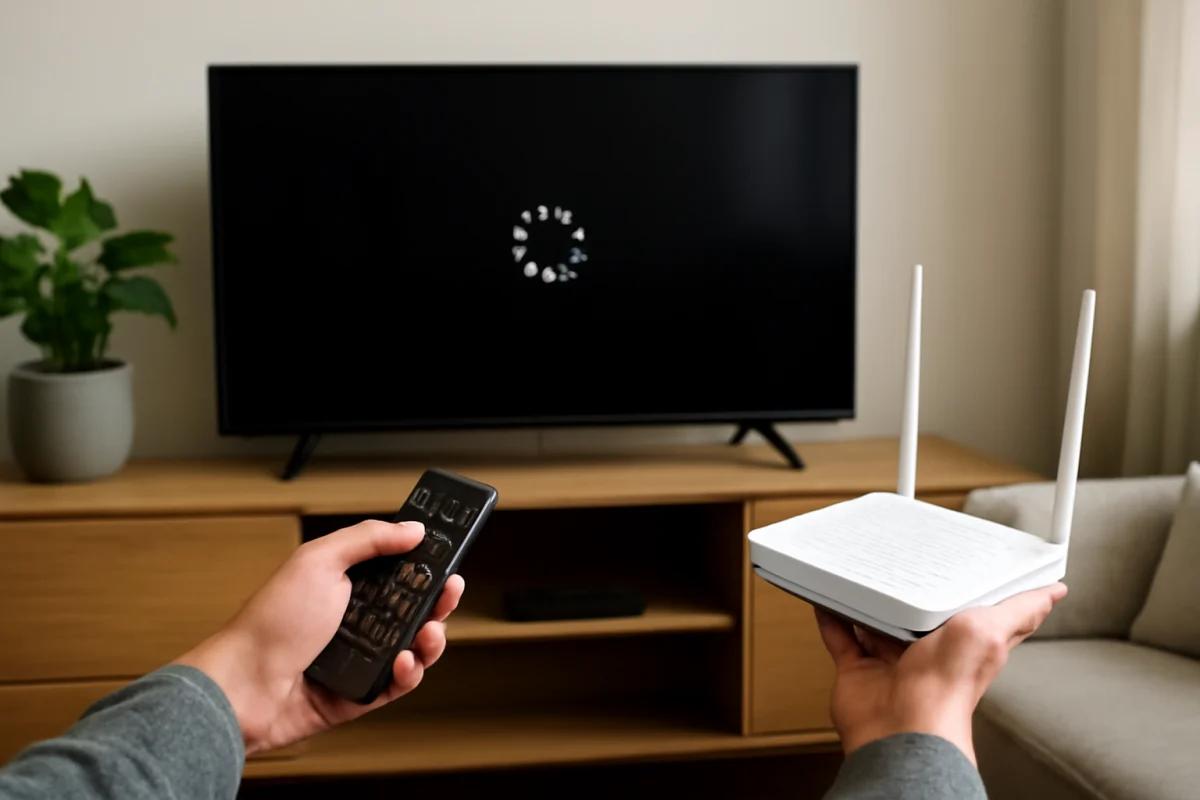
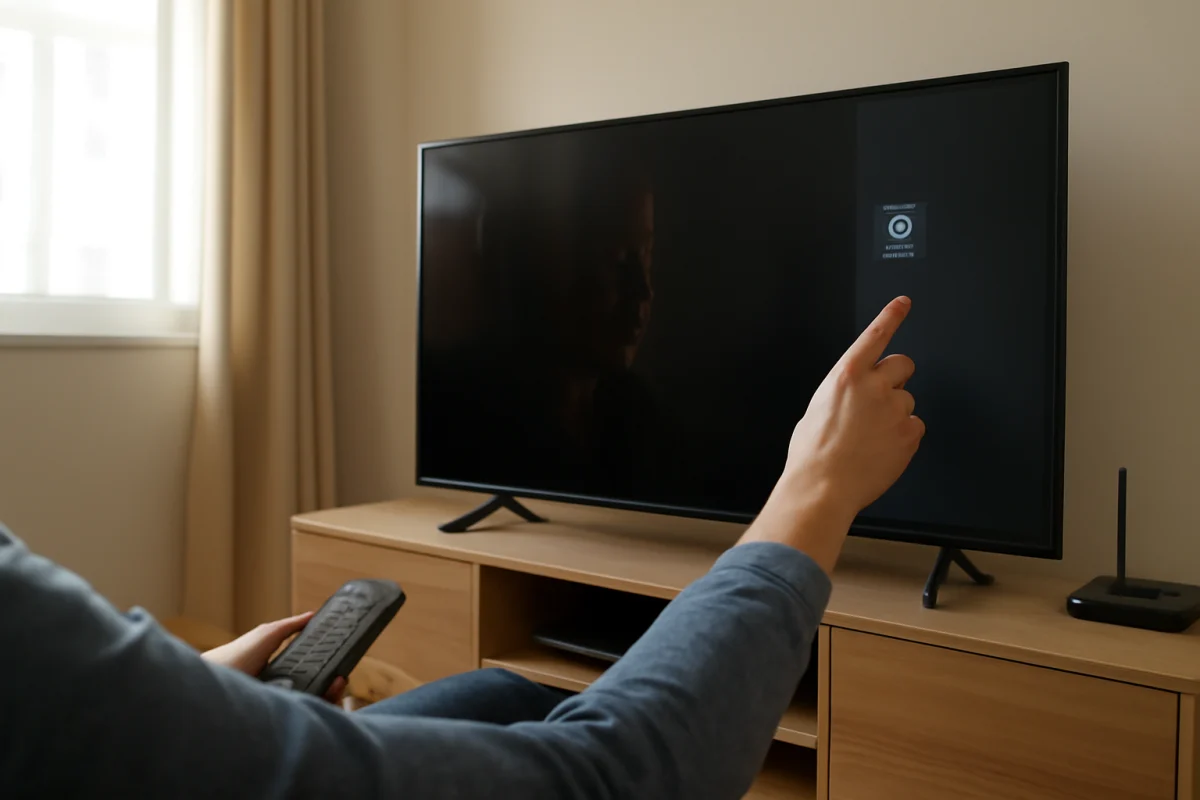
If Netflix will not open on your TV, start by checking whether the problem affects only Netflix or the TV’s internet connection as a whole. Close and reopen the app, restart the TV completely, and test another streaming service. These simple checks often restore Netflix without deleting your settings or signing you out.
The exact menu names and available options vary by TV brand, operating system, and model year. If a step does not match your screen, look for a similarly named option such as Settings, Support, Apps, Network, Restart, or System.
1. Check whether Netflix is the only app affected
Open another app on the TV, such as a different streaming service or the TV’s app store. If other apps open normally, the issue is probably limited to Netflix or its stored app data. If no online app works, focus on the TV’s internet connection before troubleshooting Netflix itself.
You can also try Netflix on a phone, tablet, or computer connected to the same home network. If Netflix works on other devices but not the TV, the TV app or TV software is the more likely cause. If Netflix fails everywhere, there may be an account, service, or broader network problem.
2. Close Netflix and restart the TV
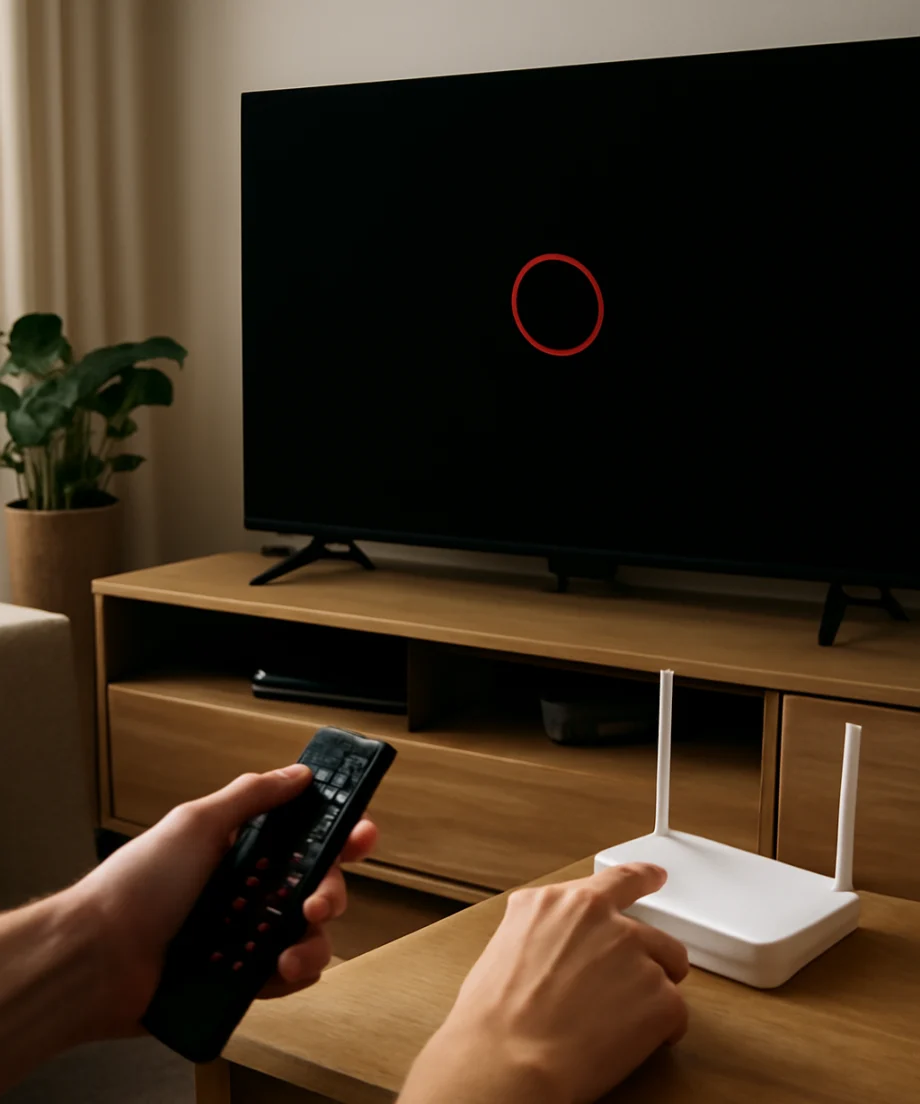
Simply returning to the TV home screen may leave Netflix running in the background. Exit the app, wait a few seconds, and open it again. If the app still hangs, shows a blank screen, or returns to the home screen, restart the TV.
Use the TV’s normal restart option if one is available. Otherwise, turn the TV off, unplug it from the wall, wait at least 60 seconds, and plug it back in. This is different from pressing the power button on the remote, because some TVs remain in a low-power standby state when turned off normally.
After the TV starts, wait for the home screen and internet connection to load before opening Netflix. A full power cycle can clear a temporary app process, but it should not erase your apps, picture settings, or account information.
3. Check the internet connection
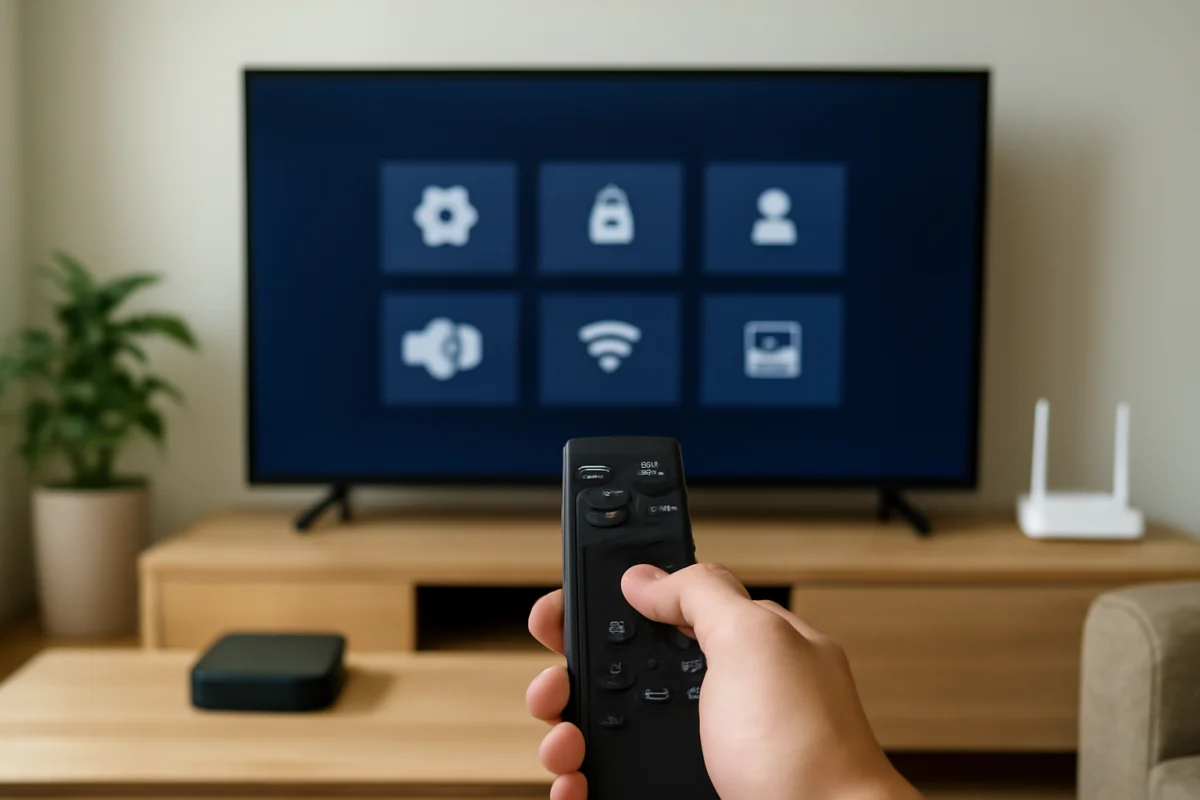
Netflix may not open correctly when the TV has a weak or interrupted connection. Open the TV’s network settings and look for its connection status. The wording varies by manufacturer, but you should be able to see whether the TV is connected to Wi-Fi or an Ethernet cable.
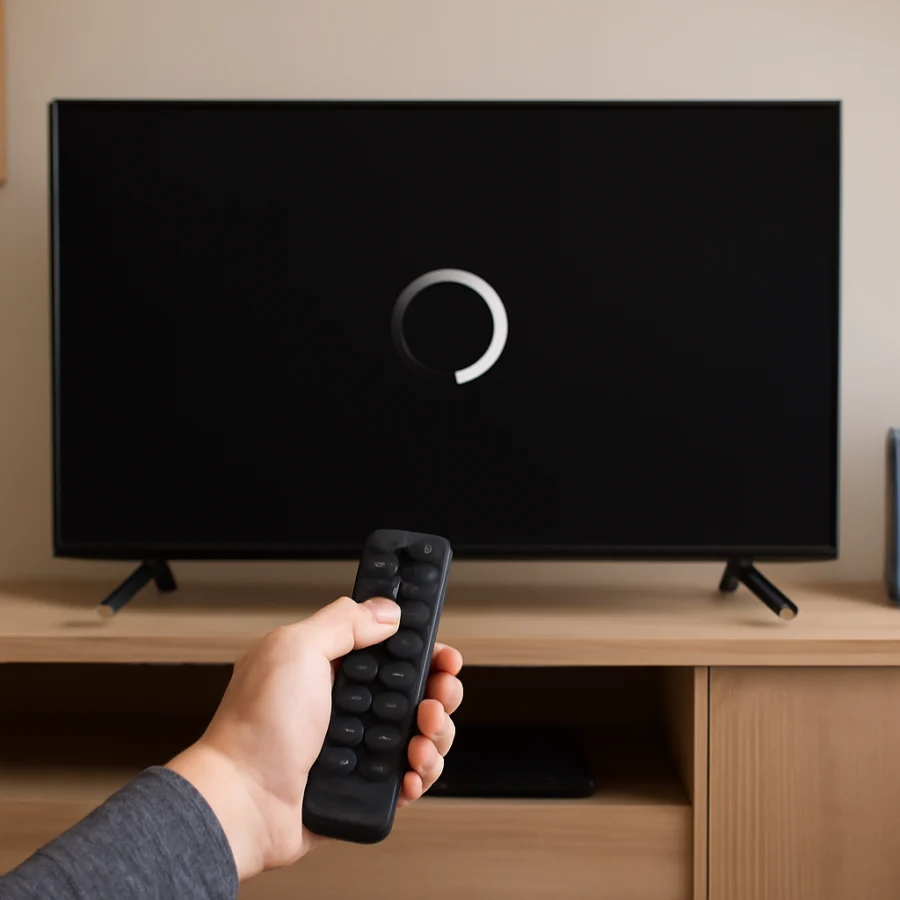
If the TV says it is disconnected, reconnect it to your home network and enter the Wi-Fi password carefully. If the TV says it is connected but other apps also fail, restart the network equipment. Unplug the modem and router, wait about a minute, reconnect them, and allow several minutes for the internet connection to return.
When possible, test the TV near the router or temporarily connect it to a different network, such as a phone hotspot. A hotspot test is useful for diagnosis, but it may use mobile data and is not always suitable for continued streaming. If Netflix opens on the alternate network, the home router, Wi-Fi signal, DNS settings, or internet service may need attention.
For more help with connection problems, see the Wi-Fi and network troubleshooting guide on TV Fix Guide.
4. Check the TV’s date and time
An incorrect date or time can interfere with secure connections between the TV and online services. Open the TV’s date and time settings and enable automatic time synchronization if that option is available. If the TV has been unplugged for a long time or recently reset, verify that the time zone is also correct.
Restart the TV after correcting the settings, then try Netflix again. This check is quick and low risk, although the exact controls vary by brand and model.
5. Update Netflix and the TV software
An outdated app or TV operating system can cause Netflix to stop loading after a service or system change. Open the TV’s app store or app-management area and check whether Netflix has an available update. Some TVs update apps automatically, while others require you to select an update option.
Next, check the TV’s software update section. Do not interrupt the TV while it is downloading or installing an update. The update process may take several minutes, and the TV may restart more than once.
Do not assume that every TV supports the newest version of Netflix indefinitely. Older models and some built-in smart TV platforms may eventually lose compatibility. If the TV reports that the app is no longer supported, check the manufacturer’s current support information or use a compatible external streaming device instead.
6. Sign out of Netflix, then sign in again
If Netflix opens but remains stuck on a profile screen, displays an account message, or repeatedly returns to the start screen, signing out and back in may refresh the account session. Look for a Help, Get Help, Settings, or Sign Out option inside Netflix. The label and location can differ by device.
Have your Netflix email address and password available before signing out. If you use a verification code or another sign-in method, make sure you can access it. Avoid repeatedly entering passwords if you are unsure of the account details, because that can create an additional login problem.
If you cannot access the Netflix menu at all, continue with the app reset steps below rather than repeatedly launching the app.
7. Clear Netflix data or reinstall the app
Many smart TVs provide an option to clear an app’s cache, reset the app, or delete its stored data. These options can remove damaged temporary files that prevent Netflix from starting. The names and consequences vary significantly by TV brand, so read the on-screen warning before confirming.
Clearing a cache may leave your sign-in information intact, while clearing app data or resetting the app will usually sign you out. Reinstalling Netflix can also remove temporary problems, but it may require you to download the app again and sign in.
Before resetting Netflix
- Confirm that you know the Netflix account email address and password.
- Check whether other apps work on the TV.
- Write down any custom app or parental-control settings you may need to restore.
- Use the TV’s built-in app store or app settings rather than downloading software from an unknown website.
If the TV does not allow Netflix to be removed, look for a reset, reload, or reinstall option instead. On some platforms, the app is built in and can only be updated or reset.
8. Check for storage and system problems
A TV with very little available storage may have trouble updating or launching apps. If your TV has a storage-management screen, remove apps you no longer use and delete unnecessary downloaded content. Avoid deleting system apps unless the TV specifically identifies them as removable.
If several apps crash, the TV menu is unusually slow, or settings fail to save, the problem may involve the TV operating system rather than Netflix. Check for a system update and restart the TV again after removing unused content.
9. Try a factory reset only as a last resort
A factory reset can resolve persistent software problems, but it erases personal settings and may remove installed apps, saved network information, and account sign-ins. It should not be the first response to a Netflix launch problem.
Before using it, try the TV restart, network restart, software update, Netflix sign-out, and app reset steps above. Take photos or notes of important picture, sound, accessibility, and network settings. You may also need the TV remote and account details during setup.
Because reset procedures vary, follow the instructions for your exact TV model. Do not unplug the TV while it is performing the reset or initial setup. Afterward, reconnect the TV to the internet, install or open Netflix, and sign in again.
When the problem may not be your TV
Netflix may be temporarily unavailable, or your account may have a billing, sign-in, household, or service issue. Check Netflix on another device and review any message shown there. If the same account fails on multiple devices, contact Netflix through its official support channels.
If only the TV continues to fail after a restart, network test, app reset, and software update, contact the TV manufacturer. Have the TV model, software version if visible, network type, and a description of what happens when you select Netflix ready. For brand-specific troubleshooting, you can also browse the streaming apps section or your TV brand’s guides, including Samsung TV troubleshooting.
Use an external streaming device when needed
If the built-in Netflix app is no longer supported or the TV’s smart platform is unreliable, an external streaming device may be a practical workaround. Connect the device to an available HDMI port, switch the TV to that input, connect the device to the internet, and install Netflix through its official app store.
This does not repair the TV’s built-in app, but it can restore streaming without replacing a functioning display. Make sure the external device is compatible with the TV and that you have the correct remote or power connection.
For additional TV troubleshooting steps and practical guides, visit TV Fix Guide.
Comments
0No comments yet. Be the first to share a helpful note or question.
Leave a Comment
Your email address will not be published. Comments are reviewed before appearing on the site.