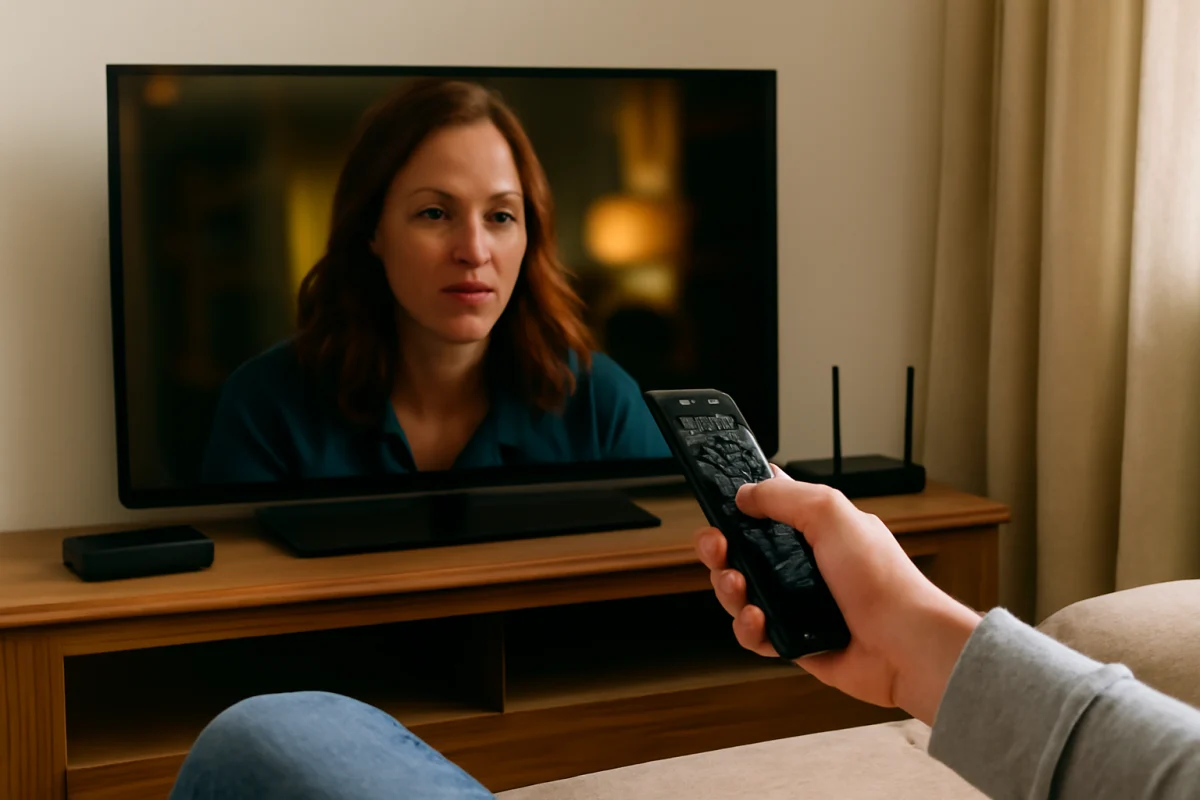
If the picture on your TV is cropped, stretched, zoomed in, or surrounded by unexpected black bars, the problem is usually caused by a screen-size setting, the connected device, or the video source itself. Start by checking the TV’s picture-size setting, then test another input or app before changing advanced settings or resetting the TV.
Check the TV’s picture size or aspect ratio
The first place to look is the TV’s picture-size control. Depending on the brand and model, it may be called Picture Size, Aspect Ratio, Screen Size, Zoom, Format, or something similar. Menu names and available choices vary, so use the option that most closely matches your TV.
Open the picture settings while watching the affected content and look for a setting that controls how the image fills the screen. Common options include:
- 16:9: Usually appropriate for modern widescreen TV content.
- Original, Native, or Screen Fit: Displays the image without deliberately enlarging or cropping it, when supported by the TV.
- Auto: Allows the TV to choose a format based on the incoming signal.
- Zoom: Enlarges the image and may cut off the top, bottom, or sides.
- 4:3: Intended for older standard-definition content and may add black bars on the sides.
For most current HD and 4K content, try 16:9, Original, or Screen Fit, depending on which options your TV provides. Avoid Zoom if faces, subtitles, scoreboards, or menu items are cut off. If the setting is unavailable or locked, the connected device may be controlling the format instead.
Determine whether the TV or source is causing the problem
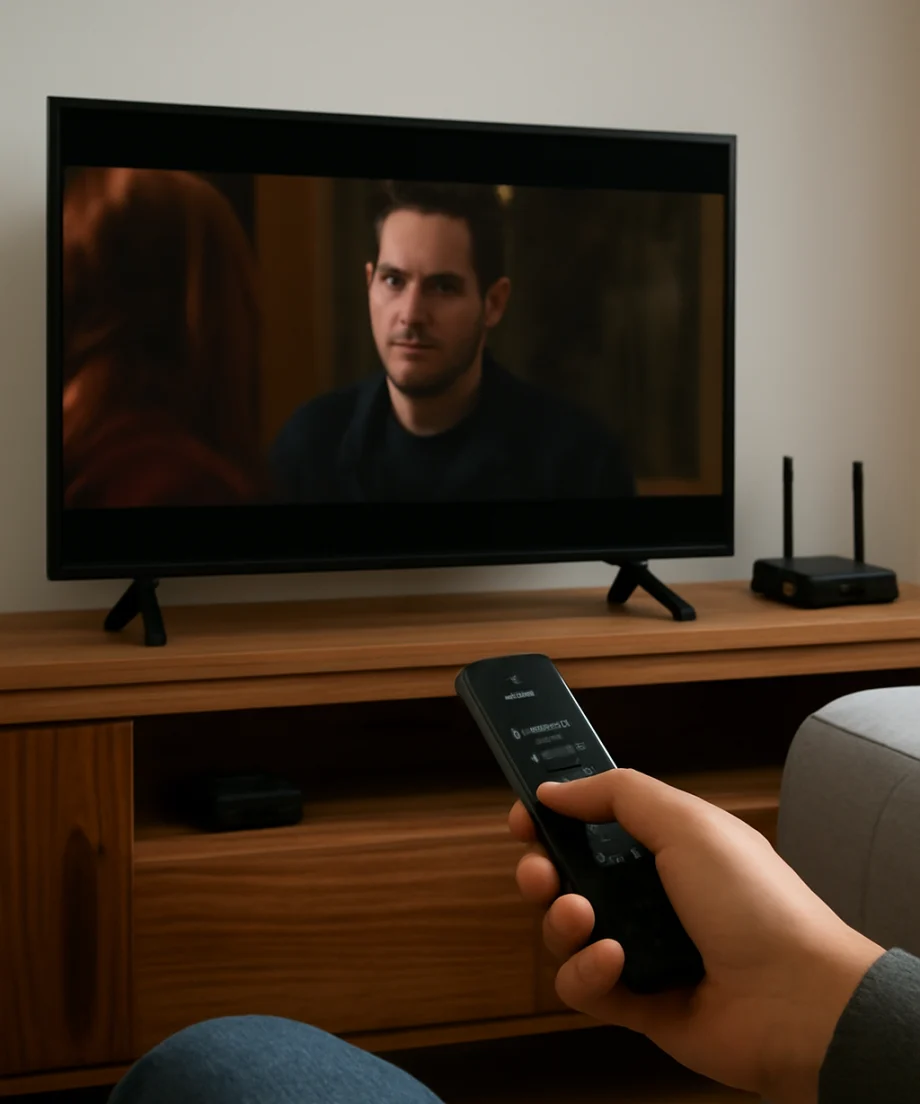
Before changing several settings, identify whether the issue affects everything on the TV or only one source. Open the TV’s home screen, settings menu, or a built-in streaming app. If those appear correctly but a cable box, game console, Blu-ray player, or streaming stick does not, the external device or its connection is more likely responsible.
Next, switch to another input or play a different title in the same app. A single movie or program can have black bars because it was produced in a wider aspect ratio than the TV. Those bars may be normal and can appear at the top and bottom without indicating a fault.
Use this quick comparison:
- Everything is cropped or stretched: Check the TV’s picture-size setting and any overscan option.
- Only one HDMI device is affected: Check that device’s display resolution and aspect-ratio settings.
- Only one app or title is affected: The content may use a different aspect ratio, or the app may have a playback issue.
- The TV menu itself is cut off: The TV’s own picture processing or screen-size setting is more likely involved.
Turn off zoom and overscan when appropriate
Some TVs enlarge incoming video slightly to hide unwanted edges. This behavior is often called overscan. It can make the image look too large, remove text near the edges, and crop parts of a computer desktop or game interface.
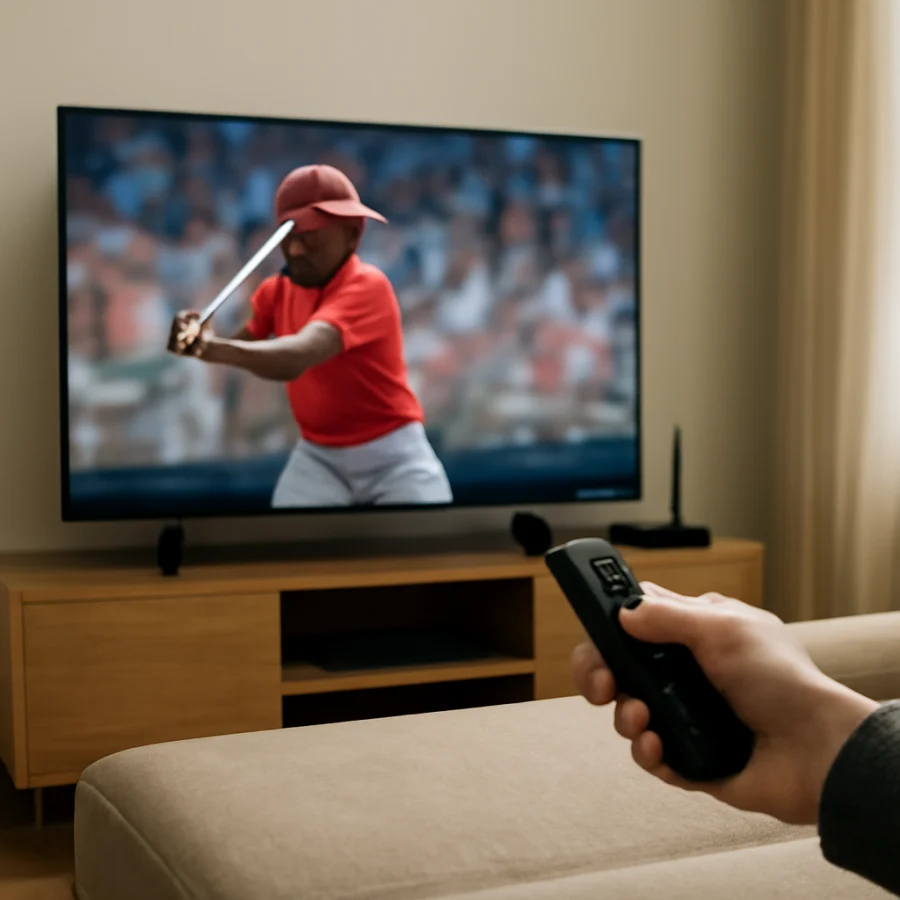
If your TV offers a setting such as Screen Fit, Just Scan, Dot by Dot, Full Pixel, or 1:1, it may display the signal more accurately than a general Zoom or Wide mode. The exact label differs by manufacturer and may only appear with certain resolutions or inputs.
Do not assume that a mode with the word “Full” is always correct. On some TVs, Full may stretch a lower-resolution image, while on others it may show the complete signal. Compare the image with a menu, subtitle, or object near the edge of the screen and choose the mode that preserves the full picture without distortion.
Check the connected device’s display settings
If the picture is wrong only when using a connected device, open that device’s display or video settings. Look for controls related to resolution, aspect ratio, screen position, calibration, or display area. Set the device to a resolution supported by both the device and the TV, then check whether the image fits correctly.
Game consoles and computers sometimes include their own screen-adjustment tools. A console may ask you to move corner markers until they are visible. A computer may have a display-scaling or underscan control. These adjustments should be made while the affected input is selected, because they may not change the TV’s built-in apps.
If you use a cable box or satellite receiver, check its video-format settings as well. Its output may be set to a format that does not match the TV or the program. If you are unsure which setting to choose, record the original setting before testing another option so you can restore it easily.
Inspect the HDMI connection
A loose or damaged HDMI connection does not usually create a simple aspect-ratio problem, but it can cause an unstable signal, an incorrect resolution, or a blank image that appears after the device wakes up. Turn off the external device, disconnect and reconnect the HDMI cable firmly at both ends, and select the correct input again.
If possible, test a different HDMI port or a known-good cable. Make one change at a time so you can tell what fixed the problem. If several devices show the same issue on one port, that port or the TV’s input settings may need attention. If only one device is affected, focus on the device and its cable first.
Power-cycle the TV and source device
A temporary communication error can leave an external device using an unsuitable display mode. To refresh the connection, turn off the TV and the affected device. Unplug both from power for about one minute, then reconnect the device, turn on the TV, and select the input again.
This is different from a factory reset and normally does not erase your settings. After the devices restart, check the picture before making additional changes. If the problem returns whenever the same device wakes from sleep, look for a software update or display-setting option on that device rather than repeatedly changing the TV’s picture mode.
Check whether black bars are actually normal
Black bars are not automatically a sign that the TV is malfunctioning. Many films and some shows use a wider image than a standard 16:9 television. In that case, black bars at the top and bottom preserve the original composition. Older programs may instead show bars on the left and right because they use a narrower 4:3 format.
Do not use Zoom simply to remove black bars unless you accept losing part of the image. Zoom can crop subtitles, camera details, or the sides of a scene. Some streaming apps also prevent viewers from changing the format because the video is delivered in a fixed aspect ratio.
Look for app-specific or playback problems
If only one streaming app has an incorrectly sized picture, close the app and reopen it. Play another title, sign out and back in if the app provides that option, and restart the streaming device or TV. An app update may also be available, although the update process varies by platform.
Test the same title on another device if you can. If the picture is cropped everywhere, the content or service may be delivering it that way. If it is cropped only on one TV or streaming device, focus on that device’s picture settings and software.
For broader streaming problems, the Streaming Apps section has additional troubleshooting guidance. If the device also reports buffering or connection interruptions, check the Wi-Fi and network troubleshooting resources before changing video settings repeatedly.
Check picture settings after switching inputs
Many TVs save picture settings separately for different inputs, signal types, or picture modes. A change made while watching a built-in app may not affect an HDMI device. Select the input that has the problem, then open its picture settings and make the adjustment there.
Some TVs also use separate settings for standard dynamic range and high dynamic range content. If the picture fits correctly in one type of video but not another, compare the available settings while each type is playing. Do not copy a setting from another model or assume every mode will appear on every input.
When to consider a reset or professional repair
A factory reset should be a later step, not the first response to a picture-size problem. It can erase saved Wi-Fi information, app sign-ins, picture preferences, parental controls, and other personal settings. Before using it, photograph or write down important settings and confirm that the issue affects the TV’s own menus or multiple sources.
If the picture remains cropped after testing the TV’s picture-size controls, another input, a different source, and a power cycle, check the manufacturer’s support information for your exact model. Model-specific instructions may identify a hidden input or aspect-ratio limitation. If the TV’s menus are distorted, the screen has a permanent section missing, or the image changes when the panel or cable is moved, stop adjusting settings and arrange service. Those symptoms can indicate a hardware or panel problem.
For brand-specific guidance, you can browse Samsung TV troubleshooting, LG TV troubleshooting, or the broader Picture & Sound section on TV Fix Guide. Keep the TV model and the affected source nearby when looking up instructions, because menu names and supported screen modes vary considerably.
Comments
0No comments yet. Be the first to share a helpful note or question.
Leave a Comment
Your email address will not be published. Comments are reviewed before appearing on the site.