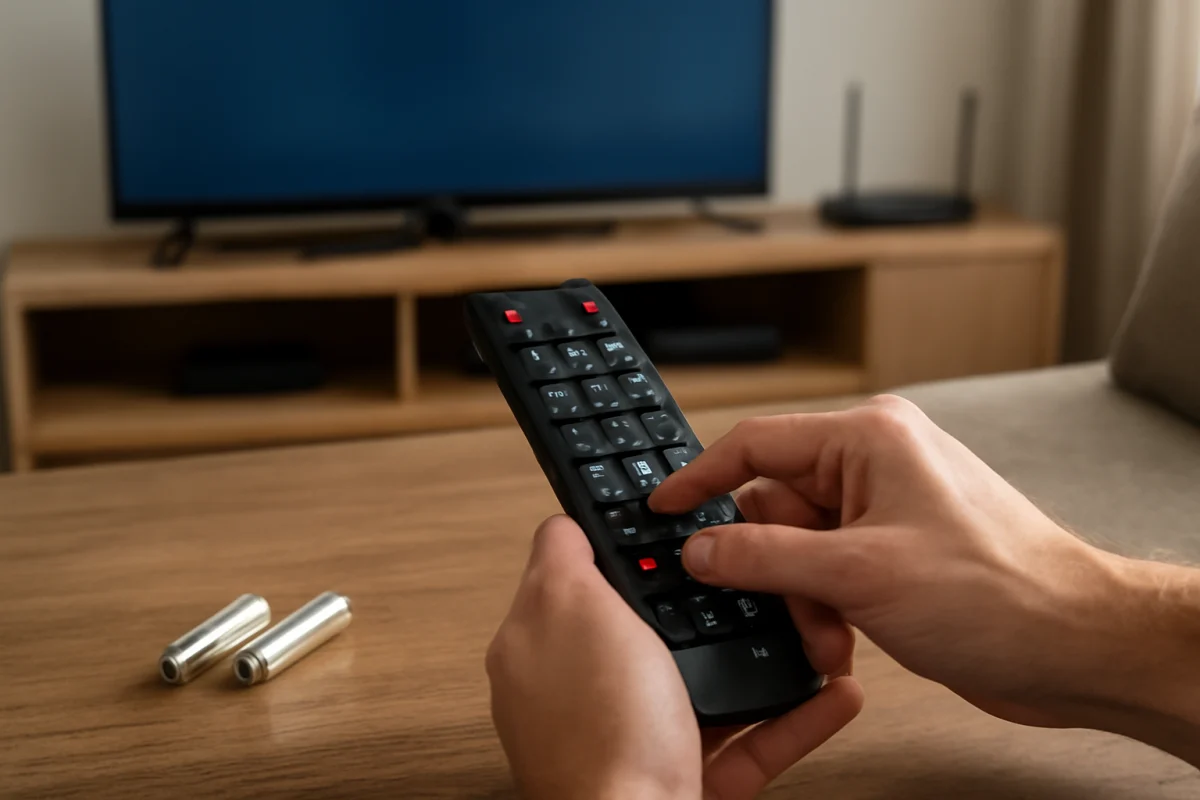
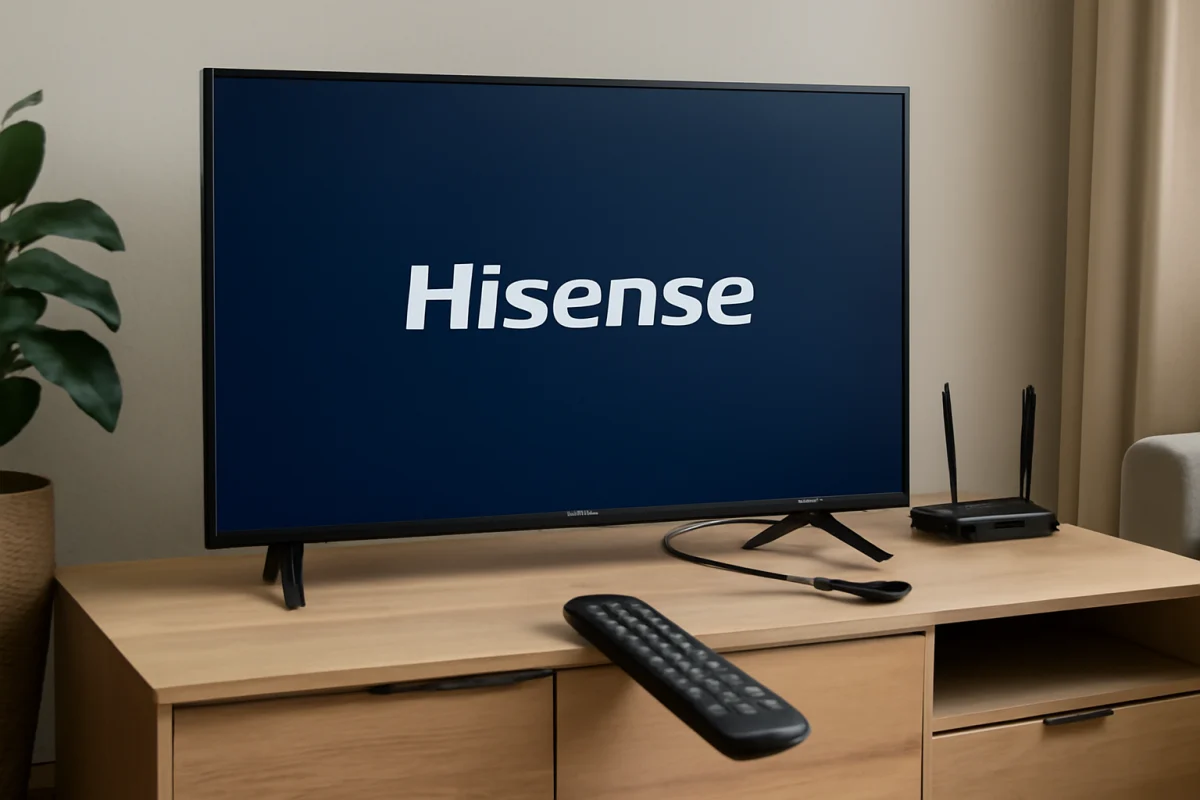
If your Hisense remote will not respond, start with the simple causes: replace the batteries, remove anything blocking the TV’s sensor, and power-cycle both the remote and the television. If the remote has a voice button or connects wirelessly, it may also need to be paired again. Work through the checks below in order so you do not reset the TV unnecessarily or lose your settings.
Check the batteries first
Weak batteries are the most common reason a remote appears completely dead. The remote may still light up or send an occasional command even when the batteries no longer provide enough power for reliable operation.
- Remove both batteries from the remote.
- Install a fresh pair of the correct type, matching the positive and negative markings inside the battery compartment.
- Make sure the batteries sit firmly against the contacts and that the compartment cover closes properly.
- Press several different buttons, including volume, power, and navigation buttons.
Do not mix old and new batteries, or different battery types. If the remote has been stored for a long time, inspect the contacts for white, green, or crusty residue. Battery leakage can prevent a good electrical connection. Avoid scraping aggressively or using liquid inside the remote. If the contacts are badly corroded, replacement of the remote may be safer than trying to repair it.
Make sure the TV can receive the signal
Most standard infrared remotes need a clear path to the sensor on the front of the TV. A soundbar, game console, decorative item, tape, or dust buildup can interfere with the signal. Move objects away from the lower edge of the screen and point the remote directly at the TV.
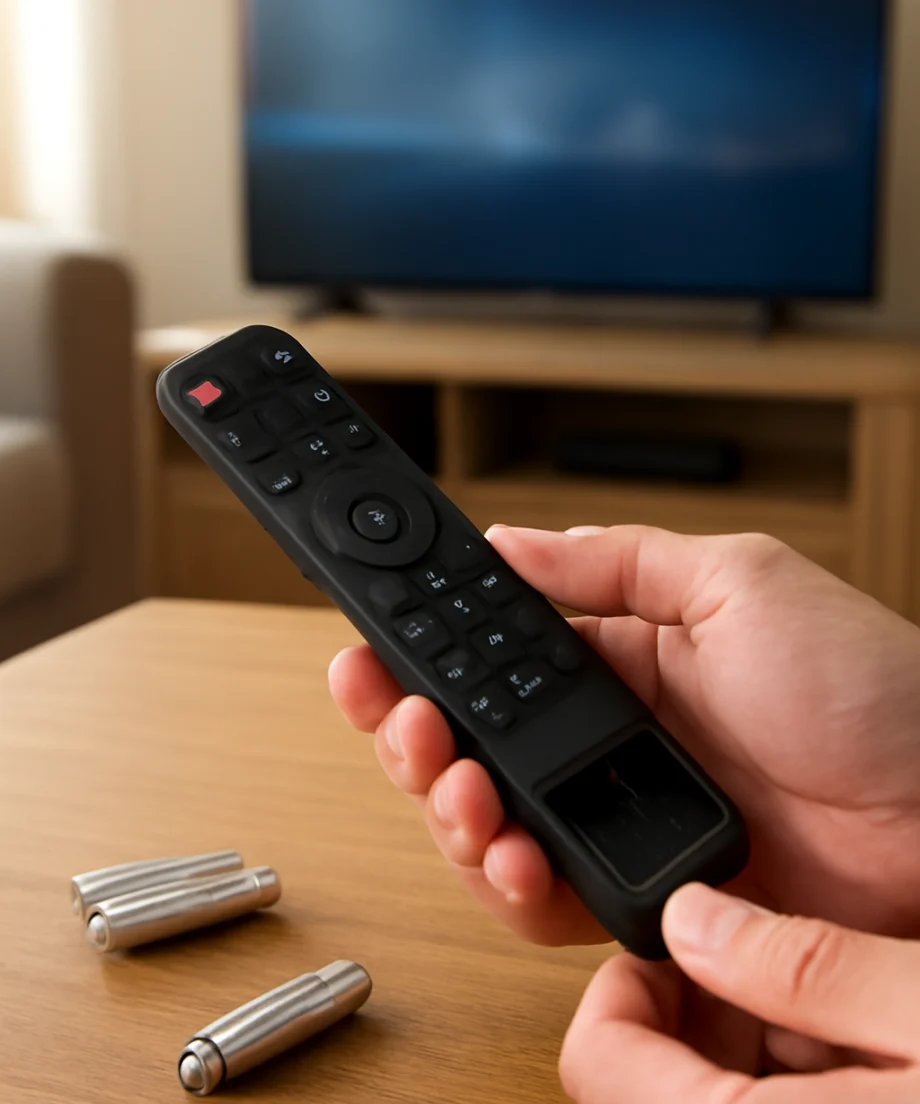
Also check whether bright sunlight or a strong lamp is aimed at the front of the television. Unusual lighting conditions can sometimes interfere with infrared commands. Turn the light away temporarily and test the remote from a short distance.
When testing, stand a few feet from the TV rather than using the remote from another room. Press one button at a time and wait briefly for the response. Rapidly pressing many buttons can make it harder to tell whether the TV received a command or is simply processing several inputs.
Check whether the remote itself is sending a signal
You can perform a basic signal check with a smartphone camera. Open the camera app, point the remote’s front end toward the camera, and press a button. Many phone cameras show a small flicker from an infrared transmitter that is not visible to your eyes.
This test is not perfect. Some phones filter infrared light, and wireless or Bluetooth-based remotes may not show a visible flicker. If you see no light, try the front-facing camera or another phone if one is available. A failed camera test does not prove that the remote is defective, but a visible flash suggests that at least some buttons are transmitting.
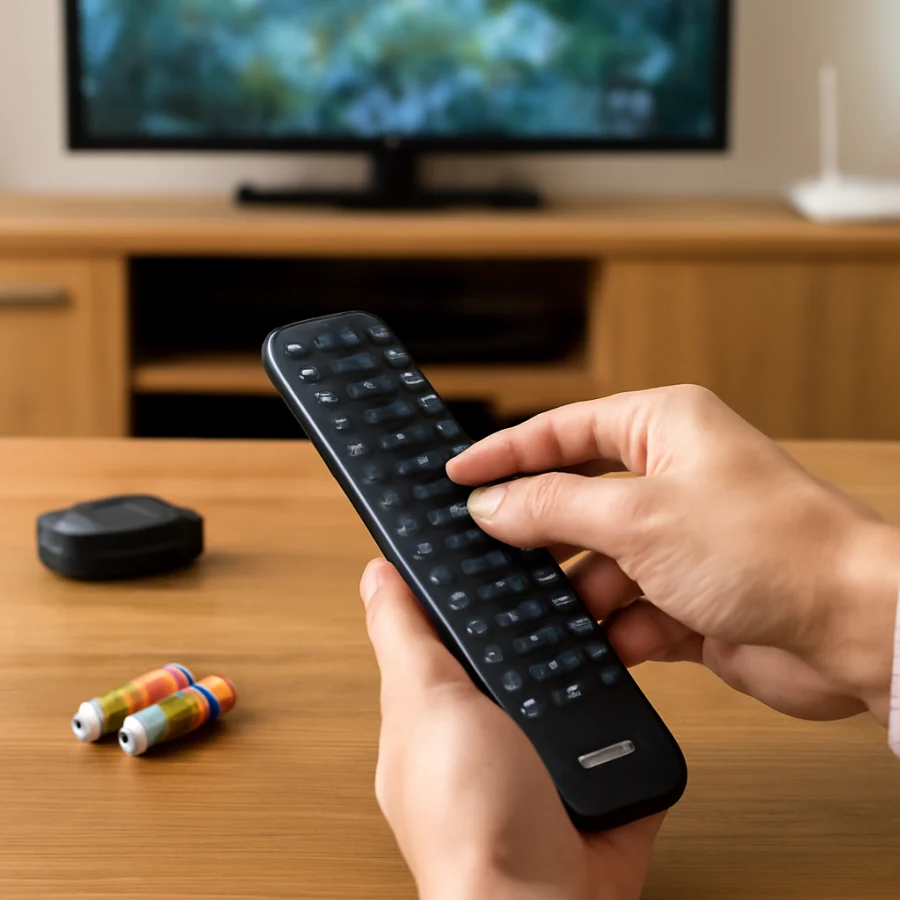
Check several buttons rather than relying on only one. If power works but navigation does not, or if only a few buttons respond, the keypad may be worn or dirty. Do not spray cleaner into the remote. Opening it can also damage the casing or create a safety issue if the remote uses a rechargeable battery or has other internal components.
Power-cycle the Hisense TV and remote
A temporary software or communication problem can make the TV appear to ignore commands. A normal power cycle is a low-risk next step.
- Turn the TV off if it responds to its physical button. If it does not, continue to the next step.
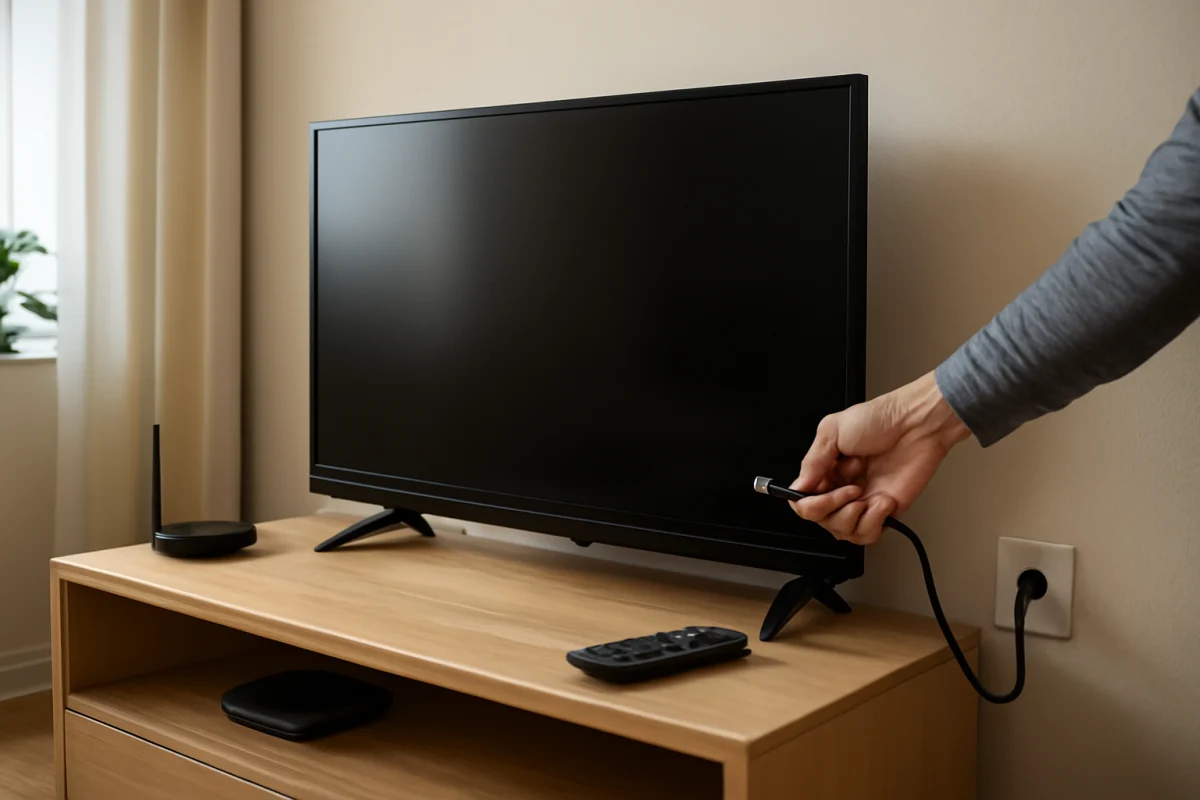
- Unplug the TV from the wall outlet.
- Remove the batteries from the remote while the TV is unplugged.
- Wait at least one minute.
- Plug the TV directly into a working wall outlet and allow it to start fully.
- Reinstall the batteries and test the remote again.
Use the TV’s physical control button for this test if necessary. Its location and functions vary by Hisense model, so look along the underside, side, or rear edge of the television. The button may offer only limited control, but it can help you determine whether the TV itself is operating.
Determine whether the problem is the remote or the TV
Try operating the TV with its physical button or with a compatible control method already available on your model. If the TV responds normally to its physical controls but ignores the remote, the remote, its batteries, or its pairing is more likely to be the problem.
If the TV does not respond to its physical controls, does not display a picture, or repeatedly restarts, the issue may be with the television rather than the remote. Check that the power cord is firmly connected and test the outlet with another device. Avoid repeatedly unplugging the TV if it shows signs of a power fault, such as a burning smell, unusual heat, or visible damage.
If another compatible Hisense remote is available, testing it can narrow down the cause. Compatibility matters: a remote designed for another model may control some basic functions but not all features. For general remote troubleshooting, you can also review the TV Fix Guide remote controls section.
Pair a wireless or voice remote again
Some Hisense televisions use a remote that communicates wirelessly for features such as voice control or pointer-style navigation. These remotes may still have batteries and may appear undamaged while no longer being paired with the TV.
Pairing instructions differ by remote and TV model. Look for the pairing instructions in the TV’s user guide or the support information for the exact model number. If the TV can be controlled with its physical button, open the settings area related to remotes, accessories, Bluetooth, or device connections and look for an option to add or pair a remote. The wording and available options vary by model and software version.
Keep the remote close to the TV during pairing and avoid trying to pair several wireless devices at the same time. If the screen gives instructions, follow those instructions rather than using a procedure intended for a different Hisense remote. A remote that uses only infrared may not have a pairing option at all.
Check for stuck buttons or physical damage
A button pressed continuously can make other commands appear ineffective. Press each button once and check whether any feels stuck, unusually soft, or difficult to release. Pay particular attention to the power, navigation, volume, and voice buttons.
Remove any protective cover and test the remote without it. A tight case can press against a button or prevent the infrared end from pointing correctly. Also inspect the remote after a drop or liquid spill. Cracked plastic, a loose battery cover, or a rattle from inside can indicate physical damage.
If the remote was exposed to liquid, remove the batteries immediately and do not keep pressing buttons. Letting a wet remote dry does not guarantee that it is safe or functional, and using heat can damage the circuit board. Replacement is often the most practical option after liquid damage.
Try the Hisense mobile remote only if the TV is already connected
Depending on the model and operating system, an official mobile app or a compatible remote app may provide temporary control. This works only when the phone and TV can communicate through the same network or when the app supports the television in another way. The app may not help if the TV is offline, has changed networks, or has not been set up for mobile control.
If you can use the app to navigate the TV, check whether a remote update, device connection, or software update is available. Do not interrupt an update once it has started. The exact app, settings, and compatibility depend on the Hisense model and the software installed on it.
Use a replacement remote carefully
If the original remote fails the basic checks and the TV works with its physical controls, a replacement may solve the problem. Confirm the replacement is intended for the exact Hisense model or is clearly described as compatible with the TV’s operating system and features.
Universal remotes can often handle basic power, volume, and input commands, but advanced functions may require a model-specific remote. Voice control, shortcut buttons, pairing, and navigation behavior may not work the same way. Keep the model number from the label on the back of the TV when checking compatibility.
When to consider a TV reset
A factory reset should be a last resort, not the first response to an unresponsive remote. Resetting the TV can remove installed apps, account sign-ins, network settings, picture adjustments, and other personal preferences. It also may not fix a defective remote or a damaged TV sensor.
Consider a reset only if the TV responds to its physical controls, the remote has been ruled out, and the problem appears to be a persistent software or control issue. Before proceeding, read the instructions for the exact model and make sure you know how to navigate the reset process without relying on the remote. If the TV is still usable, back up or note important settings first.
Get help when the basic checks fail
Contact Hisense support or a qualified repair professional if the TV ignores both the remote and its physical controls, the front sensor appears damaged, or the television has power-related symptoms. Have the exact model number available, along with a description of what happens when you press the remote buttons.
For more Hisense-specific troubleshooting, visit the Hisense TV troubleshooting section. If the remote works but the TV still has connection problems, the Wi-Fi and network guides can help separate a remote issue from an internet or streaming problem.
Comments
0No comments yet. Be the first to share a helpful note or question.
Leave a Comment
Your email address will not be published. Comments are reviewed before appearing on the site.