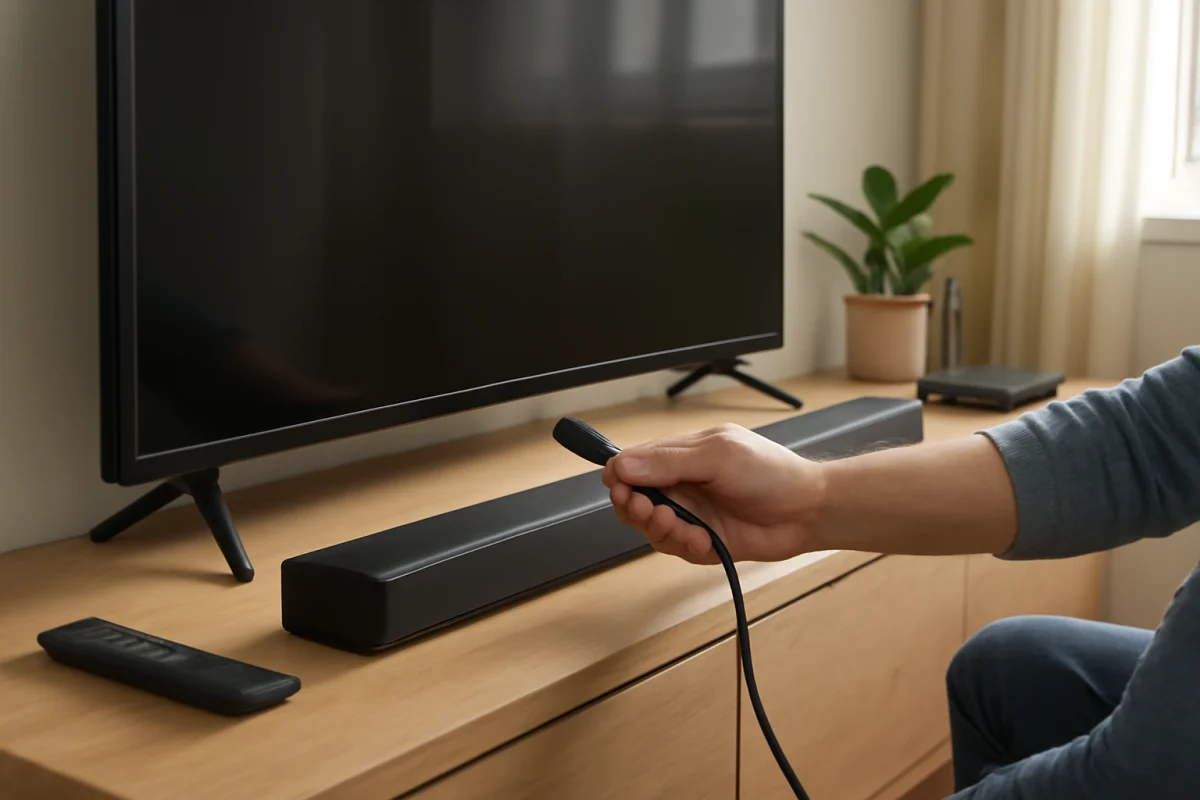
The best way to connect a soundbar to your TV is usually HDMI ARC or eARC. It can carry TV audio through one cable and often lets the TV remote control the soundbar’s volume. If your TV or soundbar does not support ARC or eARC, use an optical audio cable instead. Bluetooth can work in a pinch, but it is usually less reliable for a permanent home theater setup.
Before changing advanced settings, confirm that both devices are powered on, the cable is connected to the correct ports, and the TV is set to use the soundbar as its audio output. These simple checks resolve many soundbar problems without a reset.
Choose the right connection
Look at the ports on the back or side of your TV and soundbar. The available connection determines which setup you should use.
HDMI ARC or eARC: the preferred option
HDMI ARC, short for Audio Return Channel, sends audio from the TV back to the soundbar over an HDMI cable. eARC is a newer version with greater audio bandwidth and broader support for higher-quality formats. The exact capabilities depend on both devices and the content source.
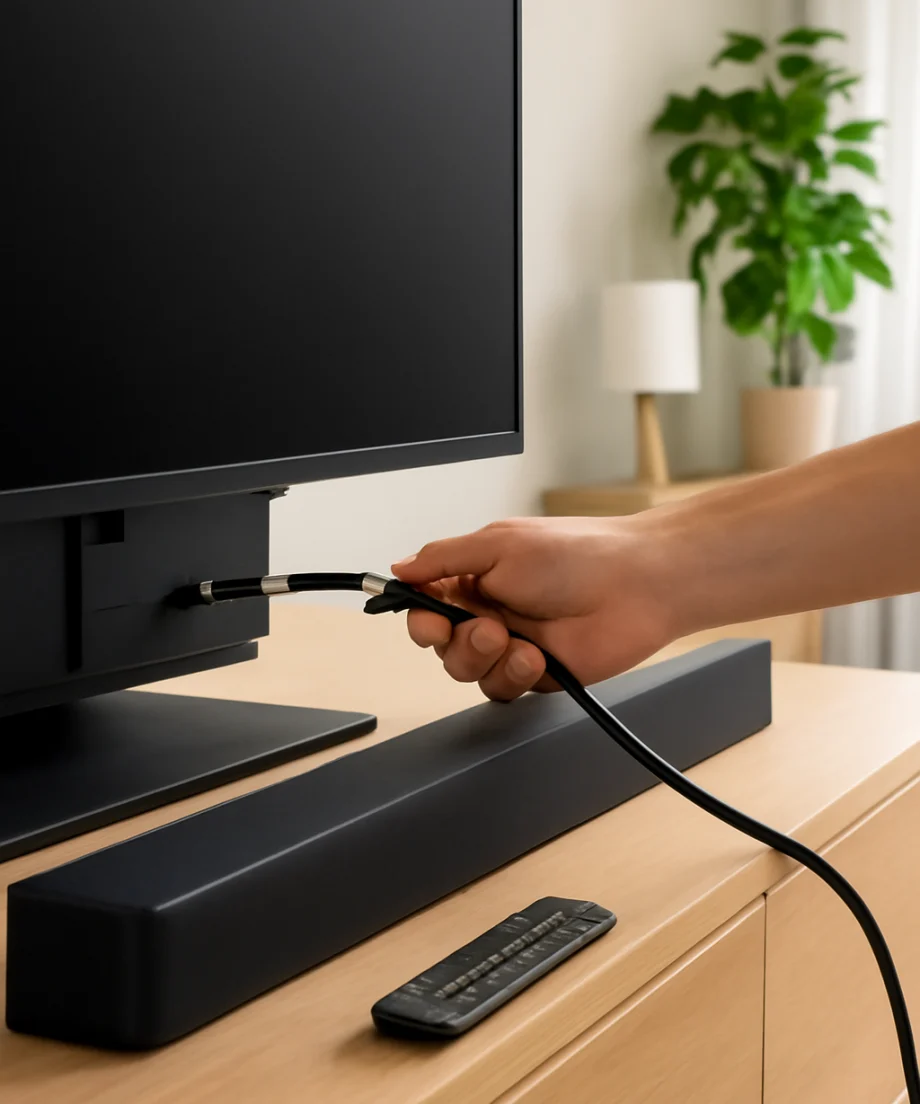
Find the HDMI port labeled “ARC” or “eARC” on the TV and connect it to the HDMI port on the soundbar with the same label. Do not use an ordinary HDMI input on the soundbar if it has a separate ARC or eARC port. The TV and soundbar may use slightly different wording for their audio-return features, so check the labels and each product’s manual if the ports are unclear.
HDMI ARC or eARC is often the most convenient choice because it can support:
- Audio from the TV’s built-in streaming apps
- Volume control from the TV remote
- Automatic device control when HDMI-CEC is enabled
- Surround sound formats supported by both devices
HDMI-CEC is the control system that allows connected devices to communicate. Manufacturers may give this feature different names, and the setting location varies by model. You may need to enable both the TV’s device-control feature and the soundbar’s related setting.
Optical audio: a dependable alternative
An optical cable is a good option when your TV or soundbar does not support ARC or eARC. Connect the TV’s optical output to the soundbar’s optical input, then select optical or digital audio as the soundbar’s source.
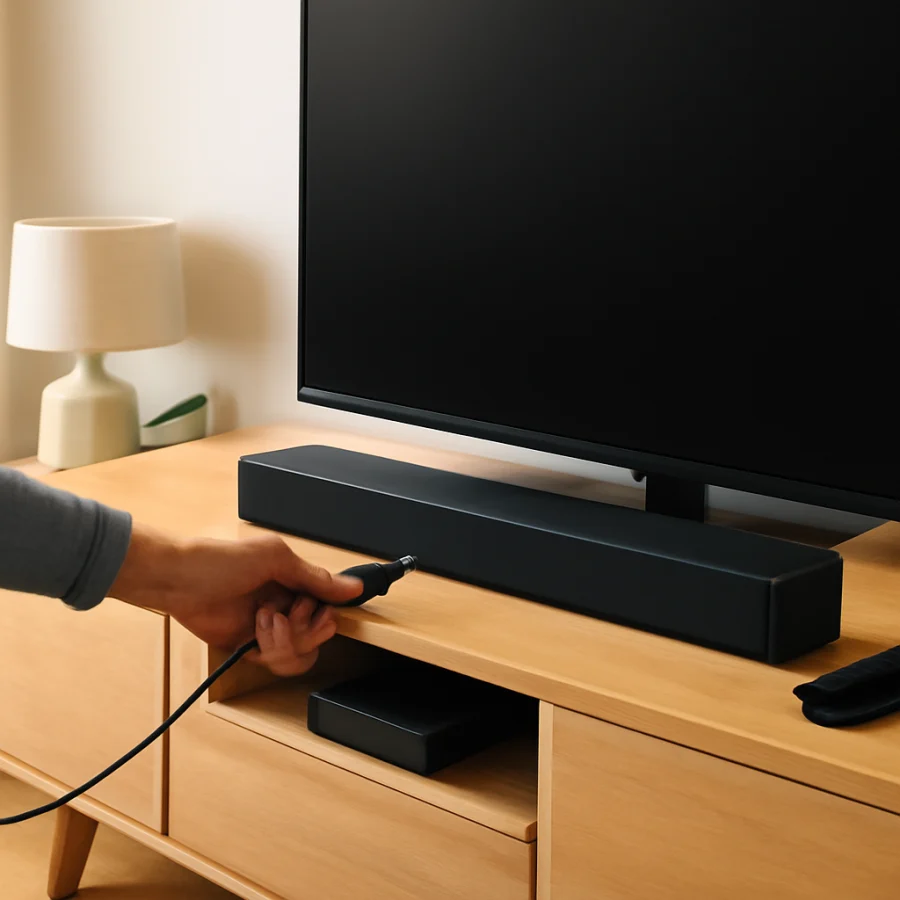
Optical connections are generally easy to configure and are not affected by HDMI-CEC compatibility problems. However, they do not provide the same two-way device control as HDMI ARC or eARC. You may need to use the soundbar remote for volume, and some TVs may need additional audio-output changes.
Remove any protective plastic caps from the ends of an optical cable before inserting it. The connector should fit securely without being forced. Optical cables use a small light signal, so avoid sharply bending or crushing the cable.
Bluetooth: useful, but not always ideal
Bluetooth can connect a TV and soundbar without a cable, provided both devices support the required Bluetooth audio features. Put the soundbar into pairing mode, open the TV’s Bluetooth device settings, and select the soundbar from the available devices.
Wireless audio may introduce a delay between the picture and sound. The connection can also drop if there is interference or if the devices are too far apart. Bluetooth is convenient for temporary use, but HDMI ARC, eARC, or optical is usually a better choice for everyday TV watching.
Connect the soundbar step by step
- Turn off the TV and soundbar before connecting cables. This is not always required, but it reduces the chance of selecting the wrong source while setting up.
- Choose HDMI ARC/eARC, optical, or Bluetooth based on the ports available on both devices.
- Connect the cable to the matching labeled port. With HDMI, use the TV port marked ARC or eARC and the soundbar port marked HDMI ARC, eARC, or TV ARC.
- Turn on the TV and soundbar.
- Change the soundbar’s input to the connection you used, such as HDMI, ARC, optical, or Bluetooth.
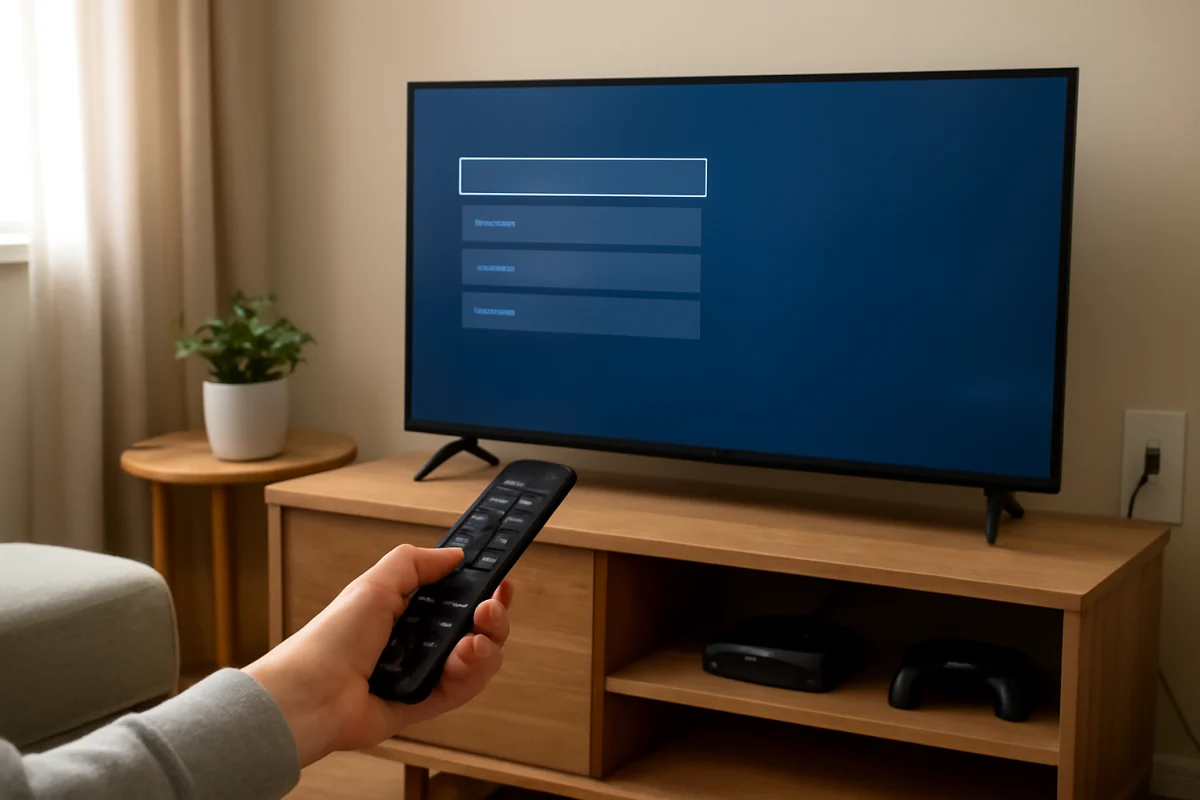
- Open the TV’s sound or audio-output settings and select the connected soundbar, receiver, external speaker, or digital audio output option. The wording varies by TV brand and model.
- Play a video and raise the volume gradually. Confirm that sound comes from the soundbar rather than the TV’s built-in speakers.
If the TV asks whether to use its internal speakers or an external audio system, choose the external system. Some TVs switch automatically, while others require you to select the output manually every time a new device is connected.
Fix common soundbar connection problems
No sound from the soundbar
Start with the simplest checks. Make sure the soundbar is not muted and that its volume is high enough to hear. Confirm that the TV is playing content with audio and that the soundbar is set to the correct input.
Next, check the cable at both ends. An HDMI cable connected to a standard HDMI port instead of the TV’s ARC/eARC port will not provide the expected audio-return connection. With optical, make sure the cable is connected to the TV’s output and the soundbar’s input, not the reverse.
If the connection is correct, temporarily disconnect other HDMI devices from the TV. A streaming player, game console, or receiver can sometimes create an HDMI-control conflict. Restart the TV and soundbar after reconnecting only the soundbar.
For optical connections, the TV’s digital audio format may need to be changed to a compatible setting such as PCM or another available stereo option. The exact choices depend on the TV and soundbar. If a surround setting produces silence, try the simplest compatible format first.
The TV speakers and soundbar play at the same time
Open the TV’s audio-output settings and select the external sound system rather than TV speakers. Some models include a separate option for simultaneous TV and external-speaker output. Turn that option off if you want audio only from the soundbar.
Also check whether the soundbar is receiving audio through a second connection. For example, a soundbar may be connected by HDMI while another device is paired over Bluetooth. Select the intended source and remove unnecessary connections.
The soundbar does not respond to the TV remote
Volume control through the TV remote most commonly works over HDMI ARC or eARC with HDMI-CEC enabled. Check that the HDMI cable is plugged into the correct ARC/eARC ports and that device control is enabled on both products.
If you are using optical, remote control behavior depends on the TV and soundbar. Some setups allow the TV remote to adjust the soundbar’s volume, while others require the soundbar remote. This is a limitation of the connection, not necessarily a hardware fault.
If remote control stopped working after adding another HDMI device, unplug the TV and soundbar from power for about a minute, reconnect them, and test the setup again. Do not reset either device unless the basic connection and power cycle have failed.
The audio is delayed or does not match the picture
A lip-sync problem can come from the TV, soundbar, streaming app, or connection type. First, test a different video or app. If the delay occurs only in one app or one source, the soundbar may not be the underlying cause.
Look for an audio-delay, lip-sync, or synchronization control in the TV or soundbar settings. Adjust it in small increments and test speech after each change. Avoid changing several audio settings at once, because it becomes difficult to tell which adjustment helped.
Bluetooth is more likely to introduce noticeable delay than a wired connection. If possible, switch to HDMI ARC/eARC or optical. If the problem remains, temporarily set the TV’s audio format to a basic compatible option and retest.
Improve the setup after sound is working
Place the soundbar directly in front of the TV, centered as closely as possible. Do not block the TV’s remote sensor or cover the soundbar’s speaker openings. If the soundbar is inside a cabinet, leave enough open space for sound to travel into the room.
Use the soundbar’s available listening modes carefully. Movie, music, voice, night, and similar modes change how audio is processed, but the names and effects vary by model. If dialogue sounds unclear, try a voice-enhancement mode if available, then reduce excessive bass or surround processing if it makes speech harder to understand.
Keep the TV and soundbar software reasonably current, but do not assume an update is required just because audio is not working. First verify the cable, input, output setting, and power state. Update instructions differ by manufacturer, and an update should be performed only through the device’s official process.
When to check the TV brand or sound settings
Menu names, HDMI-CEC labels, audio-format choices, and remote-control behavior vary between manufacturers and model years. If the general steps above do not match what you see, use the TV’s manual or support documentation for the exact menu path.
For more TV-specific troubleshooting, you can browse the Picture & Sound guides on TV Fix Guide. You can also find brand-focused help in our Samsung TV and LG TV sections. If the soundbar is connected through a streaming device, our Streaming Apps troubleshooting resources may help identify whether the problem is limited to one app.
A soundbar that still produces no audio after testing the correct port, input, TV output, cable, and a second source may have a defective cable or hardware problem. Test with another compatible cable if available. If the same symptom continues, consult the manufacturer’s support documentation before attempting a factory reset or opening either device.
Comments
0No comments yet. Be the first to share a helpful note or question.
Leave a Comment
Your email address will not be published. Comments are reviewed before appearing on the site.