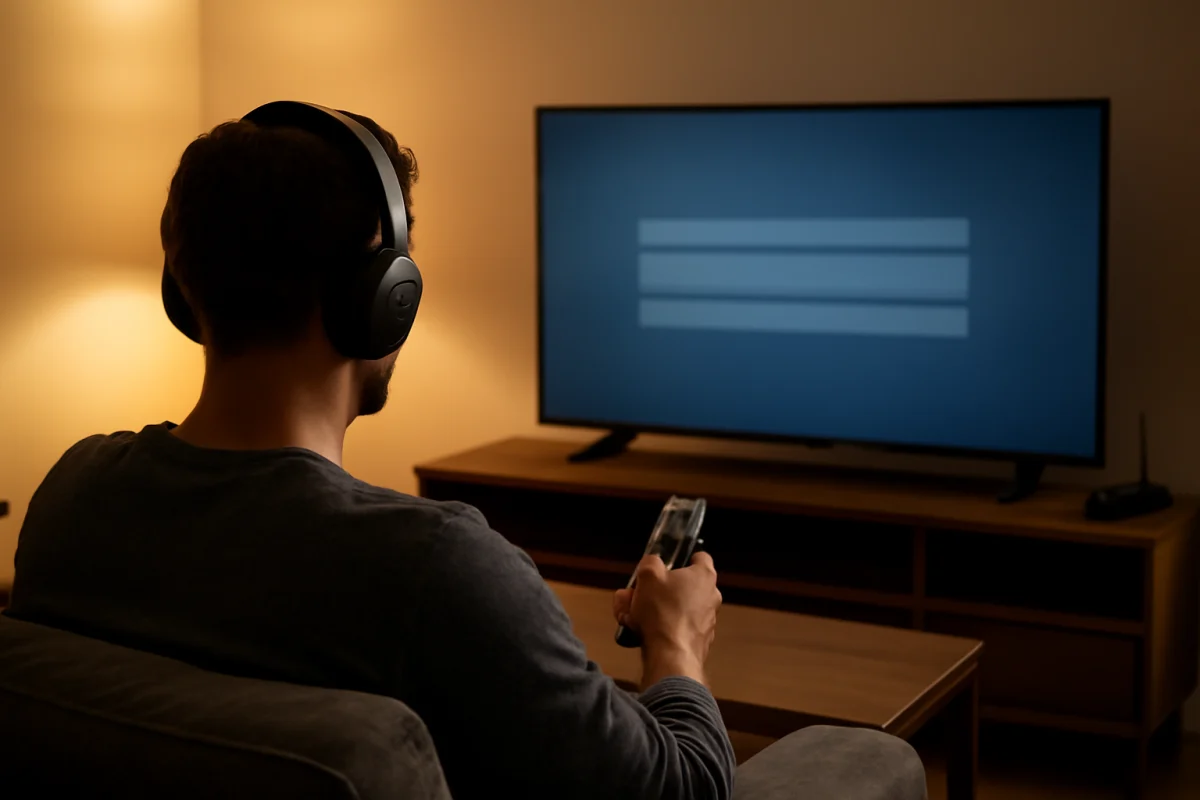
To connect Bluetooth headphones to a smart TV, open the TV’s Bluetooth or audio output settings, put the headphones into pairing mode, and select them from the list of available devices. The exact menu names vary by brand and model, but the process is usually similar.
If your TV does not support Bluetooth audio, you may need a compatible Bluetooth transmitter connected to the TV’s audio output. Before buying an adapter or changing advanced settings, confirm that the headphones are charged, disconnected from other devices, and close enough to the TV to pair reliably.
Check whether your TV supports Bluetooth headphones
Many newer smart TVs support Bluetooth audio, but not every model does. Some TVs use Bluetooth for remotes, keyboards, or game controllers without supporting Bluetooth headphones. A Bluetooth logo on the television or remote does not always confirm that wireless audio is supported.
Check the TV’s sound, audio output, connection, or accessory settings for an option related to Bluetooth speakers or headphones. You can also search the TV manufacturer’s support documentation using the exact model number. The available options can differ between TV sizes, regions, operating systems, and software versions.
If you own a Roku TV, Fire TV, Samsung TV, LG TV, or another smart TV platform, the pairing path may be different even when the basic process is the same. The TV Fix Guide How-To section has additional device setup guides if you need help identifying the correct menu.
Prepare the headphones before pairing
Put the headphones near the TV and charge them before starting. Low battery power can cause pairing failures, unexpected disconnections, or audio that cuts out after a few minutes.
Next, disconnect the headphones from your phone, tablet, computer, or another nearby device. Many headphones automatically reconnect to the last device they used. If that happens while you are trying to pair them with the TV, the TV may not find them or may fail to complete the connection.
How to enter pairing mode
Most Bluetooth headphones enter pairing mode by holding the power or Bluetooth button for several seconds. A light may flash, or the headphones may play a tone or voice prompt. The exact button and timing depend on the headphone model, so check the headphone’s instructions if the usual method does not work.
Do not simply turn the headphones on and assume they are discoverable. Powered-on headphones may be connected to another device without appearing in the TV’s Bluetooth list. If the headphones have already been paired with the TV, turning them off and on may be enough to reconnect. For a first-time setup, use the specific pairing procedure.
Pair Bluetooth headphones with the TV
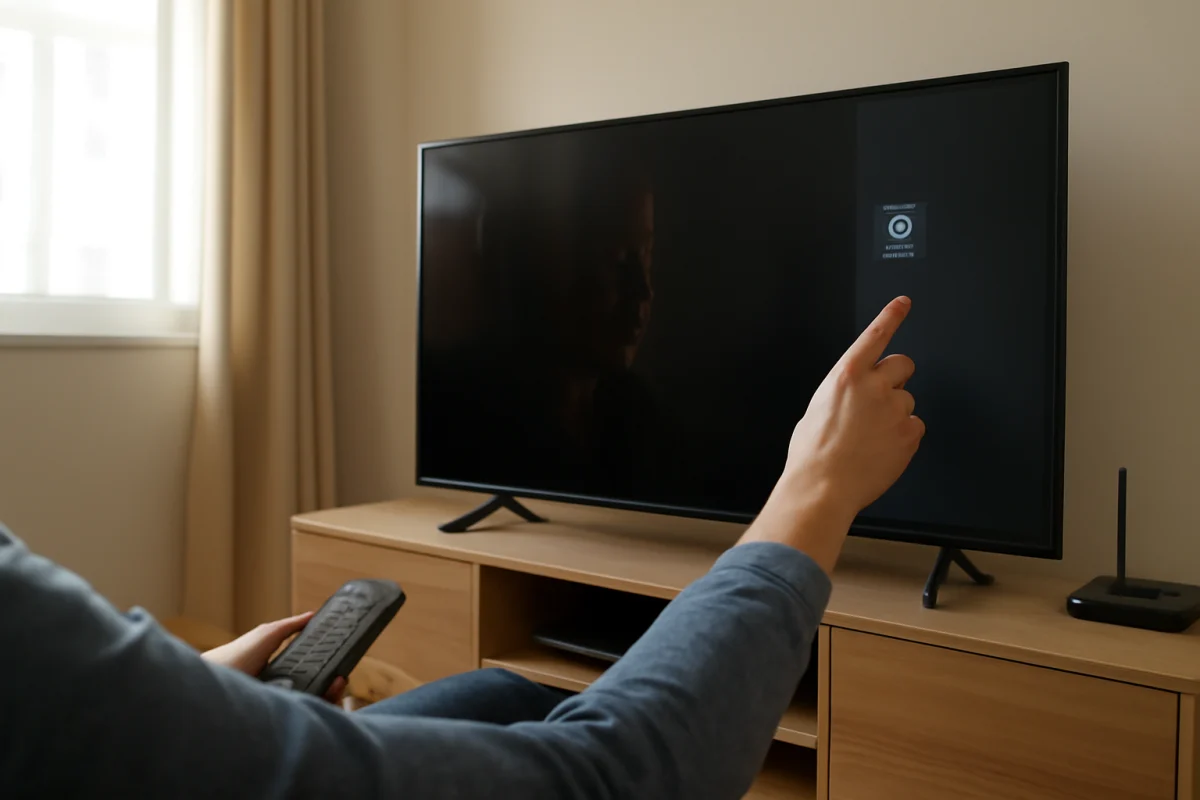
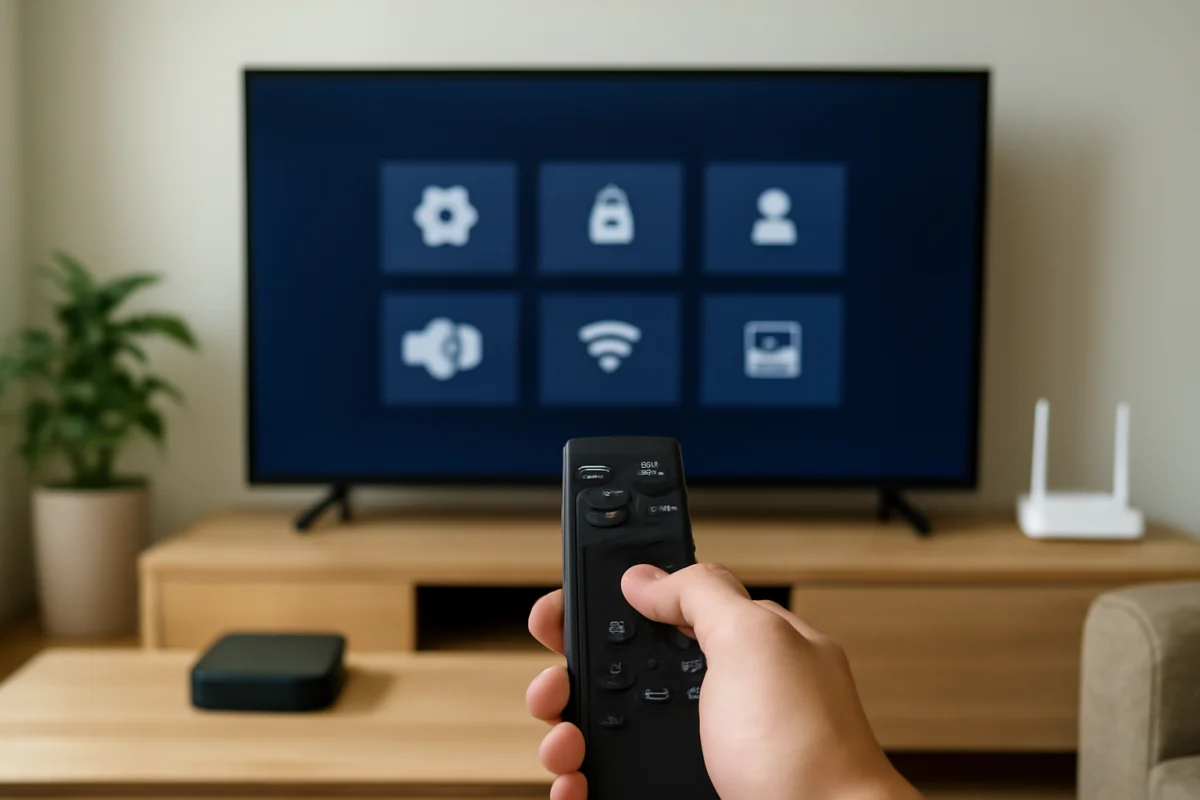
With the headphones in pairing mode, use the TV remote to open the settings menu. Look for a section such as Sound, Audio Output, Connections, Bluetooth, or External Devices. Manufacturers use different labels, so do not worry if your TV does not use these exact names.
- Open the TV’s settings.
- Go to the sound or audio output area.
- Choose Bluetooth audio, Bluetooth speaker, wireless speaker, or a similar option.
- Start a device search if the TV does not scan automatically.
- Select your headphones when they appear.
- Confirm the pairing request if the TV displays one.
After pairing, the TV may automatically switch audio from its built-in speakers to the headphones. On some models, you must select the headphones as the active audio output separately. Play a video at a low volume first, then increase the volume gradually.
Some TVs control headphone volume with the remote, while others use the volume buttons on the headphones. If the TV shows that the headphones are connected but you hear nothing, check both volume controls and confirm that the TV is not muted.
If the headphones do not appear in the Bluetooth list
Start with the simplest checks. Make sure the headphones are still in pairing mode and within a few feet of the TV. Pairing mode often times out, so you may need to activate it again immediately before searching from the TV.
Then turn off Bluetooth on nearby phones, tablets, and computers. If another device connects first, the headphones may disappear from the TV’s search results. If possible, move other Bluetooth accessories away from the TV temporarily.
Restart both devices. Turn the headphones off, wait a few seconds, and turn them on again. For the TV, use its normal power control, then wait briefly before turning it back on. If the TV has a removable power cord, unplugging it can sometimes clear a temporary connection problem, but avoid repeatedly disconnecting power while the TV is updating or displaying an important on-screen process.
If the headphones are listed under previously paired devices, remove or forget that entry and search again. This is usually safer than resetting every connected device. The wording varies by model, and some TVs do not offer a forget option.
What to do when the TV has no Bluetooth audio option
If the TV has no setting for Bluetooth audio, it may not support Bluetooth headphones directly. You can still use wireless headphones with a Bluetooth transmitter, provided the TV has a compatible audio output.
A transmitter may connect through a 3.5-millimeter headphone jack, optical audio output, USB, or another connection, depending on the TV and the transmitter. Not every USB port sends audio, and an optical connection may require a change to the TV’s digital audio format. Check the instructions for both devices before purchasing or connecting an adapter.
When using a transmitter, pair the headphones with the transmitter rather than with the TV. You may also need to select the corresponding TV audio output. If the transmitter uses the headphone jack, the TV may turn off its built-in speakers automatically. If it uses optical audio, the TV speakers may continue playing unless the TV has a separate speaker control.
For help with sound routing, volume, or missing audio, see the Picture & Sound troubleshooting section.
Fix Bluetooth headphone audio delay
A small delay between the picture and sound is common with Bluetooth audio. The delay comes from encoding, transmitting, and decoding the sound. It can be more noticeable when watching dialogue, live television, sports, or playing games.
First, check whether the TV has an audio-sync, lip-sync, or digital sound delay control. The name and available range vary by model. Adjust it gradually while watching a person speak. If the sound happens after the lips move, you may need to reduce the delay. If the sound happens before the picture, increasing the delay may help.
Some TVs and headphones work better when they support compatible low-latency audio technology, but compatibility is not guaranteed just because both products use Bluetooth. A wired connection or a transmitter designed for low-latency use may provide better results, especially for gaming.
Streaming apps can also add processing delay. Compare a built-in TV app with another source, such as a connected streaming player or live broadcast. If the delay occurs only in one app or input, the Bluetooth connection may not be the main cause.
Improve sound quality and connection stability
Keep a clear path between the headphones and the TV when possible. Walls, furniture, other wireless devices, and crowded areas can interfere with Bluetooth. Staying within the range recommended by the headphone manufacturer is more reliable than assuming every Bluetooth device has the same range.
Use one pair of headphones at a time unless the TV specifically supports multiple Bluetooth audio devices. Some TVs can pair with several accessories but send audio to only one. If two devices appear connected, check which one is selected as the active output.
If the sound crackles or cuts out, test the headphones with a phone or computer. If they fail there too, the headphones may need charging, a reset, or service. If they work normally elsewhere, focus on the TV’s distance, software, selected audio output, or compatibility.
Keep the TV and headphones reasonably up to date, but do not assume an update will solve every pairing issue. TV update menus and headphone firmware procedures vary by manufacturer. Follow the instructions for your exact models, and avoid interrupting an update once it has started.
When resetting the headphones may help
A headphone reset can clear damaged or conflicting pairing information, but it should not be the first step. Try charging the headphones, disconnecting other devices, restarting the TV, and removing the old TV pairing entry first.
If those checks do not help, look up the reset procedure for the exact headphone model. A reset may erase all saved connections and restore other settings, so be prepared to pair the headphones with your phone and other devices again.
After resetting, place the headphones back into pairing mode and search from the TV. If the TV still cannot find them, test another Bluetooth speaker or set of headphones if one is available. This comparison can show whether the problem is with the TV or the original headphones.
When a wired option is the better choice
Bluetooth is convenient, but it is not always the best solution. A wired headset can avoid pairing problems, reduce audio delay, and provide a more predictable connection. It may be useful for late-night viewing, gaming, or situations where Bluetooth audio is not supported.
If your TV has no headphone jack, you may need a compatible adapter connected to its available audio output. Check the TV’s ports and the headset plug before choosing an adapter. For HDMI devices, audio may also be routed through the connected equipment, so changing the TV’s output alone may not affect what you hear.
For platform-specific troubleshooting, you can browse Samsung TV help, LG TV help, or the guides on TV Fix Guide. The safest approach is to identify the TV’s exact model, confirm that it supports Bluetooth audio, and then follow the model-specific menu path rather than forcing an incompatible connection.
Comments
0No comments yet. Be the first to share a helpful note or question.
Leave a Comment
Your email address will not be published. Comments are reviewed before appearing on the site.