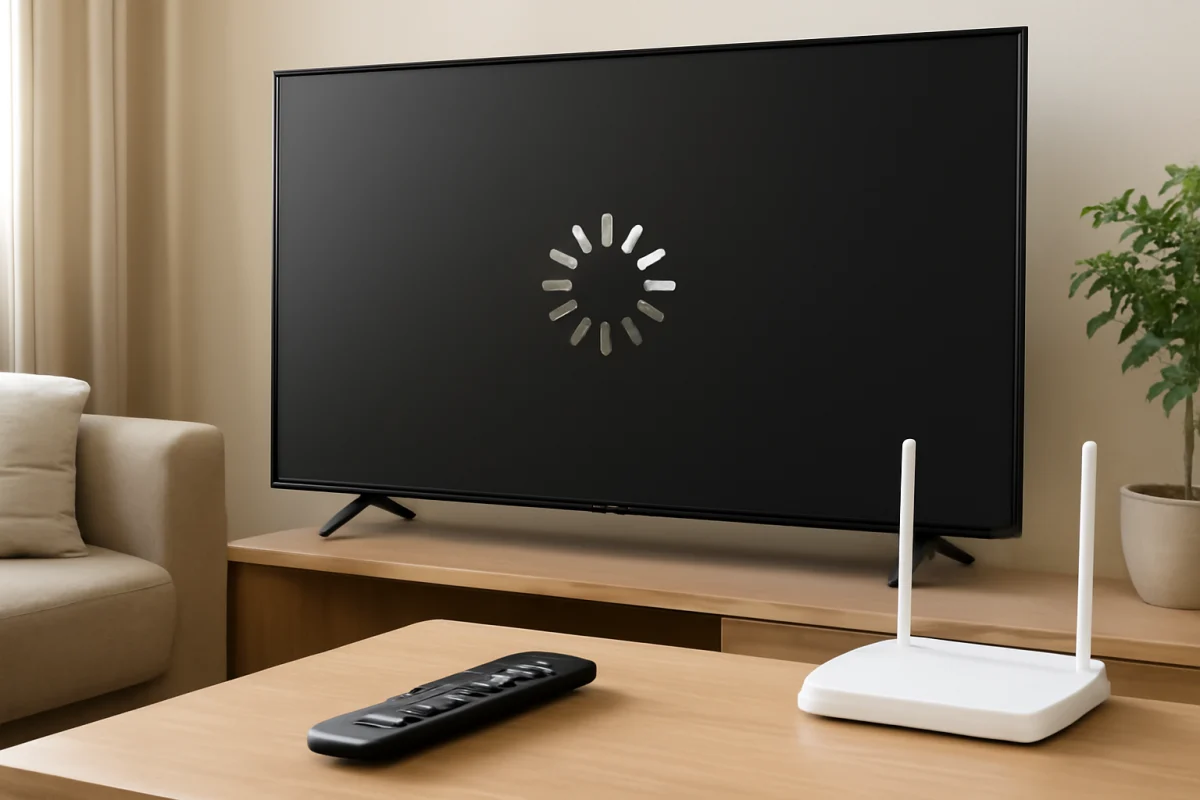
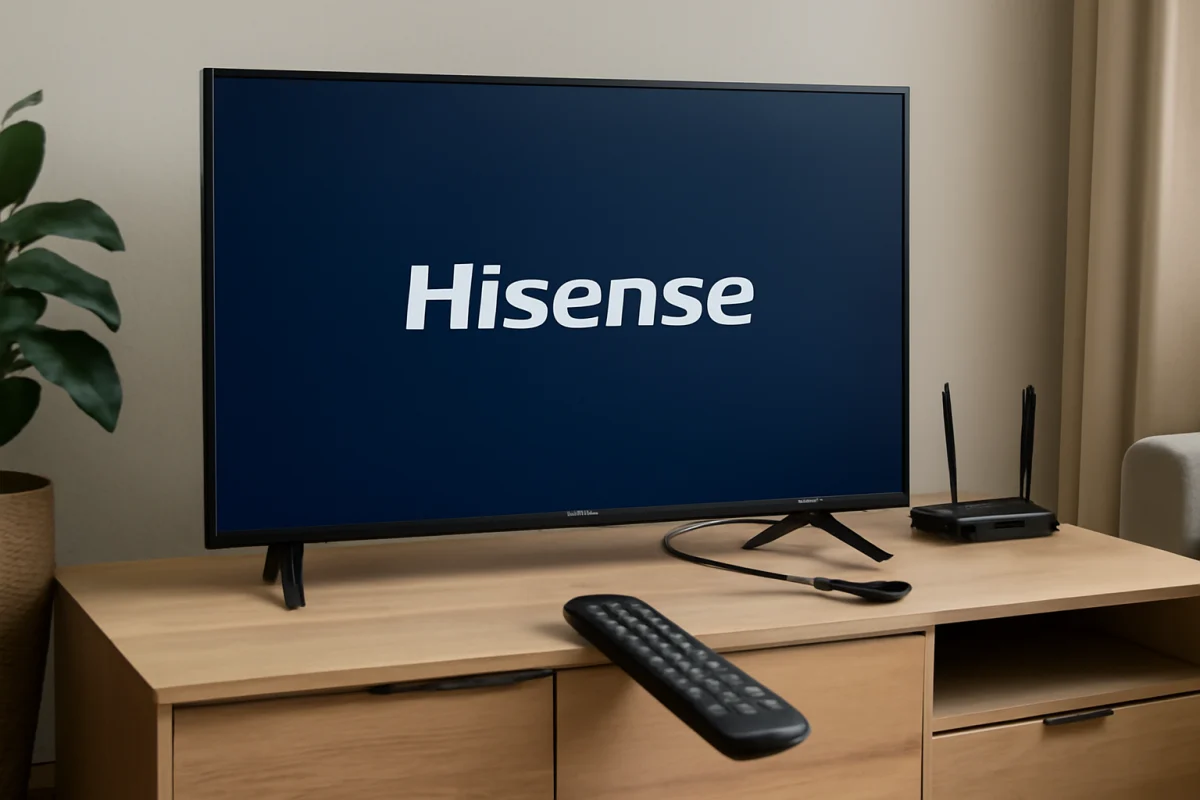
If apps won’t open on your Hisense TV, start with the simplest causes: a temporary software glitch, a weak internet connection, an app outage, or a problem with the app’s stored data. Restart the TV completely, test another app, and check whether the TV is still connected to Wi-Fi. These steps often restore app access without changing your settings or deleting anything.
Hisense TVs use different smart TV platforms depending on the model and region. The wording and location of settings may therefore vary. You may see different menus on a Google TV, Android TV, Roku TV, Fire TV, or another Hisense platform. Follow the option that most closely matches what appears on your screen.
1. Check whether one app or every app is affected
Try opening two or three different apps. If only one app fails while the others work normally, the problem is probably limited to that service, its account, or its app data. If no apps open, the TV’s network connection or smart TV software is more likely to be responsible.
Also try a free, built-in app if your TV has one. An app that displays a loading screen, closes immediately, or returns to the home screen may be experiencing a temporary crash. Write down what happens, including any message shown on screen. Avoid assuming that every app failure is caused by your Hisense TV; streaming services can have outages or sign-in problems that affect many devices at once.
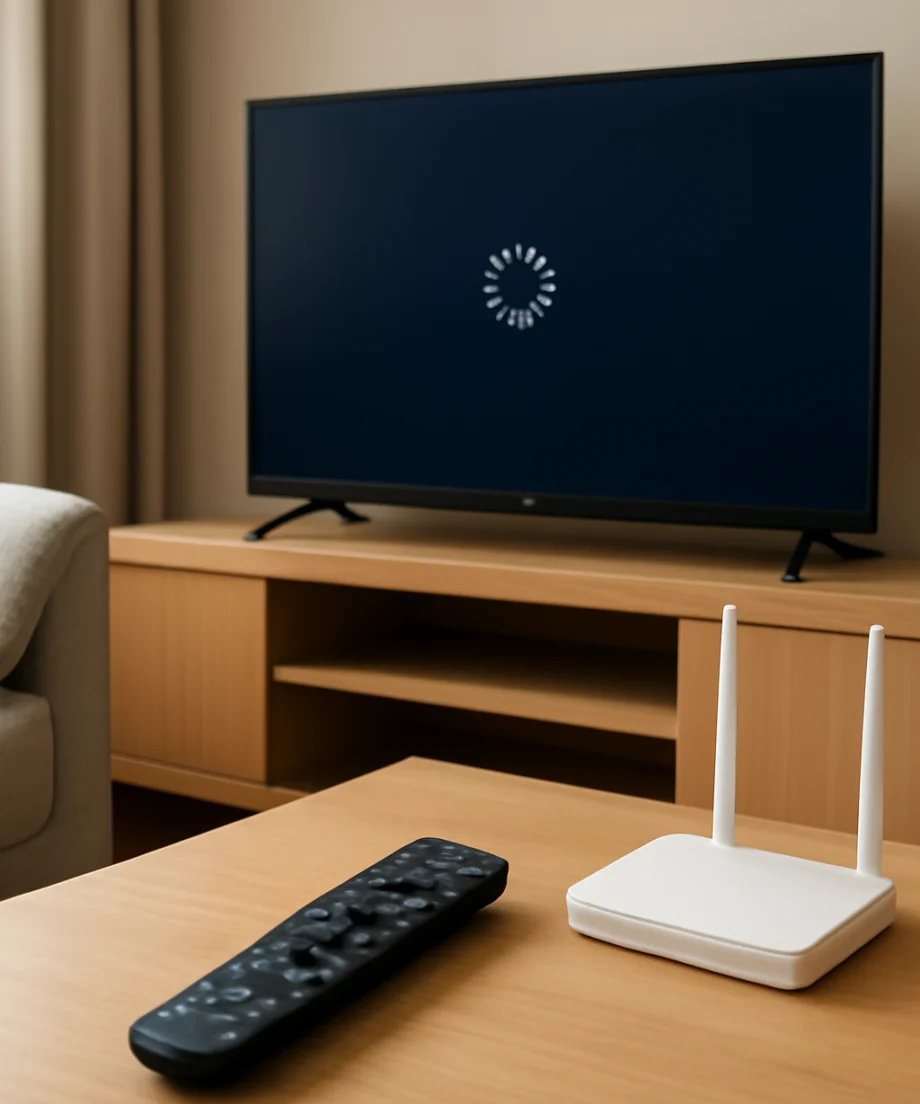
2. Restart the Hisense TV completely
Using the remote to turn the TV off may leave it in a low-power standby state. A full power cycle can clear a temporary process that is preventing apps from opening.
- Turn off the TV with the remote.
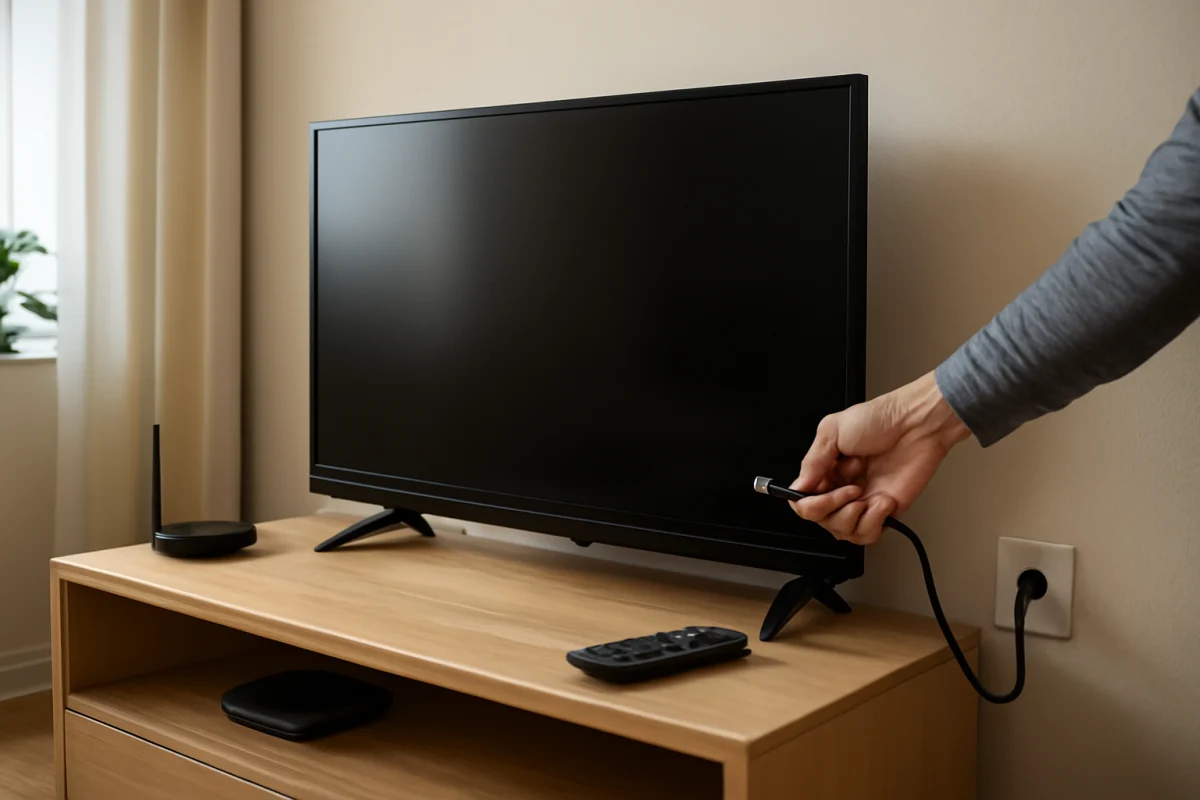
- Unplug the TV from the wall outlet.
- Wait at least 60 seconds.
- Plug the TV back in and turn it on.
- Wait for the home screen to finish loading before opening an app.
If the TV has a physical power button, you can press it once while the TV is unplugged. This is not required on every model, but it may help discharge remaining power. Do not repeatedly unplug the TV while it is installing an update or displaying a warning about a software operation.
3. Test the internet connection
Apps may fail to open when the TV is connected to Wi-Fi but cannot reach the internet. A weak signal, router problem, DNS issue, or interrupted connection can cause apps to hang at their splash screen.
Open the TV’s network or connection settings and look for a connection test. The exact menu name varies by Hisense model. Confirm that the TV is connected to the intended Wi-Fi network and that the test reports internet access, not merely a connection to the router.
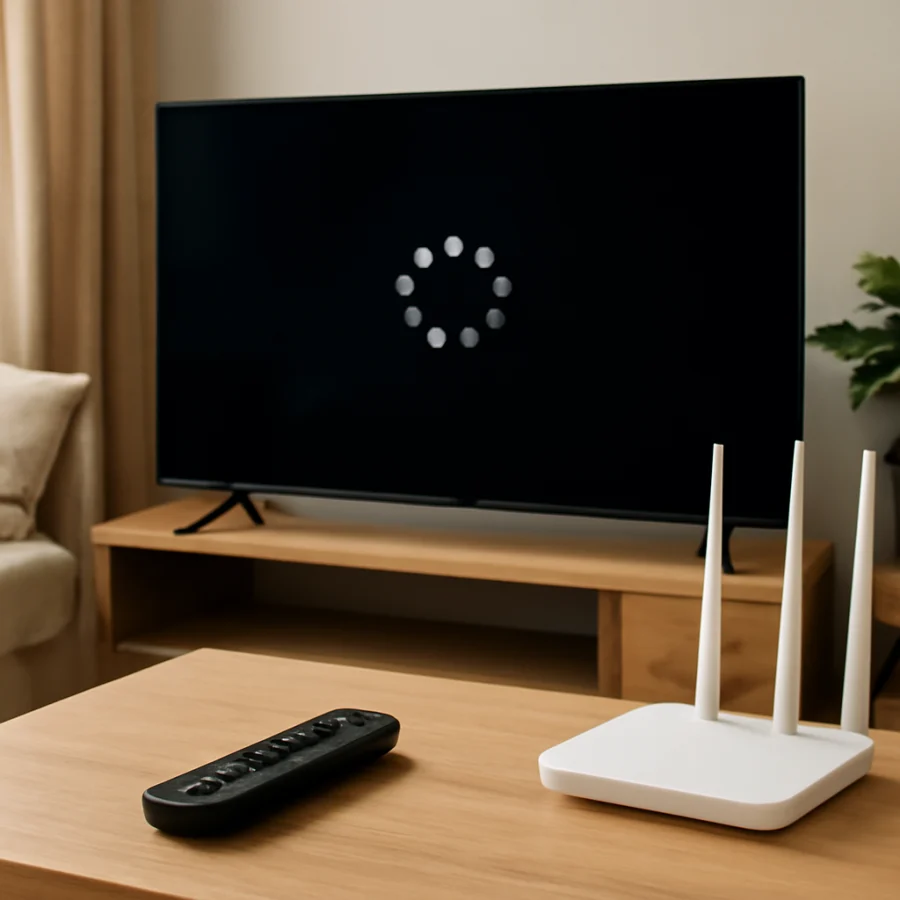
Next, test the same network on a phone or computer in the same room. If other devices also have trouble, restart the router and modem if you use separate devices. Disconnect power from the networking equipment, wait about a minute, reconnect it, and allow several minutes for the internet connection to return.
If the TV is far from the router, temporarily move the router closer or test the TV with a wired Ethernet connection if the model and network setup support it. A wired test can help determine whether the issue is Wi-Fi signal strength rather than the app itself. For more network troubleshooting, see our Wi-Fi and network troubleshooting guides.
4. Check the TV’s date and time
Incorrect date or time settings can interfere with secure connections to streaming services. This is especially possible after a power interruption or when the TV has been disconnected for an extended period.
Open the date and time settings and use automatic network-based time if that option is available. The setting may be under a general system, device preferences, or time-related section, depending on the TV platform. If automatic time is already enabled, turn it off and back on only if the displayed time is clearly wrong. Restart the TV after correcting the setting and test the app again.
5. Update the app and the TV software
An app may stop working correctly when it is outdated or when its current version is not working well with the TV’s system software. Check the TV’s app store or app management area for updates. You may need to open the app’s details page and select an update option.
Then check the TV’s system software settings for an available update. Menu names and update controls vary by model, so do not worry if your screen does not match instructions written for another Hisense platform. Keep the TV connected to power and the internet while an update is being installed. Do not turn it off unless the TV specifically instructs you to do so.
If an app update is not available, the service may already be investigating a compatibility issue. Check the service’s official status page or support account using another device. This can prevent you from resetting the TV unnecessarily.
6. Clear the problem app’s cache or stored data
Temporary app files can become corrupted. Clearing the cache is usually a lower-risk step because it removes temporary files rather than your entire TV configuration. Look for the app in the TV’s application settings and choose an option labeled something like clearing cache or temporary data, if available.
After clearing the cache, restart the TV and test the app. If the problem continues, you may see an option to clear the app’s stored data. This is more disruptive: it can sign you out, remove downloaded information, and restore the app’s local settings. Make sure you know the account email address and password before using it.
Some Hisense platforms do not provide separate cache controls for every app. If you cannot find these options, do not delete random system files or use an unofficial maintenance tool. Continue with the safer troubleshooting steps below.
7. Sign out and sign back in
If the app opens but will not load your profile, or if it closes after you select an account, sign out and sign back in if the app provides that option. Account tokens can expire or become invalid after a password change.
Before signing out, confirm that you can access the account from a phone or computer. If you recently changed the password, update the saved credentials on the TV. Use the official on-screen activation process when the app provides one, and never share an activation code with another person.
8. Check the TV’s available storage
Smart TV apps need some free storage to update and create temporary files. If the TV is nearly full, apps may crash, refuse to update, or remain stuck while loading.
Look for a storage section in the TV’s system settings. Remove apps you no longer use, but avoid deleting system applications unless the TV clearly identifies them as removable. If the television has a feature for clearing temporary files, use that feature rather than installing a third-party cleaner.
9. Reinstall the app if the platform allows it
Uninstalling and reinstalling one affected app can repair damaged installation files. This will normally remove the app from the TV and require you to sign in again. Confirm your login details first, then remove the app through the TV’s standard app management screen and install it again from the official app store.
If the app came preinstalled and cannot be removed, look for an option to restore its updates or reset that app. The available choice depends on the TV platform. Do not attempt to install an app from an unknown website, since unsupported software can create additional security and compatibility problems.
10. Try a different network
A temporary problem with your home network or internet provider may affect the TV even when other devices appear to work. As a short diagnostic test, connect the TV to a phone’s mobile hotspot if your phone plan and TV support it.
If apps open over the hotspot but not on your home Wi-Fi, the TV is probably working and the issue is related to the router, DNS settings, wireless signal, or internet service. Hotspot data can be limited or expensive, so use it only for testing unless you understand the data usage.
11. Reset network settings only when necessary
If the network test fails or the TV repeatedly disconnects, resetting the TV’s network settings may help. This is less disruptive than a full factory reset, but it will usually remove saved Wi-Fi information. You will need to reconnect the TV to your network afterward.
Use the network reset option only after recording your Wi-Fi name and password. The location and wording differ by Hisense model. If you use custom network settings, parental controls, or a separate DNS service, note those settings before resetting them.
12. Consider a factory reset as a last resort
A factory reset can resolve persistent software problems, but it should not be the first response to an app that will not open. A reset can remove installed apps, account information, picture and sound adjustments, network details, and other personal settings. The exact items removed vary by platform.
Before starting, try the power cycle, network test, updates, cache cleanup, and app reinstall steps. Back up or record any settings you want to restore. Then use only the reset option provided in the TV’s own system settings. Do not unplug the TV during the reset or initial setup.
When to contact Hisense or the app provider
Contact the app provider if only one service fails on multiple devices, especially when the service reports an outage or account problem. Contact Hisense support if several apps fail after a full restart, the TV cannot complete software updates, the television repeatedly loses network access, or the problem remains after a factory reset.
Have the TV model information, the affected app, the results of your network test, and any exact on-screen message ready. Because Hisense menu options differ by model and smart TV platform, support may need that information before providing model-specific instructions. You can find more practical guides in the Hisense TV troubleshooting section and our broader streaming app troubleshooting section.
Comments
0No comments yet. Be the first to share a helpful note or question.
Leave a Comment
Your email address will not be published. Comments are reviewed before appearing on the site.