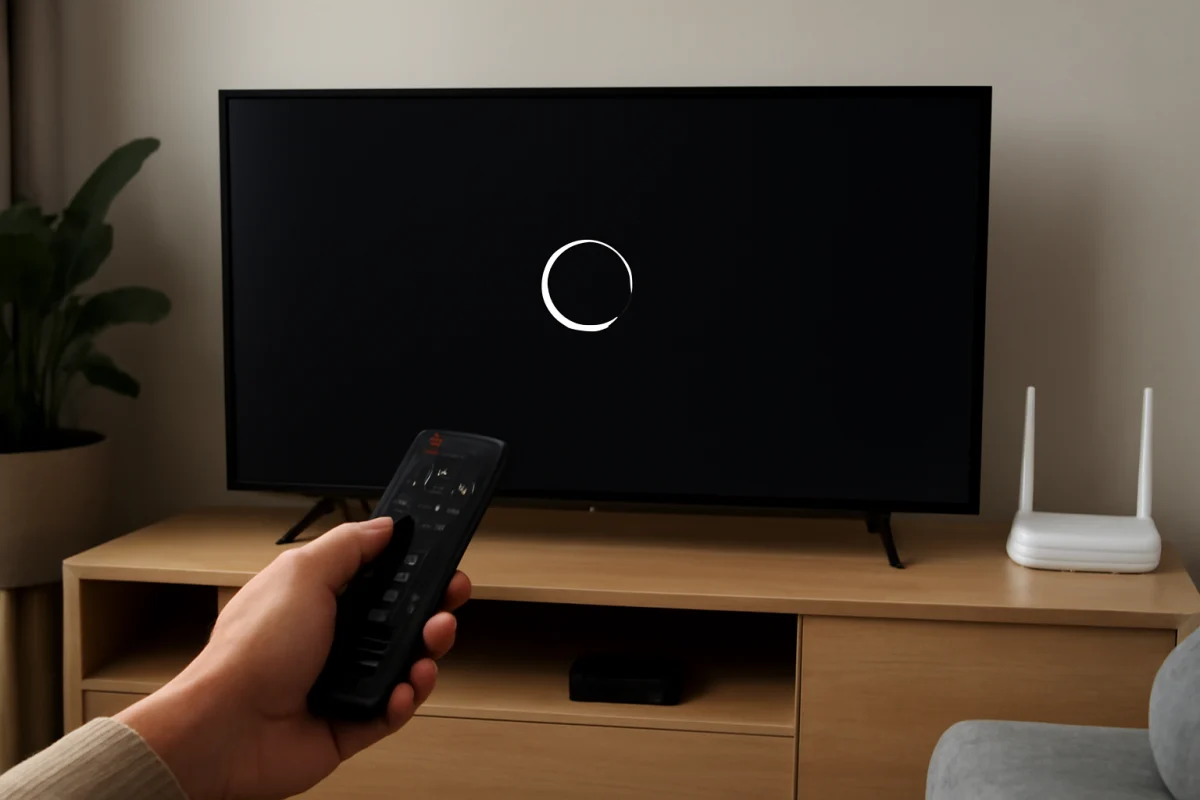
If the YouTube app is not opening on your smart TV, start by checking whether the problem affects only YouTube or other apps too. Try opening another streaming app, then restart the TV and your internet equipment. These simple checks often fix temporary software, network, or memory problems without requiring a factory reset.
If other apps work normally but YouTube does not, focus on the app, its stored data, account session, or a temporary YouTube service issue. If several apps fail, the TV’s internet connection or operating system is more likely to be responsible.
Check whether the problem is limited to YouTube
Open another app that is installed on the TV. It does not need to be the same type of service; the purpose is to test whether the TV can launch apps and reach the internet.
- If other apps open and play content, the problem is probably limited to YouTube.
- If other apps open but show connection errors, check the TV’s network connection.
- If no apps open, the TV may need a restart, software update, or additional troubleshooting.
Also try YouTube on a phone or computer connected to the same home network. If YouTube works elsewhere, the TV app or TV software is the more likely cause. If YouTube fails on several devices, there may be a temporary service or account problem.
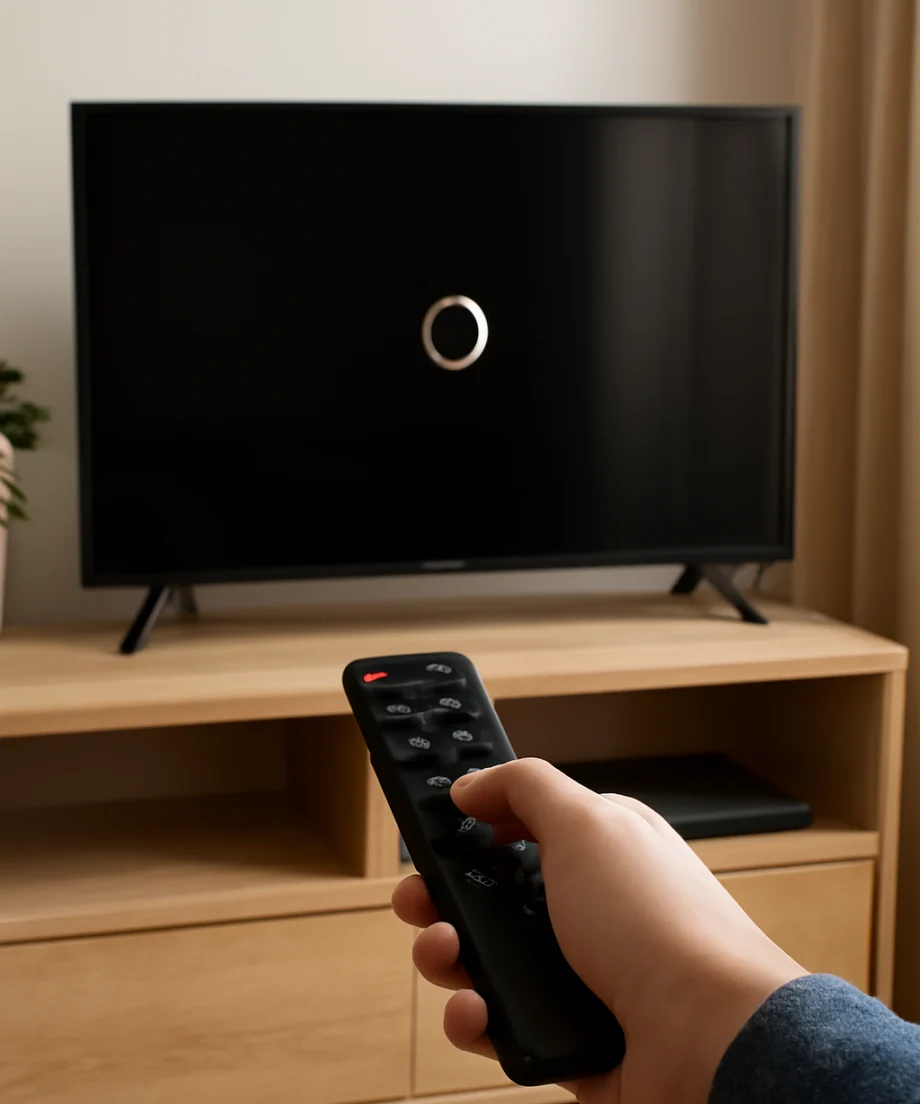
Restart the TV completely
A normal press of the power button may place some smart TVs in standby rather than fully restarting them. A complete power cycle clears temporary system states and can restore an app that is stuck during launch.
- Turn off the TV with its remote or power button.
- Unplug the TV from the wall outlet.
- Wait at least 60 seconds.
- Plug the TV back in and turn it on.
- Wait for the home screen to finish loading before opening YouTube.
If the TV has a removable external streaming device, such as a streaming stick or box, restart that device separately. The YouTube app may be running on the external device rather than on the television itself.
Check the TV’s internet connection
YouTube may close immediately, remain on a loading screen, or fail to respond when the TV has a weak or interrupted connection. Open the TV’s network settings and look for its connection status. The exact menu names vary by brand and model, so use the wording that most closely matches your television.
Confirm that the TV is connected to the intended Wi-Fi network. If the TV shows a connection but apps still cannot load, restart the router and modem or gateway. Unplug the network equipment, wait about a minute, reconnect it, and allow it time to reconnect to the internet before testing YouTube again.
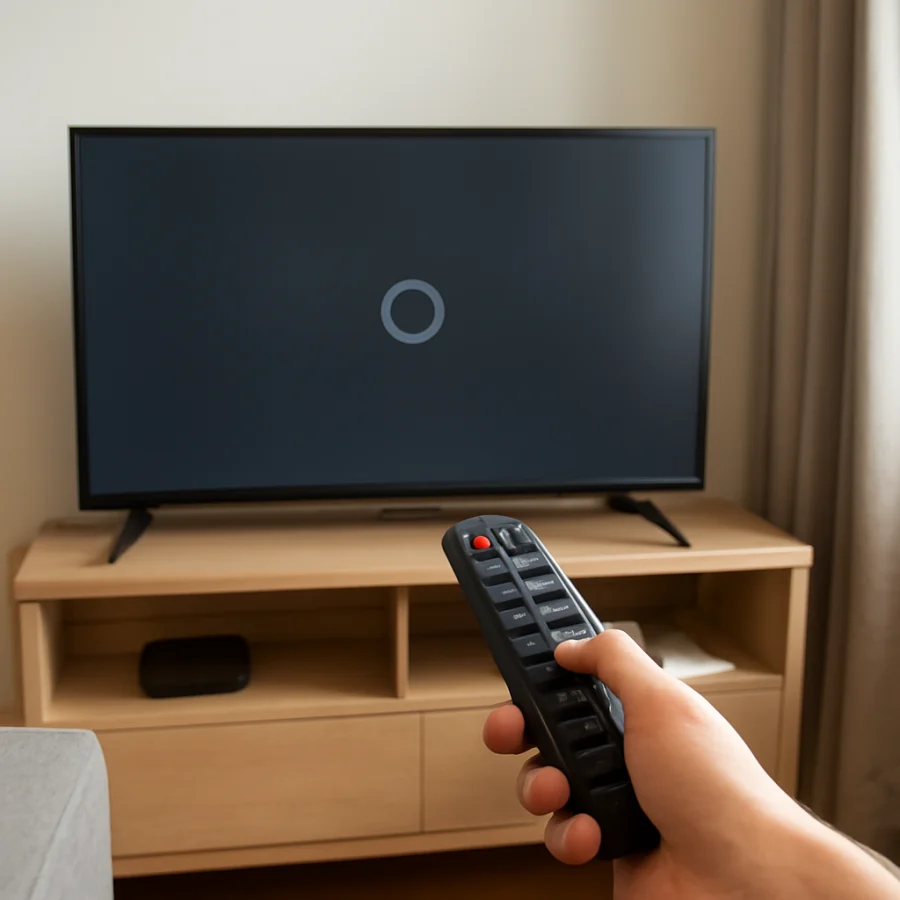
If possible, move the TV or router closer together temporarily, or test the TV with a wired connection. You can also connect the TV to a phone hotspot for a short test. Avoid using a hotspot as a permanent solution unless you understand your mobile data limits. If YouTube opens through the hotspot, the home network or router is likely involved.
For more network troubleshooting, see the TV Fix Guide Wi-Fi and Network section.
Force the app to close and open it again
Some smart TV platforms let you close a recently used app, while others manage apps automatically. If your TV provides an app management or running-apps screen, close YouTube and then launch it again.
If there is no close option, return to the TV home screen, wait a few seconds, and open YouTube from the app list rather than from a shortcut or recent-app row. If the app is frozen, restarting the TV is generally safer than repeatedly selecting the app.
Update YouTube and the TV software
An outdated app or TV operating system can cause launch failures, especially after a service changes how its app works. Open the TV’s app store or app management area and check for an available YouTube update. The location and name of this option depend on the TV manufacturer and operating system.
Then check the TV’s system software for an available update. Keep the TV connected to power and the internet while an update is installing. Do not unplug it during the process unless the manufacturer’s instructions specifically tell you to do so.
If the TV is very old, the current YouTube app may no longer be supported on that platform. Do not assume that every smart TV can run the newest version of every app indefinitely. If the app store does not offer an update and YouTube stopped working after years of normal use, check the TV manufacturer’s support information for compatibility details.
Clear YouTube’s cache or app data
Some smart TV systems provide options to clear an app’s cache, temporary files, or stored data. Cache files can become damaged and prevent an app from opening correctly.
First, use the least disruptive option available, such as clearing the cache or temporary files. This usually does not remove the app or sign you out, although behavior varies by platform. Test YouTube after clearing the cache.
If the problem continues, the TV may offer an option to clear app data or reset the app. This can remove YouTube preferences and sign-in information, so be prepared to log in again. The steps and terminology differ considerably between Samsung, LG, Roku, Fire TV, Android TV, Google TV, and other platforms.
If you cannot find these options, do not guess at a hidden service menu. Use the TV’s normal settings or the manufacturer’s support instructions for your exact model.
Sign out and check the YouTube account
If YouTube opens briefly but closes after loading your profile, the account session may be corrupted or expired. If the app allows it, sign out of the account and sign in again. You may need to use a phone or computer to approve the sign-in process.
Test the app without switching between several profiles. If one profile causes the problem but another works, the issue may be associated with account data rather than the TV itself. You can also check YouTube in a web browser on another device to confirm that the account can sign in and play videos.
Check the TV’s date, time, and storage
Incorrect date or time settings can interfere with secure connections and account authentication. In the TV’s general settings, enable automatic date and time if that option is available. If the TV is offline, its time may not update correctly until the network connection is restored.
Also check whether the TV is low on storage. A nearly full device may have trouble updating apps or creating temporary files. Remove unused apps or downloads only if the TV provides a standard uninstall or storage-management option. Do not delete system files.
Reinstall the YouTube app when supported
Some smart TVs allow YouTube to be uninstalled and installed again. Reinstalling can replace damaged app files, but it will normally remove local app settings and may require you to sign in again.
- Open the TV’s normal app-management or app-store screen.
- Remove or uninstall YouTube if the option is available.
- Restart the TV.
- Install YouTube again from the TV’s official app store.
- Open the app and test playback before changing additional settings.
If YouTube is built into the TV and cannot be removed, look for an update or reset option instead. Do not install unofficial app files from unknown websites. They may be incompatible with the TV or create security and privacy risks.
When a factory reset may be appropriate
A factory reset should be a last resort, not the first response to a YouTube launch problem. It erases personal settings, network details, installed apps, and account information. You may also need to complete the TV’s initial setup again.
Consider a reset only when multiple apps or core TV functions are failing, normal restarts and updates have not helped, and the manufacturer’s troubleshooting guidance recommends it. Before resetting, write down important settings and make sure you know the passwords needed to reconnect accounts and Wi-Fi.
If only YouTube is affected, a factory reset is usually excessive. Contact the TV manufacturer or use the TV’s official support resources before taking this step.
What to do if YouTube still will not open
Record what happens when you select YouTube: does nothing appear, does the app show a blank screen, does it return to the home screen, or does it display a message? Also note whether other apps work, whether the TV is connected by Wi-Fi or Ethernet, and whether the issue began after an update or power outage. These details make support conversations more efficient.
Check for a temporary YouTube service problem from another device, and verify that the TV’s software and app are supported. If the problem affects only one television while YouTube works normally elsewhere, contact the TV manufacturer or the platform provider with the exact TV model and software information shown in the TV’s settings.
For brand-specific guidance, browse the Streaming Apps troubleshooting section or choose the relevant Samsung TV, LG TV, Roku, or Fire TV guide. The safest fix depends on whether YouTube is installed directly on the television or runs through a separate streaming device.
Comments
0No comments yet. Be the first to share a helpful note or question.
Leave a Comment
Your email address will not be published. Comments are reviewed before appearing on the site.