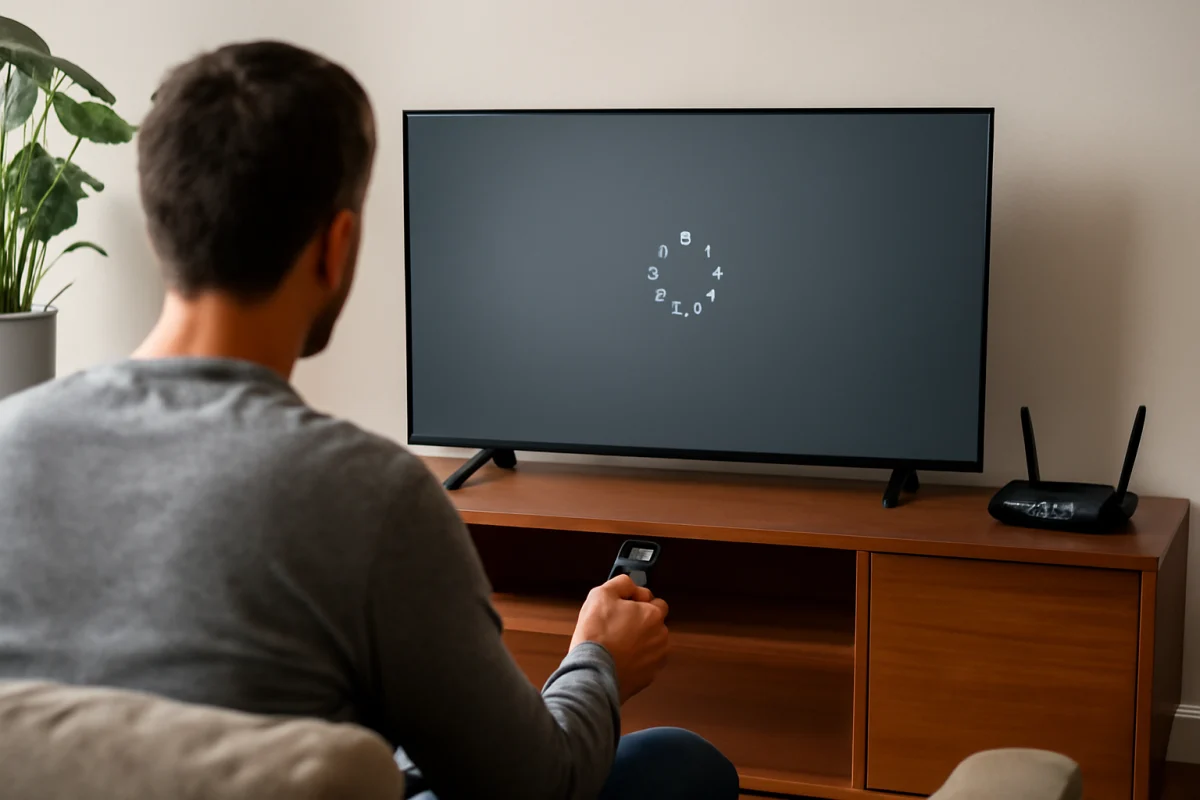
Netflix usually keeps buffering on a smart TV because the TV is not receiving video data consistently. The most common causes are weak or unstable Wi-Fi, network congestion, a temporary Netflix app problem, an outdated TV system, or a router that needs to be restarted. Start with simple checks before changing advanced settings or resetting the TV.
First, pause Netflix for a minute and check whether other apps also load slowly. If several streaming apps buffer, focus on your home network. If only Netflix has a problem, the app, account, or a temporary service issue is more likely. The exact menus and reset options vary by TV brand and model, so use the general guidance below and confirm the wording on your screen.
Check whether the problem affects Netflix only
Open another streaming app on the same TV and play a video for several minutes. You can also try Netflix on a phone or computer connected to the same home network.
- If Netflix buffers on the TV but works normally on other devices, the TV app, TV software, or TV connection may be responsible.
- If Netflix buffers on several devices, the router, internet connection, or network provider is more likely to be the cause.
- If only one movie or show buffers while other titles play normally, the issue may be temporary content delivery trouble rather than a TV fault.
Also check whether playback improves at a different time of day. Buffering that becomes worse in the evening can point to heavy household usage or congestion affecting the internet connection.
Restart the TV and router properly
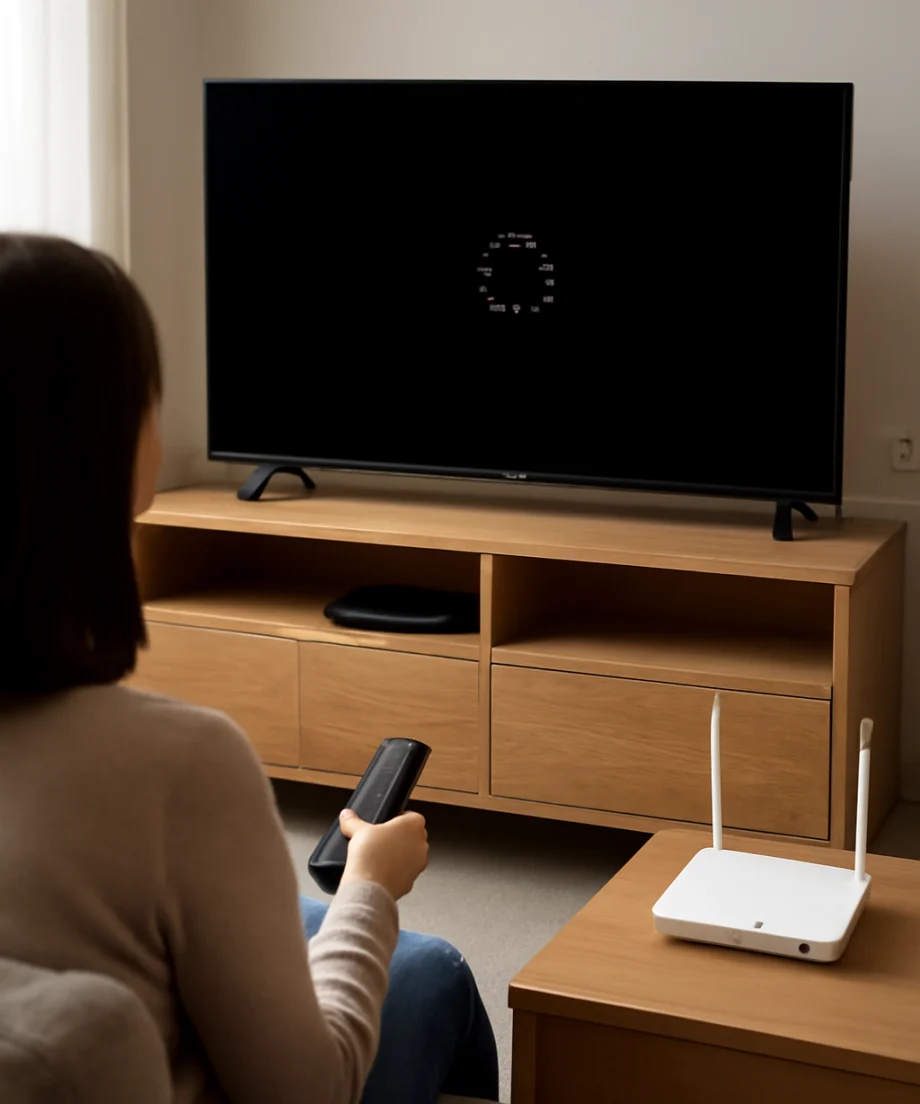
A normal remote-control power-off may leave some smart TVs in a standby state. For a more complete restart, turn the TV off, unplug it from the wall, wait about one minute, and plug it back in. Then open Netflix and test the same title again.
Restart the router as well if other devices are slow or if the TV has trouble connecting. Unplug the router and any separate modem or network gateway, if you have one. Wait until the equipment has fully powered down, reconnect it, and allow the connection to return before testing Netflix.
Avoid repeatedly unplugging equipment while it is starting up. Indicator lights and startup times differ by device, so wait until your internet connection is available again. This simple restart can clear temporary network and app communication problems without changing your settings.
Improve the TV’s Wi-Fi connection
Smart TVs often have less flexible Wi-Fi placement than phones or laptops. If the TV is far from the router, behind dense furniture, or separated by several walls, the connection may be strong enough for menus but not stable enough for continuous video.
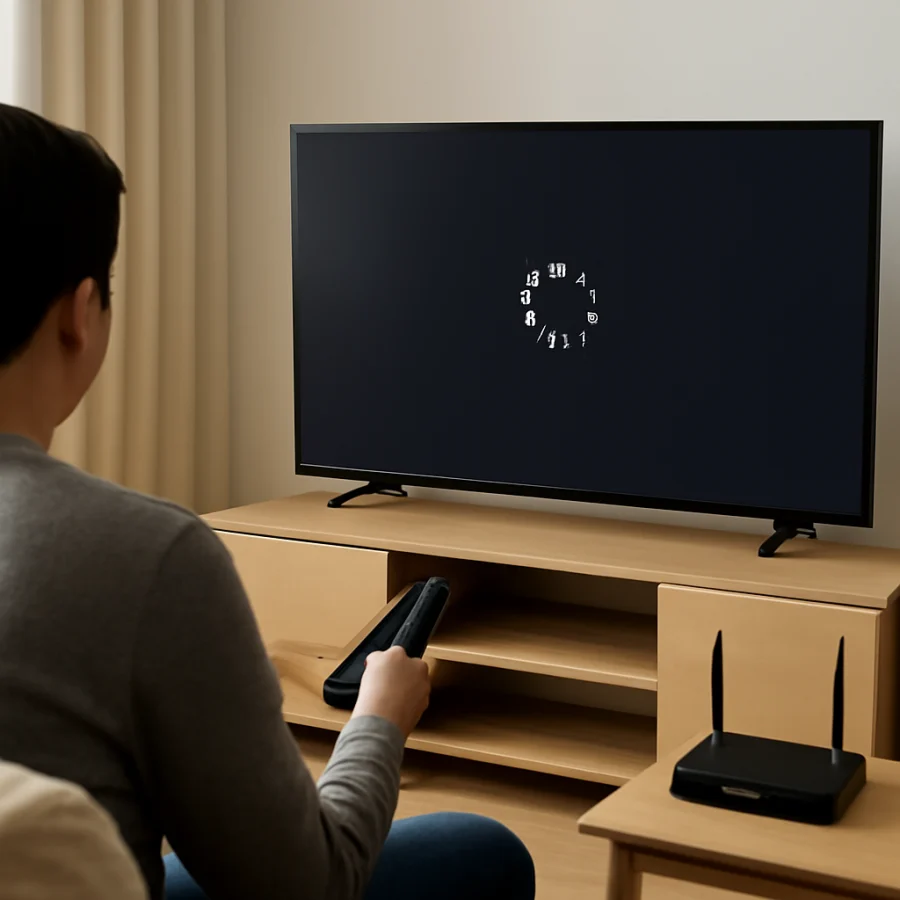
Move the router closer to the TV temporarily, if possible, and test Netflix again. Keep the router away from enclosed cabinets, large metal objects, and sources of interference. Do not place it directly behind the television if that is the only location available.
If your router offers more than one Wi-Fi network, the available bands may have different range and speed characteristics. A network that performs well near the router may be less reliable across a distant room. Try the other available network only if you know the password and it is part of your own home setup.
A wired Ethernet connection can be a useful diagnostic test when the TV supports it. If Netflix becomes stable over Ethernet, the problem is probably related to Wi-Fi signal quality or wireless interference rather than the Netflix account. Ethernet performance can still depend on the router, cable, and TV port, so it is not a guarantee of a faster connection.
For more network troubleshooting ideas, see the Wi-Fi and network troubleshooting guide.
Reduce network congestion
Streaming is only one of the activities competing for your home connection. Video calls, game downloads, cloud backups, security cameras, large file transfers, and several other streams can reduce the bandwidth available to the TV.
Pause large downloads and stop unused streams temporarily. If another person is gaming or attending a video meeting, test Netflix later or test while those activities are paused. This helps determine whether the issue is caused by limited capacity rather than by the TV itself.
Do not assume that a fast internet plan eliminates all buffering. The TV may still have a weak wireless signal, the router may be overloaded, or the connection may be unstable. A speed test on another device can provide useful context, but it does not measure the exact quality of the TV’s connection unless the test is performed on the TV itself.
Sign out of Netflix and reopen the app
A temporary app session problem can sometimes cause repeated loading, failed playback, or buffering that continues after the network appears normal. If Netflix provides a sign-out option in the app, sign out and then sign back in.
Keep your Netflix email address and password available before signing out. If the TV uses a code or another activation method, follow the instructions shown on the screen. Avoid deleting the app first; signing out and reopening it is a lower-risk step that can resolve account-session problems without removing saved app data.
After signing back in, play a different title for several minutes. Testing another title helps separate a general app problem from an issue affecting one particular stream.
Update the Netflix app and TV software
Smart TV manufacturers and app providers release updates that can fix playback, compatibility, and connection problems. Check whether Netflix has an available app update through the TV’s app store or app management area. Also check the TV’s system settings for available software updates.
Menu names differ across brands, operating systems, and model years. Look for general sections such as apps, support, system, device preferences, or software update, but do not change unrelated settings unless you understand what they control.
If the TV reports that it is already up to date, continue with the next steps. An update may not be available immediately for every model, and installing software will not fix a weak Wi-Fi signal or an overloaded network.
Clear app data or reinstall Netflix carefully
Some TVs allow you to clear an app’s cache or stored data. If that option is available, clearing temporary data may help when Netflix behaves incorrectly. The exact result depends on the TV platform: clearing data may sign you out, remove local preferences, or reset the app.
If there is no clear-cache option, you may be able to remove and reinstall Netflix. Before doing so, confirm that Netflix can be downloaded again on your TV and that you know how to sign back in. Reinstalling the app is more disruptive than restarting it, so try the network and sign-out checks first.
Do not remove unrelated apps or reset the entire TV as a first response. A full reset can erase app logins, picture settings, connected devices, and other personal preferences.
Check the TV’s date, time, and network settings
Incorrect date or time settings can interfere with secure connections on some smart devices. If your TV has an automatic date and time option, make sure it is enabled or that the displayed information is correct. The setting location varies by model.
You can also review the TV’s network status page to confirm that it is connected to the intended Wi-Fi network. If the TV frequently disconnects, reconnecting to the network may help, but have the Wi-Fi password ready. Avoid changing DNS, proxy, IP, or other advanced network values unless you are following instructions specific to your TV and network.
Determine whether the internet connection is unstable
Buffering can occur even when a speed test shows a good result. Streaming needs a steady connection, not just a brief burst of speed. If the TV repeatedly disconnects, the router loses internet access, or other devices report interruptions, contact your internet provider after testing the router and cables.
Check any cable connections between the modem, router, and wall outlet. A loose or damaged cable can cause intermittent service. If your provider supplies a combined modem-router device, follow its documentation rather than changing settings intended for a separate router.
If Netflix works normally when the TV is connected through a phone hotspot but not on your home Wi-Fi, that strongly suggests a home network or internet service issue. Hotspot testing can use mobile data quickly, so use it only briefly for diagnosis.
When a TV reset may be appropriate
A factory reset should be one of the final steps, not the first. Consider it only after confirming that the internet connection is stable, other devices can stream normally, the Netflix app has been refreshed, and the TV software is current.
Before resetting, record important information such as Wi-Fi credentials, app sign-in details, and customized picture or sound settings. The reset process differs by manufacturer and can remove installed apps and personal preferences. If buffering affects only Netflix, a full TV reset may not be worth the disruption.
For brand-specific troubleshooting, you can browse TV Fix Guide’s streaming app guides or select your TV brand, such as Samsung TV troubleshooting or LG TV troubleshooting.
Signs that the problem may need further help
Seek additional support if Netflix buffers across multiple devices on a stable home network, the TV repeatedly loses its network connection, or other apps also fail after a router restart. Contact the internet provider when the connection drops outside the TV as well.
If only one TV has the problem while other devices and apps work normally, contact the TV manufacturer or use its support resources after trying the low-risk steps above. When requesting help, note whether the TV uses Wi-Fi or Ethernet, whether other apps buffer, whether the issue happens with every title, and whether restarting changes the behavior. Those details can make the diagnosis much faster.
Comments
0No comments yet. Be the first to share a helpful note or question.
Leave a Comment
Your email address will not be published. Comments are reviewed before appearing on the site.