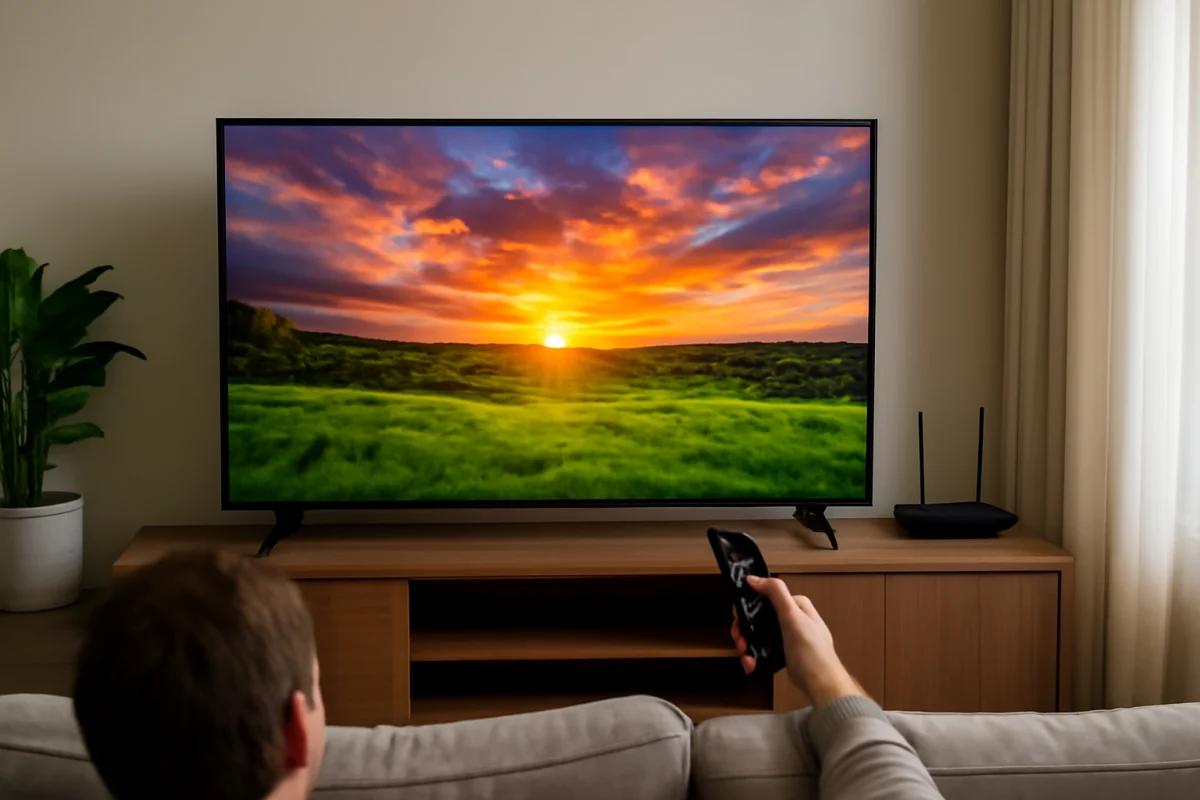
Wide color gamut, often abbreviated as WCG, means a TV can display a broader range of colors than a standard-gamut display. It can make sunsets look richer, forests appear more varied, and colorful movies look closer to the creator’s intent. However, a TV cannot create missing color information from ordinary content, and a wide color gamut does not automatically guarantee accurate or natural-looking pictures.
If your new TV looks too colorful, too dull, or noticeably different from another screen, start with the source and picture settings before assuming the panel is defective. Check whether you are watching HDR content, confirm that the same picture mode is active on both TVs, and temporarily disable vivid or dynamic processing. Menu names vary by manufacturer and model, so use the general settings descriptions below as a guide rather than expecting identical labels.
What wide color gamut means
A TV creates colors by combining red, green, and blue light. The range of colors it can reproduce is called its color gamut. A standard-gamut television covers a more limited portion of the colors visible to the human eye. A wide-color-gamut TV covers a larger portion of that range.
Most modern TVs that support HDR are designed to cover a wide-gamut standard commonly associated with HDR video. Some displays can reproduce an even broader range than that standard, but the practical benefit depends on the content, the TV’s processing, brightness, and calibration.
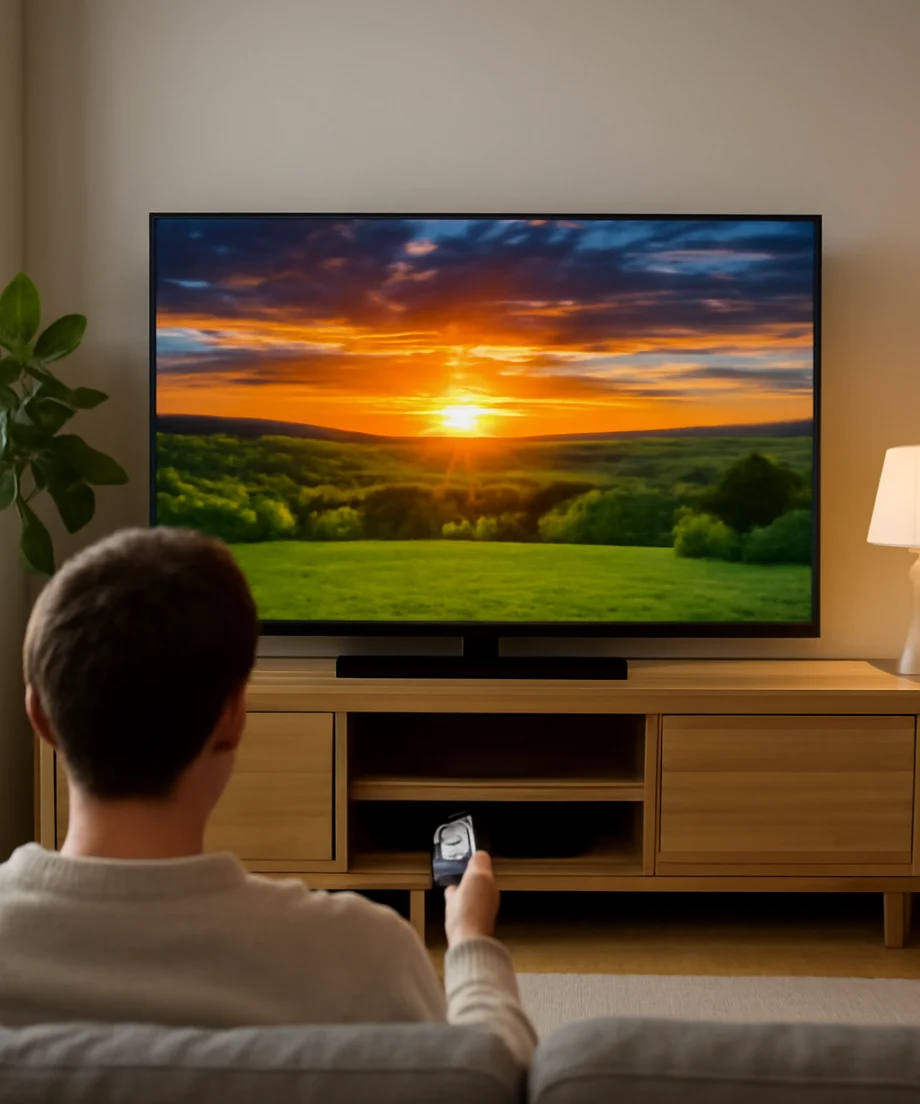
Wide color gamut does not mean that every color becomes brighter or that every picture should look dramatically more saturated. It means the display has more color capability available. The source still determines which colors are included in the image, and the TV must map those colors correctly to its panel.
How wide color gamut enhances TV colors
More saturated colors
The most obvious benefit is stronger saturation. A display with limited color capability may struggle to show intense reds, deep greens, bright blues, and highly saturated cyan or magenta tones. It may reproduce those colors as less vivid versions that are closer to the center of its available range.
A wide-gamut display has more room to reproduce those colors. In a compatible HDR movie or game, this can make a red costume, neon sign, tropical flower, or blue sky appear more distinct and lifelike.
More subtle color differences
Wide color gamut is also useful for showing small differences between similar colors. For example, a scene may contain several shades of green in leaves, grass, and distant trees. A display with greater color capacity can separate those shades more effectively when the source contains the necessary information.
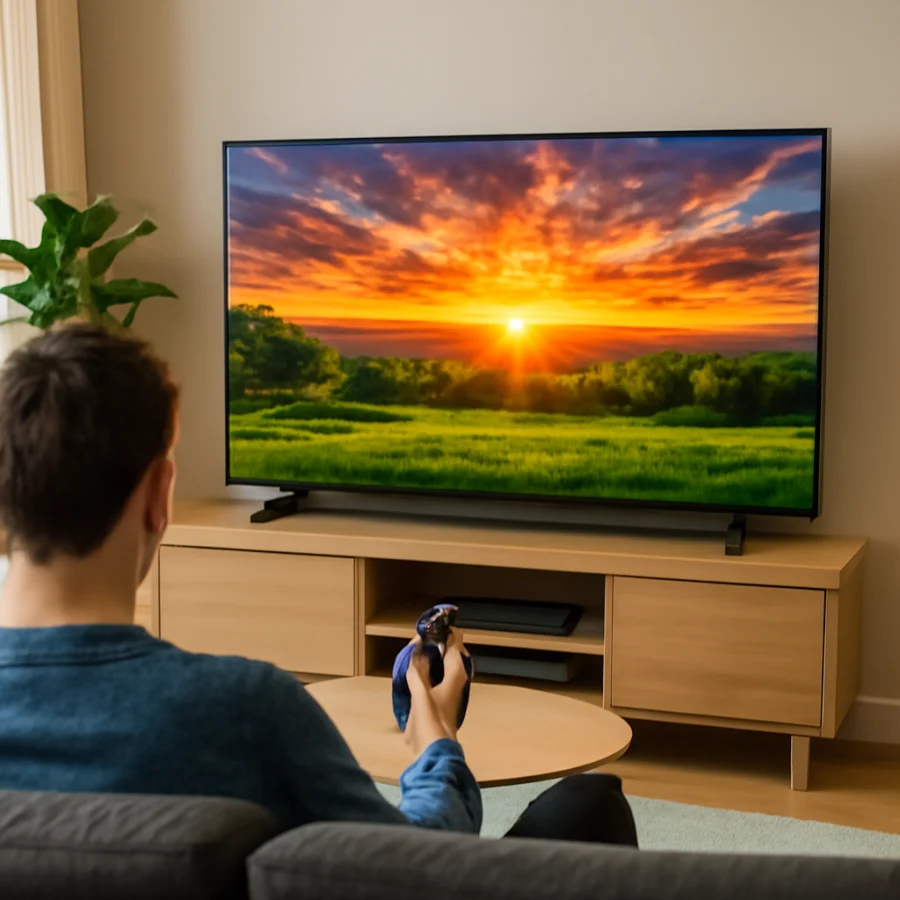
This does not mean WCG prevents every type of banding. Banding can also result from compressed video, limited source quality, incorrect settings, or problems in the TV’s processing. If a smooth sunset shows visible strips of color, the issue may not be the panel’s color gamut.
Better HDR reproduction
HDR content is usually mastered with a wider range of brightness and color than standard dynamic range content. Wide color gamut gives an HDR TV a better chance of reproducing the more saturated colors included in that signal.
Brightness is still important. A TV may support a wide color gamut but lack the brightness needed to make certain HDR colors look impactful. Panel type, backlight design, local dimming, viewing mode, and room lighting can all affect the result. Color gamut is one part of HDR performance, not a complete measurement of it.
Wide color gamut and HDR are not the same thing
These terms are related but describe different capabilities. HDR mainly concerns a wider range of brightness, contrast, and image information. Wide color gamut concerns the range of colors a display can reproduce.
An HDR-compatible TV may support a wide gamut, but the quality of that support can vary. One model may produce a larger portion of the intended color range than another. Two TVs can both accept the same HDR format while showing different levels of brightness, saturation, and detail.
For the best results, the TV, streaming service or disc, playback device, cable connection, and settings all need to work together. If an HDR title looks gray, dim, or strangely oversaturated, avoid changing advanced controls immediately. First confirm that the content is actually playing in HDR and that the TV has not switched to an unsuitable picture mode.
Why some content does not look different
Older shows, broadcast channels, DVDs, and much of the free online video you watch may use standard dynamic range and a narrower color range. A wide-gamut TV can display this content, but there may be little extra color information for it to show.
Some TVs use color expansion or enhancement to make standard content appear more vivid. This can produce a noticeable effect, but it is not the same as receiving a genuine wide-gamut signal. Artificial enhancement may also make skin tones look orange, grass look unnaturally green, or dark scenes lose subtle detail.
Streaming quality matters as well. A title may be labeled HDR, but the available version can depend on the service, subscription, app, playback device, and internet connection. If the same title looks different in two apps, compare the playback information and picture mode before judging the TV.
How to tell whether your TV is using its color capability
You do not need specialized equipment for a basic check. Use a known HDR movie, show, or game from a reliable source and compare it with ordinary SDR content. Look for richer but controlled colors in bright objects, more separation between similar shades, and natural-looking skin tones.
Next, check the TV’s picture information screen if the model provides one. The exact wording and location vary, but some TVs show whether the current signal is HDR or identify the input format. You can also check the playback device’s video settings and the streaming app’s title information.
Use the same scene when comparing different inputs. A TV may apply separate settings to its built-in apps, HDMI inputs, and antenna channels. Comparing a built-in streaming app with an external player can therefore produce misleading results.
If you are troubleshooting a color problem, the TV picture and sound troubleshooting guide can help you check basic picture settings before you make advanced changes.
What to check when colors look wrong
1. Confirm the source and content format
Check whether the problem affects one title or everything on the TV. If only one movie, app, or HDMI device looks wrong, the display panel may be working normally. Try another known-good title and, if possible, another source.
For an external device, reseat the HDMI cable and try another compatible HDMI input. If you are using a soundbar, receiver, switch, or capture device between the player and TV, temporarily connect the player directly to the TV. This helps identify whether another device is changing the video signal.
2. Use a neutral picture mode
Vivid, Dynamic, or similarly named modes often increase color intensity, brightness, and contrast. They can be useful in a brightly lit store but may make home viewing look exaggerated. Try a standard, movie, cinema, or filmmaker-oriented mode if your TV offers one. The exact names differ by brand and model.
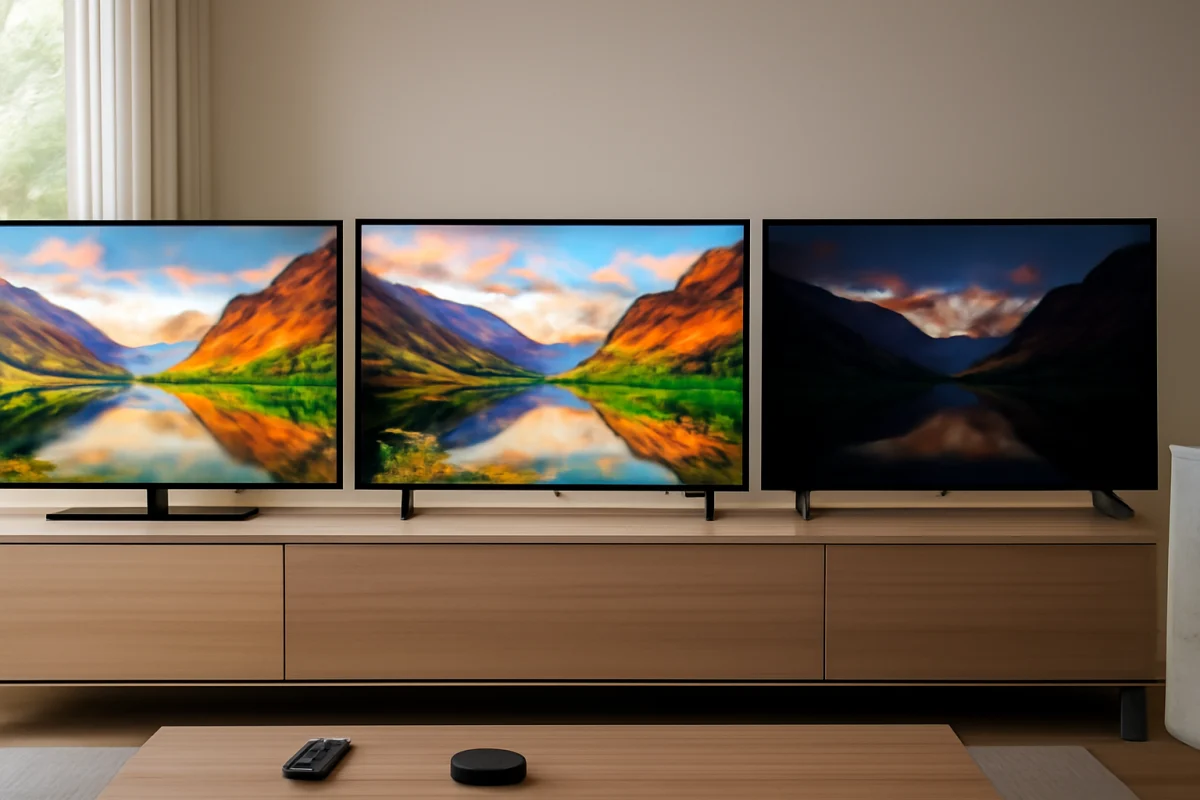
Do not compare two TVs while one is in a bright showroom-style mode and the other is in a movie-oriented mode. Picture mode can create a larger visible difference than the panel’s color gamut.
3. Check color temperature and color controls
A warm color temperature usually makes the image look more yellow or reddish, while a cool setting can add a bluish cast. Neither setting directly changes the TV’s maximum color gamut, but both can affect how you perceive color accuracy.
Check that color intensity, tint, and any advanced color controls have not been pushed to extreme values. If someone recently changed several settings, use the picture settings reset for the current input or picture mode if available. This is safer than changing many advanced controls one at a time without recording the original values.
4. Check the viewing environment
Bright room lighting can wash out perceived color and reduce contrast. Reflections on a glossy screen can also make a picture seem less saturated. At night, a very bright or highly saturated image may look more intense than it does during the day.
Compare the TV under normal viewing conditions, not with a phone screen held next to it. Phones use different panels, brightness levels, color profiles, and image processing, so they are not reliable references for judging TV accuracy.
5. Check HDMI and device settings
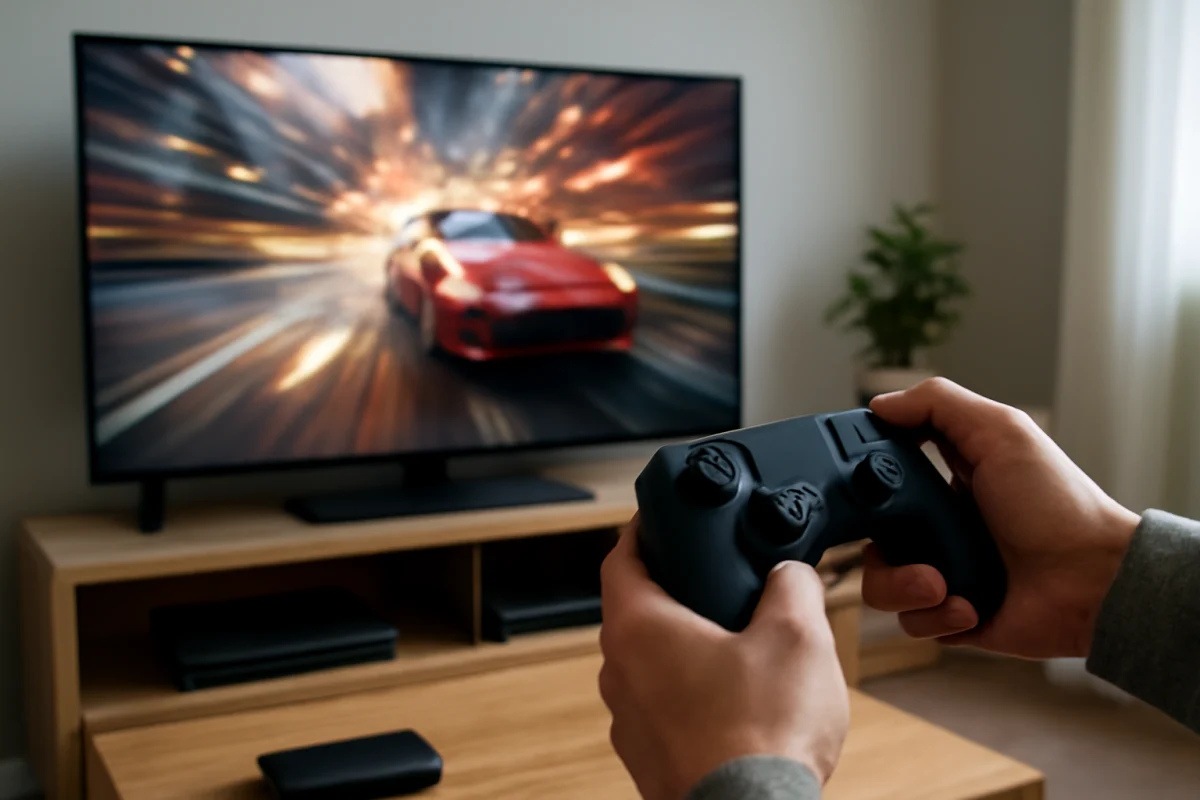
External players and game consoles may have separate settings for HDR, color depth, RGB range, and video output. The correct choice depends on the connected TV and the device. If the image suddenly looks washed out or overly dark after changing a setting, return the device to its previous value and consult the device’s support documentation.
A long or damaged HDMI cable can cause signal problems, although color errors are not always caused by the cable. Test with a short, known-good cable and remove unnecessary adapters or splitters. Avoid buying a replacement cable solely because a TV supports wide color gamut; match the cable and device to the required video signal instead.
Does a wider color gamut always look better?
Not necessarily. A TV can have impressive color coverage and still produce inaccurate images if its factory tuning or processing is poor. Excessive saturation can hide detail and make people, buildings, and landscapes look artificial.
Accuracy also depends on the content creator’s intent. A professionally mastered movie may look best with controlled colors, while a game may be designed to look more energetic. The best setting is usually the one that preserves detail and natural skin tones without making the image appear dull.
Viewing distance matters too. If you sit far from the screen, the difference between standard and wide color gamut may be subtle. Large, bright, colorful images and HDR content make the benefit easier to notice than ordinary low-quality video.
What to look for when buying a TV
Look beyond a simple “wide color gamut” label. Check whether the TV supports the HDR formats you use, how bright it becomes in HDR, how it handles dark scenes, and whether it provides a picture mode suited to accurate viewing. Independent measurements are more useful than marketing language, but results can vary by screen size and test method.
Consider your content first. If you mainly watch cable channels or older SDR programs, other factors such as upscaling, motion handling, glare control, and viewing angle may matter more. If you regularly watch HDR movies or play HDR games, color gamut becomes more relevant alongside brightness and contrast.
After installation, do not chase maximum saturation. Start with a neutral picture mode, allow the TV to adapt to your room, and make one change at a time. If a problem remains across every source, note whether it affects the entire screen or only certain colors, then check the TV’s model-specific support information before attempting a factory reset.
For additional TV technology explanations and practical setup guidance, visit the Tech & Specs section on TV Fix Guide. The key point is simple: wide color gamut gives a TV more color range to work with, but the source, settings, brightness, processing, and viewing conditions determine whether that extra capability becomes a visible improvement.
Comments
0No comments yet. Be the first to share a helpful note or question.
Leave a Comment
Your email address will not be published. Comments are reviewed before appearing on the site.