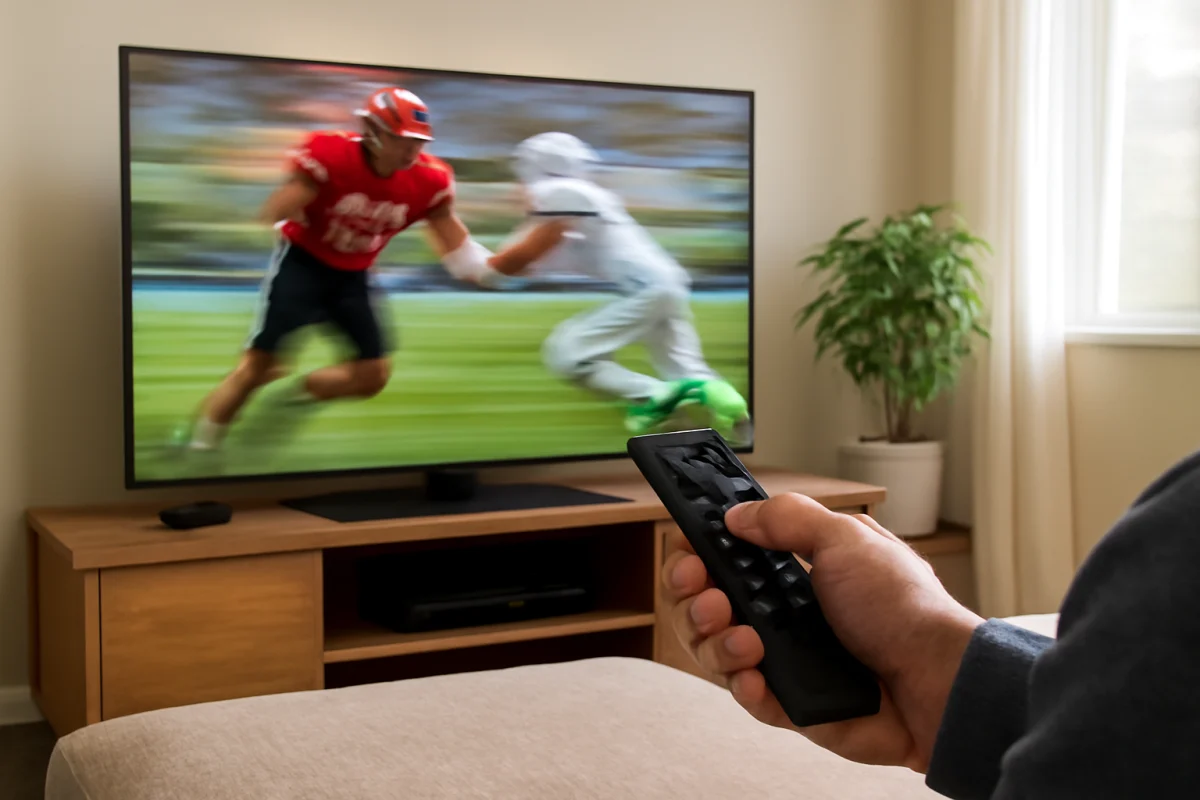
If your TV picture looks unusually smooth, almost like a live video feed or a behind-the-scenes recording, motion smoothing is probably enabled. This setting can reduce blur in sports and fast-moving scenes, but it may also create a distracting “soap opera effect,” halos around moving objects, or strange distortion during camera pans.
The best first step is to test the picture with motion smoothing turned off or set to a lower level. Look for a setting related to motion, clarity, or frame interpolation in the TV’s picture controls. The exact name and location vary by brand, model, picture mode, and software version. If you still notice motion problems afterward, check whether the issue appears in every source or only in one streaming app, game console, cable box, or broadcast channel.
What TV motion smoothing does
Movies and television shows are usually recorded and displayed at a set frame rate. Fast movement between those frames can look blurry, especially during a camera pan or when an object crosses the screen. Motion smoothing attempts to make movement appear more fluid by analyzing nearby frames and generating additional frames between them.
TV manufacturers use different names for this feature. Depending on the brand and model, you may see terms such as motion smoothing, motion clarity, frame interpolation, blur reduction, judder reduction, or a branded picture-processing name. These settings do not all work in exactly the same way, and some combine more than one type of processing.
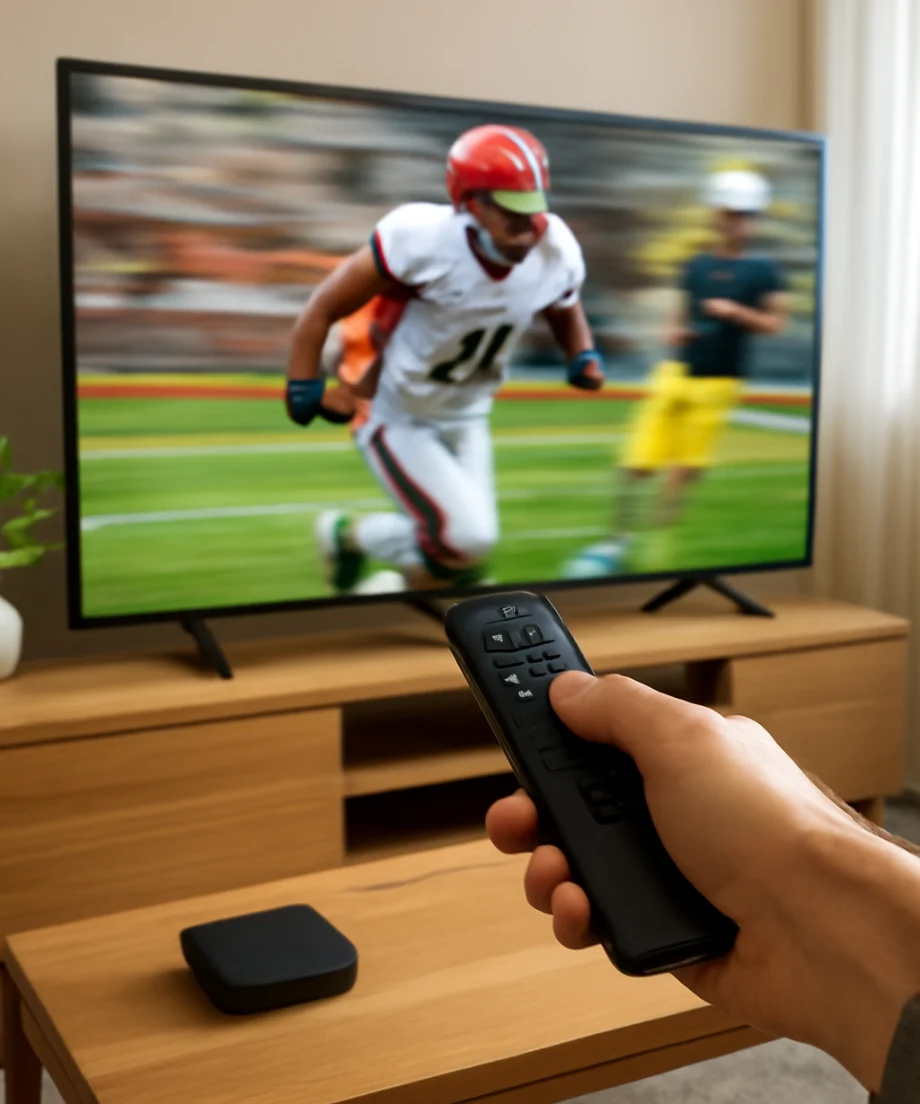
The feature is different from a TV’s native refresh rate. A panel may refresh the screen quickly, but that does not necessarily mean the TV is creating new video frames. Motion processing is a separate picture feature controlled by the television’s image processor.
Why motion smoothing can look unnatural
Motion smoothing is designed to make movement look more fluid, but the TV has to estimate what should appear between the original frames. That estimate can be wrong when an object moves quickly, the image is dark, or several objects overlap.
Common results include:
- The soap opera effect: Movies may look unusually sharp and immediate, more like live television or a video recording than a film.
- Haloing: A faint outline may appear around people, players, text, or other moving objects.
- Warping: Parts of an object may bend, stretch, or briefly disappear while moving.
- Uneven motion: Some scenes may look smooth while others suddenly judder or stutter.
- Detail loss: Fine textures, hair, subtitles, or fast-moving backgrounds may look soft or unstable.
- Input delay: Some picture processing can make games feel less responsive, particularly when a low-latency gaming mode is not active.
These effects do not always mean the TV is defective. They are often a sign that the selected processing level is too aggressive for the content.
When you should turn motion smoothing off
Movies and scripted TV shows
Many viewers prefer motion smoothing off for movies and scripted shows because the original presentation is preserved. Film-based content may look too artificial when additional frames are inserted. If a movie suddenly resembles a live studio production, disabling or reducing motion processing is a useful test.
This is especially helpful if you notice a soap opera effect, unnatural camera pans, or shimmering around actors. Some TVs apply different motion settings automatically in different picture modes, so check more than one mode if the behavior changes between apps or inputs.
Video games
For gaming, turn motion smoothing off first if controls feel delayed or the image develops trails around moving characters. Many TVs include a game-oriented picture mode that reduces processing, although the name and available options depend on the model.
If you use a console or computer, test the game with the TV’s motion controls disabled and compare the response. Also check the source device’s video settings, because the TV cannot correct every type of motion problem. If the image remains delayed, use the TV’s low-latency or gaming option if available and make sure the console is connected directly to the TV rather than through unnecessary equipment.
Sports and live broadcasts
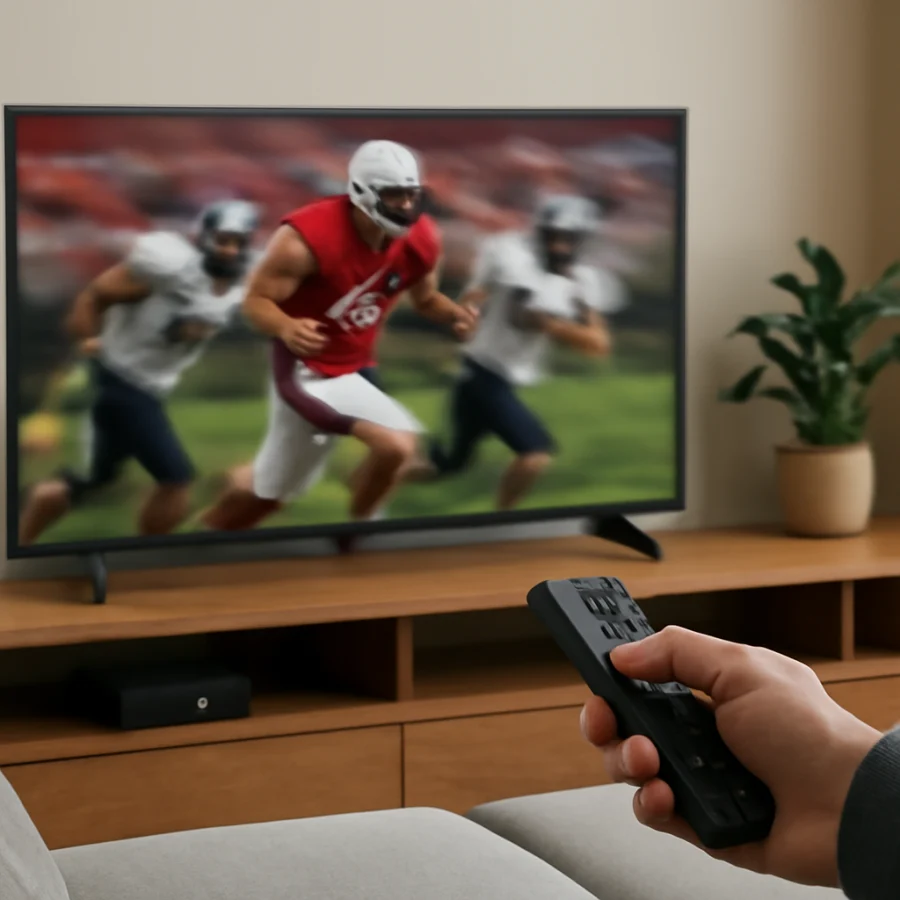
Sports are the main situation where motion smoothing can be useful. A moderate setting may make a puck, ball, racing vehicle, or fast camera movement look clearer. It can also reduce the appearance of blur during wide shots.
However, the highest setting is not always best. Aggressive processing may create distortion around players, field lines, scoreboard graphics, or the edges of a moving ball. If that happens, reduce the setting instead of assuming the TV needs repair. A lower level often provides a better balance between clarity and natural motion.
News, talk shows, and live studio content
Motion smoothing may be less noticeable on studio programming because the source already has a live-video appearance. Some viewers still prefer it off to avoid processing artifacts around scrolling text, lower-third graphics, or people moving in front of a background.
How to test motion smoothing safely
- Choose a familiar scene. Use a movie, sports clip, game, or show where you can clearly see the problem. A moving face, camera pan, or fast object is more useful than a static menu.
- Pause the source briefly. Confirm that the issue is visible in actual video rather than only in the TV’s menu, app interface, or loading screen.
- Open the picture settings. Look for motion, clarity, advanced picture, or similar controls. Menu names vary by manufacturer and model.
- Set motion processing to Off or the lowest available level. Watch the same scene again. Do not change several unrelated settings at once.
- Compare a moderate setting. If the picture looks too blurry with processing off, try a low or custom level if the TV provides one.
- Check different content. A setting that works well for sports may look poor with movies or games. Test at least two types of content.
- Save or apply the change if required. Some TVs use separate picture settings for each input, app, or picture mode.
If you are unsure whether a change helped, take a short break and compare again. Motion processing can be difficult to judge after watching the same picture for several minutes.
Why the setting may keep coming back
A motion setting may appear to change by itself for several reasons. The television might use separate controls for each HDMI input, streaming app, picture mode, or type of content. An automatic picture feature may also adjust processing based on the signal or viewing environment.
Check whether the problem occurs on one source or all sources. If motion smoothing is active only when using a cable box, change the setting while that input is selected. If it appears only in one streaming app, test another app before changing advanced TV settings.
Some content is also processed before it reaches the TV. A cable box, streaming device, game console, or video receiver may have its own picture or frame-rate options. Avoid changing every device at once. Start with the TV, identify the effect of that change, and then inspect the source device only if necessary.
Motion smoothing problems that are not caused by the TV setting
Not every motion complaint is caused by frame interpolation. A weak or unstable stream can produce judder, dropped frames, or repeated frames that resemble a picture-processing problem. Test the same title on another app or source. If you are streaming, review the connection using the device’s available network information and see whether other videos have the same issue. Our Wi-Fi and network troubleshooting guides can help if playback is also buffering or lowering quality.
Problems can also come from the source format. Some movies and shows use intentional camera movement, dark scenes, or visual effects that naturally look uneven. A broadcast may contain compression artifacts that the TV’s motion processor makes more noticeable. If the problem appears only in one program, it may be part of the source rather than a television fault.
Loose or damaged cables are less likely to cause a classic soap opera effect, but they can cause flickering, dropouts, or an unstable signal. If you see those symptoms, reseat the cable connections and test another input or cable before considering more advanced changes.
Should you reset the TV?
A factory reset is rarely the right first step for motion smoothing. It removes picture preferences and other settings but may not solve a problem caused by the source device, app, broadcast, or content itself. Try changing the motion control, testing another source, and checking whether separate picture modes are involved first.
If the TV does not remember picture changes, repeatedly switches modes, or behaves differently after a power interruption, document the settings and test a normal power cycle before considering a reset. Unplug the TV only if the manufacturer’s instructions support that procedure, and allow it to remain disconnected briefly before reconnecting it. Avoid service menus or undocumented adjustments because they can create new picture problems.
When motion artifacts may indicate a hardware issue
Consider professional support if distortion remains with motion processing disabled and appears across every input, app, and type of content. Persistent lines, flashing areas, large sections of the screen changing brightness, or defects that remain on the TV’s own menu deserve closer attention.
Before contacting support, record the TV model, the input or app being used, the picture mode, and the exact scene where the issue appears. A short video recorded from another device can help show the problem, although camera recordings may introduce their own flicker or banding.
For brand-specific troubleshooting, you can also browse the TV Fix Guide sections for Samsung TVs, LG TVs, or Sony TVs. Menu labels and available motion controls vary, so use the instructions that match your exact model rather than assuming every television works the same way.
A practical starting point
For most viewers, the simplest approach is to use little or no motion smoothing for movies and games, then test a low or moderate setting for sports. Turn it off when you see the soap opera effect, halos, warping, or delayed controls. If the issue continues, compare another source and check whether the setting is being stored separately for a different input or picture mode.
Motion smoothing is not automatically good or bad. It is a processing choice that works better for some content than others. Adjusting it carefully, one change at a time, can improve motion without risking unnecessary resets or advanced repairs.
Comments
0No comments yet. Be the first to share a helpful note or question.
Leave a Comment
Your email address will not be published. Comments are reviewed before appearing on the site.