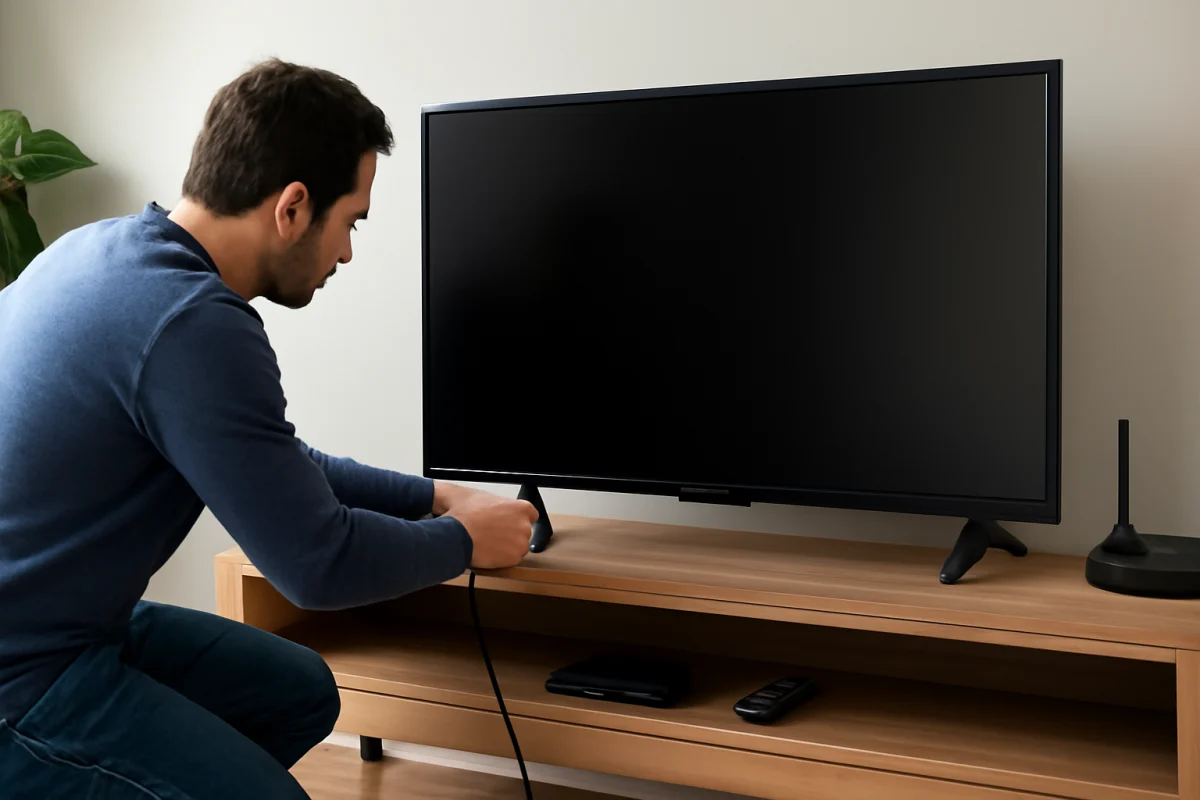
If your Insignia TV will not turn on, start with the power connection rather than the settings. Check whether the TV has any standby light, try the physical power button, test the wall outlet, and disconnect external devices. These simple checks can separate a remote-control problem from a power problem without requiring a reset or opening the TV.
Check the TV's power connection first
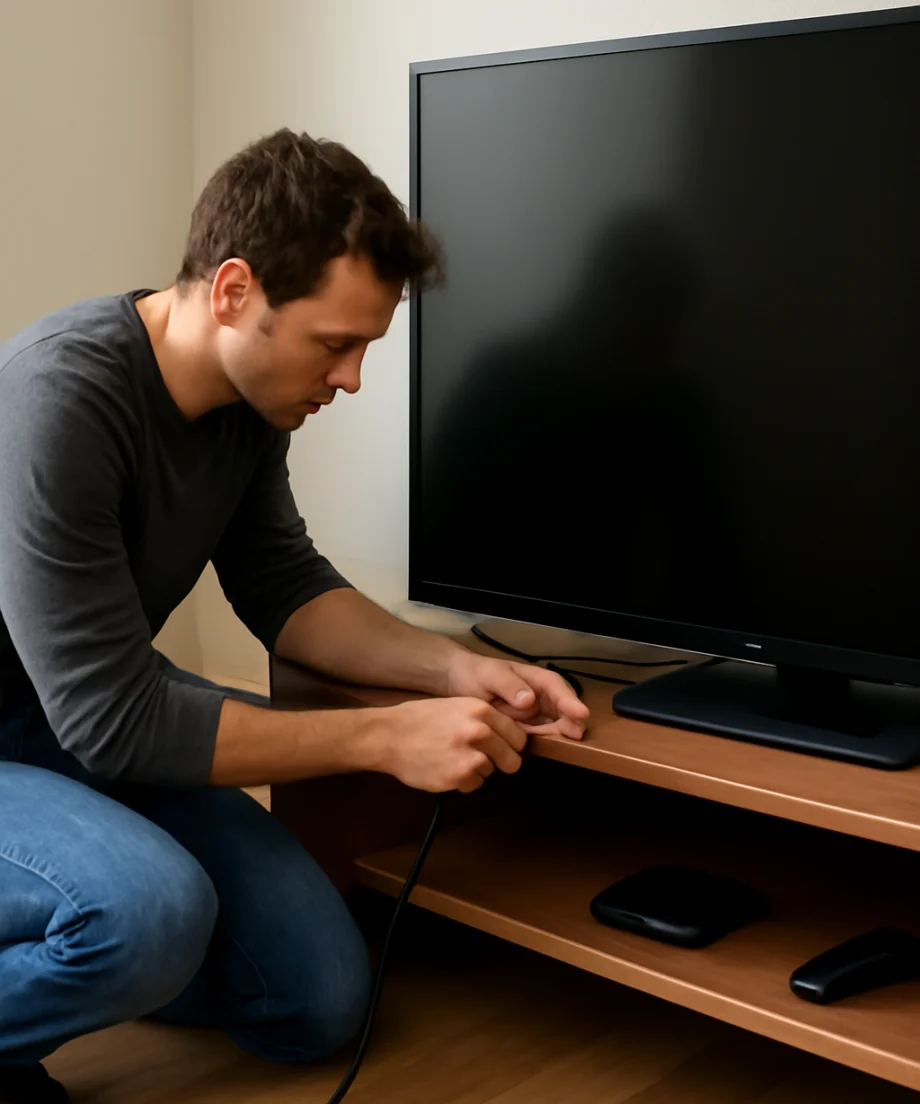
Make sure the power cord is firmly connected to the back of the TV and to the wall outlet or surge protector. If the cord is removable on your model, unplug it from both ends and reconnect it securely. Do not force the connector, and inspect the cord for cuts, crushed sections, exposed wires, or signs of heat damage.
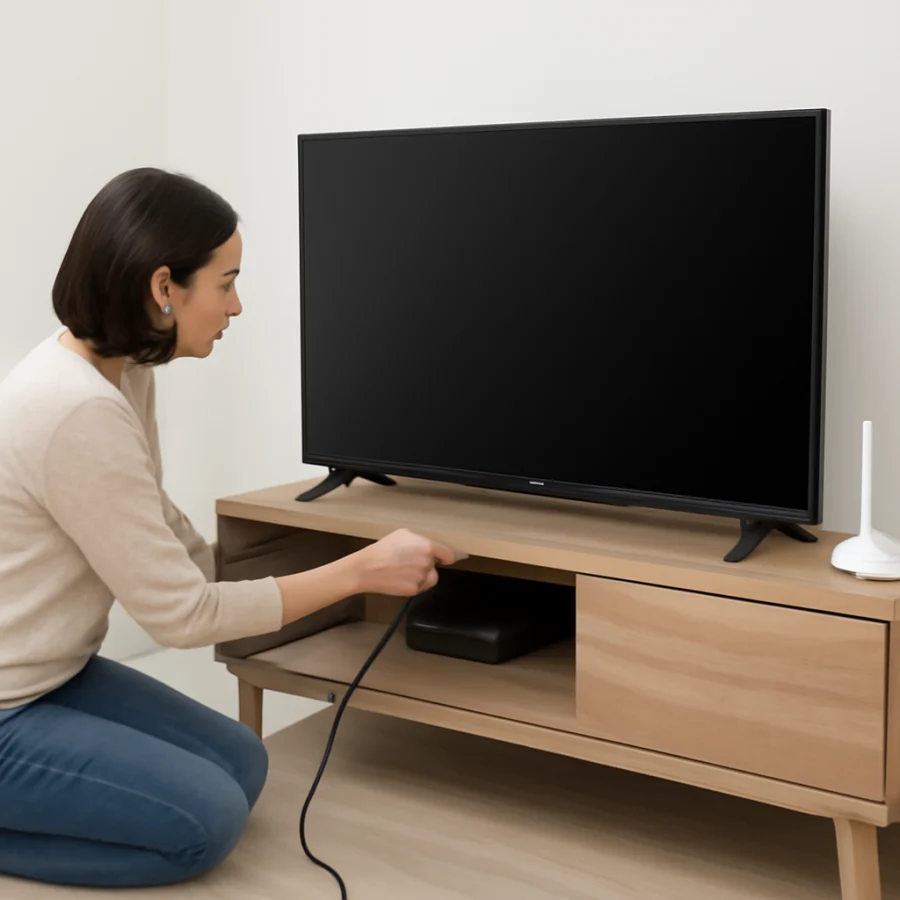
If the TV is connected to a surge protector, power strip, smart plug, or wall switch, bypass that device temporarily. Plug the TV directly into a known-working wall outlet. Some power strips appear to be on while their internal protection has tripped, and a smart plug may be offline or scheduled to remain off.
Test the outlet with a lamp or another small appliance. If that device also fails, the issue may be the outlet, a tripped circuit breaker, or a wall switch rather than the TV. Stop using the outlet if it is warm, loose, sparking, or making unusual sounds, and contact a qualified electrician.
Look for a standby light or any response
With the TV plugged in, look along the bottom edge or front panel for a standby indicator. Its location and behavior vary by Insignia model. A steady light may indicate that the TV is receiving power, while a light that changes or disappears when you press the power button can show that the set is responding.
No light does not always prove that the TV has failed. Some models use a dim indicator, place it where it is difficult to see, or allow the light to be disabled. Use the physical controls on the TV if you can find them. Press the power button once, then wait several seconds. Avoid repeatedly pressing the button because that can make it harder to tell whether the TV is starting up.
If you hear a click, see a brief flash, or notice the standby light reacting but the screen stays black, the TV may be receiving power but failing during startup. Continue with the external-device and power-cycle checks below before assuming the panel or main board is defective.
Try the physical power button
A dead or unresponsive remote can make a working TV appear to be off. Locate the TV's own power button, which may be underneath the lower bezel, along the side, or on the rear panel. The exact location and button layout depend on the model.
Press the physical power button once. If the TV starts, focus on the remote rather than the television's power system. Remove the remote's batteries, check for corrosion, and install fresh batteries with the positive and negative ends aligned correctly. Make sure a button is not stuck under the plastic casing.
Some Insignia TVs use a remote that communicates through infrared, so point it toward the front of the TV with nothing blocking the path. If the remote controls other devices but not the TV, it may still have a TV-specific pairing, programming, or hardware issue. Use the TV's physical button until you can test a compatible replacement remote or the original remote after replacing its batteries.
Perform a basic power cycle
A power cycle can clear a temporary startup state without changing picture settings, app data, or network information. Unplug the TV from the wall outlet. With it unplugged, press and hold the TV's physical power button for about 15 to 30 seconds if the button is accessible. Then leave the TV disconnected for at least one minute.
Reconnect the TV directly to a known-working wall outlet and try the physical power button. Give the set time to respond. A smart TV can take longer to display an image after a complete loss of power, especially if an attached device is also waking up.
If the TV turns on after this step but later becomes difficult to start again, note what happens before the problem returns. A recurring issue may involve a failing power supply, overheating, a damaged cable, or a connected device rather than a one-time software glitch.
Disconnect HDMI and USB devices
Unplug all HDMI, USB, antenna, Ethernet, and audio connections from the TV, leaving only the power cord connected. A streaming stick, game console, soundbar, USB device, or cable box can occasionally interfere with startup or make the screen appear blank.
After disconnecting everything, try turning on the TV. If it starts normally, reconnect devices one at a time. Wait for the TV to respond after each connection. This process can identify the device, cable, or HDMI connection associated with the problem.
If the TV powers on but shows a black screen, press the input or source control and select the input that matches the connected device. The names and navigation steps vary by model, so use the labels shown on your TV or in its manual rather than relying on a menu sequence from another Insignia model.
What the symptoms may indicate
No standby light and no response
First rule out the outlet, power strip, cable connection, and physical power button. If the TV remains completely unresponsive when connected directly to a working outlet, an internal power problem becomes more likely. A failed power board, internal fuse, damaged power cord, or other component may be involved.
Standby light is on, but the TV will not start
Try the physical button, fresh remote batteries, and a complete power cycle. If the indicator changes when you press power but the screen never appears, the TV may be stopping during startup. Disconnect external devices and listen for any unusual clicking or repeated restart behavior.
The screen is black, but sound is present
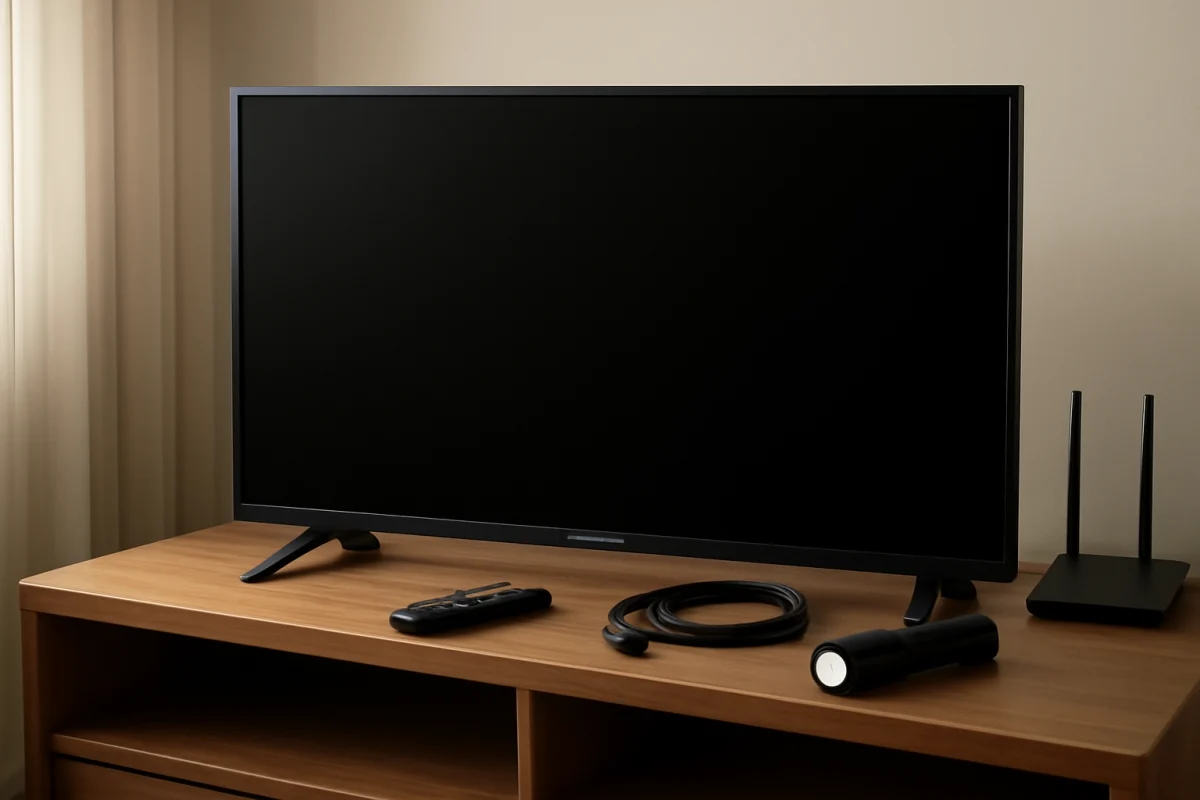
This is different from a TV that has no power. Shine a flashlight at the screen from a short distance in a dim room while audio is playing. If you can barely see an image, the backlight system may have a problem. Do not press hard on the panel or remove the rear cover. A qualified technician should inspect internal display and power components.
The TV turns on and then shuts off
Disconnect external devices and try another outlet. Make sure the ventilation openings are not covered by a wall, cabinet, blanket, or other object. If the TV repeatedly starts and shuts down even with nothing connected, record the timing and indicator behavior. Repeated cycling can point to a power, software, or hardware fault that basic resets may not fix.
Check for a recent power event or environmental issue
Think about whether the problem began after a storm, outage, surge, moved installation, or liquid spill. A surge can damage electronics even when the TV looks normal from the outside. If you smell burning, see scorch marks, hear crackling, or notice unusual heat, unplug the TV and do not try to power it on again.
Also check whether the TV was recently moved or mounted. A partially loosened power connection can appear secure while failing under slight movement. Never operate the TV with a damaged cord, and do not use tape as a substitute for a safe electrical repair.
When to consider a reset
A factory reset is not the first choice when the TV has no lights or will not react to its own power button. A reset requires the TV to start and may erase saved apps, accounts, picture adjustments, and network settings. If the TV does turn on but freezes during startup or behaves abnormally, a reset may be an option after you have tried the lower-risk checks.
The reset path and wording can differ between Insignia models and operating systems. Use the instructions for your exact model from its manual or official support resources. Do not guess at a hidden-button procedure, and avoid firmware or service-menu instructions intended for a different model.
When professional repair is the safer option
Seek qualified service if the TV stays dead after testing a known-working outlet, disconnecting all devices, trying the physical button, and completing a power cycle. Professional help is also appropriate when the TV repeatedly clicks, smells burnt, shows visible damage, or shuts down immediately after startup.
Do not open the back cover to inspect the power board unless you are trained to work safely with television electronics. Internal components can retain dangerous electrical charge even after the TV is unplugged. If the set is still covered by a purchase or service arrangement, check the applicable documentation before attempting any repair. Coverage and service options vary by model, seller, location, and purchase date.
For more troubleshooting help, browse the Insignia TV repair guides on TV Fix Guide. If the TV turns on but cannot connect afterward, the Wi-Fi and network section can help with that separate problem.
Comments
0No comments yet. Be the first to share a helpful note or question.
Leave a Comment
Your email address will not be published. Comments are reviewed before appearing on the site.