If your Insignia TV has sound but no picture, start with the simple checks before resetting the television or opening anything. Confirm that the TV is on the correct input, reseat the video cables, restart the TV and connected devices, and check whether the screen shows a faint image with a flashlight. These steps can help separate an input problem from a screen, backlight, or internal hardware problem.
The instructions can vary between Insignia models, including models with different smart TV platforms and menu layouts. Use the names that appear on your screen rather than relying on an exact menu path from another model. If the TV has a burning smell, visible damage, or signs of liquid exposure, unplug it and do not continue testing it.
1. Check whether the TV is actually producing a picture
Press the Home, Menu, or Input button on the Insignia remote. If a menu, input list, or volume indicator appears, the display is working at least partially. The problem may be limited to the cable box, game console, streaming device, or selected input.
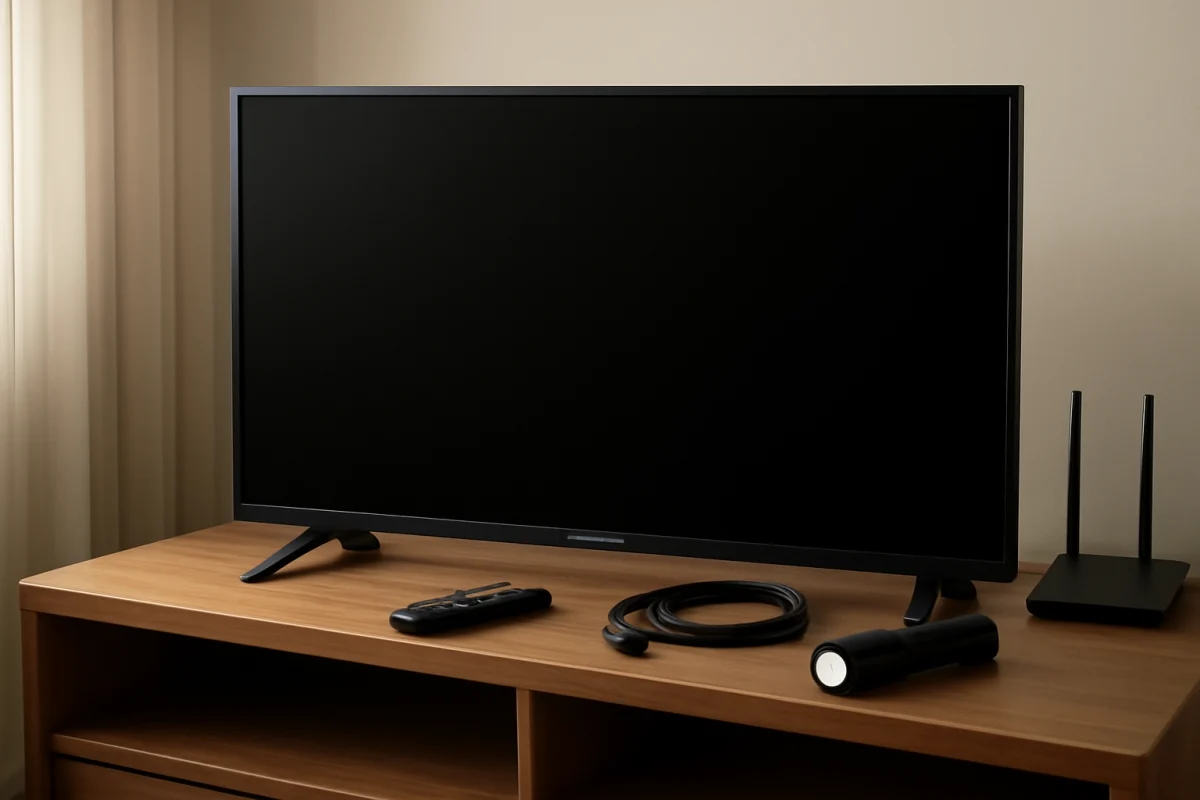
If nothing appears, look closely at the screen while pressing a button. A completely black screen and a very dark screen can indicate different problems. In a dim room, shine a phone flashlight across the screen at an angle while audio is playing. If you can see a very faint image, the TV may have a failed LED backlight or a related power circuit issue. Do not press hard on the panel while checking it.
Also check the TV's status light and listen for normal startup sounds. A status light does not prove that every internal part is working, but it can help show whether the set is responding to the remote or power button.
2. Select the correct input
A common cause of sound without picture is a wrong or changed input. Press Input or Source, then select the HDMI port or other connection used by your device. Wait several seconds after changing inputs, because some devices take time to establish a video connection.
If you have more than one HDMI device connected, test each input separately. Disconnect unused devices temporarily so the TV has fewer signals to evaluate. If the TV's own home screen is visible but one HDMI source has audio only, the TV may be fine and the issue may involve that source, its cable, or its output settings.
3. Reseat the cables and test another connection
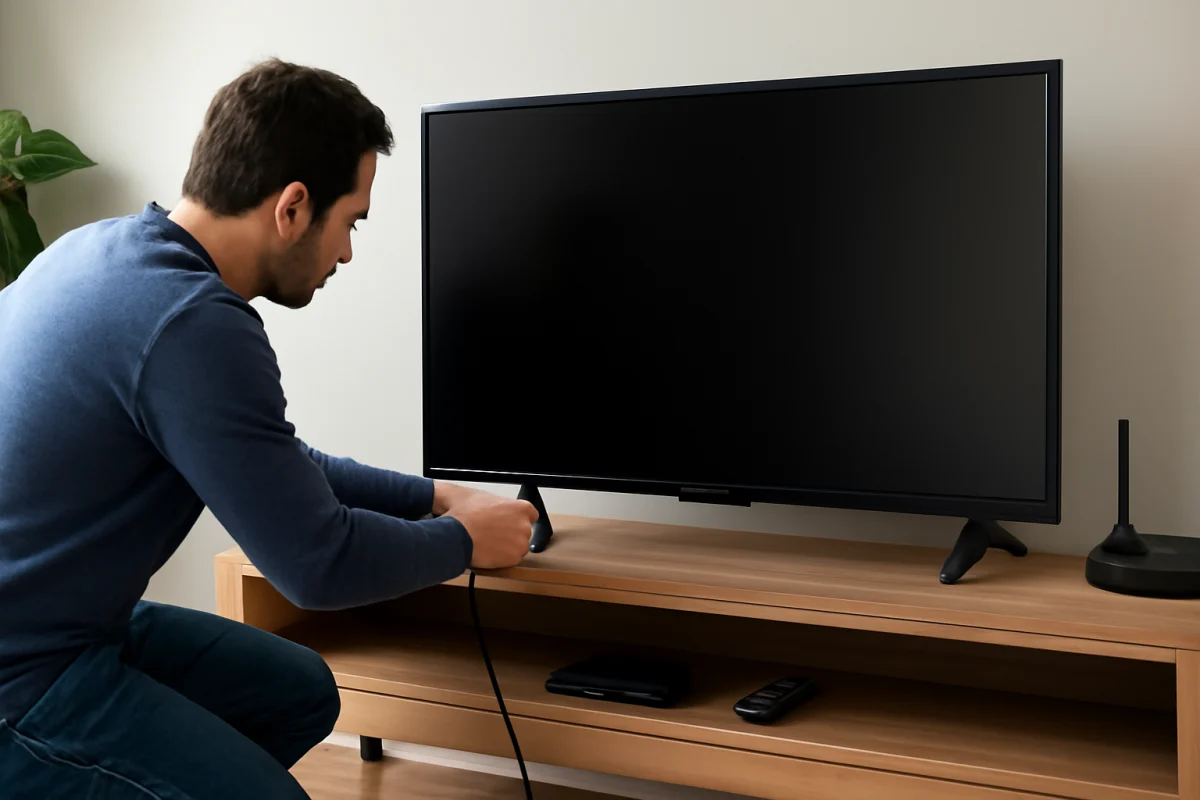
Turn off the TV and the connected device, then remove and reconnect the HDMI cable at both ends. Push the connectors in firmly, but do not force them. A cable can carry audio while failing to carry a stable video signal, especially if its plug or internal wiring is damaged.
Try these checks:
- Use a different HDMI cable if one is available.
- Connect the device to another HDMI input on the TV.
- Test a different source, such as a game console, disc player, or streaming device.
- If possible, connect the original device to another TV or monitor.
- Remove HDMI switches, receivers, splitters, and adapters temporarily.
If a second device produces a picture on the same Insignia TV input, the first device or its cable is the likely cause. If every device produces sound but no picture, continue with the TV-focused checks below.
4. Power-cycle the TV and connected equipment
A normal remote-control restart may not clear a temporary video handshake or control fault. Perform a full power cycle:
- Turn off the Insignia TV and the connected source.
- Unplug both devices from the wall outlet.
- Wait at least 60 seconds.
- Reconnect the TV directly to a working wall outlet if practical.
- Turn on the TV first, then turn on the connected source.
- Select the correct input and wait for the picture.
If the TV is connected through a surge protector or power strip, test it directly from the wall temporarily. Make sure the outlet is working by testing another small device. Do not repeatedly unplug and reconnect the set in rapid succession.
5. Check the source device's video output
If sound comes from a cable box, game console, or streaming player but the picture is missing, that device may be sending a video format the TV is not accepting. This can happen after changing the device, television, resolution, refresh setting, or connection path.
Look for a video or display setting on the source device and select an automatic or compatible output option if available. Because the process differs by device, consult that device's instructions rather than guessing at a specific resolution. If you cannot see its settings, connect it to another display or use its documented video-reset procedure.
For a cable or satellite box, restart the box and check whether its front panel indicates normal operation. If only one channel has audio without video, the issue may be with the service or channel feed rather than the Insignia television.
6. Check whether the TV's own menus appear
Press the Home or Menu button with all external devices disconnected. This test is useful because it removes the cable box, console, and HDMI connection from the picture.
- Menus appear: The panel and backlight are probably functioning, and the problem is more likely related to the input, cable, or external source.
- Menus do not appear, but a faint image is visible: A backlight problem is possible.
- Menus do not appear and the screen remains completely black: The fault may involve the power supply, display control circuitry, main board, panel, or another internal component.
Do not assume that changing brightness, contrast, or picture mode will repair a screen that cannot display the TV's own menus. Those settings only help when the television is already generating a visible image.
7. Check for a dim picture and possible backlight failure
A failed LED backlight is one of the most recognizable reasons a TV can have sound with an apparently dead screen. In a dark room, shine a flashlight across the display while audio is playing or while you press the menu button. A faint logo, menu, or moving image suggests that the LCD panel is receiving picture data but the light behind it may not be operating correctly.
This test is not definitive. Reflections, a low brightness setting, and camera limitations can make the result difficult to interpret. Still, it can help identify when the problem is unlikely to be fixed by an HDMI cable or input change.
Backlight repair usually requires removing the rear cover and handling delicate display components. The TV can contain hazardous voltages even after it has been unplugged, and the thin panel can crack easily. Unless you have appropriate electronics repair experience, professional diagnosis is safer than opening the set.
8. Try a picture reset only if you can access the menus
If the menus are visible but the program or external source is unusually dark, a picture setting may be responsible. Open the picture settings using the options available on your specific model and look for a reset or restore option. The exact wording and location can differ.
A picture reset may return brightness, contrast, color, and other picture adjustments to their defaults. It will not repair a failed backlight, damaged HDMI port, disconnected internal cable, or defective panel. Avoid changing several advanced settings at once because that can make it harder to identify the original problem.
9. Disconnect external devices and accessories
Disconnect every HDMI, USB, antenna, optical audio, and other accessory cable except the power cord. Then turn the TV on and check for its home screen or input display. A malfunctioning HDMI accessory can sometimes interfere with startup or create an unstable connection.
If the picture returns, reconnect devices one at a time. Wait after each connection and test the TV. When the problem returns, the last device, cable, or port is the most useful place to investigate. If the TV uses a soundbar or AV receiver, connect the source directly to the TV for testing.
For more general guidance on display and audio symptoms, see TV Fix Guide's picture and sound troubleshooting section. You can also find related model-specific guidance in the Insignia TV repair category.
10. Consider a factory reset as a later step
A factory reset can help when a visible software problem affects the TV interface or picture settings, but it should not be the first step. It erases customized settings and may remove saved network details, app logins, and other stored preferences. Some models also require the remote to complete the reset.
Use the reset option only after you have tested the input, cables, external devices, and power cycle. Follow the reset instructions shown for your exact Insignia model. If the screen is not visible at all, do not guess at a button sequence from another model, because the process can differ and may not address a hardware fault.
When the problem likely needs repair
Arrange professional service or contact the appropriate support channel if the TV has sound but no visible picture after these checks and the problem affects every input. Repair is especially likely when:
- A flashlight reveals a faint image on the screen.
- The TV's menus never appear.
- The screen briefly flashes and then goes dark.
- The picture has vertical lines, large dark areas, or physical cracks.
- The problem began after a power event, liquid exposure, impact, or overheating.
- Only one HDMI port works, or all ports fail despite known-good cables and sources.
Before paying for service, note the TV model information, what appears on the screen, whether the flashlight test shows an image, and which inputs you tested. This information can make diagnosis more efficient. Do not open the back of the TV unless you understand the electrical and panel-related risks.
What the symptoms usually mean
Sound with no picture does not automatically mean the entire TV has failed. If the TV menu is visible, focus on the selected input, HDMI cable, source device, and output settings. If the menu is invisible but a faint image can be seen with a flashlight, the backlight system becomes more likely. If there is no menu, no faint image, and no picture from any source, an internal power, main board, display control, or panel fault is possible.
Work through the low-risk steps first, change only one connection or setting at a time, and stop if you notice heat, burning odors, sparks, or physical damage. For additional troubleshooting topics, the TV Fix Guide homepage covers smart TVs, streaming devices, remotes, Wi-Fi, picture, and sound problems.
Comments
0No comments yet. Be the first to share a helpful note or question.
Leave a Comment
Your email address will not be published. Comments are reviewed before appearing on the site.