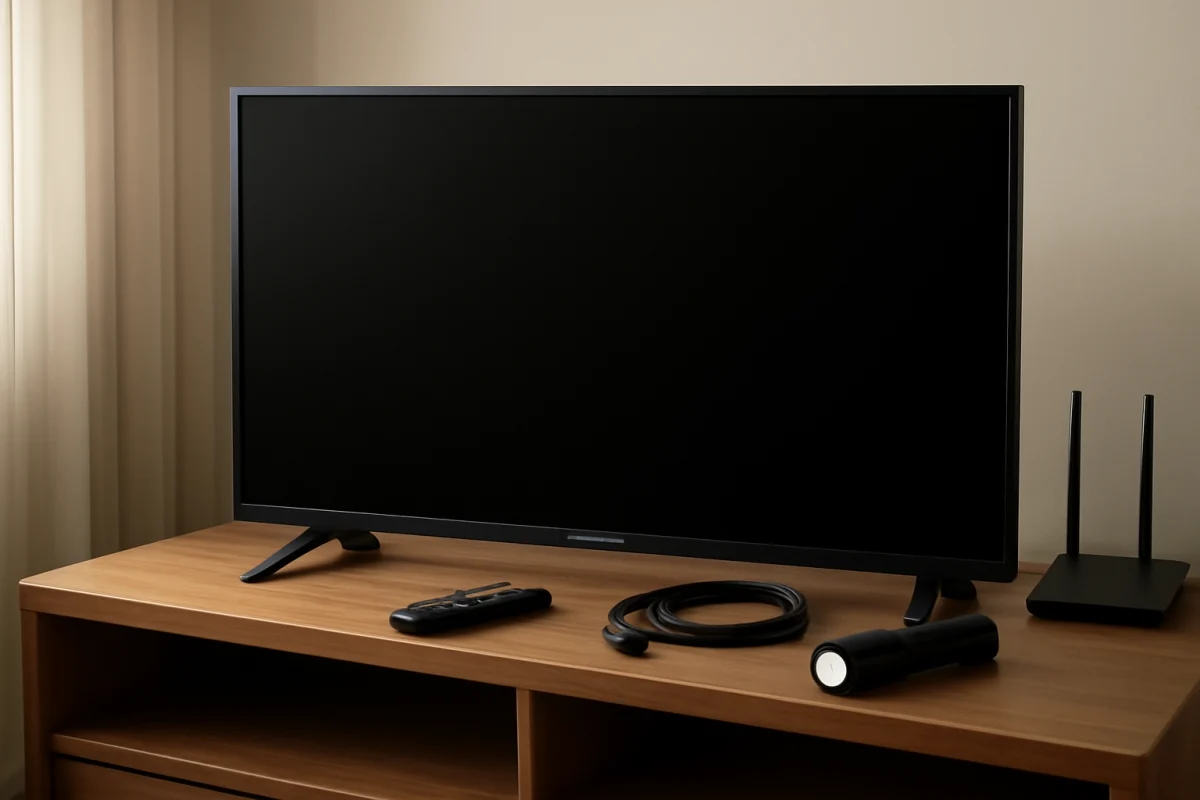
If your Insignia TV has sound but no picture, or the screen stays completely black, start with the simple checks before resetting the TV or assuming the display has failed. Confirm that the TV is receiving power, select the correct input, disconnect external devices, and test whether the screen can display the TV’s own menu. These steps help separate an input or cable problem from a possible screen, backlight, or internal hardware issue.
Insignia models use different platforms and menu layouts, so the exact button names and settings can vary. Use the steps that match your TV, and do not force a menu option if the screen is unreadable.
1. Check whether the TV is actually powered on
Press the power button on the TV itself rather than using the remote. The button may be located under the screen, along the side, or on the back. If the TV responds, look for a power indicator, a startup sound, or any brief change on the screen.
If there is no sign of power:
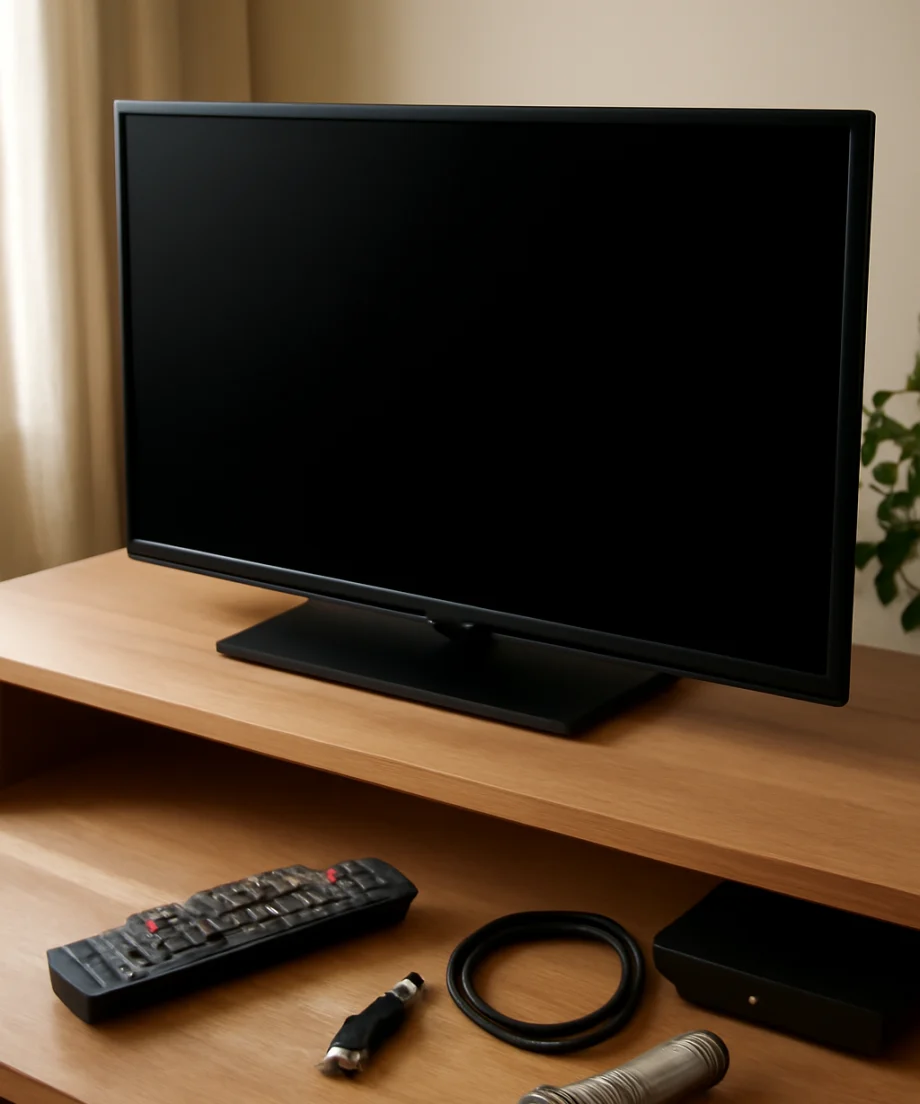
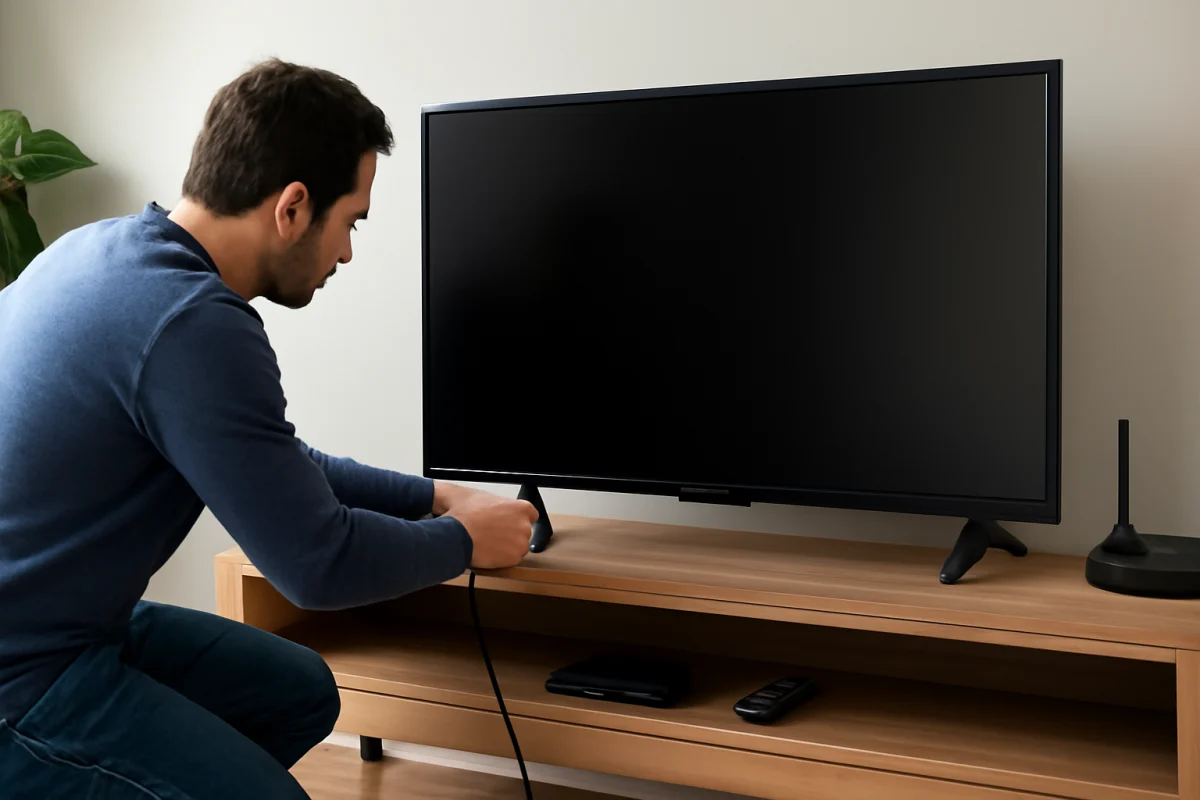
- Make sure the power cord is firmly connected to the TV and the wall outlet.
- Plug a lamp or another small device into the same outlet to verify that the outlet works.
- If the TV is connected to a surge protector or power strip, temporarily connect it directly to a known-good wall outlet.
- Check the cord for cuts, crushed sections, loose connectors, or signs of overheating. Do not use a visibly damaged cord.
A dark screen does not always mean the TV is off. If an indicator light or startup sound is present, continue with the picture and input checks below.
2. Perform a basic power cycle
A power cycle can clear a temporary software or HDMI communication problem without deleting your settings. Turn the TV off, unplug it from the wall, and wait at least 60 seconds. While it is unplugged, press and hold the TV’s physical power button for about 15 seconds if your model has one. Then release the button, reconnect the TV directly to the wall, and turn it on.
Allow the TV a little time to start. If the picture returns, reconnect external devices one at a time. The device or cable that causes the black screen again may be the source of the problem.
3. Select the correct input
A black screen commonly appears when the TV is set to an unused HDMI, antenna, or composite input. Press the Input or Source button on the remote and move through the available inputs. Pause briefly on each one instead of switching rapidly.
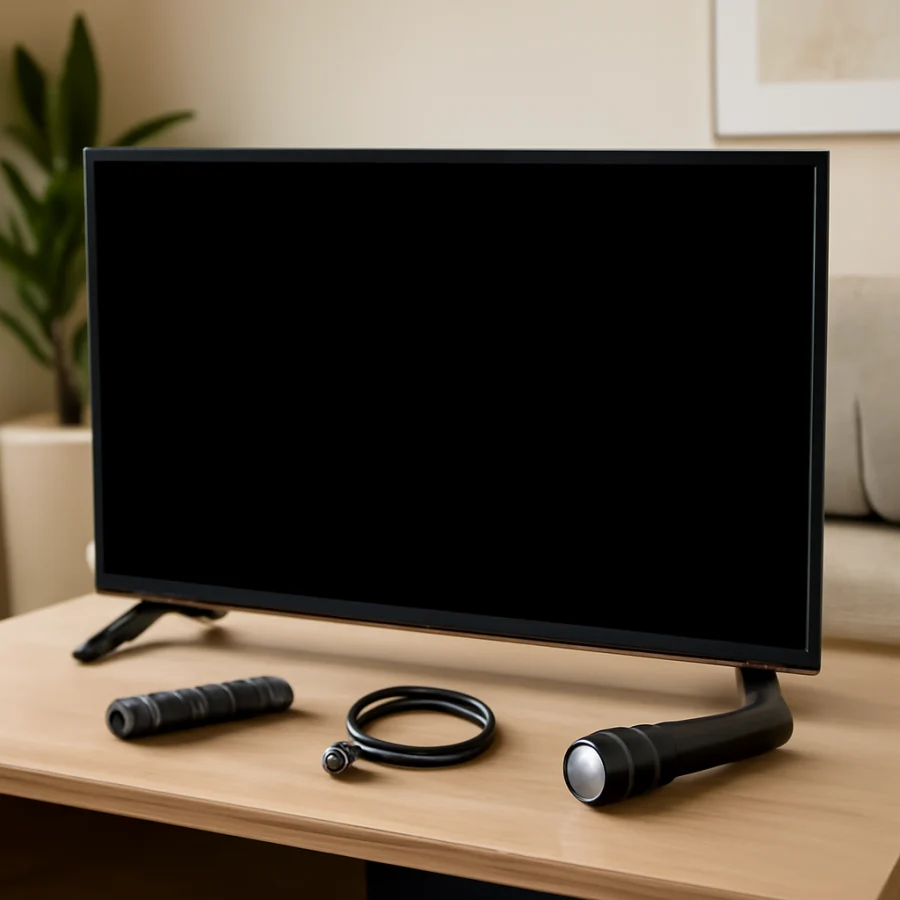
If you use a cable box, game console, Blu-ray player, streaming stick, or sound system, verify that the selected input matches the port used on the TV. For example, a device connected to one HDMI port will not appear when the TV is set to another HDMI port.
Try opening the TV’s home screen or settings menu. If the home screen appears normally, the display is probably working and the issue is more likely related to the selected input, external device, cable, or signal.
4. Disconnect every external device
Turn off the TV and disconnect all HDMI, USB, antenna, composite, and audio devices. Leave only the TV’s power cord connected. Turn the TV on and try to open its home screen or settings menu.
This test is useful because a malfunctioning HDMI device can interfere with startup or send an unsupported video signal. If the picture returns with everything disconnected, reconnect the devices individually. Test each device for a few minutes before connecting the next one.
Pay particular attention to:
- Streaming sticks powered from the TV’s USB port
- Game consoles using unusual resolution or refresh-rate settings
- AV receivers or soundbars connected between the source and TV
- HDMI splitters, switches, adapters, and capture devices
If you regularly troubleshoot several devices, the TV Fix Guide remote controls section may also help when the input or power buttons are not responding as expected.
5. Check the HDMI cable and source device
If the TV’s menus work but one source produces a black screen, focus on that source. Turn off both the TV and the connected device. Disconnect and reconnect the HDMI cable at both ends, making sure it is fully inserted. Then turn on the TV first and the source device second.
Try another HDMI port on the TV, then select that port with the Input or Source button. If possible, test with a different HDMI cable that you know works. A damaged or poorly connected cable can produce a black picture even when the source device appears to be running.
If the source device has a video-output setting, use a standard resolution that the TV supports. The exact steps depend on the device, so consult its instructions rather than guessing at hidden button combinations. A game console or computer may need to be connected to another display temporarily to change its output settings.
6. Test the remote and the TV’s physical controls
A remote-control problem can make a working TV appear frozen or stuck on the wrong input. Replace the remote batteries with a fresh pair, check that they are installed in the correct direction, and remove anything blocking the remote sensor.
Try the TV’s physical power and input controls. If those buttons work but the remote does not, the TV may be fine and the problem may be limited to the remote. If neither the remote nor the physical controls respond, unplug the TV and repeat the power-cycle procedure before continuing.
Do not repeatedly press buttons while the TV is starting. Some models take longer to show a picture after being unplugged or after a connected device has been removed.
7. Look for a faint image with a flashlight
This test can help identify a possible backlight problem, but use caution. Turn on the TV in a dark room and shine a flashlight at an angle against the screen. Look closely for a very faint image, menu, or movement while pressing the volume or home button.
If you can see a faint picture but the screen is otherwise dark, the TV may have a backlight or power-related display fault. This does not prove which component has failed, and opening the TV is not a safe next step for most people. TVs contain components that can retain dangerous electrical energy even after they are unplugged.
If you see no faint image, the problem could still involve the input, main board, display panel, or another internal circuit. The flashlight test is only a clue, not a complete diagnosis.
8. Check whether the picture is hidden by a setting
If you can see the menus, review the picture settings and look for a setting that reduces or disables the screen image. Some Insignia TVs may use different names for energy-saving, screen-off, picture, or accessibility features depending on the model and software platform.
Return the picture settings to a normal or standard mode if the image is unusually dim. Also check the brightness and backlight controls, if available. Avoid changing many settings at once. Make one adjustment, return to the program or input, and check whether the picture changes.
If the screen is black only while a particular app is open, exit the app and test another source. App-specific problems should be handled separately from a TV-wide display failure. You can find related troubleshooting in the streaming apps troubleshooting guide.
9. Check the antenna, cable, or internet source
If the TV menu appears but live programming is black, the issue may be with the signal rather than the screen. Check that the coaxial cable is firmly attached and that the cable box or antenna equipment has power. If only one channel is affected, try another channel before changing TV settings.
For streaming services, verify that the TV is connected to Wi-Fi or Ethernet and that other apps load normally. A network failure usually causes buffering, an error, or a blank app screen rather than a black screen across the entire TV, but testing another app can help narrow it down. The Wi-Fi and network troubleshooting guide covers connection checks that may help.
10. Use a reset only after the basic checks
If the TV menus are visible but the problem continues, a settings reset may correct a software configuration issue. The reset process varies by Insignia model and operating system. Before using it, write down important settings and make sure you know the passwords or sign-in details needed to set up your apps again.
Use the reset option found in your TV’s settings rather than relying on an unverified button sequence. A factory reset can remove Wi-Fi details, installed apps, picture adjustments, parental controls, and other personal settings. If the screen is completely black and you cannot see the menus, avoid blindly selecting reset options with the remote.
For additional display troubleshooting, you can also review the picture and sound repair guide.
When an Insignia TV needs service
Service is more likely to be necessary when the TV has no picture after a power cycle, shows a faint image during the flashlight test, repeatedly shuts off, displays lines or blotches, or fails to show its own home screen with all external devices disconnected. A clicking sound, burning odor, smoke, visible damage, or unusual heat is a reason to unplug the TV immediately and stop testing it.
Do not remove the back cover unless you are trained to work safely on television electronics. Replacing internal parts also requires the correct diagnosis, and a display panel repair may not be practical compared with replacing the TV. Record the model information from the label and describe exactly what happens: whether there is sound, whether the indicator light responds, whether menus appear, and which tests you have already completed.
In many cases, a black screen is caused by the wrong input, a loose HDMI connection, a failed external device, or a temporary power problem. If the TV cannot display its own menus after those low-risk checks, the problem is more likely internal and professional evaluation is the safest next step.
Comments
0No comments yet. Be the first to share a helpful note or question.
Leave a Comment
Your email address will not be published. Comments are reviewed before appearing on the site.