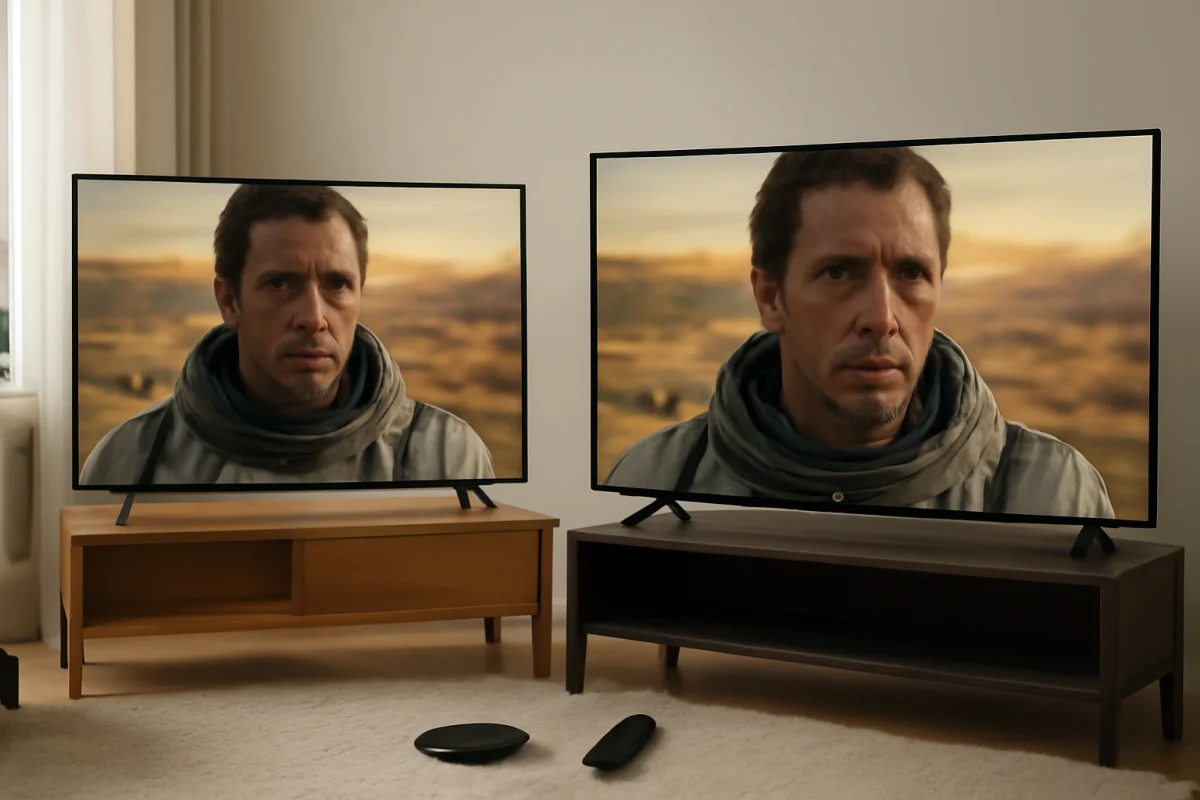
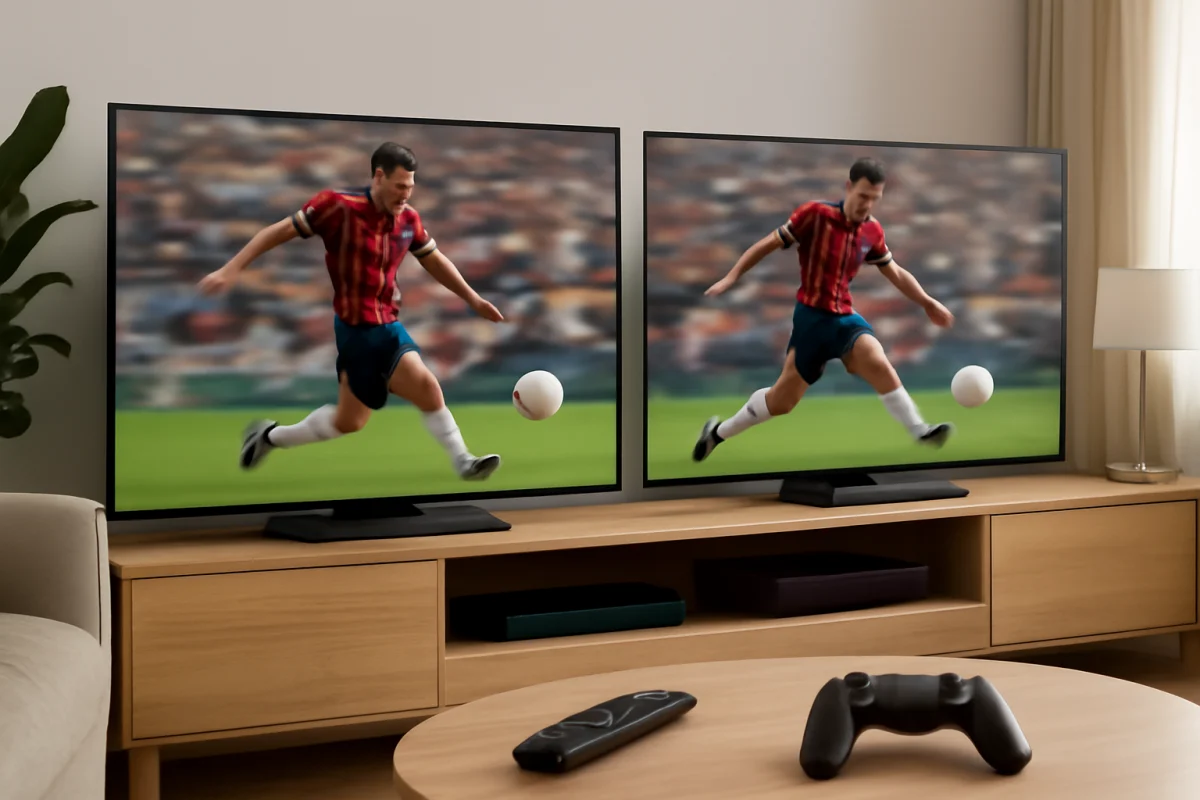
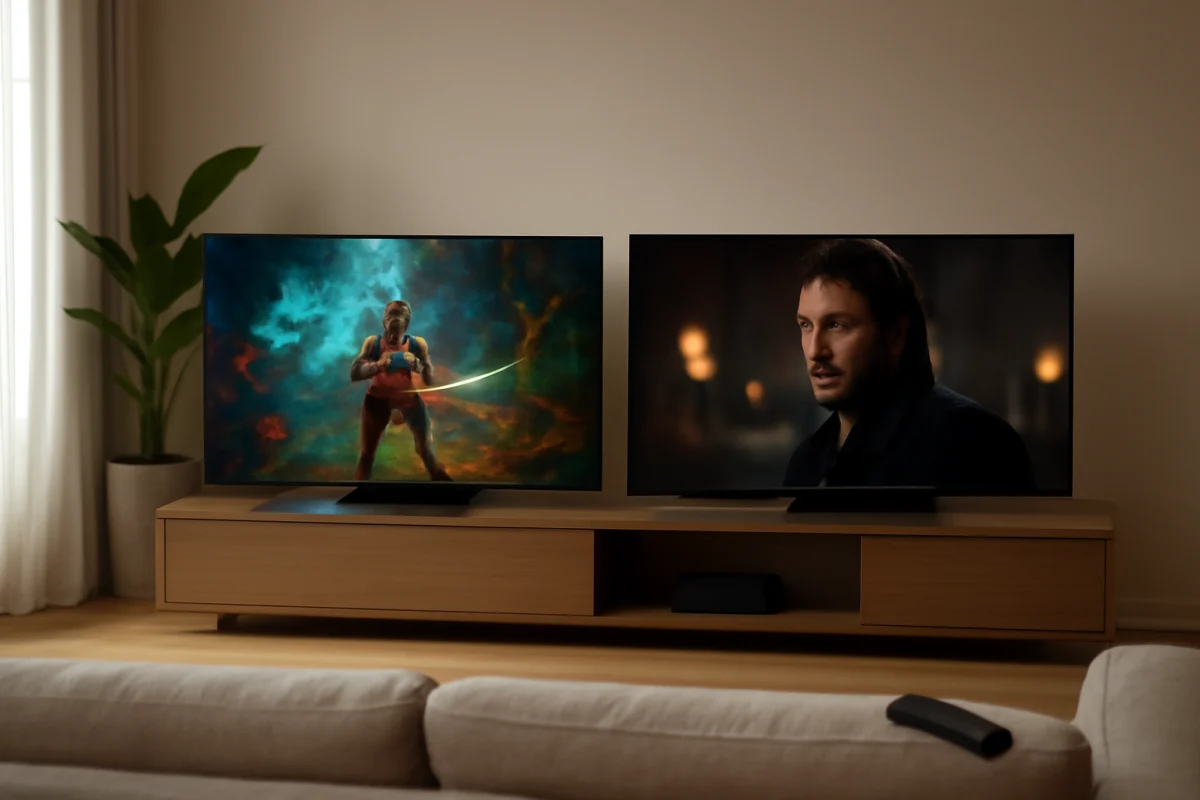
Samsung generally has the edge in upscaling consistency, especially when showing low-resolution cable, broadcast, and older streaming content. Its image processing often produces cleaner edges, more controlled noise, and fewer distracting artifacts. However, TCL is not automatically a poor choice. Newer TCL models can provide very good upscaling, particularly when the source is reasonably clean and the TV uses a stronger processing platform.
The biggest warning is that upscaling quality depends heavily on the exact TV model, picture mode, source quality, and viewing distance. A premium TCL may outperform an entry-level Samsung, while a lower-cost Samsung may produce a more natural image than a budget TCL. Brand reputation alone is not enough to predict the result.
What TV upscaling actually does
Most modern TVs have a higher-resolution panel than many of the sources connected to them. For example, a cable channel, DVD, older game console, or compressed online video may provide less detail than the TV can display. Upscaling enlarges that image so it fills the screen.
Basic scaling stretches pixels. More advanced processing analyzes edges, textures, motion, compression noise, and contrast before creating the missing pixels. The goal is not to recover detail that was never recorded. Instead, the TV tries to make the lower-resolution picture appear cleaner and more natural.
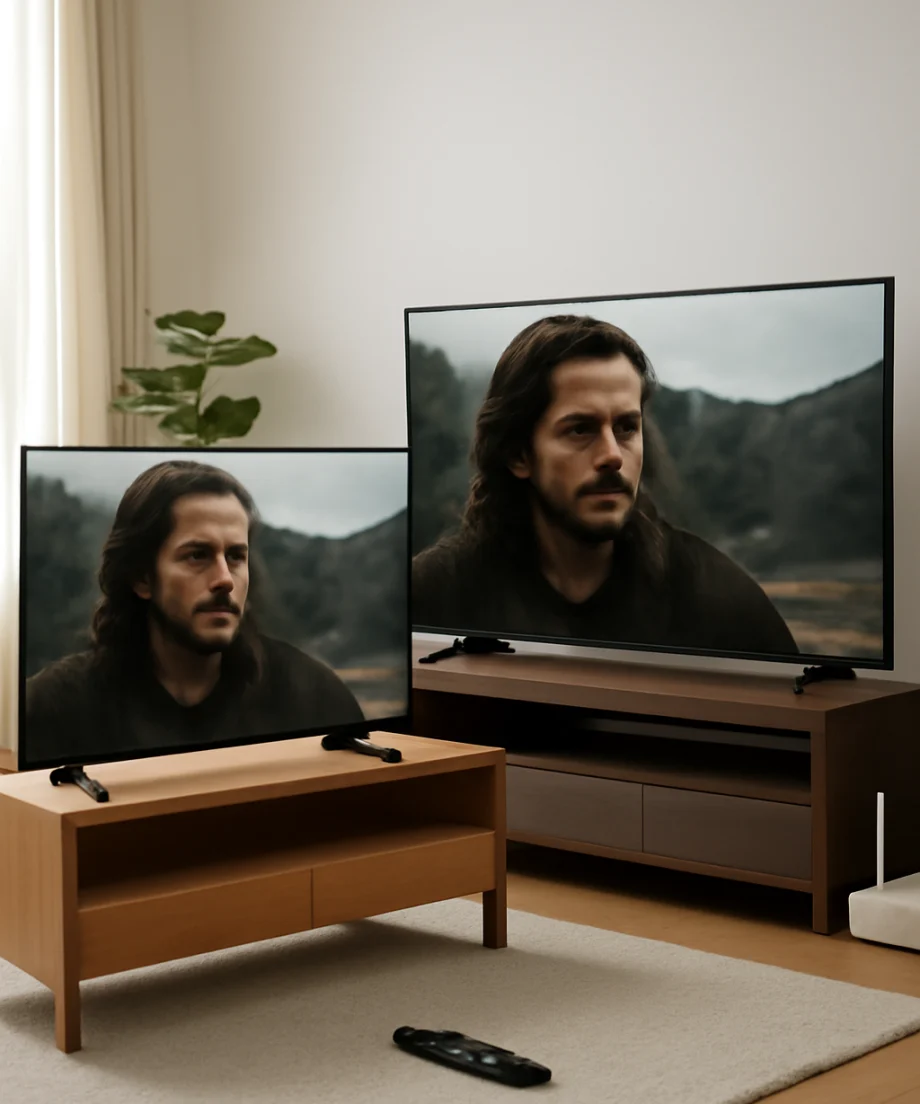
Good upscaling can make faces look smoother without becoming waxy, keep text readable, and prevent diagonal lines from looking jagged. Poor upscaling may exaggerate compression blocks, create halos around objects, blur fine details, or make faces look artificially sharpened.
TCL vs Samsung upscaling: the practical difference
Samsung: usually more polished with difficult sources
Samsung TVs often perform well with sources that are less than ideal. Cable channels, live broadcasts, older HD programs, and heavily compressed streams can benefit from Samsung's image processing. Fine edges are typically handled carefully, and the picture may look less noisy when viewed from a normal seating distance.
This advantage is most noticeable when the source contains mixed-quality material. A program may include a sharp studio shot, a soft archival clip, and on-screen graphics in the same broadcast. Strong processing can balance those changes without making every scene look aggressively sharpened.
Samsung's processing can still produce a picture that some viewers find too smooth or processed. The result also changes by model and picture setting. A television with excessive sharpness, strong noise reduction, or an unsuitable picture mode may look worse than it should. If the picture seems artificial, adjust the basic picture controls before assuming the panel or processor is defective.
TCL: competitive on newer and higher-tier models
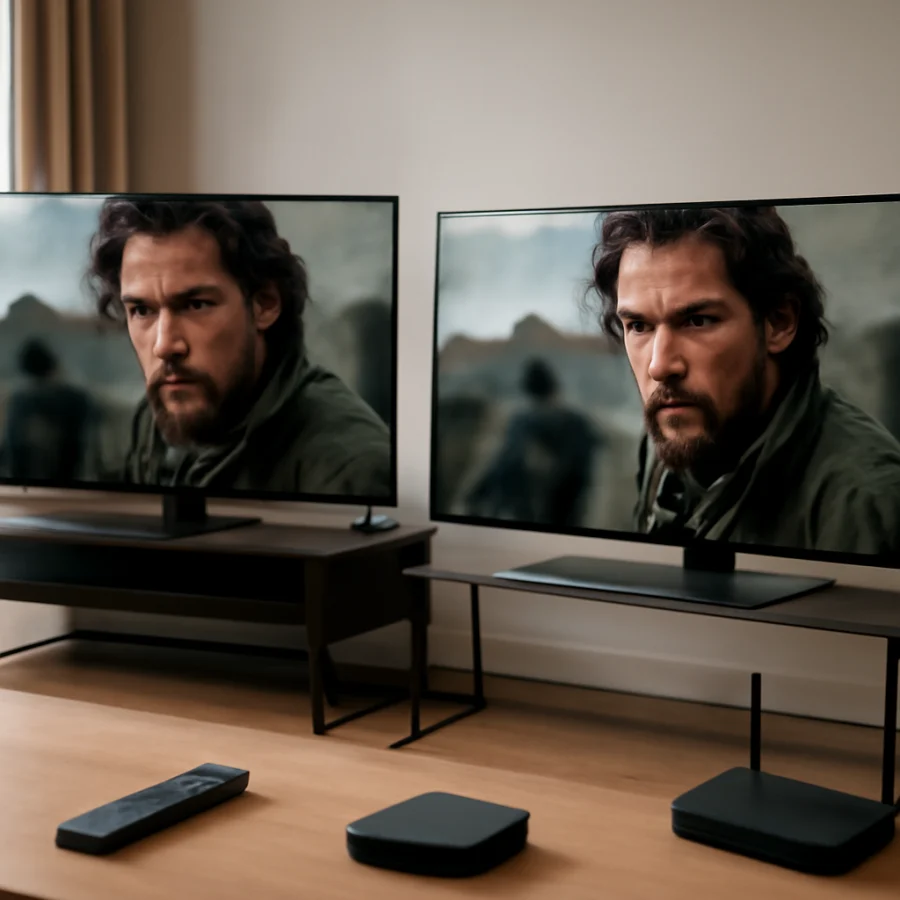
TCL's upscaling performance varies more across its lineup. Entry-level models may show more softness, visible compression noise, or rough edges when fed low-quality video. Midrange and premium TCL sets can be much more capable, particularly with clean HD sources and high-quality streaming.
A TCL TV may look excellent with a Blu-ray player, a modern streaming box, or a high-bitrate HD channel, yet struggle more with a weak over-the-air signal or an old DVD. That does not necessarily indicate a hardware problem. It may simply show the limits of the source and the TV's processing class.
TCL can also appeal to viewers who prefer a sharper, more immediate presentation. Depending on the model and settings, details may look more pronounced than on a Samsung. Some people enjoy that appearance, while others prefer Samsung's smoother and more restrained approach.
Which brand is better for different sources?
Streaming services
For high-quality HD and 4K streaming, the difference between comparable TCL and Samsung models may be smaller than expected. A good source gives both TVs more useful information to work with. Differences become easier to see when the stream is heavily compressed, the connection is unstable, or the content is older.
Before judging the TV, check whether the streaming app is actually delivering the expected quality. A weak Wi-Fi connection, overloaded network, or app-specific playback issue can lower image quality. You can find additional troubleshooting guidance in the Streaming Apps section.
Cable and broadcast television
Samsung is often the safer choice for viewers who watch a lot of cable or broadcast channels. These sources can vary widely in resolution and compression, and a television that handles inconsistent video well may look better from one channel to the next.
TCL can still perform well, but the exact model matters more. A weaker signal can also mimic poor upscaling. If the picture contains intermittent blocks, freezing, or sudden softness, inspect the antenna, cable connection, splitter, and service signal before blaming the TV processor.
DVDs and older video
Older DVDs and low-resolution files are a difficult test because they contain limited detail and may already include compression or transfer problems. Samsung commonly produces the more refined result, although neither brand can turn a low-quality DVD into native 4K video.
Use a good-quality HDMI cable and make sure the player is outputting the highest compatible resolution. If the player and TV are both scaling the image, the result can sometimes look softer than expected. Test the source on another display if possible.
Older game consoles
For retro consoles, upscaling quality is only one part of the experience. Input lag, motion handling, aspect ratio options, and compatibility with the console's output resolution may matter just as much. Samsung may offer a cleaner result with some older signals, but a TCL can be perfectly acceptable when paired with a suitable scaler or modern console output.
If a game looks blurry, first confirm that the console is sending a stable signal and that the TV is using an appropriate low-latency or gaming mode. Menu names and available options vary by model, so use the instructions for the specific TV rather than relying on a generic guide.
Why the exact TV model matters more than the logo
Both manufacturers sell televisions across several price and performance levels. A brand-wide comparison can identify general tendencies, but it cannot predict every model's result. Panel type, processor generation, display resolution, software, motion settings, and picture controls all influence perceived sharpness.
Even two TVs with the same screen size can look different because of their native contrast, peak brightness, anti-reflective coating, and viewing environment. A brighter screen may make edges appear more defined, while a reflective screen can reduce perceived detail in a room with strong light.
When comparing models, use the same source, the same content, similar picture settings, and the same viewing distance. Avoid judging one TV from a store demonstration and another from a home video. Retail displays may use different modes or source feeds, making a direct comparison unreliable.
Low-risk picture checks before changing advanced settings
If your TCL or Samsung TV looks blurry, overly sharp, or full of artifacts, start with simple checks:
- Confirm whether the problem affects one source or every source. Test a different app, HDMI device, or broadcast channel.
- Check the source resolution and playback quality. A low-quality stream cannot be fixed completely by changing TV settings.
- Clean the screen gently with a suitable dry or slightly damp microfiber cloth. Dust and smudges can reduce perceived clarity, especially in bright scenes.
- Turn off temporary picture demonstrations or store-style display modes if the TV is using one.
- Reduce excessive sharpness if you see white outlines, ringing, or halos around text and objects.
- Compare a standard picture mode with a movie, cinema, or filmmaker-oriented mode if your model provides one. The names and controls vary by TV.
- Check the HDMI connection and try another compatible port or cable when an external device looks unusually soft.
Do not immediately reset the TV or change hidden service settings. Those steps can erase preferences or create new problems without improving the source signal. If the issue is limited to one app, troubleshoot that app and the network first. For broader picture issues, the Picture & Sound troubleshooting section may help.
How to choose between TCL and Samsung
Choose Samsung if your priority is dependable processing for mixed-quality television, older content, and compressed sources. It is usually the better fit for viewers who want a smoother, more controlled picture with minimal adjustment.
Choose TCL if you are comparing a specific model with strong reviews, mostly watch clean HD or 4K sources, or prefer a sharper-looking image. TCL can offer very good real-world results when the model is well matched to your content and viewing distance.
In either case, do not buy solely on the promise of “AI” or “4K upscaling.” Marketing terms do not provide a universal quality rating. Look for independent testing of the exact model, compare difficult sources rather than only demo footage, and check whether the TV handles the input types you actually use.
Bottom line
Samsung is the safer overall choice for upscaling, particularly for cable, broadcast television, DVDs, and inconsistent streams. TCL can be close on comparable newer models and may deliver an excellent picture with clean HD and 4K content. The exact model remains more important than the brand name.
If you are troubleshooting an existing TV, test the source and connection first, then make small picture adjustments. A soft or noisy image is often caused by the signal, app, cable, or setting rather than a failed upscaling processor. For model-specific information, browse the TV model comparisons section or the dedicated TCL TV and Samsung TV guides.
Comments
0No comments yet. Be the first to share a helpful note or question.
Leave a Comment
Your email address will not be published. Comments are reviewed before appearing on the site.