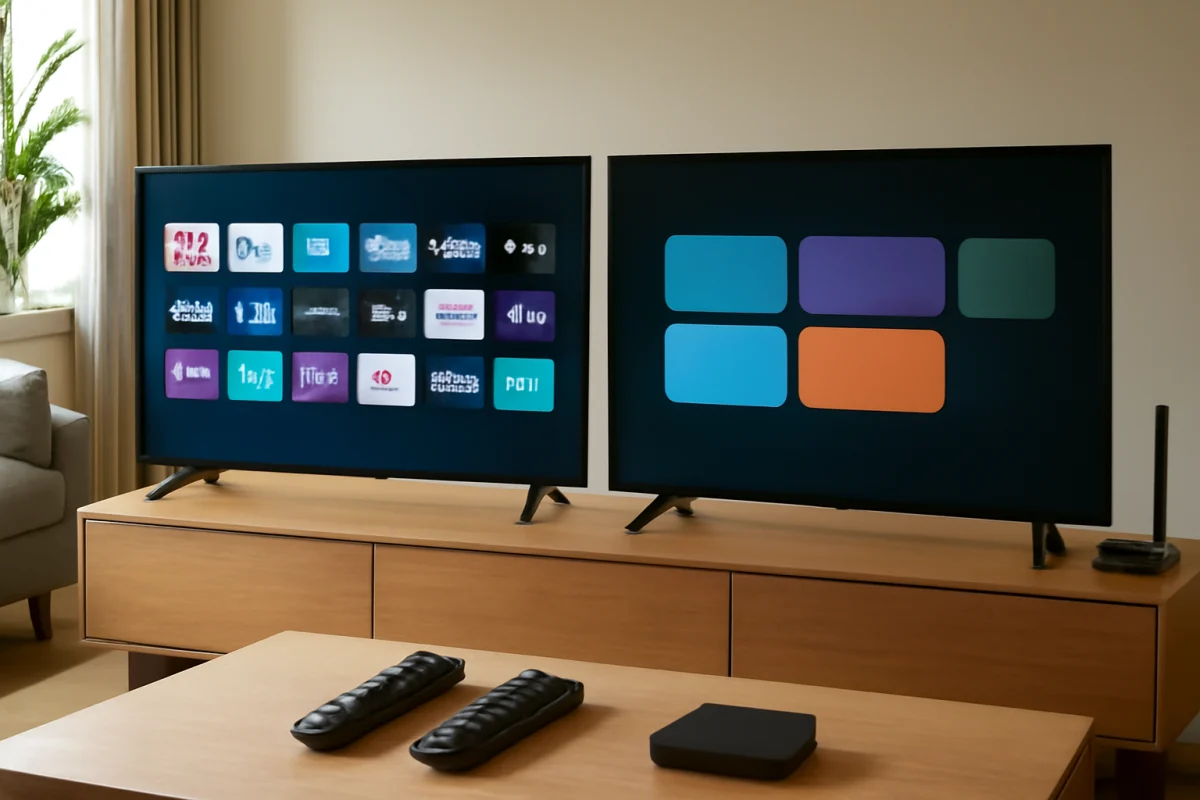
Samsung is often the better choice if you want a familiar, app-focused interface with broad device compatibility, while LG may feel faster and more intuitive when you use its motion-based remote and streamlined home screen. Neither platform is automatically more reliable in every situation. The TV model, processor, software condition, Wi-Fi quality, app version, and connected devices can matter as much as the brand.
For everyday use, both Samsung and LG smart TVs can open major streaming apps, switch inputs, control external devices, and receive software updates. The differences become more noticeable when you navigate frequently, use voice or motion controls, connect a soundbar, or troubleshoot slow menus and disappearing apps.
Samsung vs. LG interface speed at a glance
| Area | Samsung | LG |
|---|---|---|
| Home screen | App-focused layout with many connected-device and content options | Streamlined launcher with easy access to apps and inputs |
| Navigation | Usually predictable with the standard remote | Very quick with the motion pointer, but less familiar at first |
| App performance | Generally strong, but varies by TV age and app | Generally strong, with similar variation by model and software |
| Remote experience | Simple button-based control on many models | Motion-based control on many models, plus standard button navigation |
| Troubleshooting | Settings can be comprehensive but may take time to locate | Settings are often easy to browse, though labels vary by model |
This comparison describes general platform behavior, not every television sold under either brand. Menus, remote functions, available apps, and performance can change between model years, screen sizes, operating system versions, and regions.
Which smart TV interface feels faster?
Samsung: fast, familiar, and organized around apps
Samsung’s smart TV interface is designed around quick access to streaming services, recent content, connected devices, and frequently used features. If you prefer pressing directional buttons and selecting an app without moving a pointer around the screen, Samsung may feel more direct.
On a recent, properly configured Samsung TV, moving through the home screen and launching common apps is usually responsive. However, the home screen can feel busy because it may include recommendations, advertisements, connected-device shortcuts, and content rows. These elements can take longer to load than a simple app list, especially after the TV starts or reconnects to the internet.
Samsung may also feel slower when the television has limited free storage, many installed apps, an unstable network connection, or software that has been running for a long time without a full restart. A slow home screen does not always mean the TV hardware is failing.
LG: intuitive with the motion remote
LG’s interface often feels especially quick because its motion-enabled remote lets you point at an item instead of pressing a directional button repeatedly. For some viewers, this makes app selection, scrolling, and text entry much easier. For others, the pointer can feel imprecise or distracting, particularly when the remote is moved accidentally.
LG’s home experience is usually easy to understand, with apps and inputs available from a launcher-style screen. The exact layout depends on the model and software version. Some LG televisions place more emphasis on content recommendations, while others keep the home screen relatively simple.
If the motion pointer becomes delayed, disappears, or jumps around, check the remote batteries first and make sure nothing is blocking the TV’s receiver. Re-pairing the remote may help, but the pairing procedure differs by model. Do not assume that a pointer problem means the television itself is defective.
Which brand is more reliable for streaming?
Samsung and LG are both dependable choices for mainstream streaming, but reliability should be judged by the complete setup rather than the logo on the bezel. A TV with a strong Wi-Fi signal, current app software, adequate storage, and a responsive remote will usually provide a better experience than a newer TV connected to a weak or congested network.
Streaming problems commonly include buffering, apps closing unexpectedly, a black screen after launch, missing app icons, audio that falls out of sync, or a home screen that loads slowly. These symptoms can come from the app, the internet connection, the TV software, or an external device such as a soundbar or streaming stick.
Before changing advanced settings, test another app. If only one service fails, the TV platform may be working normally and the issue may be limited to that app or its account. If every app is slow, test the connection and restart the TV fully. You can find more network-focused guidance in the Wi-Fi and network troubleshooting section.
What to check when either TV feels slow
1. Test whether the problem affects one app or the whole TV
Open two or three different apps and move through the television’s settings. If menus are responsive but one app takes a long time to open, the app is the more likely source. If the home screen, settings, inputs, and apps all react slowly, continue with the checks below.
2. Restart the TV completely
Put the TV into standby, then disconnect its power for a short period before reconnecting it. This clears temporary operating-state problems more effectively than repeatedly pressing the power button on some remotes. The exact recommended process can vary, so consult the model’s documentation if the television does not restart normally.
A power restart is low risk and should be tried before a factory reset. It will not normally remove your apps or personal settings, although any unsaved activity may be lost.
3. Check the network without blaming the TV
Try the same streaming service on another device connected to the same Wi-Fi network. If the phone, tablet, or other TV also buffers, the network or internet service is a stronger suspect. If other devices work normally, move the TV closer to the router only if practical, remove unnecessary network congestion, and test again.
When possible, compare Wi-Fi with a wired connection. A wired test can help identify wireless interference, but it does not prove that the TV’s Wi-Fi hardware is faulty if the result is different. Network performance can change by room, time of day, and router configuration.
4. Check for software and app updates
Use the TV’s available software-update and app-management options, but do not assume every model uses the same menu names. Keep the TV connected to stable power during an update. If an update is already installing, allow it to finish before unplugging the television.
For app-specific failures, signing out and back in may help. Removing and reinstalling an app can also resolve corrupted app data, although it may delete downloaded content or require you to enter your account details again.
5. Simplify the connected setup
Disconnect unused HDMI devices temporarily and test the TV by itself. A malfunctioning streaming box, game console, HDMI cable, or soundbar can cause delayed input switching, unexpected wake-ups, or apparent interface problems. HDMI control features can also make devices turn on or change inputs together.
If the TV becomes responsive after an external device is removed, reconnect devices one at a time. This is safer and more useful than changing several settings at once because it identifies which component affects the behavior.
Samsung versus LG remote controls
The remote can strongly influence which interface feels faster. Samsung’s conventional button layout may be easier for viewers who want precise, predictable movement through menus. LG’s motion remote can reduce the number of button presses, particularly when entering text or selecting an item on a crowded screen.
Both approaches have drawbacks. A compact remote may hide useful controls behind on-screen menus, while a motion pointer can become difficult to use if its batteries are weak or its calibration is disturbed. Before replacing a remote, try fresh batteries, remove obstacles near the TV, and test whether the problem occurs in every menu or only in one app.
For additional remote-specific checks, see the TV remote troubleshooting guide.
Which TV is easier to troubleshoot?
Samsung’s settings are generally extensive, which is helpful when you need control over connected devices, sound output, picture behavior, accounts, and network features. The tradeoff is that a setting may be located in a submenu that is not immediately obvious. LG’s interface can feel more approachable because common controls are presented in a straightforward way, but the wording and location of options still vary across models.
When troubleshooting either brand, record what changed before the problem started. A new soundbar, router, app login, HDMI device, or software update can provide a useful clue. Also note whether the issue occurs after startup, only during streaming, only with one input, or only when using the remote.
Should you choose Samsung or LG?
Choose Samsung if you prefer a traditional button-driven remote, a strong focus on app access, and a connected-device layout that you can navigate without a motion pointer. It may be the better fit for households that switch between several inputs and want a familiar directional-control experience.
Choose LG if you like pointing and clicking, want a launcher that is easy to browse, and frequently search for shows or enter text with the remote. LG can feel exceptionally quick once you are comfortable with the motion controls.
If reliability is your main concern, prioritize the individual model and your home network over the brand alone. Check that the TV has the apps you use, that the remote feels comfortable, and that the television responds normally during a store demonstration or return period when available. For more brand-specific repair and setup guidance, visit the Samsung TV and LG TV troubleshooting sections.
In practical terms, Samsung and LG are close competitors. Samsung is often more predictable for button-based navigation, while LG often feels more natural with its motion remote. A slow or unreliable experience on either platform should first be treated as a possible network, app, remote, power-state, or connected-device problem before assuming the TV needs a reset or replacement.
Comments
0No comments yet. Be the first to share a helpful note or question.
Leave a Comment
Your email address will not be published. Comments are reviewed before appearing on the site.