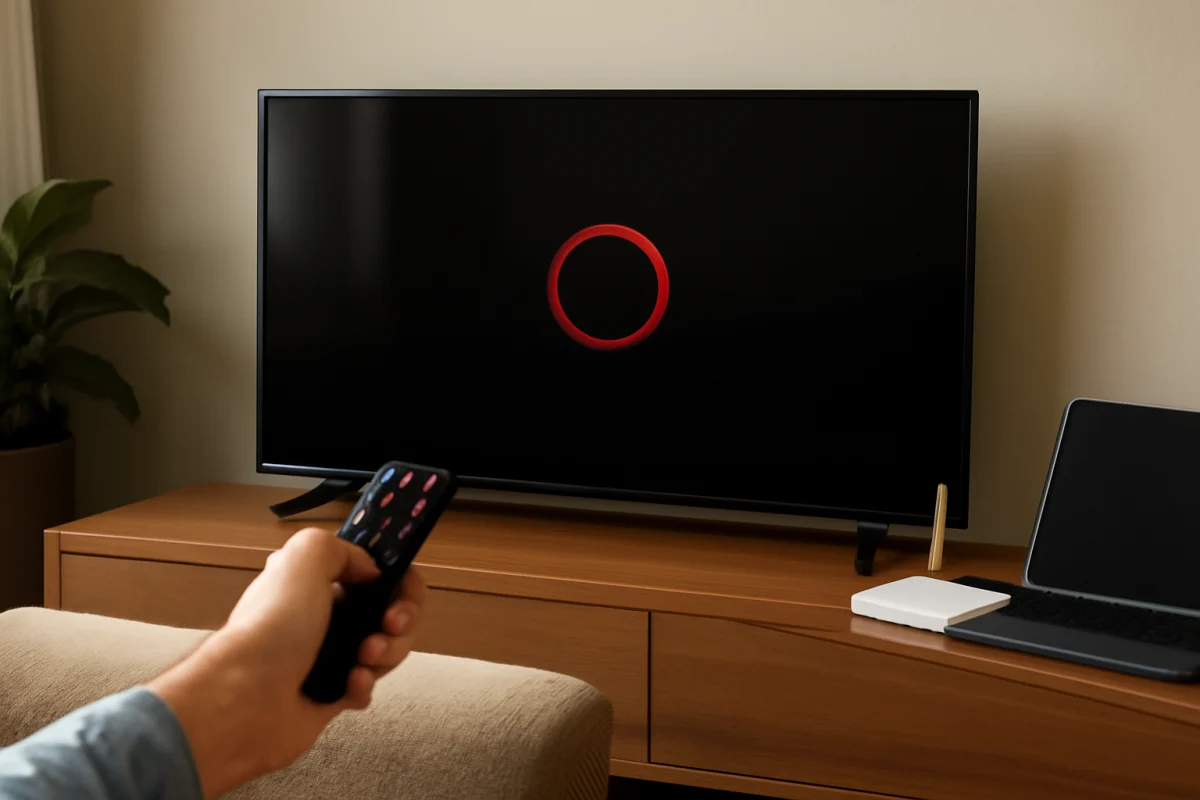
If Netflix is not working on your smart TV, start with the simplest checks: test another app, confirm the TV is connected to the internet, restart the TV completely, and check whether Netflix works on another device. These steps can quickly show whether the problem is with your TV, home network, Netflix app, or account.
Avoid resetting the TV or deleting saved settings at the beginning. Most Netflix problems can be resolved with a connection check, a proper restart, an app update, or a fresh sign-in. Menu names and available options vary by TV brand and model, so use the closest matching option on your screen.
1. Check whether other apps work
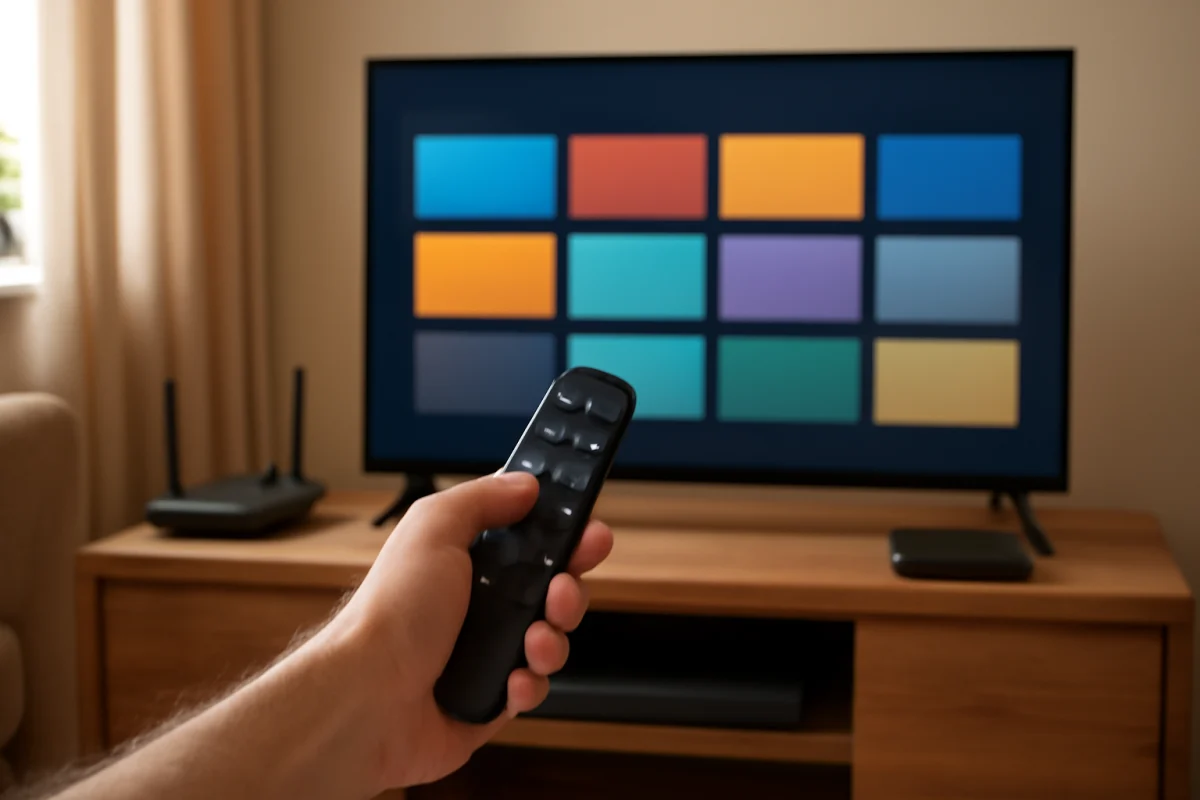
Open another streaming app on the TV and try to play a video. You can also open the TV’s app store or another internet-based service.
- If other apps also fail, the TV may have a Wi-Fi, Ethernet, or general internet connection problem.
- If other apps work normally but Netflix does not, the issue is more likely related to the Netflix app, sign-in session, or Netflix service.
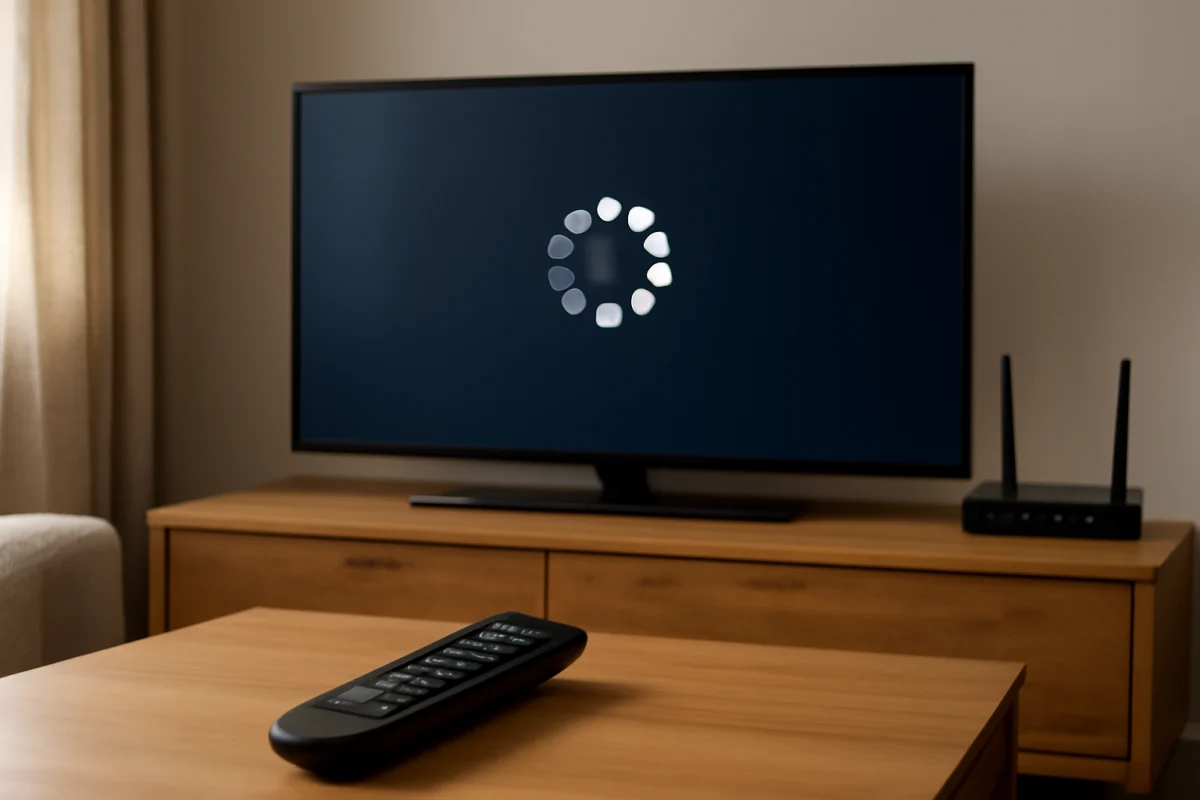
- If Netflix opens but videos will not play, the connection may be unstable even if the app itself loads.
This comparison is useful because it prevents you from changing Netflix settings when the real problem is the TV’s network connection. For more connection troubleshooting, see our Wi-Fi and network troubleshooting guides.
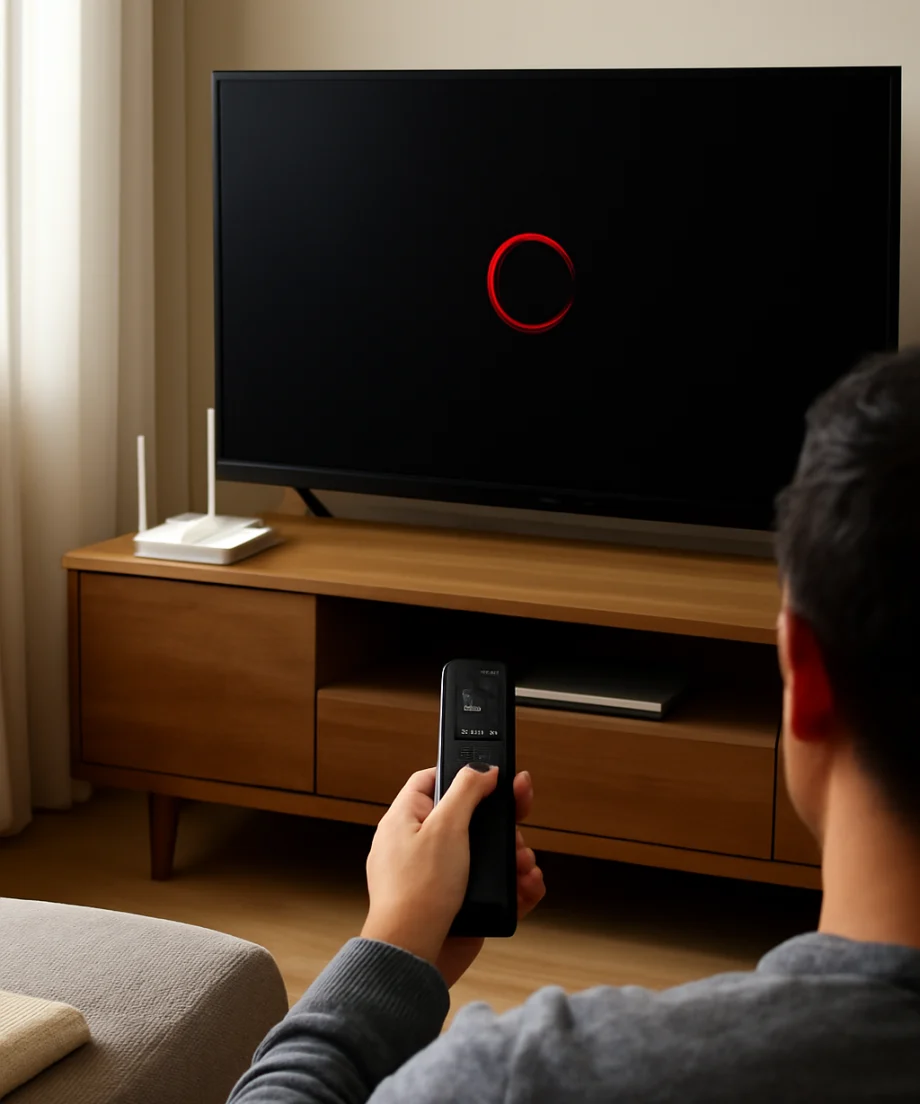
2. Test the TV’s internet connection
Open the TV’s network settings and look for its connection test or network status screen. The wording differs between manufacturers, but the TV will usually show whether it is connected to Wi-Fi or Ethernet and whether it can reach the internet.
If the TV says it is disconnected, reconnect it to your Wi-Fi network. Carefully re-enter the password, paying attention to uppercase letters, numbers, and similar characters. If possible, move the router or TV closer together temporarily, or test the TV with a wired connection.
A TV can show that it is connected to Wi-Fi while still having no usable internet access. If the TV reports a connection but Netflix cannot load, test the same Wi-Fi network on a phone or computer. If every device is slow or offline, restart the modem and router. Unplug the networking equipment, wait briefly, reconnect it, and allow it time to restore the connection before testing Netflix again.
Do not change advanced router settings unless you have a specific reason. Features such as custom DNS, filtering, parental controls, or a guest network can affect streaming, but changing several settings at once makes the cause harder to identify.
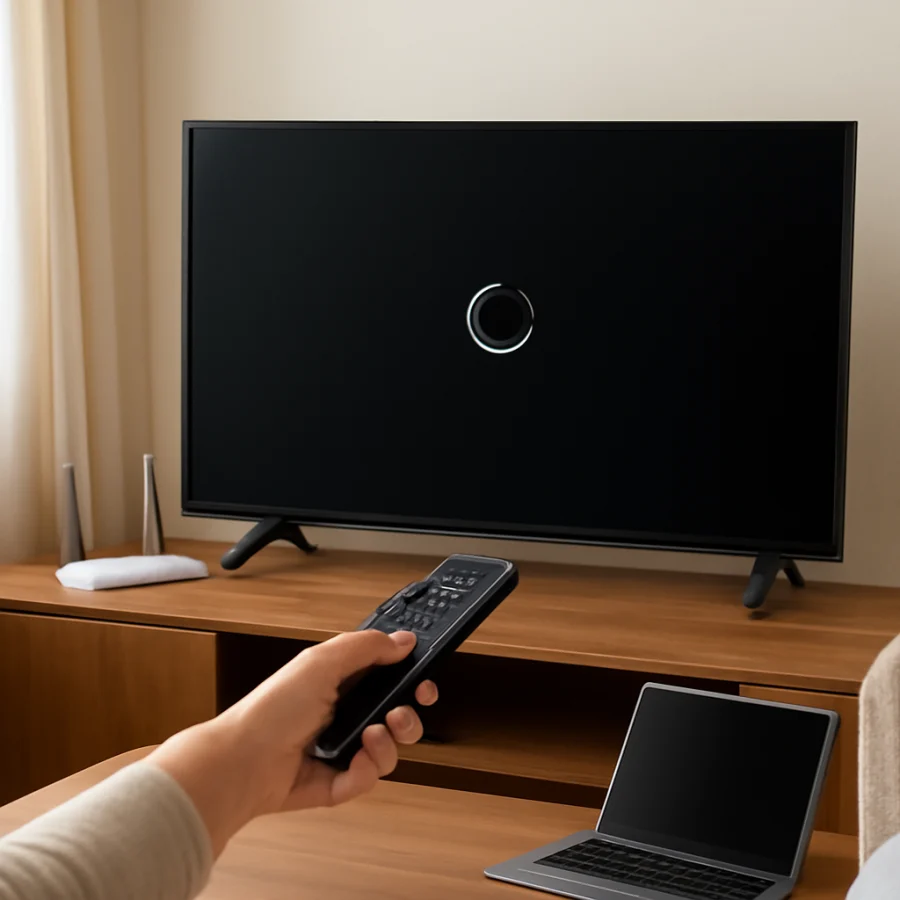
3. Restart the TV completely
Using the remote to turn the TV off may place it in standby rather than fully restarting its software. A complete restart can clear a temporary app or system process that is preventing Netflix from opening or playing video.
- Turn the TV off with the remote.
- Unplug the TV from the wall outlet.
- Wait for a short period before reconnecting it.
- Plug the TV back in and turn it on.
- Open Netflix and try the same title again.
If the TV is connected through a power strip, make sure the strip is switched on and working. Avoid repeatedly unplugging a TV while it is installing an update or displaying a warning about an update. If the screen is responding normally, let any visible system process finish first.
4. Close and reopen Netflix
Netflix can become stuck while loading, especially after the TV has been left on for a long time or multiple apps have been opened. Exit Netflix and return to the TV’s home screen. Wait a moment, then launch the app again.
Some TVs include an option to force-close an app, clear temporary app data, or stop a running app. These options are not available on every model, and their locations vary. If you see a simple app-management option, use it carefully and avoid deleting data unless you understand what information will be removed.
If Netflix is frozen and the TV will not return to the home screen, use the complete restart described above rather than repeatedly pressing buttons on the remote.
5. Check Netflix on another device
Try signing in to Netflix on a phone, tablet, computer, or another streaming device using the same account and home network. This helps separate an account or service issue from a problem limited to the smart TV.
- If Netflix works elsewhere, focus on the TV app, TV software, or TV network settings.
- If Netflix fails on several devices, check the account, internet connection, and Netflix service status.
- If only one profile or one title has a problem, the issue may be limited to that profile or content rather than the TV.
When testing another device, make sure it is using the same account and, if possible, the same internet connection. A phone using cellular data will not provide a useful comparison for a TV connected to home Wi-Fi.
6. Sign out and sign back in
A stale sign-in session can prevent Netflix from loading correctly or may cause repeated sign-in prompts. If the app opens, look for its help, account, or sign-out option and sign out normally. Then restart the TV and sign in again.
Keep your Netflix email address and password available before signing out. If your account uses a verification step, you may also need access to the associated email address or phone. Do not share your password with anyone assisting you remotely.
If Netflix will not open far enough to show a sign-out option, the app may provide an on-screen help path or a way to deactivate the current session. The exact steps differ by TV platform, so follow the instructions shown on the TV rather than using a menu path from a different brand.
7. Update the Netflix app and TV software
An outdated app or TV operating system can cause loading, playback, or compatibility problems. Open the TV’s app store and check whether Netflix has an available update. Also check the TV’s system software area for a pending update.
Automatic updates may be enabled on some TVs and unavailable on others. Do not assume that every TV uses the same process. Look for wording related to app updates, system updates, or software updates, and follow the model-specific instructions on the screen.
Keep the TV connected to reliable power and internet access during an update. If the TV warns that it must not be unplugged, wait until the process is complete. If an update fails repeatedly, note the message shown and contact the TV manufacturer or Netflix support instead of trying random firmware files.
8. Check the TV’s date, time, and region settings
Incorrect date or time settings can interfere with secure connections and account authentication. Open the TV’s date and time settings and use the automatic option if it is available. Also check that the TV’s country or region setting matches the location where the TV is being used.
Do not change the region simply to access a different catalog. Region settings can affect available apps and content, and changing them may create additional account or app problems. If the TV was recently moved, repaired, or reset, verify that these settings were not changed during setup.
9. Look for a service outage or account issue
If Netflix fails on multiple devices, the problem may not be your smart TV. Check Netflix’s official service information and your account status using another device. A payment, membership, password, or account-security issue can prevent playback even when the TV and internet connection are working.
If you see a specific message or error code, write it down exactly. Search for that message through Netflix’s official help resources or the TV manufacturer’s support pages. Avoid relying on a similar-looking code from a different device because error meanings can vary by platform.
For broader app-related fixes and device guidance, you can also browse TV Fix Guide’s streaming app troubleshooting section.
10. Check storage and app availability
Some smart TVs have limited internal storage. If the TV is nearly full, apps may crash, updates may fail, or the home screen may respond slowly. Remove unused apps only if the TV provides a clear uninstall option and you are comfortable reinstalling them later.
Netflix availability can also depend on the TV’s age, operating system, region, and manufacturer support. If Netflix is no longer available for a particular model, the app may stop updating or may not install again after removal. In that situation, a separate streaming device connected to an HDMI input may be a practical alternative.
11. Try a different network
A temporary test with a phone hotspot can help identify a home-network problem. Only use this as a short diagnostic check because hotspot data may be limited and streaming can use substantial bandwidth.
If Netflix works through the hotspot but not through home Wi-Fi, the TV app is probably not the main problem. Focus on the router, internet service, wireless signal, DNS settings, filtering tools, or network authentication. If Netflix fails on both networks while other devices work, the issue is more likely specific to the TV or its app installation.
12. Reinstall Netflix only after the basic checks
Removing and reinstalling Netflix can repair damaged app data, but it also signs you out and may remove app-specific settings. Use this step only after checking the network, restarting the TV, testing another device, and trying a normal sign-out.
Uninstalling apps is handled differently across smart TV platforms. If the TV does not allow Netflix to be removed, look for an app reset, clear-data, or reinstall option instead. Do not delete system apps or reset the entire TV when you only need to refresh Netflix.
13. When a factory reset is appropriate
A factory reset should be a last resort. It erases personalized settings and may remove installed apps, saved Wi-Fi networks, picture adjustments, and account information. Before using it, confirm that Netflix also fails after a full restart, app update, fresh sign-in, and network test.
If you decide to reset the TV, record important settings first and make sure you know the passwords for your Wi-Fi and streaming accounts. Follow the reset instructions for the exact TV model. Never interrupt the reset once it begins unless the manufacturer’s instructions specifically tell you to do so.
When to contact support
Contact Netflix if the account fails on multiple devices, the service shows an account-related message, or playback is unavailable across different networks. Contact the TV manufacturer if Netflix is the only app that crashes after an update, the TV cannot install or launch the app, or the TV has broader software problems.
Before contacting support, collect the TV brand and model, the exact behavior, whether other apps work, whether Netflix works on another device, and any message displayed on the screen. These details make it easier to identify whether the fault is in the TV, network, app, or account.
In most cases, the fastest path is to compare Netflix with another app, restart the TV and network equipment, and test the account on another device. These low-risk checks usually identify the problem without wiping the TV or changing advanced settings.
Comments
0No comments yet. Be the first to share a helpful note or question.
Leave a Comment
Your email address will not be published. Comments are reviewed before appearing on the site.