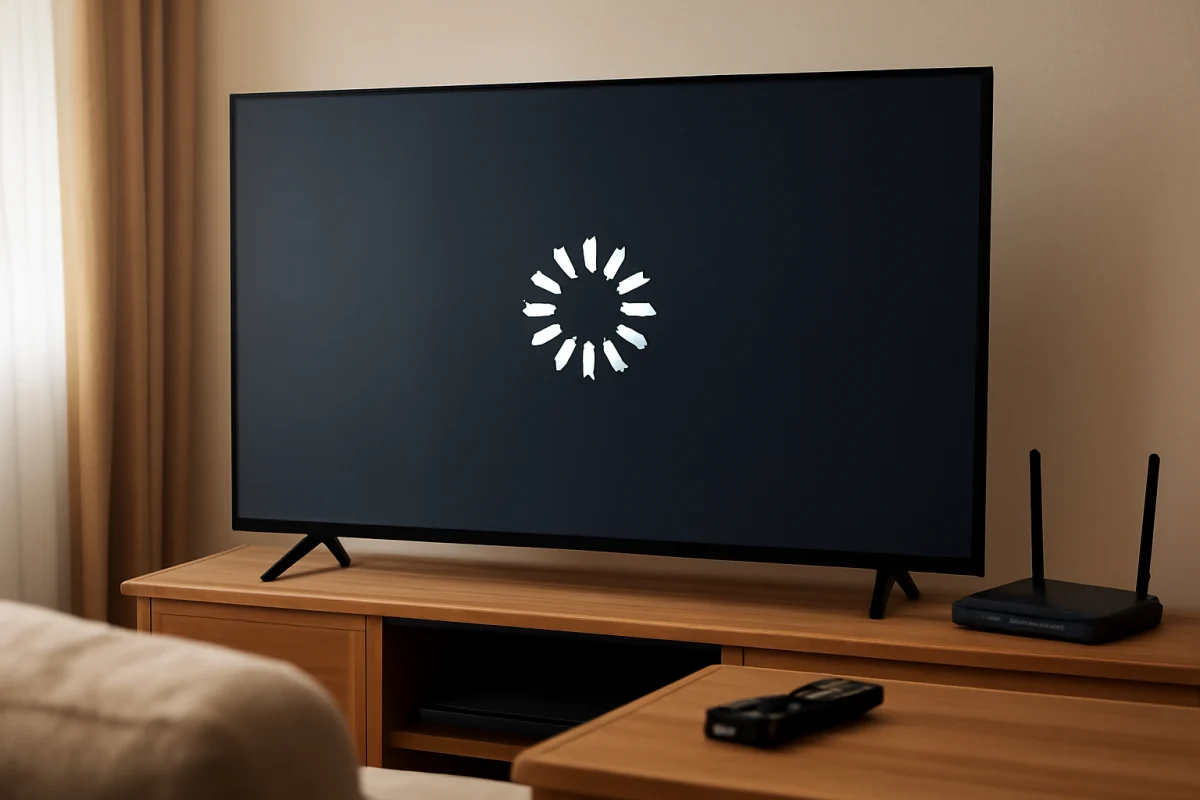
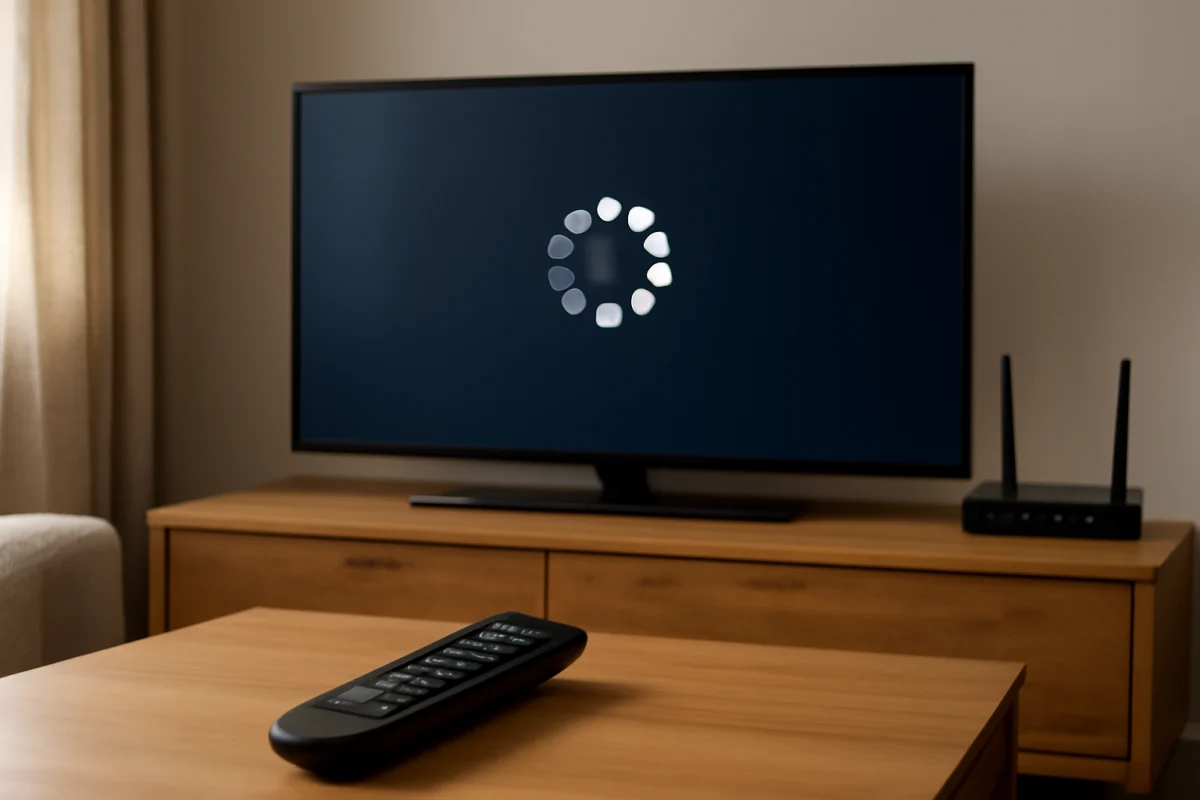
If Hulu keeps buffering on your smart TV, start by checking the network connection and testing another app. Buffering usually happens because the TV is receiving data too slowly or inconsistently, but a temporary Hulu app problem, outdated software, background network activity, or a weak Wi-Fi signal can also be responsible.
Before resetting the TV or changing advanced settings, pause the video, exit Hulu, and restart the app. Then try a different title and open another streaming service. These quick checks can show whether the problem affects one Hulu video, the Hulu app, the TV, or the entire home network.
What causes Hulu to buffer on a smart TV?
Hulu needs a steady connection while it downloads video data. If the connection slows down or briefly drops, playback may pause while the app waits for more data. A speed test can look acceptable while the TV still experiences buffering if the wireless signal is unstable or latency changes frequently.
Common causes include:
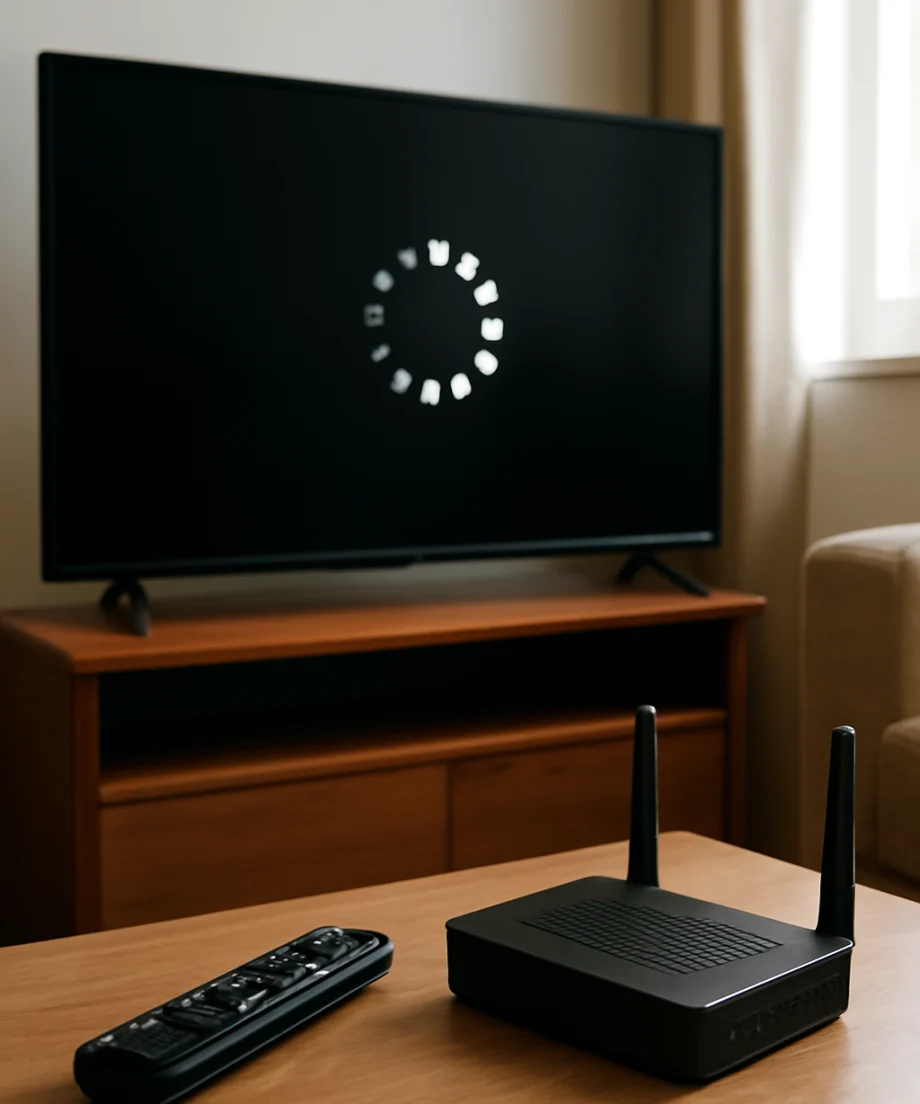
- A weak or crowded Wi-Fi signal near the TV
- Temporary problems with the Hulu app or a specific video
- Too many devices using the internet at the same time
- A router that needs a restart
- Outdated Hulu, TV, or streaming-device software
- Corrupted temporary app data
- Low available storage or limited processing capacity on an older TV
- A problem with the internet service provider or home network
Hulu buffering does not automatically mean the TV is defective. If other apps also pause, disconnect, or load slowly, investigate the network first. If only Hulu has trouble while other services play normally, focus on the app and its connection to Hulu.
Start with these quick checks
Test another Hulu title
Play a different movie or show for several minutes. If only one title buffers, the issue may be temporary and limited to that content. Try the same title again later rather than immediately changing multiple TV settings.
Also check whether the problem happens during live programming and on-demand videos. If on-demand content works but live content buffers, the issue may be related to the live stream, the network at that moment, or a temporary service-side problem.
Try another streaming app
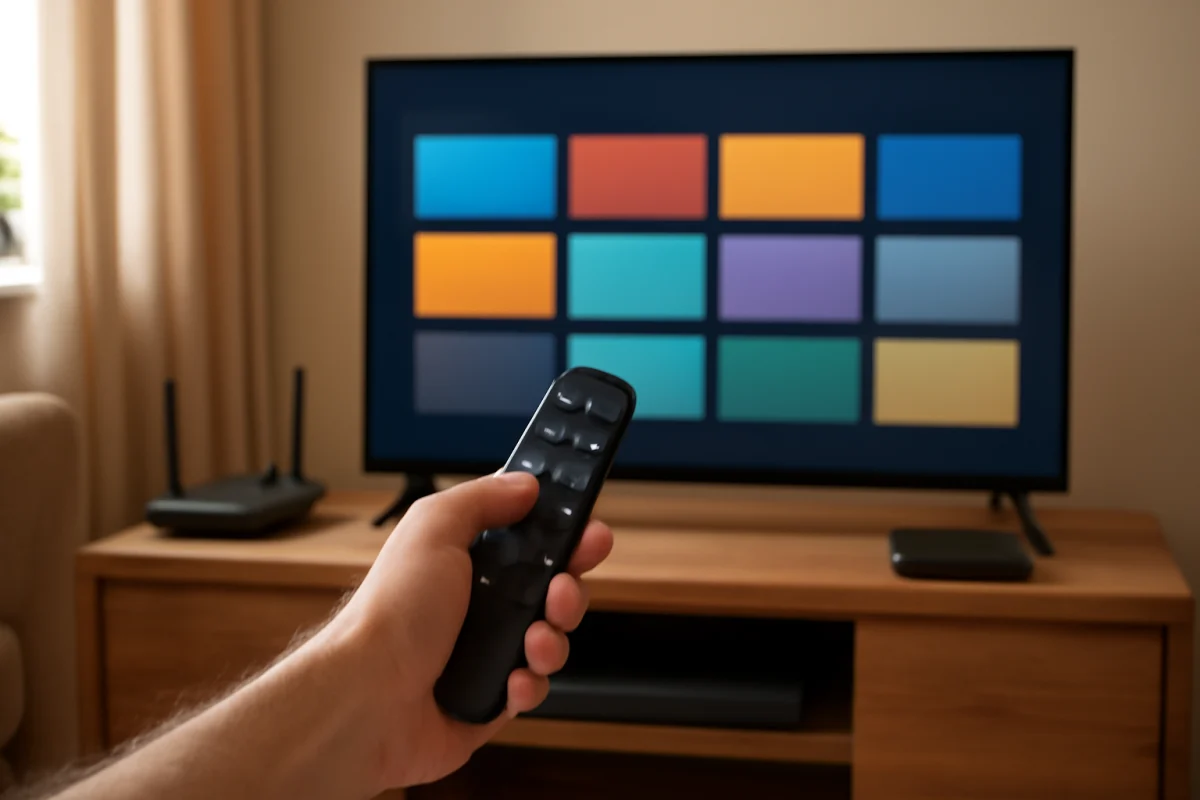
Open an app you regularly use and play a video. If that app also buffers, Hulu is probably not the only cause. Continue with the Wi-Fi and router checks below. If every other app works normally, force-close Hulu and troubleshoot the Hulu app itself.
For more streaming troubleshooting guidance, visit the Streaming Apps section of TV Fix Guide.
Check whether other devices are online
Large downloads, video calls, game updates, cloud backups, and several active streams can compete with the TV for bandwidth. Temporarily pause heavy internet activity and test Hulu again. If playback improves, the connection may be overloaded rather than completely unavailable.
Restart Hulu and the TV
Return to the TV home screen and reopen Hulu. On some TVs, leaving an app does not fully close it, so a complete TV restart can be more effective. Use the TV's normal restart option if available. Otherwise, turn the TV off, unplug it briefly, reconnect it, and turn it on again.
Do not repeatedly unplug the TV while it is installing an update or displaying a message about an operation in progress. Let the TV finish first. After restarting, open Hulu and test the same type of content that was buffering.
A restart clears temporary operating conditions without deleting your accounts or installed apps. It is safer to try this before clearing data, reinstalling Hulu, or resetting the TV.
Check the Wi-Fi connection near the TV
The TV may be too far from the router, or walls and furniture may weaken the wireless signal. Wi-Fi can also become crowded when nearby networks use overlapping channels. A TV that works well in one room may buffer in another even when phones elsewhere in the home show a strong connection.
Try these low-risk checks:
- Move the router away from enclosed cabinets, large appliances, and thick obstructions if possible.
- Temporarily move the TV or router closer together to compare playback.
- Disconnect unused devices from Wi-Fi for a short test.
- Restart the router and modem using their normal power procedure.
- Run a network test on the TV if its settings include one, noting that menu names vary by brand and model.
If the TV is close enough to the router, connect it with an Ethernet cable for a test. A wired connection can help identify whether Wi-Fi instability is the cause. If Hulu plays reliably over Ethernet but buffers on Wi-Fi, focus on wireless placement, interference, or router settings rather than the TV display.
For broader connection troubleshooting, see the WiFi & Network guides.
Check for service or internet-provider problems
Sometimes buffering is caused by a temporary problem outside the TV. Check Hulu on another device connected to the same home network, such as a phone or computer. If Hulu struggles on several devices at once, the issue may involve Hulu, the internet connection, or the provider's network.
You can also test another online activity. If websites and unrelated apps are slow, contact your internet provider or check its service-status information. If only Hulu is affected across multiple devices, wait briefly and test again before making major changes to the TV.
Service availability and troubleshooting options can change, so use current information from Hulu or your provider when checking for a wider outage.
Update Hulu and the smart TV software
App and TV software updates can fix playback problems, compatibility issues, and bugs. Open the TV's app area and check whether Hulu has an update available. Then look in the TV's system settings for a software update option.
The exact menu names and update process vary by manufacturer, operating system, and model. Do not install software from unofficial sources, and do not interrupt the TV while an update is in progress. If the TV is already up to date, continue with app data and account checks rather than repeatedly searching for an update.
Our guides for Samsung TVs, LG TVs, and other brands can help when the relevant settings differ by model.
Clear Hulu's temporary data or reinstall the app
Hulu may buffer or behave incorrectly if its temporary data is damaged. Some smart TV platforms provide an option to clear an app's cache or temporary data, while others only offer uninstall and reinstall options. The available choices depend on the TV's operating system.
If your TV provides a clear-cache option, use that first and then restart Hulu. This normally removes temporary files without changing the TV's other settings, but confirm what the on-screen message says before accepting it.
If clearing temporary data is not available, uninstall and reinstall Hulu. Reinstalling may sign you out, so make sure you know the email address and password for your Hulu account before starting. Avoid deleting unrelated apps or changing network settings unless the simpler steps have failed.
Sign out of Hulu and check the account
A session problem can sometimes affect playback even when the network is stable. Sign out of Hulu, restart the TV, and sign back in. If several people use the account, check whether the problem occurs on another supported device and whether other streams are active.
Keep account details private, and do not share your password while troubleshooting. If Hulu displays a specific message about your account, subscription, location, or device, follow the current instructions provided by Hulu rather than guessing at a fix.
When the TV itself may be the problem
If Hulu and several other apps buffer or freeze even after a stable wired connection is tested, the TV may have a software, storage, or hardware-related issue. Older smart TVs can become slower as apps become more demanding, and limited free storage can affect app behavior.
Check whether the TV has enough available storage if its settings provide that information. Remove only apps you no longer use, and avoid deleting system software. If an external streaming device plays Hulu smoothly on the same network and display, the TV's built-in app platform may be the limiting factor.
Do not assume that a factory reset will improve streaming. A reset removes accounts, apps, network details, and personalized settings, and it may not fix a weak Wi-Fi signal or an internet-provider problem. Consider it only after identifying that the TV software is the likely cause and after saving the information needed to set the TV up again.
When to contact Hulu, your internet provider, or the TV manufacturer
Contact Hulu if the app buffers on multiple devices while other online services work normally, or if reinstalling and signing in again does not help. Contact your internet provider if several devices lose speed, disconnect, or show unstable performance. Contact the TV manufacturer if built-in apps continue failing after updates, restarts, and a reliable network test.
Before contacting support, note the TV brand and model, whether the TV uses Wi-Fi or Ethernet, whether other apps buffer, and when the problem started. This information helps separate an app issue from a network or device problem without requiring unnecessary resets.
Comments
0No comments yet. Be the first to share a helpful note or question.
Leave a Comment
Your email address will not be published. Comments are reviewed before appearing on the site.