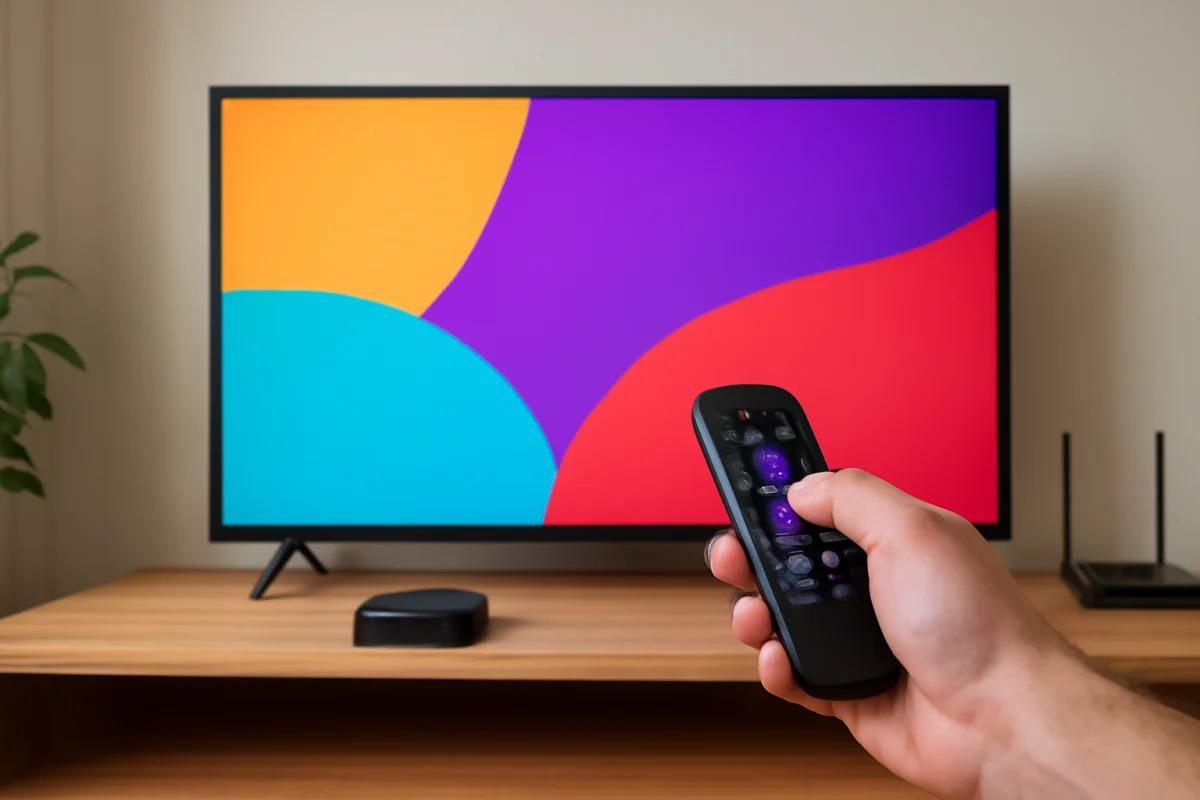
To get out of the Roku screensaver, press any button on the Roku remote, such as Home, Back, or an arrow button. The screensaver should disappear and return you to the Roku home screen or the video you were watching.
If nothing happens, the issue may be a sleeping or unresponsive remote, a frozen Roku device, a TV input problem, or a screensaver that is appearing normally after a period of inactivity. Work through the checks below in order. The names and behavior of some settings can vary between Roku players, Roku TV models, and software versions.
First, press a Roku button to wake the screen
A Roku screensaver is normally just an idle display. It does not mean that the Roku is turned off or that anything is wrong. Press one button at a time and wait a moment after each press.
- Press Home to return to the Roku home screen.
- Press Back to leave the current screen without opening another app.
- Press an arrow button to wake the interface and move the selection.
- Press Play/Pause if the screensaver appeared while a video was paused or playing.
Avoid pressing several buttons repeatedly. If the Roku is slow to respond, a long series of commands can make it appear even more delayed. Give it a few seconds to react.
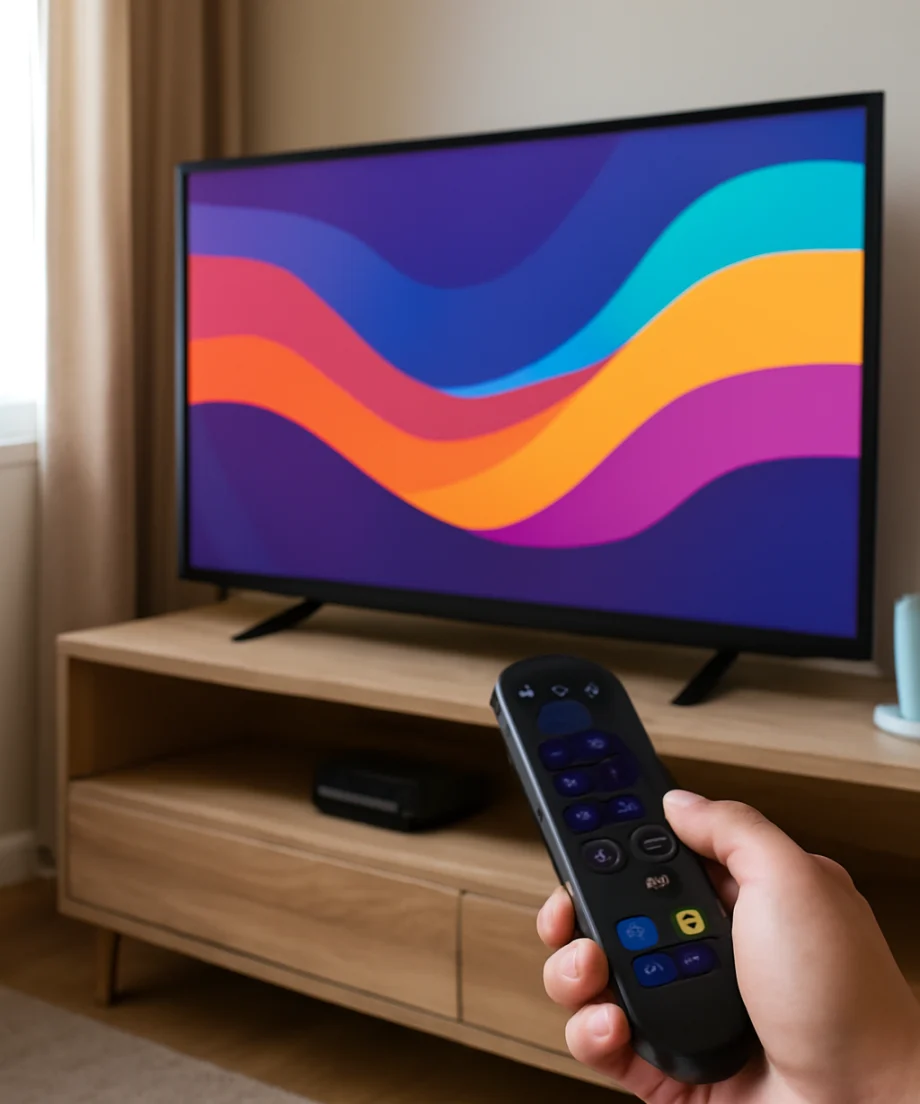
Check whether the screensaver is actually stuck
Look closely at the image. If the animation is moving, the Roku is probably working and simply waiting for input. If the picture is completely frozen, the remote may not be communicating with the device, or the Roku may need to be restarted.
Also check whether the television is displaying the Roku input. Press the TV remote's input or source button and select the HDMI port used by the Roku player. On a Roku TV, this step usually does not apply because Roku is built into the television. However, the exact source controls depend on the TV brand and remote.
If the screen is black rather than showing the screensaver, do not assume the Roku screensaver is the cause. The TV may be on the wrong input, the HDMI connection may be loose, or the Roku may not have power.
Make sure the remote is working
The most common reason a Roku does not exit the screensaver is a remote problem. Start with the simple checks before trying to reset anything.
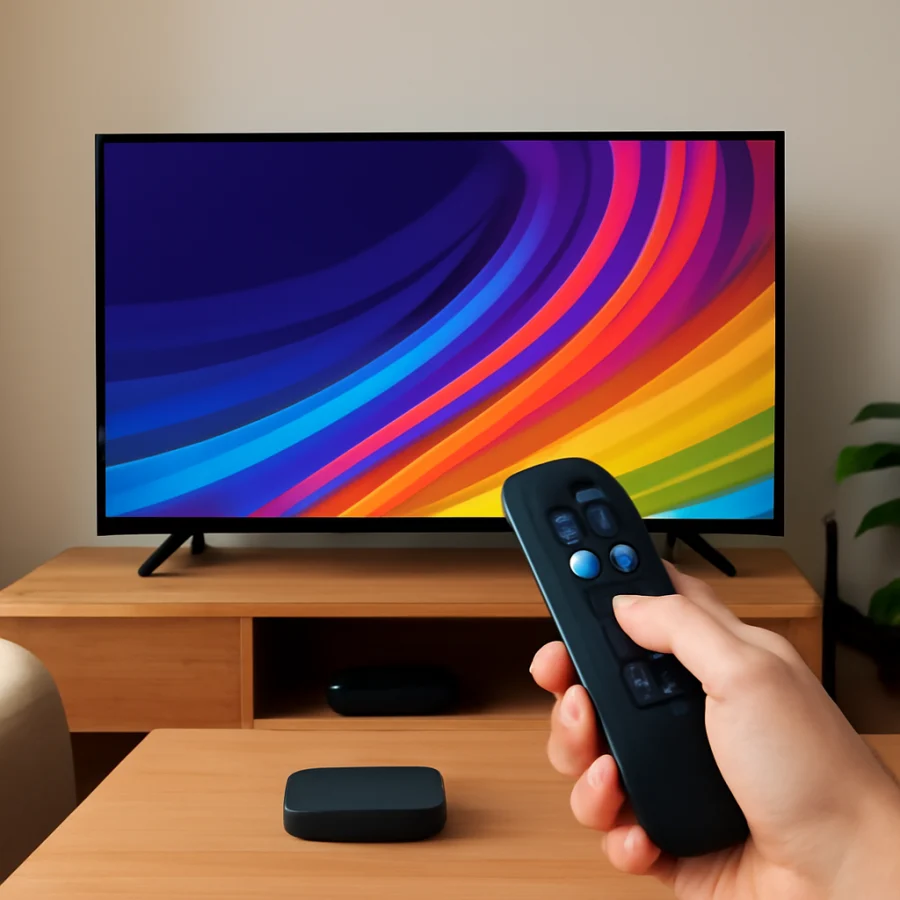
Replace or reseat the batteries
Install a fresh pair of compatible batteries, even if the old batteries worked recently. Confirm that the positive and negative ends match the markings inside the battery compartment. If the batteries are already new, remove them, wait a few seconds, and install them again.
When you press a button, check for a response from the Roku. Depending on the remote and device, there may not be a visible pairing light, so the most reliable test is whether the Roku reacts on screen.
Clear the path to the Roku
Standard infrared Roku remotes need a reasonably clear line of sight to the TV or Roku player. Move objects that block the front of the television or the Roku device. Bright sunlight, some lamps, and reflective surfaces can also interfere in certain setups.
Roku voice remotes and other wireless remotes do not rely on the same line-of-sight behavior, but they can still stop responding if their batteries are weak or if the remote has lost its connection.
Try the Roku mobile app
If your Roku device and phone are already connected to the same local network, the official Roku mobile app may provide another way to press Home or navigate away from the screensaver. The phone and Roku must generally be on the same network, and guest networks or network isolation can prevent the app from finding the device.
If you need more help with this type of problem, see our guide to troubleshooting TV and streaming device remotes. Do not remove the Roku from your account or reset it simply because the physical remote is not responding.
Restart the Roku if it does not respond
If the remote appears to work but the screensaver remains frozen, restart the Roku. A restart usually clears temporary software problems without removing your channels or account information.
If you can open the Roku menus, look for the system restart option in the device settings. The exact menu wording and location may differ by Roku model and software version. Follow the on-screen restart command rather than choosing a factory reset.
If you cannot open any menus, unplug the Roku player or Roku TV from power. Leave it disconnected for about one minute, then plug it back in and allow it time to start. For a Roku TV, use the television's power cord. For a separate Roku player or stick, disconnect the power cable from the device or its power source.
Do not repeatedly unplug the device while it is starting, updating, or displaying a warning. Interrupting an update can create a separate problem. If the device shows an update message, wait for that process to finish unless the screen has clearly been frozen for an unusually long time.
Check whether the screensaver is appearing during playback
If the screensaver appears after you pause a movie or show, press Play/Pause first. Some streaming apps pause playback and eventually allow the Roku screensaver to appear. In that situation, the Roku may be behaving normally.
If the screensaver appears while a video should still be playing, test another title or app. A single app may have paused, crashed, or lost its connection. If the problem happens in only one app, close and reopen that app, check for an available app update, or remove and reinstall the channel if the app provides that option.
If every app stops and the Roku returns to the screensaver, check the network connection as well as the device itself. A weak or unstable connection can interrupt playback, although it usually does not prevent the Home button from working.
For broader connection problems, our guide to Wi-Fi and network troubleshooting covers checks that apply to Roku and other streaming devices.
Change or disable the Roku screensaver
If you can leave the screensaver but do not want it to appear so quickly, open the Roku settings and look for the screensaver options. Depending on the device, you may be able to select a different screensaver or change the amount of idle time before it starts. Some Roku models may offer fewer choices than others.
Settings are not identical across Roku streaming players and Roku TVs. A feature available on one model may be absent or placed in a different menu on another. Use the labels shown on your own screen instead of relying on an exact menu path from a different Roku device.
Changing the screensaver does not fix a Roku that is frozen, restarting, or losing power. If button presses work but you simply dislike the current animation, changing the screensaver is appropriate. If the interface will not respond, diagnose the remote and restart the device first.
What to do if the Roku keeps returning to the screensaver
Repeatedly returning to the screensaver can have several causes. Check the pattern before taking advanced steps:
- Only after inactivity: This is probably normal screensaver behavior.
- When a remote button is pressed: Test the batteries, line of sight, and remote connection.
- During playback in one app: Troubleshoot that app or the specific title.
- During playback in every app: Check the network and restart the Roku.
- After the TV loses picture or power: Check the power cable, HDMI connection, and selected input.
- Along with random restarts: Investigate power, overheating, software, and hardware symptoms rather than treating it as a screensaver issue.
If the Roku is restarting by itself, use our guide on why a Roku TV keeps restarting. A restart loop, sudden black screen, or repeated loss of power needs different troubleshooting from a normal idle screensaver.
Check for updates only after basic checks
Software updates can improve stability, but checking for an update should come after you confirm that the remote, power, and display connection are working. Open the system update area from the Roku settings if you can reach it. The available options and wording may vary by device.
Keep the Roku connected to power and the internet while it checks for or installs an update. Do not disconnect it during installation. If an update repeatedly fails, record what happens and troubleshoot the network before attempting more disruptive actions. Our guide to checking and updating Roku software explains the general process without assuming a particular model.
When a factory reset is appropriate
A factory reset should be a last resort, not the first response to a screensaver that will not close. Resetting erases device settings and typically requires you to set up the Roku again, reconnect it to Wi-Fi, and sign in to streaming services. The exact setup requirements can vary between a Roku TV and a separate Roku player.
Consider a reset only if the Roku remains unstable after restarting, checking the remote, confirming power and connections, and applying available software updates. Before resetting, make sure you know the account information needed to set up the device again. If the reset option is inaccessible or the Roku cannot complete startup, manufacturer support or professional service may be more appropriate.
Quick answer
Press Home, Back, or an arrow button to exit the Roku screensaver. If there is no response, replace or reseat the remote batteries, check the TV input and power connections, try the Roku mobile app if it is already on the same network, and restart the Roku. Only consider a factory reset after these low-risk checks fail.



Comments
0No comments yet. Be the first to share a helpful note or question.
Leave a Comment
Your email address will not be published. Comments are reviewed before appearing on the site.