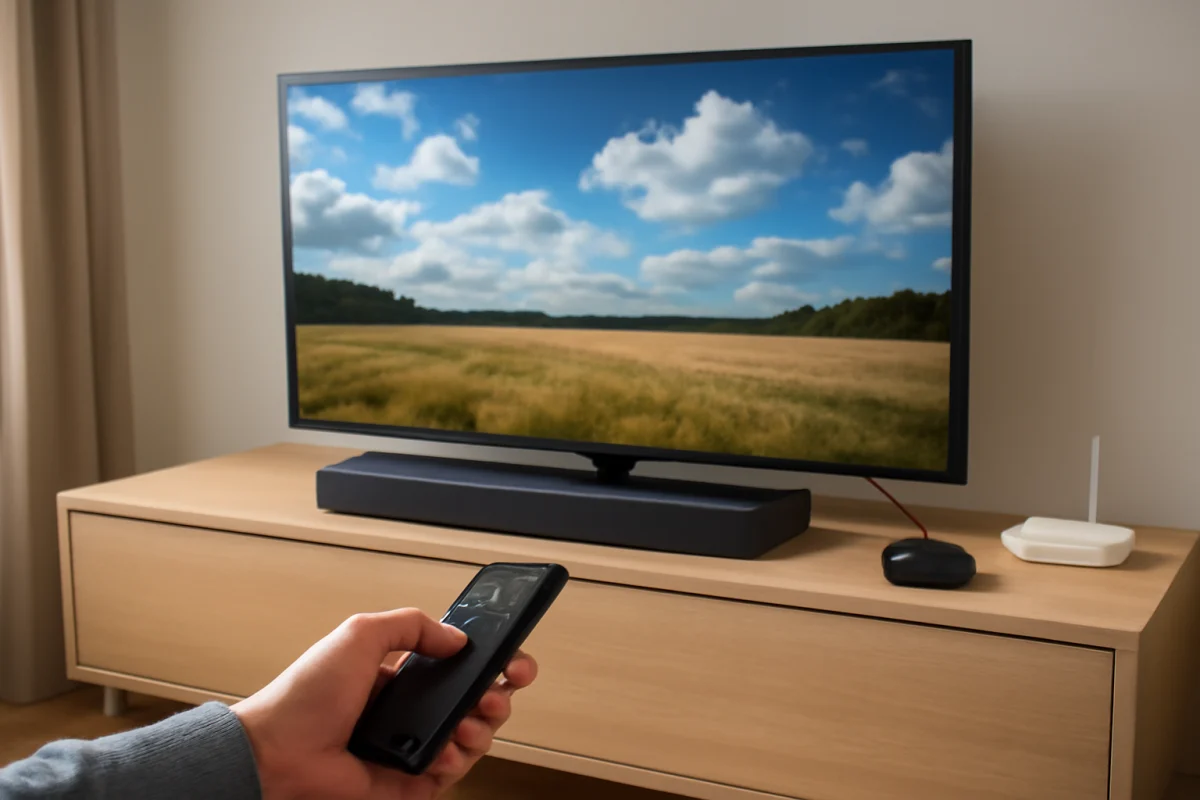
If your TV sounds flat, voices are hard to understand, or Dolby Atmos does not appear on your soundbar, start with the signal path rather than assuming the TV or speaker is defective. The source app, streaming device, TV audio output, cable, soundbar, and audio settings all have to support the same format. A single incompatible link can cause the system to fall back to stereo, create a delay, or produce no sound at all.
First, play a different title or app, check whether the problem affects the TV speakers and external audio system equally, and confirm that the correct HDMI input or soundbar source is selected. Then inspect the TV's digital audio output setting and test a simpler format such as PCM or stereo. Menu names vary by brand and model, so use the closest equivalent available on your TV rather than looking for one universal option.
What an audio codec does
An audio codec is a method used to encode and decode digital sound. Streaming services, broadcast channels, Blu-ray players, game consoles, and media files may all use different codecs. The codec determines how sound is stored, transmitted, and reconstructed by the playback device.
Some codecs use lossless compression, which preserves the original audio data, while others use lossy compression to reduce file size and bandwidth. Lossy does not automatically mean bad. A well-encoded stream can sound clear, and the practical result depends on the source, listening environment, speakers, and connection. However, a codec can still affect whether you receive stereo, 5.1 surround sound, object-based audio, or only a basic fallback signal.
Common formats you may encounter include PCM, Dolby Digital, Dolby Digital Plus, Dolby TrueHD, DTS formats, and newer object-based formats such as Dolby Atmos. These names describe different parts of the audio system, and they are not always direct alternatives. Dolby Atmos, for example, describes an immersive audio presentation that can be carried through more than one underlying codec.
How PCM, Dolby Digital, and Dolby Digital Plus differ
PCM
PCM is uncompressed digital audio. In a basic TV setup, PCM often means two-channel stereo, although multichannel PCM can be transmitted by equipment and connections that support it. It is a useful troubleshooting setting because it is widely compatible and can help restore sound when a receiver or soundbar cannot decode the original format.
The tradeoff is that switching to PCM may remove surround information if the TV converts a multichannel source to stereo. If your system works correctly in PCM but loses surround sound, that points to a compatibility or passthrough issue rather than a completely failed speaker.
Dolby Digital
Dolby Digital is a compressed format commonly associated with 5.1-channel surround sound. It can work well over older digital connections and is supported by many TVs, soundbars, and receivers. Because it is a relatively established format, it is often a reliable fallback when a newer audio mode causes silence or unexpected stereo output.
Dolby Digital Plus
Dolby Digital Plus is a newer, more efficient format frequently used by streaming services. It can carry surround sound and may also carry Dolby Atmos metadata, depending on the service, title, device, and connection. A TV may be able to decode it internally while an older soundbar may not, or the TV may need to pass it through rather than decode it.
This is one reason a streaming app can sound different from a disc player or cable box even when the volume is set the same. The sources may be delivering different codecs, channel layouts, or dynamic-range settings.
What Dolby Atmos actually changes
Dolby Atmos is an object-based audio system. Instead of assigning every sound only to fixed channels such as left, center, and right, a compatible Atmos mix can describe where individual sounds should appear in three-dimensional space. The playback system then uses its available speakers to approximate that placement.
In a home theater, Atmos may use upward-firing speakers, ceiling speakers, or specialized speaker arrangements. A soundbar may create an Atmos effect with upward-firing drivers, side-firing drivers, signal processing, or a combination of these methods. TV speakers can support some virtualized height effects on certain models, but the result varies considerably with speaker design, room shape, ceiling height, and listening position.
Atmos does not guarantee a dramatic improvement in every room. A high-quality stereo or 5.1 system can sound clearer than a poorly positioned Atmos soundbar. Dialogue clarity, bass response, speaker separation, and correct setup often matter more than the format label alone.
Why Dolby Atmos may be missing
A missing Atmos indicator does not always mean the source lacks Atmos. The signal may be converted by the TV, limited by an intermediate device, or reported differently by the soundbar. Check the entire chain:
- The title or live program: Not every episode, movie, channel, or music track includes Atmos. Look for the format information in the service or media player's details, but remember that labels and availability can vary by title and region.
- The streaming plan and app: Some services reserve certain audio formats for particular plans or supported devices. Do not assume that the TV app and a streaming stick provide identical audio options.
- The playback device: A streaming stick, game console, or disc player may have its own audio output setting. It may be configured for stereo, automatic detection, bitstream, or a compatible format.
- The HDMI path: The TV, soundbar, receiver, and cables must support the format and connection method being used. If a device is connected through an older receiver or an incompatible HDMI port, the system may negotiate a lower format.
- The TV output mode: Some TVs decode audio internally, while others pass the original signal to an external device. A setting such as passthrough, bitstream, auto, or a similar option may be required, but the exact name depends on the model.
- The soundbar or receiver: The external audio device must support the incoming format and be connected to the correct input. Its display may show Dolby Atmos, Dolby Audio, surround, or another label depending on how the manufacturer identifies the signal.
A low-risk checklist for TV audio problems
1. Confirm where the problem occurs
Test the TV's built-in speakers, an external soundbar, and a second source if available. If only one app has the issue, the problem may be app-specific or title-specific. If every source is silent, check volume, mute status, the selected audio output, and the soundbar's input before changing advanced settings.
2. Power-cycle the equipment
Turn off the TV and external audio device, unplug them briefly, reconnect them, and test again. This can clear a temporary HDMI handshake problem. If you use a streaming device, restart it separately. Avoid changing several settings at once, because that makes it harder to identify what fixed the problem.
3. Check cables and connections
Reseat the HDMI cable at both ends and verify that the cable runs between the intended ports. If the soundbar has an HDMI input and output, confirm whether the TV connection uses an ARC or eARC-capable port when that feature is required. Port capabilities vary by model, and labels printed near the ports are more reliable than general assumptions.
If possible, temporarily connect the source directly to the soundbar or receiver, or connect it directly to the TV to compare results. This test can reveal whether an intermediate device is changing the audio format.
4. Test a compatible fallback format
Set the TV or source to PCM, stereo, or another widely supported option and test sound. If audio returns, the original format may not be supported across the full chain. Next, try an automatic or passthrough-style option if your equipment supports it. Restore the preferred setting after identifying the limitation.
Do not assume that the most advanced option is always best. A setting that sends an undecoded bitstream can produce silence when the connected soundbar or receiver cannot decode it. Conversely, a setting that forces PCM may prevent the external device from receiving surround or Atmos data.
5. Check dialogue and volume behavior
If voices are quiet but music and effects are loud, check the center-channel level, dialogue enhancement, night mode, and dynamic-range controls on the soundbar or receiver. The names differ by device. Also check whether a surround mode is creating an unnatural mix from a stereo source.
When audio is delayed behind the picture, look for audio-sync or lip-sync controls on the TV and external audio device. Change the setting in small increments. If only one app is delayed, compare it with another source before adjusting the whole system.
ARC, eARC, and the audio return path
ARC, or Audio Return Channel, allows a TV to send audio from built-in apps and connected sources to a soundbar or receiver through an HDMI connection. eARC, or enhanced Audio Return Channel, provides greater bandwidth and can support more demanding audio formats on compatible equipment.
The important word is compatible. The TV, soundbar or receiver, and the relevant HDMI ports all need to support the desired signal. A system may still produce sound when one component lacks eARC, but it could fall back to a lower-bandwidth format. The result depends on the equipment and the way the source is connected.
HDMI-CEC may also be involved because it helps devices coordinate power and input behavior. If the soundbar repeatedly switches inputs, disappears from the TV's audio output list, or turns on unexpectedly, check the HDMI control settings on both devices. Make one change at a time and test afterward.
When the TV is the limiting device
A TV may support an audio format from its internal apps but not pass the same format from every HDMI source. It may also decode a signal for its own speakers while sending a different version to an external system. These behaviors vary by model, firmware, input type, and connection method.
Before buying a new cable or soundbar, check the manuals or support pages for each device using the exact model numbers. Look specifically for supported audio formats, ARC or eARC behavior, optical output limitations, and whether passthrough is available. Avoid relying only on the presence of a Dolby Atmos logo, because the logo does not explain every input and output limitation.
Optical audio versus HDMI
Optical connections can provide dependable digital audio and may be useful with older soundbars. However, optical has less bandwidth than newer HDMI return connections and may not carry every surround or Atmos format. If an optical connection works but HDMI does not, the issue may involve HDMI control, port selection, compatibility, or a handshake rather than the speaker itself.
Use optical as a practical test, not automatically as the best permanent solution. It may restore basic surround sound while removing access to higher-bandwidth formats and some device-control features.
How to get the best result from Dolby Atmos
Place the soundbar according to its instructions, keep upward-firing speakers unobstructed, and avoid placing the unit inside a cabinet that blocks its drivers. Sit where the system's calibration or surround processing is designed to work. Room reflections affect height effects, so an Atmos system may sound different in a room with a very high, angled, or acoustically soft ceiling.
Use a known Atmos title only after the basic audio path is stable. Confirm that the soundbar reports the expected format, but judge the result with familiar dialogue and effects rather than the label alone. If the system sounds harsh, hollow, or less clear in an advanced mode, compare it with a neutral or standard mode. The most satisfying setting is the one that produces clear, balanced sound in your room.
For more troubleshooting help, browse TV Fix Guide's picture and sound guides or the Tech & Specs section. If the problem involves a specific streaming device, you can also check the streaming app guides and Wi-Fi and network troubleshooting resources.

Comments
0No comments yet. Be the first to share a helpful note or question.
Leave a Comment
Your email address will not be published. Comments are reviewed before appearing on the site.