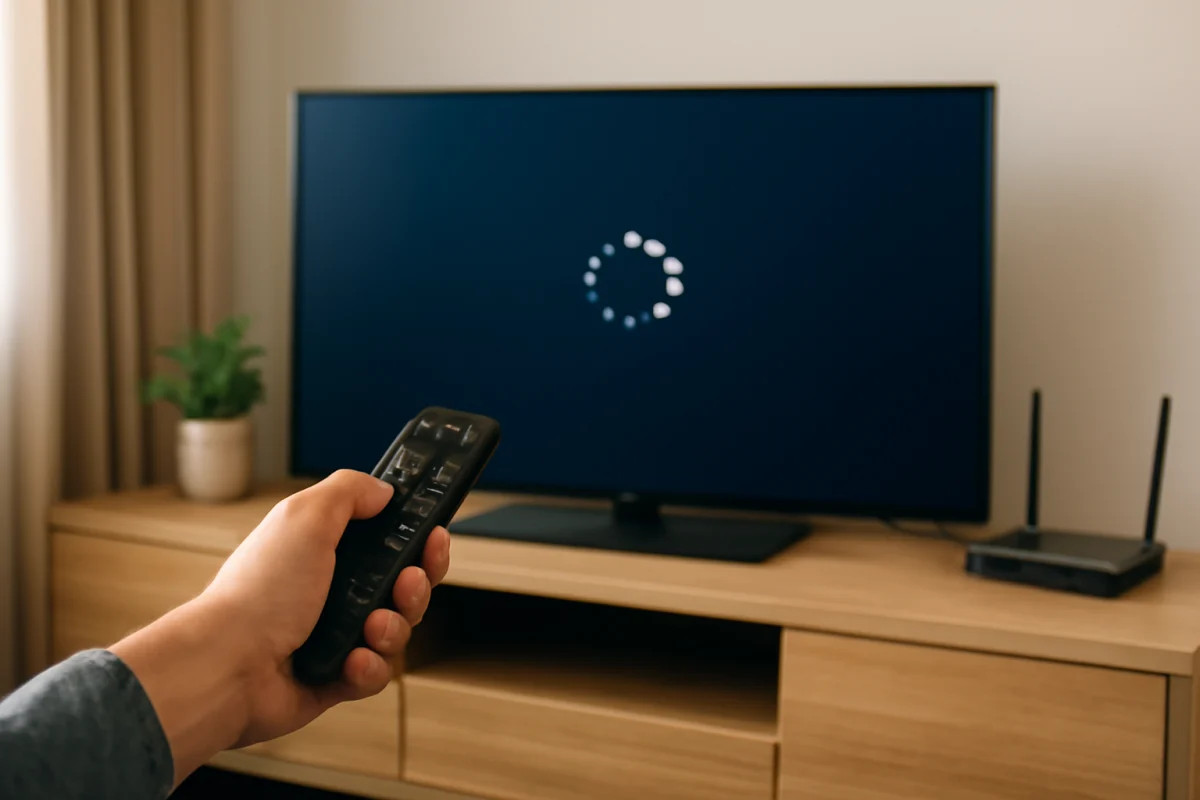
If Disney Plus is not working on your smart TV, start by checking whether the problem affects only Disney Plus or the TV's entire internet connection. Try playing another streaming app, then open Disney Plus on a phone or computer connected to the same network. These quick tests can show whether the cause is the app, the TV, your home network, or Disney's service.
Next, close Disney Plus completely, restart the TV, and check the connection before making larger changes such as reinstalling the app or resetting the TV. Menu names and button locations vary between Samsung, LG, Roku, Fire TV, Google TV, Vizio, Hisense, TCL, Sony, and other smart TV platforms, so use the closest equivalent option on your device.
Check whether Disney Plus is down
A service-side outage can make Disney Plus fail on several devices at once. If the app will not load, videos will not start, or playback stops unexpectedly, check Disney Plus on another device using the same account. You can also check a reputable outage-monitoring service or Disney's official support channels for current service information.
If Disney Plus fails on your TV, phone, and computer at the same time, waiting may be the only useful step. Repeatedly reinstalling the app or changing TV settings will not fix a problem affecting the service itself. If the app works normally on other devices, continue with the TV and network checks below.
Test the TV's internet connection
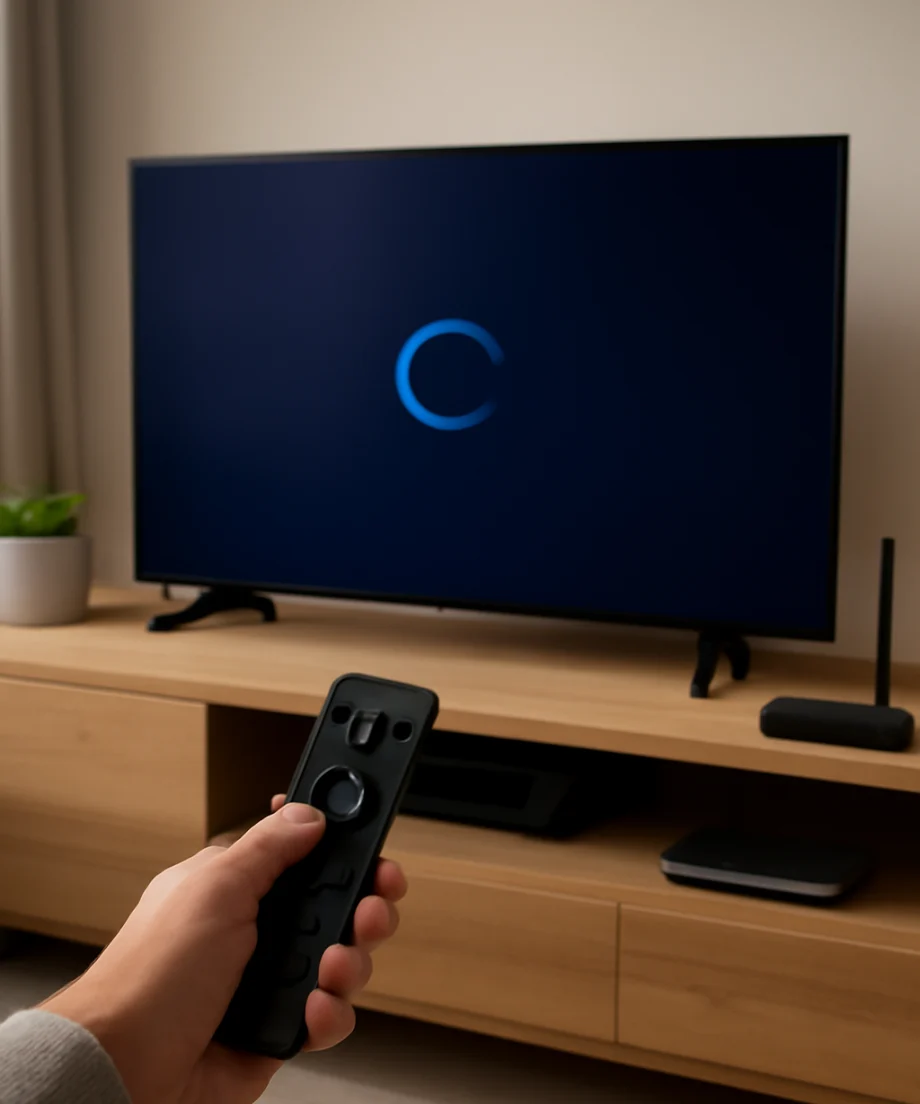
Open another streaming app on the TV and play a video for a few minutes. If other apps also buffer, stop loading, or show that the TV is offline, Disney Plus may not be the real cause. Visit our Wi-Fi and network troubleshooting section for additional connection checks.
Try these low-risk network steps:
- Move closer to the wireless router if the TV is far away or separated by thick walls.
- Pause large downloads, game updates, video calls, and other activities that may use the connection.
- Restart the router by unplugging it, waiting briefly, and reconnecting it. Allow time for the internet connection to return before testing Disney Plus.
- If possible, test the TV with a wired network connection or a different network. This can help identify a wireless signal problem.
- Check whether the TV shows an incorrect date or time, since some secure connections can fail when the device clock is significantly wrong.
If Disney Plus works on a phone over mobile data but not on the home Wi-Fi network, the router, internet service, or network settings may be involved. If it works on the same Wi-Fi network but not on the TV, focus on the TV or app instead.
Restart the smart TV completely
Using the remote to turn off the TV may leave it in a standby state rather than fully restarting its software. A complete power cycle can clear a temporary app or system fault.
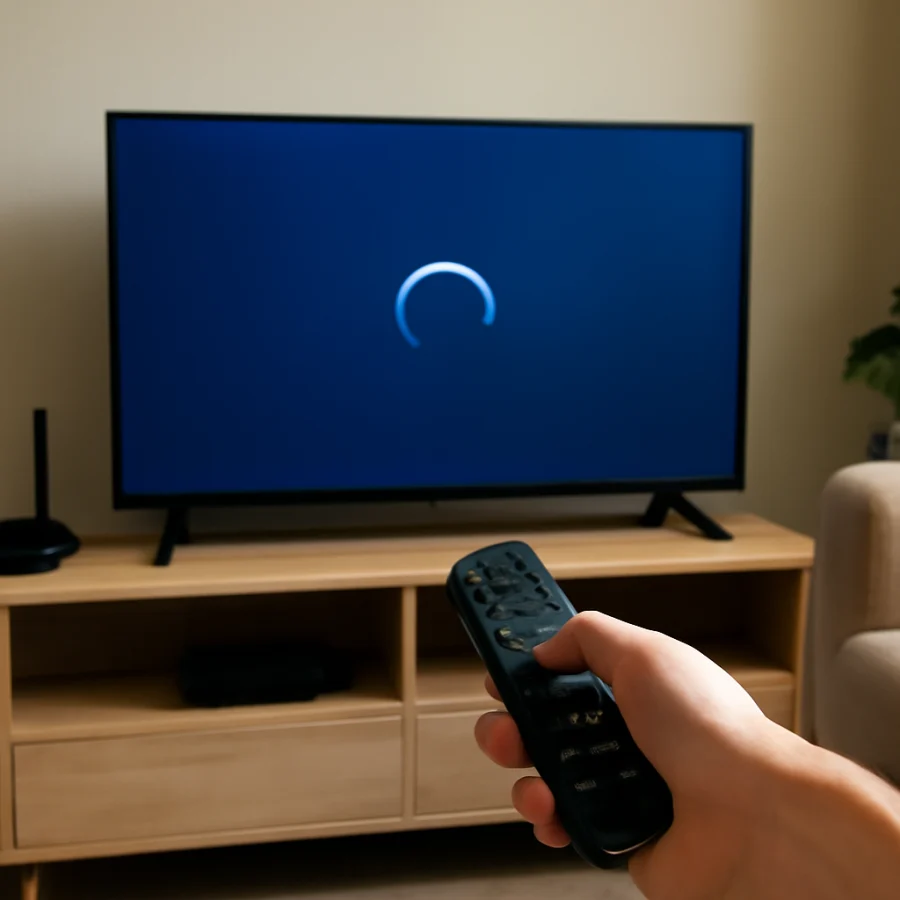
- Exit Disney Plus and turn off the TV.
- Unplug the TV from the wall outlet.
- Wait at least 30 seconds.
- Plug the TV back in and turn it on.
- Reconnect to the network if necessary, then open Disney Plus again.
Do not repeatedly unplug the TV while it is installing an update or displaying a message that an update is in progress. Wait until that process finishes unless the TV is completely frozen and the manufacturer's guidance recommends another action.
Force-close and reopen Disney Plus
The Disney Plus app may be stuck even when the rest of the TV is responding normally. On some platforms, pressing the Home button and opening the app again is enough. Other TVs provide an app-management screen with options to stop, close, or restart an application.
Use the TV's normal app controls to close Disney Plus, then reopen it. Avoid ending unrelated system processes unless you know what they do. If the app immediately freezes again, continue with updates and cache or data cleanup.
Update Disney Plus and the TV software
An outdated app or TV operating system can cause loading failures, sign-in problems, crashes, or playback issues. Open the TV's app store or app-management area and check whether Disney Plus has an available update. Then look in the TV's system settings for a software update.
The exact menu names and update process vary by brand and operating system. Do not assume that every TV supports the same app version or update method. If the TV is old, Disney Plus may also have changed its supported device requirements. Check the current Disney Plus help information for compatibility guidance rather than relying on an unofficial list.
After updating, restart the TV and test the app again. If the TV cannot find Disney Plus in its app store, the app may not be supported on that model or in that region. In that situation, a compatible streaming device connected to an HDMI port may be a practical alternative.
Clear the app cache or reset app data
Some smart TV platforms let you clear temporary app files. This can help when Disney Plus opens but behaves incorrectly, repeatedly loads, or crashes after an update. Look for the Disney Plus entry under the TV's application settings and check whether it offers a cache-clearing option.
Clearing cache is generally less disruptive than resetting app data. If the TV offers only an option to clear data, read the warning first. This may sign you out, remove downloaded information, or restore the app to its initial state. You will need to sign in again afterward.
Do not delete data from the entire TV or reset all apps when you only intend to clean up Disney Plus. The wording differs by platform, so stop if the available option is unclear.
Reinstall Disney Plus
If updating and clearing temporary files did not help, uninstall Disney Plus and install it again from the TV's official app store. Reinstalling can replace damaged app files, but it will usually remove your sign-in information and app preferences.
- Open the TV's app-management or app-store area.
- Choose Disney Plus and select the available uninstall or remove option.
- Restart the TV if the platform requests it.
- Install Disney Plus again from the official store.
- Open the app and sign in using the correct Disney account.
If the uninstall option is unavailable, Disney Plus may be built into the TV software. In that case, look for an update, app reset, or clear-data option instead. Do not download an unofficial version of the app from an unknown website.
Check your Disney Plus account
Sign-in and subscription problems can look like app failures. Confirm that you are using the email address associated with the Disney Plus account and that the password works on the service's official website or another trusted device. If you recently changed the password, sign out of the TV and sign in again.
Check for messages about account verification, payment, plan changes, or device limits. The exact message depends on the account and region, so do not assume that every sign-in failure has the same cause. If the account works elsewhere but the TV rejects it, remove the TV from the account's registered devices only if the service provides that option and you recognize the device.
Fix sound, picture, or playback problems
If Disney Plus opens but the video is black, freezes, or has no sound, first test a different title. A problem with one movie or show may not affect the entire app. Also check whether the issue occurs with other streaming apps.
For video problems, restart the TV, verify the HDMI connection if you use an external streaming device, and temporarily disable unusual picture-processing settings if the TV provides them. For sound problems, check the TV volume, mute status, sound output selection, and any connected soundbar or receiver. A Bluetooth headset or external audio system can also change where sound is sent.
If a different streaming app has the same picture or sound issue, use the TV's general troubleshooting steps rather than treating it as a Disney Plus-only problem. Our picture and sound troubleshooting guides may help narrow it down.
Try Disney Plus through another supported device
Testing another device helps separate a TV problem from an account or service problem. Try a supported phone, tablet, computer, game console, or streaming player on the same network. If Disney Plus works there, the TV app, TV software, or TV compatibility is more likely to be responsible.
You can also test the TV using a separate streaming device, provided it is supported and connected correctly. This does not repair the built-in app, but it may restore access without changing the TV's system settings. Use the streaming device's official app store and keep its software updated.
When to reset the TV
A factory reset should be a last resort, not the first fix for Disney Plus. It removes installed apps, network details, picture settings, and other personal preferences. It may also require you to complete the TV's setup process again.
Before considering a reset, confirm that:
- Disney Plus works on another device or the service is otherwise available.
- The TV has a stable internet connection.
- The TV and app are updated as far as the platform allows.
- You have tried restarting, clearing app information, and reinstalling when possible.
- You know the passwords and setup details needed after the reset.
If other apps also fail, the TV cannot stay connected, or the device shows broader system problems, contact the TV manufacturer or your internet provider before resetting. A reset may erase useful diagnostic information and will not fix faulty hardware or an unreliable connection.
What to do if Disney Plus still will not work
Write down what happens when you open the app: whether it crashes, stays on a loading screen, rejects the login, shows a blank picture, or stops during playback. Note whether other apps work and whether Disney Plus works on another device. These details make support conversations more productive.
Contact Disney Plus support if the account fails across multiple devices, the service shows an account-specific message, or only Disney Plus remains broken after the basic app steps. Contact the TV manufacturer if the app store, TV software, or several apps are malfunctioning. For brand-specific guidance, you can also browse TV Fix Guide's streaming app troubleshooting resources and Roku troubleshooting guides.
In most cases, a complete TV restart, a network check, an app update, or a clean reinstall resolves Disney Plus problems without changing the TV's deeper settings. Work through those steps in order, and avoid a factory reset unless the simpler fixes have been ruled out.
Comments
0No comments yet. Be the first to share a helpful note or question.
Leave a Comment
Your email address will not be published. Comments are reviewed before appearing on the site.