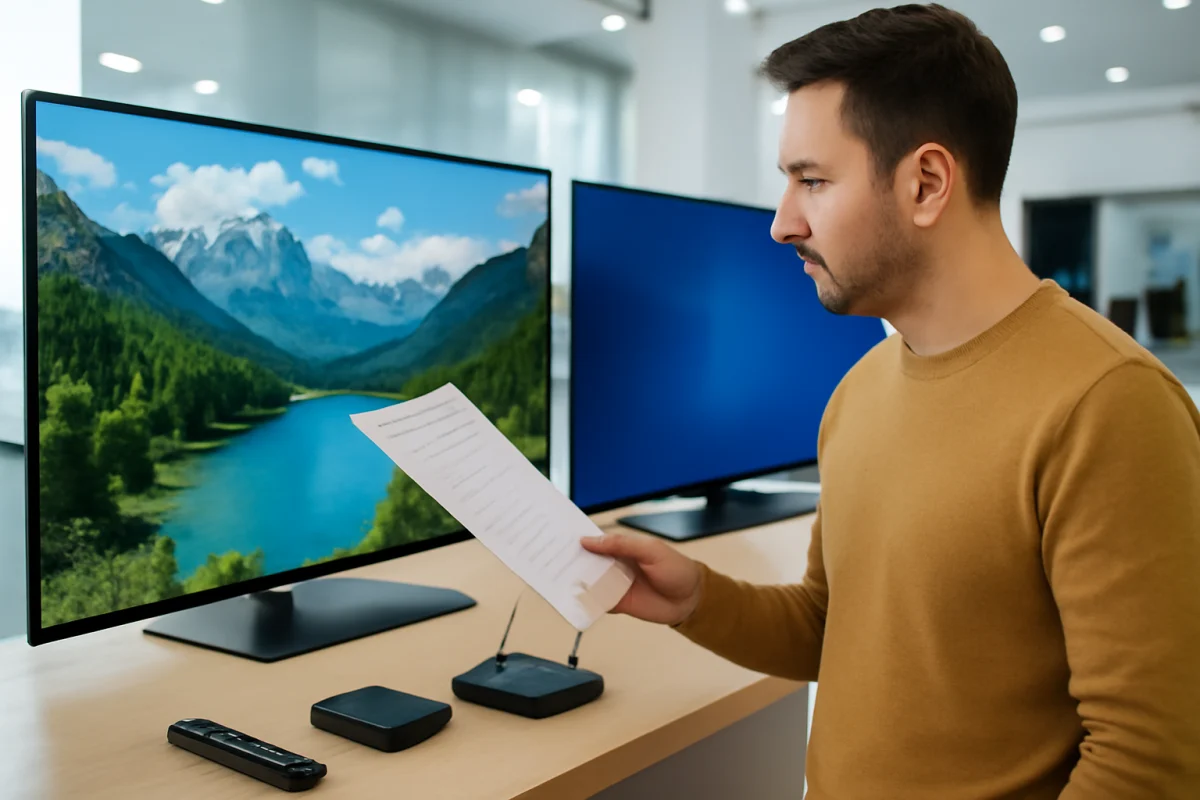
The best way to compare modern TVs is to match each specification to how you actually watch, play, and connect devices. Start with screen size, viewing distance, room lighting, and the sources you use. Then evaluate resolution, panel type, refresh rate, HDR, HDMI ports, smart-TV software, sound, and power features. A long specification sheet can look impressive while hiding a limitation that matters more in daily use.
Before buying, open the product page or manual for the exact model and screen size. Manufacturers sometimes use similar names for TVs with different panels, ports, speakers, or regional features. If a specification is unclear, treat it as unconfirmed instead of assuming the television includes it.
Start With Your Viewing Situation
Technical specifications only make sense when connected to your room and habits. A bright living room may benefit more from strong glare control and high brightness than from an advanced gaming feature you will never use. A smaller bedroom TV may not need the same processing power or speaker system as a large main-room display.
Measure the viewing distance
Screen size and viewing distance work together. Sitting too close to a very large screen can make low-quality cable channels, compressed streams, or older game graphics look distracting. Sitting too far away can make the benefits of higher resolution difficult to notice. Use your usual seating position as the starting point rather than choosing a size based only on the television's price or a showroom display.
Check the room lighting
Look at the screen during the day and at night if possible. A glossy display may produce distracting reflections near windows or lamps. A brighter screen can help in a sunlit room, but brightness claims are not always measured in the same way. Professional tests and hands-on reviews are more useful than comparing a single number from two different manufacturers.
Understand Resolution Without Overpaying
Resolution describes the number of pixels used to create the image. Higher resolution can improve fine detail, but it does not automatically guarantee a better picture. Source quality, screen size, viewing distance, image processing, contrast, and motion handling all affect what you see.
For most current TVs, the practical comparison is between 4K and lower-resolution models. A 4K set can display more detail from compatible content, including many newer streaming programs, game consoles, and disc players. However, a poor stream or weak broadcast signal will not become high quality simply because the TV has a 4K panel. Check your internet connection, source device, and subscription quality before blaming the display for a soft picture.
Some product pages mention 8K or other high-resolution capabilities. Before paying more, check whether the content you watch is actually available at that resolution, whether your devices can output it, and whether the TV's processing creates a visible benefit from lower-resolution sources. A larger pixel count is only one part of image quality.
Panel Type, Contrast, and Black Levels
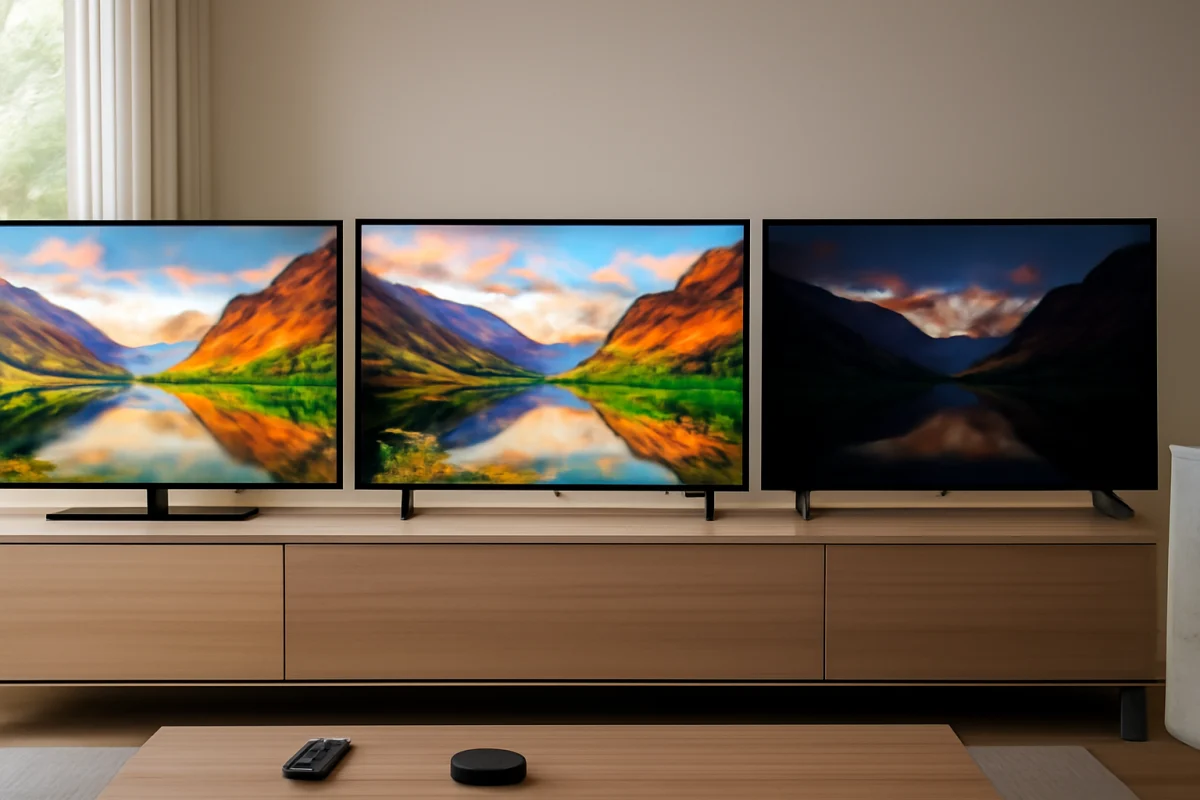
Panel technology influences contrast, black levels, viewing angles, brightness, response time, and the risk of visible image artifacts. Common terms include LED, QLED, mini-LED, OLED, and variations of these names. These labels can be useful starting points, but they do not provide a complete picture by themselves.
LED and QLED televisions
Many LED-based TVs use a backlight behind or beside an LCD layer. QLED generally refers to a quantum-dot layer used to improve color performance in certain LED-based designs. Mini-LED models use many smaller backlight elements, which may allow more precise brightness control than a conventional backlight. The actual result depends on the TV's local-dimming system, panel design, processing, and factory tuning.
OLED televisions
OLED pixels can turn off individually, which allows very dark blacks and strong contrast in a suitable viewing environment. OLED models may be attractive for movies, nighttime viewing, and wide seating arrangements. As with any display technology, inspect independent testing for brightness behavior, motion performance, and long-term use considerations. Do not assume that every model using the same broad panel label performs identically.
Viewing angles and uniformity
If several people watch from different positions, viewing-angle performance matters. Some displays lose contrast or color when viewed from the side. Uniformity is another concern: a screen may show lighter corners, cloudy areas, or uneven color on large, dark scenes. These characteristics can vary between individual units, so reviews with photographs or measurements can help reveal issues that a short store demonstration will not.
Refresh Rate and Motion Features
Refresh rate describes how often the panel can update the image. A higher native refresh rate can help with fast sports, action scenes, and compatible gaming. But product pages may also advertise motion-enhancement numbers that are not the panel's actual refresh rate. Look for the native panel capability and confirm how the manufacturer defines its terminology.
Motion smoothing can make video look clearer, but it can also create an overly processed appearance or produce artifacts around moving objects. Film and television content may look more natural with some processing reduced. For sports and games, different settings may work better. You can usually compare these options safely without resetting the TV: change one picture setting at a time, watch the same scene, and note what improves or worsens.
Gaming refresh rate and latency
Gamers should check more than the headline refresh rate. Confirm the supported resolution and refresh combinations, input lag from independent testing, variable refresh rate support, and whether the required gaming features work through the ports you plan to use. A TV may support a feature only on certain HDMI inputs, and the correct cable or console setting may also be required.
Do not confuse a TV's ability to display a signal with a console's ability to generate it. The console, game, cable, TV input, and selected settings must all support the desired format. If a new console produces a blank screen or an unexpected resolution, begin with a different HDMI input, a direct connection, a known-good cable, and the console's video-output settings before attempting a factory reset.
HDR: More Than a Logo
HDR, or high dynamic range, can improve the difference between bright highlights and dark areas while expanding color possibilities. A TV may list support for one or more HDR formats, but format compatibility alone does not guarantee a dramatic improvement.
HDR quality depends on peak brightness, black levels, contrast control, tone mapping, screen reflections, and the quality of the content. A dim display may accept an HDR signal but show limited impact. Check whether the streaming service, title, connected device, and HDMI settings all support the same format. If HDR looks gray, too dark, or oddly colored, first confirm that the source is actually sending HDR and that the TV has not switched to an unsuitable picture mode.
When comparing TVs, give priority to real-world HDR testing over a list of supported formats. A television with fewer logos can still produce a more convincing image if it handles contrast and tone mapping better.
HDMI Ports and Other Connections
Ports often matter more than buyers expect. Count the devices you plan to connect, including a soundbar, game console, streaming box, disc player, computer, and antenna. Leave room for future equipment if possible.
Review the exact capabilities of each HDMI input. Important details can include the supported resolution and refresh rate, audio return capability, variable refresh rate, automatic low-latency behavior, and copy-protection support. These features may not be available on every input. The labels printed beside the ports may be less detailed than the manual or official specifications page.
Also check whether the TV has the connections you genuinely need. Optical audio, headphone output, antenna input, USB, Ethernet, and Bluetooth support vary by model. Wireless headphones and Bluetooth speakers can introduce delay, and USB ports may provide power without supporting every type of media or accessory. Confirm compatibility before assuming a device will work.
Smart-TV Software and Streaming
A smart TV is a small computer, so the software experience affects everyday satisfaction. Compare the available apps, search tools, voice features, advertising behavior, storage, update history, and ease of connecting external devices. App availability can vary by country, model year, and operating system.
Do not select a TV solely because it includes a familiar streaming platform. The built-in app may have different features than the same service on a dedicated streaming device. If an app frequently freezes or displays an error, start with low-risk checks: test another app, confirm the internet connection, restart the app and TV, and check for available software updates. If the built-in software feels slow, an external streaming device may be a practical solution without replacing the television.
For troubleshooting guidance across popular platforms, the streaming apps guide and Wi-Fi and network guide can help separate TV problems from account, router, and service issues.
Sound Specifications Need Context
Speaker power ratings do not fully describe sound quality. Placement, cabinet design, audio processing, dialogue clarity, bass response, and room acoustics can matter just as much. A thin television may need a soundbar or receiver for fuller sound, especially in a large room.
Check how the TV connects to external audio. HDMI audio return is often convenient, but the exact supported formats and control features can vary. If you plan to use a soundbar, confirm that the TV and soundbar have compatible connections. For dialogue problems, try a different sound mode and verify that the source is not sending an incompatible or poorly mixed audio format before buying new equipment.
Power Use, Mounting, and Physical Design
Check the stand width, stand position, wall-mount pattern, cable placement, and the TV's depth before ordering. A display can fit the advertised screen space and still fail to fit a narrow cabinet. Wall mounting also requires a suitable mount, secure attachment points, and enough room for cables and ventilation.
Energy information can be useful, but actual consumption varies with brightness, picture mode, content, and hours of use. Features such as automatic brightness adjustment or power-saving modes may change the viewing experience. If the TV will be used for many hours each day, include energy use and repairability in the long-term comparison rather than focusing only on the purchase price.
How to Verify a Specification Before Buying
- Write down the devices, services, and accessories you will use.
- Measure the viewing distance, cabinet width, and available wall space.
- Check the exact model number, screen size, and sales region.
- Read the official specification sheet and manual, not only the retailer summary.
- Confirm port-specific features instead of assuming every HDMI input is identical.
- Compare independent tests for brightness, contrast, motion, input lag, and sound.
- Look for reports about software performance and common connectivity problems.
- Keep the receipt and packaging until you have tested the screen, ports, remote, apps, and speakers.
After setup, test the television with the sources you actually use. Try a bright scene, a dark scene, fast motion, dialogue, a game, and your normal streaming apps. Test each HDMI device directly before adding an AVR, switch, or soundbar. If something does not work, change one variable at a time and begin with simple checks such as power, input selection, cable seating, network status, and compatible output settings.
Choose the Specification That Solves Your Real Problem
A good TV purchase is not a contest to collect the largest number of features. Choose the display that fits your room, produces the picture you prefer, supports your devices, and remains easy to use. Resolution, HDR, refresh rate, panel type, ports, and software all matter, but their value depends on your viewing habits. For more practical buying and setup advice, browse the Tech & Specs section and the picture and sound guides.
Comments
0No comments yet. Be the first to share a helpful note or question.
Leave a Comment
Your email address will not be published. Comments are reviewed before appearing on the site.