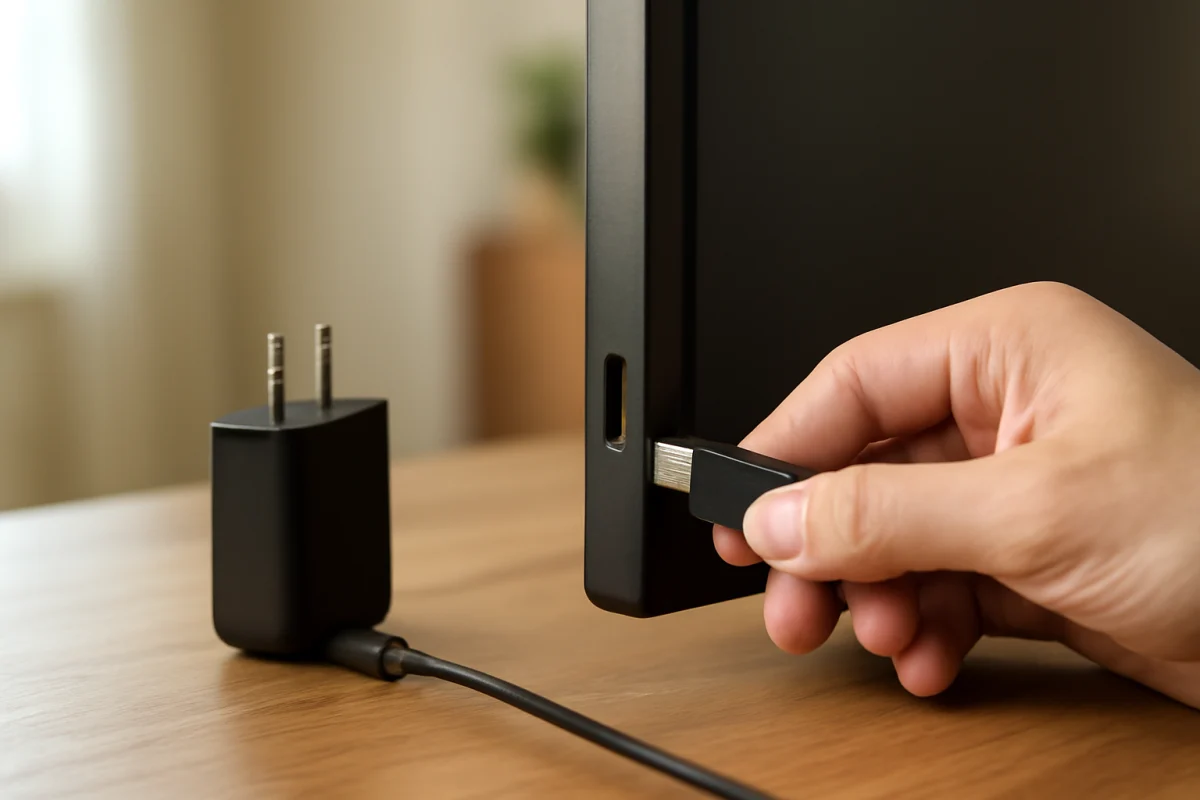
If your Roku TV says, “You’ll need to connect your USB to a power source,” the television is detecting that the connected USB device is not receiving enough power. This commonly happens with USB flash drives, portable hard drives, streaming accessories, LED lights, and other devices that draw more power than the TV’s USB port can provide.
Start by unplugging the USB device and reconnecting it firmly. If the warning returns, try a different USB device or connect the device to its own compatible power adapter instead of relying on the TV’s USB port. The exact behavior and available USB features can vary by Roku TV model, so avoid assuming that every port can power every accessory.
Why your Roku TV displays this USB power warning
A USB port on a Roku TV is not always designed to act as a general-purpose power source. Depending on the model, it may be intended mainly for reading media from a flash drive, powering a low-consumption accessory, or supporting a limited USB function. The port has a maximum amount of power it can safely deliver.
The warning can appear when:
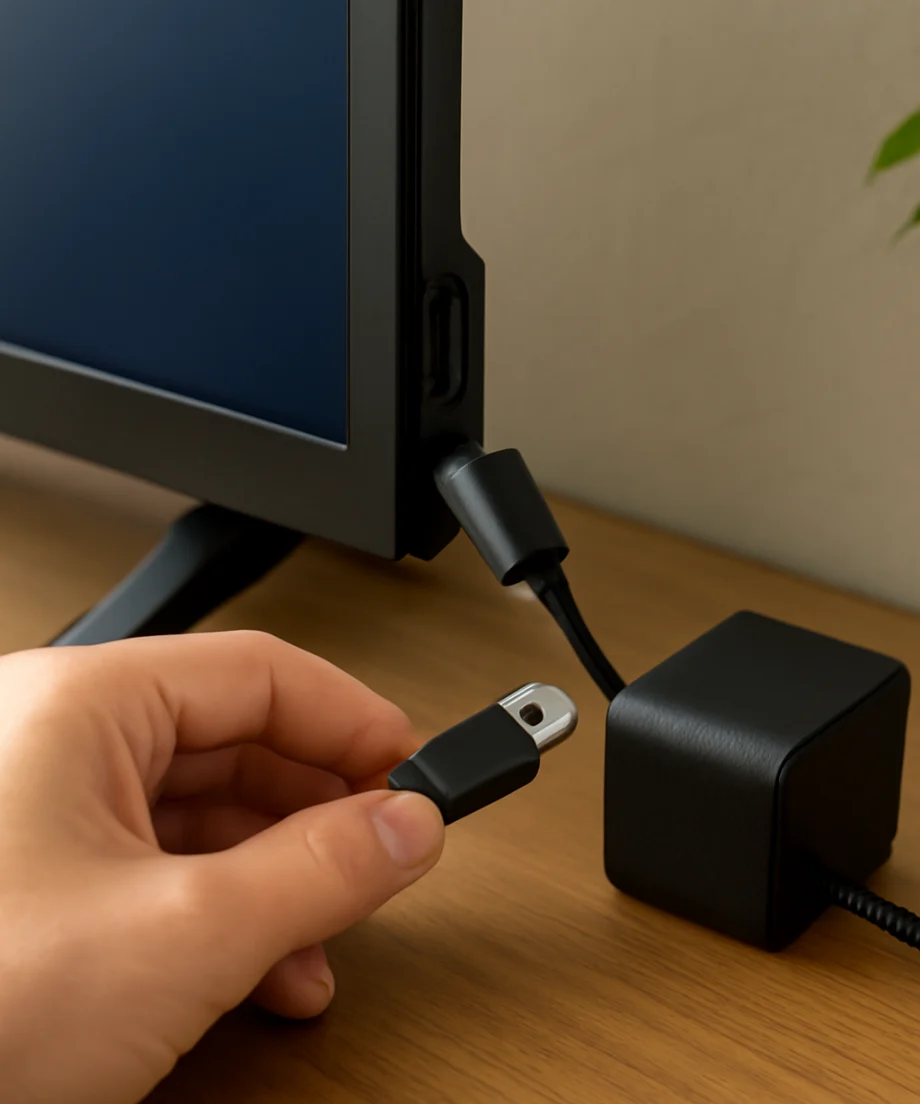
- The connected device needs more power than the TV’s USB port can supply.
- A portable hard drive requires a separate power adapter.
- The USB cable is damaged, too long, loose, or poorly connected.
- The device has a fault or is beginning to fail.
- The TV’s USB port has dust, physical damage, or an electrical problem.
- The USB device is connected through a hub, extension, adapter, or splitter.
- The television detects an accessory that is not fully compatible with its USB implementation.
This message does not necessarily mean that your Roku TV is broken. In many cases, it is a normal power limitation rather than a software failure.
Disconnect the USB device and test the TV
Begin with the lowest-risk check. Turn off or disconnect the accessory, then remove it from the TV’s USB port. Wait briefly and turn the television back on.
If the warning disappears when nothing is connected, the TV is likely reacting to the USB device or its cable. If the message remains with the port empty, inspect the port for debris or damage and continue with the power cycle steps below.
Do not force a connector into the port. USB plugs should slide in with moderate pressure and should not require bending or twisting. Forcing the plug can damage the port or the device.
Check the cable, adapter, and connections
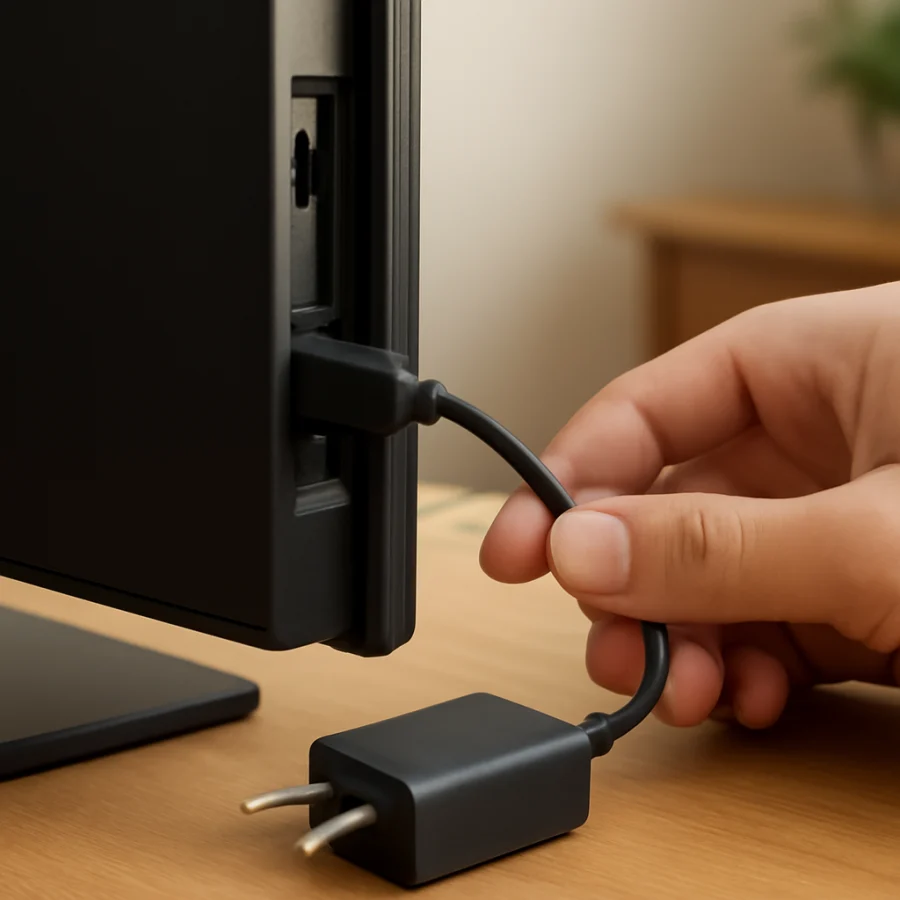
A cable problem can cause unstable power delivery. Examine both ends of the USB cable for bent contacts, fraying, crushed sections, or looseness. If the cable can be removed from the device, try another cable that is designed for the same type of connection.
For accessories that include a separate power adapter, connect the adapter directly to a wall outlet or to the power method specified by the accessory’s manufacturer. Do not use an adapter simply because its plug fits. The voltage, current, connector polarity, and output requirements must be compatible.
If the device uses a detachable USB cable, try connecting it directly to the Roku TV without an extension cable, hub, or splitter. Extra connections can increase resistance and cause the device to receive inconsistent power.
Test the USB device by itself
Try the same USB device on a computer or another compatible device. If it fails there too, the accessory or cable may be defective. If it works elsewhere but not on the Roku TV, the issue may involve compatibility, power requirements, file formatting, or the TV’s USB port.
Test the Roku TV with a basic, low-power USB flash drive if one is available. A flash drive usually requires less power than a portable hard drive, although the television’s supported file types and media features vary by model.
If one accessory triggers the warning but another works normally, the first device probably needs more power than the TV can provide or has a hardware fault. Avoid repeatedly reconnecting a device that becomes unusually hot, makes clicking sounds, smells burnt, or shows visible damage.
Portable hard drives may need their own power
Portable hard drives are a frequent cause of USB power warnings. Some drives draw more power during startup than the TV’s USB port can provide. Mechanical hard drives may also need a more stable power supply than a television port is designed to deliver.
If your drive includes a power adapter, use it. If it does not, check the drive documentation for its power requirements and compatibility guidance. A powered USB hub may help in some setups, but it is not guaranteed to work with every Roku TV or drive. The hub must also be compatible and properly powered.
Do not assume that a powered hub will fix a damaged drive, incompatible file system, or faulty cable. Power and data compatibility are separate issues.
Try another USB port only if your model has one
Some Roku TVs have more than one USB port, while others have only one. If your television provides another port, disconnect the accessory and test it there. A single port may have a loose connection or physical damage.
However, do not assume that all USB ports have identical capabilities. One port may support a different function, and the available power can vary by model. Check the television’s user guide or the support information for the exact model before using an accessory that requires significant power.
Perform a basic Roku TV power cycle
A power cycle can clear a temporary USB detection problem without removing your apps or account information.
- Turn off the Roku TV.
- Unplug the television’s power cord from the wall outlet.
- Leave it disconnected for about one minute.
- Reconnect the power cord directly to a reliable wall outlet.
- Turn the TV on and wait for the home screen to load completely.
- Reconnect the USB device and check whether the warning returns.
If the TV is connected through a surge protector, power strip, or switched outlet, temporarily test it from a wall outlet. This is only a troubleshooting step; use a properly rated surge protector if you normally rely on one and the outlet setup is safe.
Check for a software update
A software issue can occasionally affect how the television detects connected hardware. Roku TVs generally provide an option to check for system updates, but the wording and menu path can vary by model, software version, and manufacturer.
Use the TV’s system update area to check for an available update while the television is connected to the internet. Do not unplug the TV during an update. If you need help checking the software, see this guide to updating Roku TV software and checking the version.
An update may help with temporary detection problems, but it will not make a USB port safely provide more power than its hardware allows. If the warning occurs only with a high-power device, an external power source remains the more appropriate solution.
Inspect the USB port carefully
With the TV unplugged, use a flashlight to look inside the USB port. Check for lint, dust, bent contacts, or anything that appears loose. Do not insert metal tools, liquid, or sharp objects into the port.
If dust is visible, use only a gentle, dry method suitable for electronics. Avoid spraying cleaner or compressed air directly into the television unless the product instructions specifically support that use. If the port looks bent, recessed, scorched, or damaged, stop using it.
A damaged port can cause intermittent power, repeated warnings, or unusual behavior with multiple USB devices. Repairs involving the internal USB connection should be handled by a qualified technician rather than attempted while the TV is plugged in.
What not to do
- Do not connect a high-power accessory repeatedly after the TV warns about insufficient power.
- Do not use an unknown adapter with a different voltage or connector specification.
- Do not force a USB plug into the port.
- Do not open the television to inspect the USB circuitry unless you are trained to work safely with electronics.
- Do not factory-reset the Roku TV as a first step. A reset will not increase USB power output and may remove settings, apps, and account information.
When the warning points to a TV problem
The television may need service if the warning appears with several known-good, low-power USB devices, if the message remains when the port is empty, or if the port shows visible damage. Other warning signs include repeated restarts, a burning smell, unusual heat near the port, or a USB device disconnecting whenever the TV is moved.
Before contacting the TV manufacturer or a repair professional, note the exact Roku TV model, the connected accessory, the cable used, and whether the warning appears immediately or only after the device starts operating. This information can make the diagnosis more efficient.
The safest solution is usually external power
When the accessory works normally with its own approved power source, use that setup rather than trying to draw more power from the Roku TV. A low-power flash drive may work directly from the television, but portable drives, lights, hubs, and other accessories often have different requirements.
The key distinction is simple: the USB port may be able to communicate with a device without being able to power it reliably. Disconnecting the accessory, testing the cable and device separately, and using the correct external adapter can resolve the warning without changing the TV’s settings or performing a risky reset.



Comments
0No comments yet. Be the first to share a helpful note or question.
Leave a Comment
Your email address will not be published. Comments are reviewed before appearing on the site.