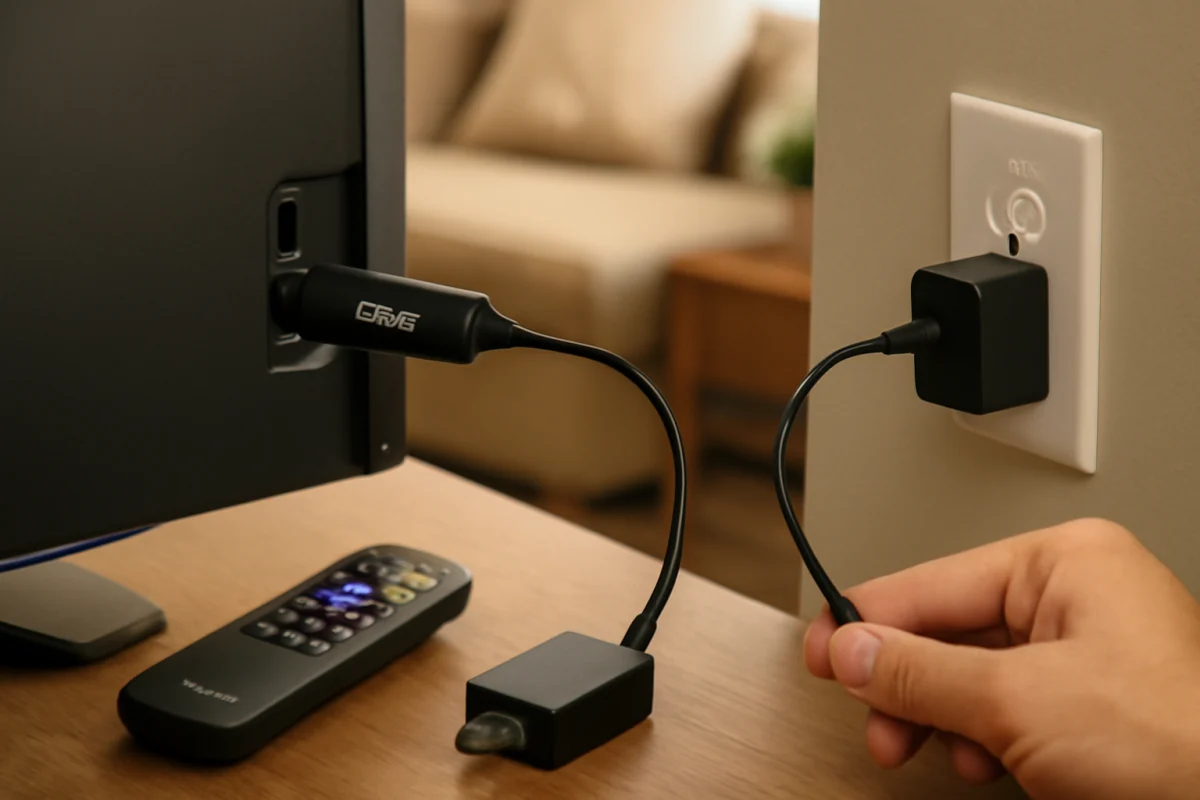
If your Roku says “low power,” the device is usually not receiving enough electricity through its USB connection. This commonly happens when a Roku streaming stick is plugged into a television’s USB port, especially when that port cannot provide steady power while the TV is running. The quickest fix is to connect the Roku directly to a wall outlet with its compatible power adapter and USB cable.
Before resetting the Roku or changing advanced settings, check the power source, cable, connections, and ventilation. The exact warning and available options can vary between Roku streaming players, Roku Streaming Sticks, and Roku TVs, so not every step applies to every model.
What the Roku low-power warning means
A Roku streaming device needs a stable power supply to start, connect to Wi-Fi, and keep running. If it detects that the available power is too weak or inconsistent, it may display a low-power message, show a warning on the screen, restart, freeze, or become unusually slow.
This is different from a weak Wi-Fi connection. A poor internet connection can cause buffering, but it normally does not produce a low-power warning. The message points first to the Roku’s electrical supply rather than your internet service.
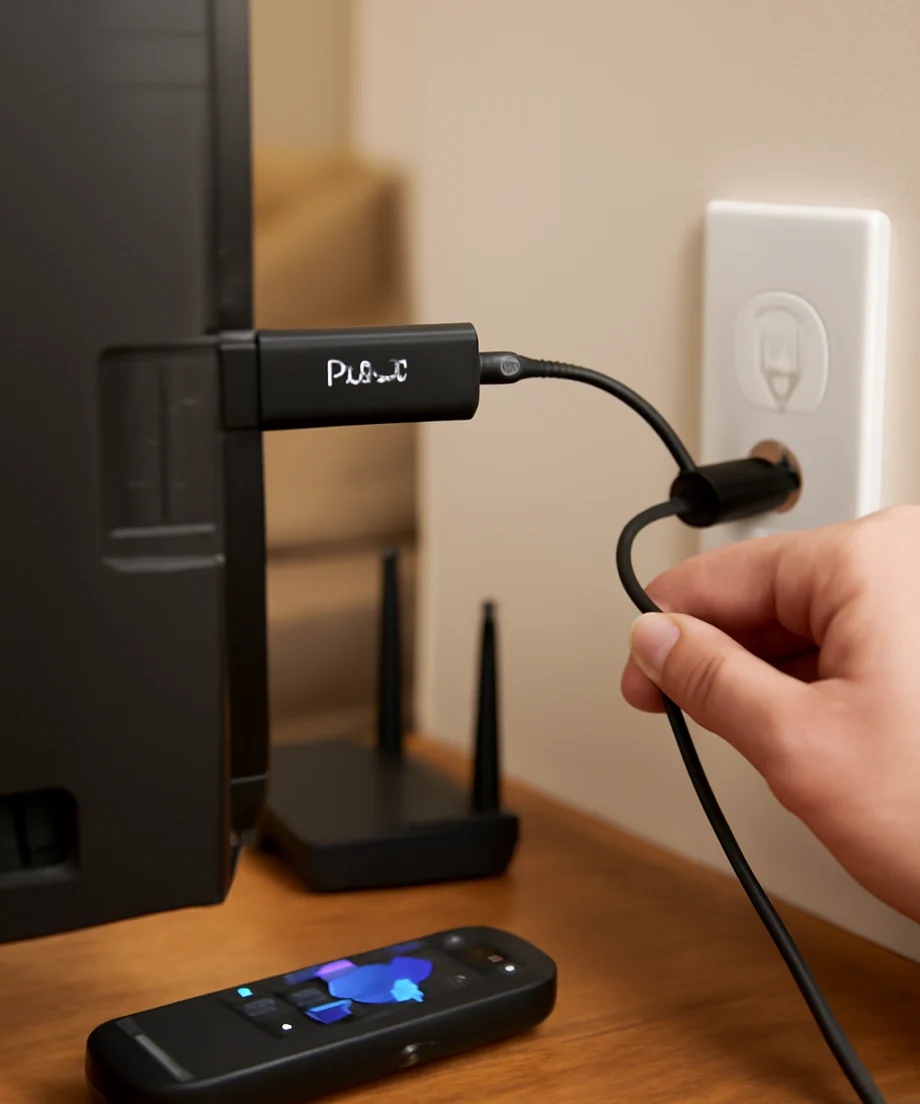
The most common causes include:
- The Roku is powered from a TV USB port that does not provide enough power.
- The USB cable is damaged, loose, too long, or not suitable for the device.
- The wall adapter or power outlet is unreliable.
- The Roku is connected through a USB hub, extension, or other accessory that limits power.
- The connector is not fully inserted into the Roku or power adapter.
- The device is overheating and showing symptoms that resemble a power problem.
- The Roku hardware or power adapter may be failing.
Use a wall outlet instead of the TV’s USB port
If your Roku is currently powered by the TV, unplug the USB cable from the television and connect it to a wall outlet using the Roku’s compatible power adapter. This is the most important test because many TV USB ports are intended for limited accessory power rather than continuously powering a streaming device.
- Turn off the TV and disconnect the Roku’s USB power cable.
- Plug the USB cable into the Roku and the compatible power adapter.
- Connect the adapter directly to a known-good wall outlet.
- Turn on the TV and wait for the Roku to start.
Avoid testing through a USB port on a soundbar, game console, cable box, or another streaming device. Those ports may provide less power or may stop supplying power when the connected equipment is in standby mode. Also avoid an unpowered USB hub while troubleshooting.
If the warning disappears after moving the Roku to a wall outlet, the TV’s USB port was probably the limiting factor. You can continue using the wall adapter as the normal power source.
Check the USB cable and both connections
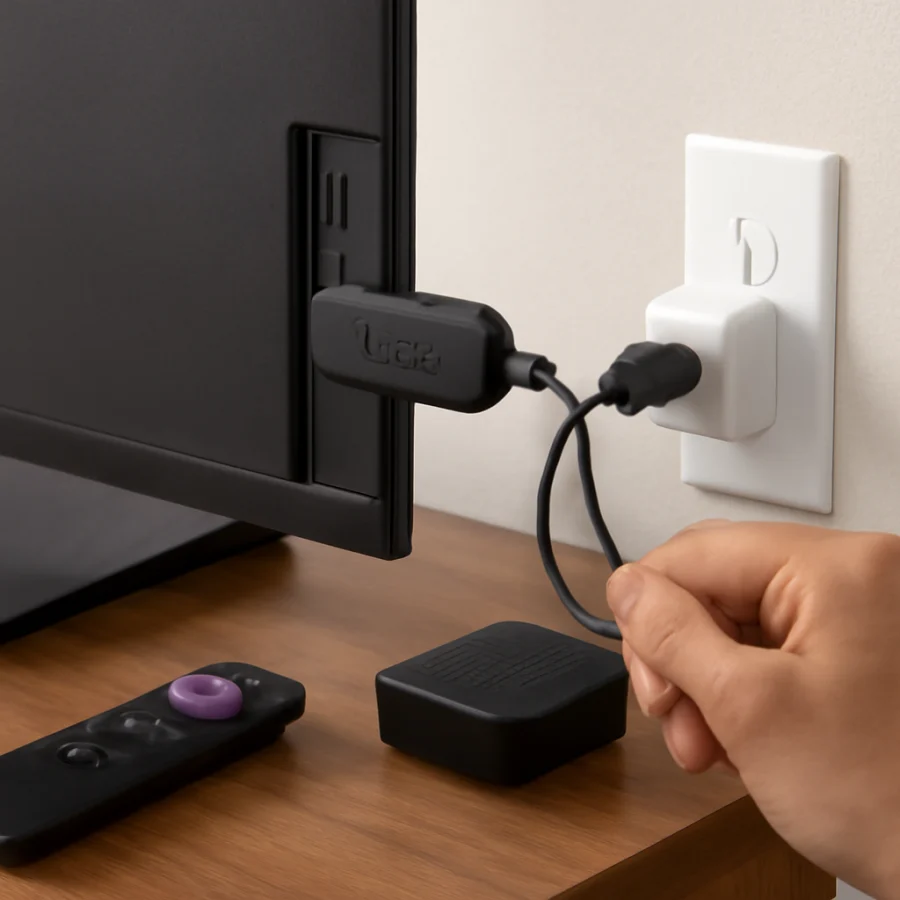
A cable can look normal and still cause a low-power warning if its internal conductors are damaged or its connectors do not make reliable contact. Inspect the entire cable for cuts, crushed sections, bent connectors, fraying, or signs of heat.
Disconnect and reconnect the cable at both ends. Make sure each plug is fully inserted without forcing it. If the Roku is mounted behind the TV, check that the cable is not sharply bent or pulled tight. A cable under tension can lose contact when the TV or Roku moves slightly.
If you have a compatible replacement USB cable, test it. Use one that fits securely and is suitable for powering the Roku model. Do not assume that every cable with the same connector has the same electrical performance. Very long, thin, or damaged cables are more likely to cause a voltage drop.
If the Roku came with a power adapter and cable, use those parts for testing whenever possible. If you need a replacement, match the requirements shown on the original adapter or the device documentation rather than choosing a random charger.
Try another wall outlet
The outlet may be loose, switched off, or affected by a power strip or surge protector. Plug the Roku’s adapter into another known-good wall outlet, preferably one that is not controlled by a wall switch.
If the Roku works from the new outlet, reconnect other devices one at a time. A faulty power strip, overloaded extension, or loose connection may be responsible. For a simple test, keep the Roku’s adapter connected directly to the wall instead of using an extension cord.
Do not use an adapter that becomes unusually hot, makes a buzzing sound, smells burnt, or shows physical damage. Disconnect it and replace it with a compatible part.
Restart the Roku after correcting the power source
After moving the Roku to a stable power source, perform a normal restart. If the device responds, use the restart option available in its settings. The wording and location can differ by Roku model and software version.
If the Roku is frozen, unplug its power cable from the wall outlet, wait about 30 seconds, and reconnect it. This is a power cycle, not a factory reset. It does not normally remove your account or installed channels, and it can clear a temporary startup problem.
Do not repeatedly unplug the device while it is installing an update or displaying a message that it is updating. Allow the process to finish first when possible.
Make sure the Roku is not overheating
Heat can cause restarts, sluggish performance, and other symptoms that may be confused with a power issue. Check whether the Roku is pressed against the back of the TV, enclosed in a cabinet, covered by another device, or placed near a heat source.
Move it to an open, ventilated position. Do not cover the Roku with fabric or place it directly on equipment that produces heat. Let the device cool down before testing it again. If the warning appears only after the Roku has been running for a while, overheating becomes more likely.
Never use liquid, metal objects, or aggressive tools to clean the ports. If dust is visible around the connectors, disconnect the device and gently clean the exterior without damaging the port.
Check whether you have a Roku TV or a separate Roku player
A Roku TV has Roku software built into the television, while a separate Roku player or Streaming Stick is an external device connected through HDMI. Their power symptoms are not identical.
If you use a Roku Streaming Stick or Roku player
Focus on the USB cable, adapter, outlet, and the device’s ventilation. If the player works correctly from a wall outlet but not from the TV’s USB port, continue using the wall adapter. If it shows the warning with multiple compatible cables and outlets, the player or adapter may need service or replacement.
If you use a Roku TV
A Roku TV normally receives its main power through the television’s power cord rather than a USB cable. Check that the TV’s power cord is firmly connected at the TV and wall outlet. If the television has a detachable cord, inspect both ends and test another outlet.
Some TVs also have energy-saving or power-management settings. These settings usually affect how the TV behaves when idle; they do not repair a damaged power cord or failing internal power supply. Menu names vary by manufacturer and model, so use the labels shown on your screen rather than following instructions for a different TV.
If a Roku TV repeatedly displays a power-related warning, turns off, or restarts even when connected directly to a reliable outlet, the issue may involve the TV’s power hardware. In that situation, avoid opening the television and arrange professional service.
Check for loose or damaged ports
With the Roku disconnected, look at the USB power port and cable plug. The plug should fit securely without excessive movement. A port that feels loose, has bent contacts, or only works when the cable is held at a particular angle may be damaged.
Do not force a connector or insert anything into the port. Repeatedly bending the cable to maintain power can worsen the damage. If a different compatible cable and wall adapter produce the same warning, the Roku itself may have a hardware problem.
Update Roku software only after power is stable
Software can cause unusual behavior, but an update is unlikely to fix a genuine shortage of electrical power. First establish a stable power connection. Once the Roku remains on reliably, check for available software updates through the device’s normal settings. The exact menu wording can vary by model and software version.
If an update fails because the device shuts down, return to the power checks before trying again. You can also review TV Fix Guide’s guide to checking and updating Roku TV software, but do not interrupt the device during an update.
When a factory reset is not the right first step
A factory reset removes personal settings, account information, network details, and installed channels. It cannot repair an underpowered USB port, damaged cable, bad adapter, loose outlet, or failing hardware. For that reason, do not reset the Roku while the low-power warning is still appearing.
Consider a reset only if the Roku has a stable power source, remains powered on, and continues having software-related problems after normal restart and update checks. Before resetting, make sure you know the email address and password used for the Roku account and any streaming services you use.
What to do if the warning keeps returning
If the warning continues, test the Roku in a simple setup: connect it directly to a known-good wall outlet with the original or a compatible replacement adapter and cable, keep it in an open area, and disconnect unnecessary accessories. This helps separate a power-source problem from a device problem.
If another cable and adapter solve the issue, replace the faulty accessory. If the same Roku shows low power from several reliable outlets with compatible power equipment, the device may have an internal fault. Contact the seller or Roku support for model-specific assistance, especially if the device is still covered by a warranty or return period.
For related troubleshooting, you can browse the Roku troubleshooting section or learn what to check when a Roku TV keeps restarting while streaming. The key point is simple: correct the power source first, then investigate software only if the Roku remains stable.



Comments
0No comments yet. Be the first to share a helpful note or question.
Leave a Comment
Your email address will not be published. Comments are reviewed before appearing on the site.