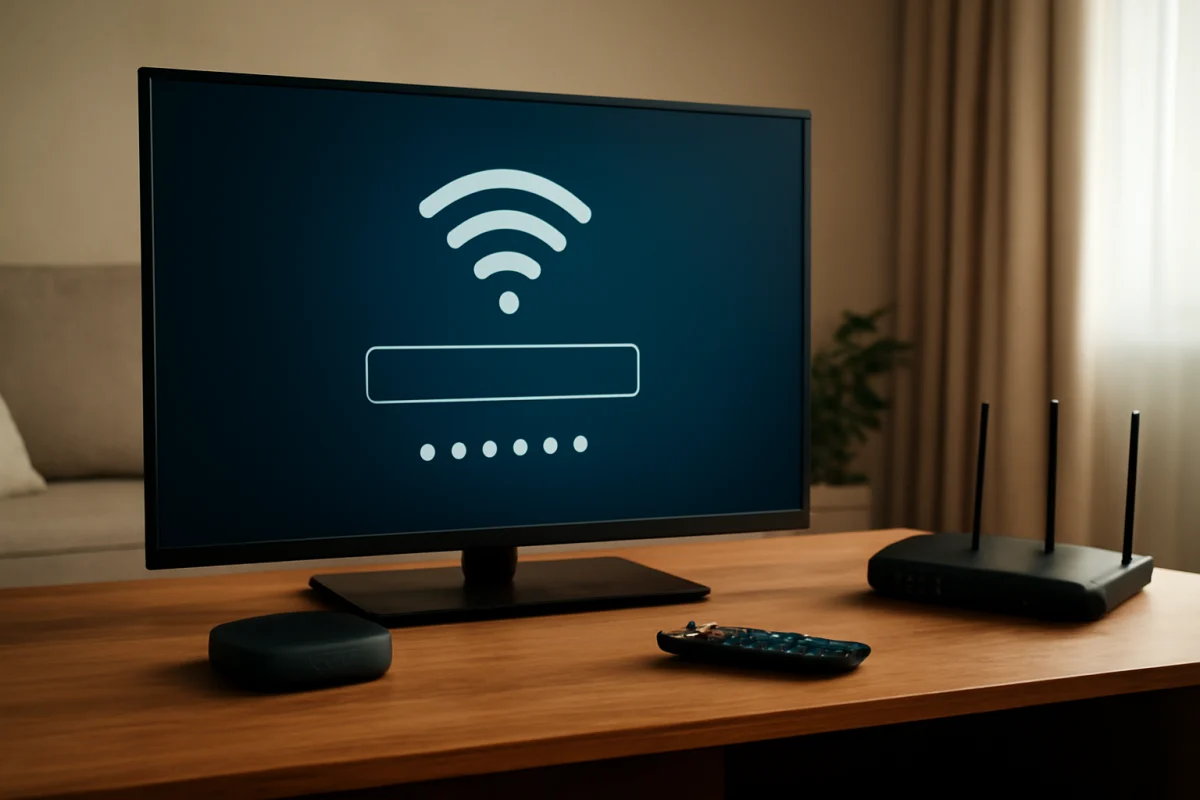
If your Roku TV says the Wi-Fi password is incorrect even though you know it is right, the password may not be the real problem. Roku TVs can show a password-related message when they cannot complete the connection for another reason, such as a weak signal, a router issue, an incorrect network selection, or a temporary software problem.
Start by checking that you are connecting to the correct network, then restart the TV and network equipment. If other devices connect normally but the Roku TV still fails, test the TV with a phone hotspot or another available network. That simple test can show whether the problem is with the television or your home Wi-Fi.
Why a Roku TV can reject a correct Wi-Fi password
A Wi-Fi connection requires more than matching the password. The TV must also find the correct wireless network, communicate with the router, receive a network address, and complete the security handshake. A failure at any of those stages can appear to the user as a password error.
Common causes include:
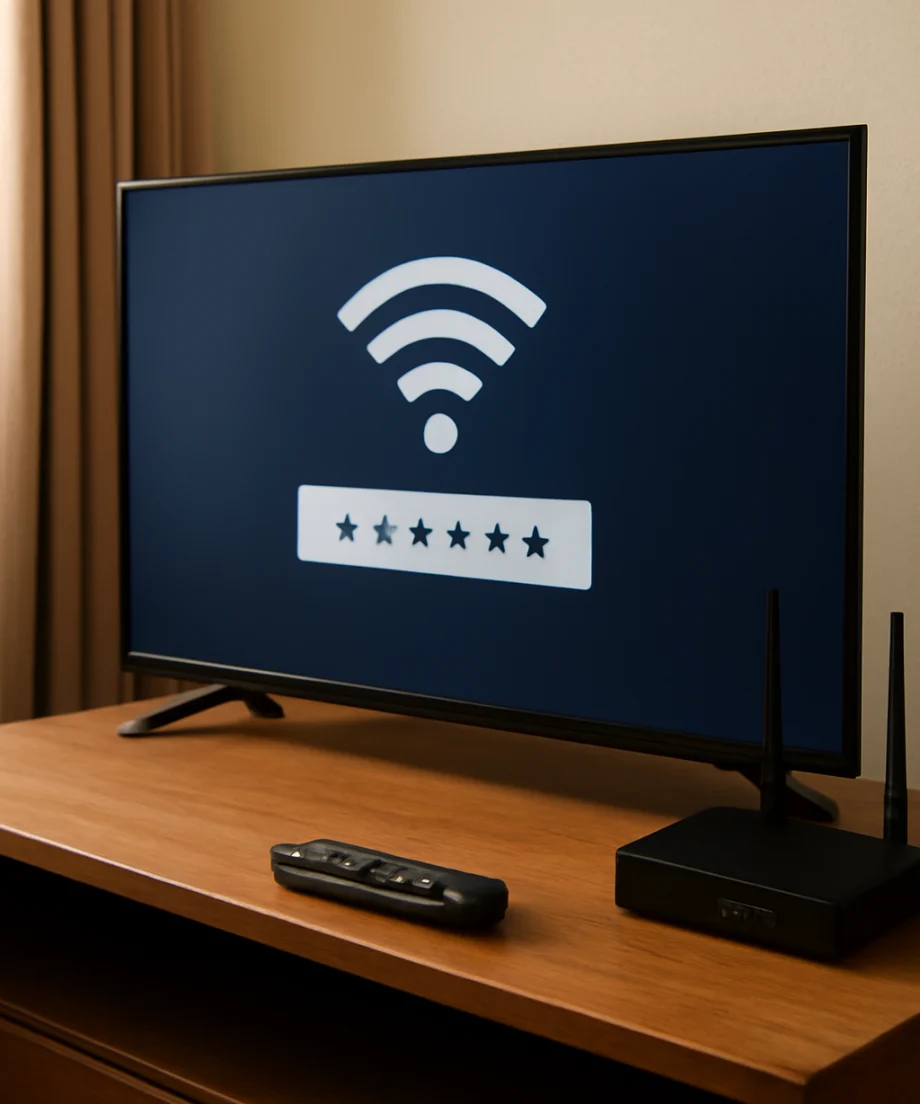
- The TV is trying to join a different network with a similar name.
- The password contains a typing mistake, an incorrect capital letter, or an extra space.
- The router is temporarily stuck or has too many connected devices.
- The TV is too far from the router or has an unstable wireless signal.
- The router's security settings are not working well with the TV.
- The saved Wi-Fi information on the Roku TV is corrupted or outdated.
- A recent router, password, or network-name change has not been fully applied.
Check the network name and password carefully
Before changing settings, confirm that the Roku TV is selecting your actual home network. Neighbors' networks, guest networks, Wi-Fi extenders, and mesh access points can have similar names. If your router broadcasts separate 2.4 GHz and 5 GHz networks, make sure you know which one you are selecting.
Enter the password again slowly. Wi-Fi passwords are case-sensitive, so uppercase and lowercase letters matter. Watch for characters that look alike, such as the number zero and the letter O, or the number one and a lowercase L. If the password is long, it may be easier to display it on another device or copy it from the router's management app, if that option is available.
Do not assume that the password printed on the router is still current. Someone may have changed the Wi-Fi password, or the router may have been replaced. Confirm the current password by connecting a phone or laptop to the same network and entering it manually rather than relying only on a device that was already connected.
Restart the Roku TV and router
A restart is one of the safest ways to clear a temporary connection failure. Turn the TV off, unplug it from the electrical outlet, and wait about one minute before plugging it back in. The exact startup behavior can vary by Roku TV model, and pressing the remote's power button may not always remove power completely.
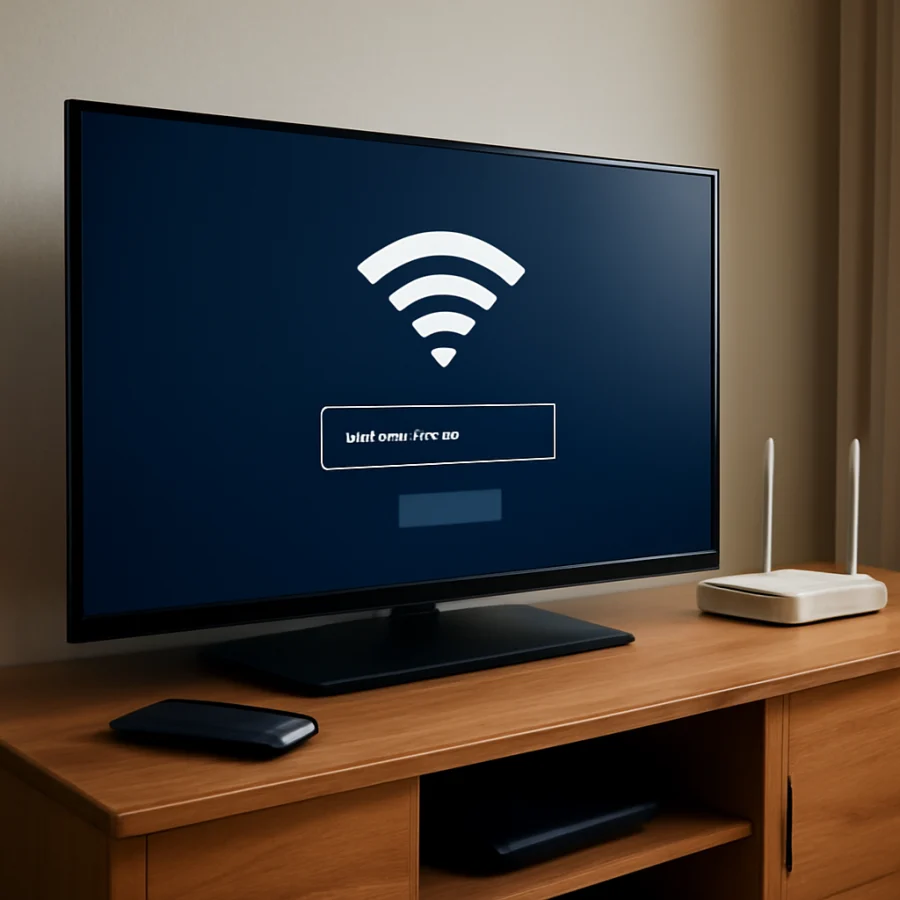
Next, restart the modem and router. Unplug both devices if they are separate. Wait until their indicator lights settle after reconnecting them, which can take several minutes. Then try connecting the Roku TV again.
Restarting the equipment can clear a stalled wireless service, renew the TV's network address, and remove a temporary communication problem. It will not change your Wi-Fi password or erase your installed apps.
Test the Wi-Fi signal near the TV
If the TV is far from the router, a weak or fluctuating signal can interrupt the connection process. For a quick test, move the router or TV closer together if practical, or temporarily bring a compatible phone or hotspot near the television. Large appliances, thick walls, metal furniture, and some electronic devices can also reduce wireless reliability.
Signal strength shown on a phone is not a perfect measurement of what the TV receives, because different devices have different antennas and wireless hardware. Still, if the connection works when the TV is closer to the router, distance or interference is probably part of the problem.
If you use a Wi-Fi extender or mesh system, temporarily try the main router's network. Extenders sometimes use a different network name, and a TV may move between access points less smoothly than a newer phone or computer.
Forget the saved network and reconnect
A saved Wi-Fi profile can become unusable after you change the router, rename the network, or update the password. Removing the saved connection forces the TV to create a fresh profile.
On many Roku TV models, network options are available from the Settings area, often under a network or internet connection section. The wording and menu path can vary by manufacturer and Roku TV model. Look for an option to set up, change, or reconnect the wireless network. If the TV offers a way to remove or forget the current network, use it and then select your network again.
If there is no separate forget option, choosing the option to set up the connection again may replace the old wireless details. Follow the on-screen prompts and enter the password carefully. Avoid changing several router settings at the same time, because that makes it harder to identify what fixed the problem.
Check whether other devices can connect
Try connecting a phone, tablet, or laptop to the same Wi-Fi network from the same general location as the TV. This comparison helps separate a TV-specific problem from a wider network problem.
If no devices can connect, focus on the modem, router, internet service, or the Wi-Fi password itself. If other devices connect but the Roku TV does not, focus on the TV's saved network information, software, signal compatibility, or router settings that affect this particular device.
A device that is already online does not always prove that the password is correct. It may still be using an older saved password or a different access point. When testing, disconnect and reconnect at least one device so it has to authenticate again.
Try a phone hotspot as a diagnostic test
A temporary mobile hotspot can help determine whether your home network is the cause. Create a hotspot on a phone, give it a simple temporary name and password, and try connecting the Roku TV. Keep the phone close to the TV during the test.
If the Roku TV connects to the hotspot, the television's Wi-Fi hardware is probably able to work, and the issue is more likely related to the home router, network configuration, signal, or security settings. If it cannot connect to the hotspot either, the problem may be on the TV side, although hotspot compatibility and mobile-data settings can also affect the test.
Turn the hotspot off after testing so it does not use mobile data unnecessarily. This test is for diagnosis, not a recommended permanent replacement for home broadband.
Review router settings without making risky changes
Router settings can affect whether an older or less flexible TV joins the network. If you recently replaced your router or changed its security configuration, compatibility may have changed even though the password stayed the same.
Check the router's connected-device list to see whether the TV appears briefly during the connection attempt. If it appears and then disappears, the TV may be reaching the router but failing during authentication or network setup.
Some routers allow separate network names for different wireless bands or provide a guest network. As a controlled test, try the other available home network if one exists. Do not disable security, remove the Wi-Fi password, or make broad advanced changes just to test the TV. If you are unsure which wireless security option to use, check the router manufacturer's documentation or contact your internet provider.
Also check whether access controls, device limits, parental controls, or MAC-address filtering are blocking the TV. These features vary by router and may prevent a new device from joining even when the password is accepted.
Install available Roku TV software updates
If the television can temporarily connect through another network, such as a hotspot, check for available system updates in its settings. Software update locations vary by Roku TV manufacturer and model, so use the network and system options shown on your screen rather than relying on an exact menu path from another television.
Updates can address connection bugs, but the TV must have a working internet connection to download them. Do not unplug the TV while an update is actively installing. If the TV cannot connect to any network, this step may not be possible until the Wi-Fi issue is resolved.
When to consider a network reset
A network reset is more disruptive than restarting the equipment, but it can help when the TV repeatedly retains unusable connection information. Depending on the model, a network reset may remove saved wireless networks and require you to reconnect afterward. It should not normally be your first step.
Look in the TV's network settings for a reset or setup option and read the on-screen warning before confirming. The exact name and behavior can vary. Write down your current Wi-Fi password before starting, and be prepared to reconnect the TV after the reset.
If the television is otherwise working and the only issue is Wi-Fi, avoid performing a full factory reset at this stage. A factory reset can remove personal settings, installed apps, and other customized preferences, and it may not solve a router compatibility problem.
Signs that the TV or router may need further help
Contact the router or internet provider's support if multiple devices lose Wi-Fi, the router repeatedly drops connections, or the TV connects but cannot reach the internet. Contact the Roku TV manufacturer or retailer's support if the TV cannot connect to any tested network, including a known-good hotspot, after a restart and network reset.
Before asking for help, note what you tested: whether other devices connect, whether the TV sees the network, whether a hotspot works, and whether the problem began after a router or password change. That information is more useful than repeatedly entering the same password.
Quick order of checks
- Confirm the correct network name and carefully re-enter the current password.
- Restart the Roku TV, modem, and router.
- Test the TV closer to the router and avoid an extender temporarily.
- Reconnect or forget the saved wireless network, if the TV provides that option.
- Try a phone hotspot to identify whether the home network is responsible.
- Check for TV software updates when another network is available.
- Use a network reset only after the simpler checks fail.
- Seek support if the TV cannot connect to any network or other devices also fail.
In most cases, a Roku TV password error is a symptom of a connection setup problem rather than proof that the password is wrong. Working through the checks in this order limits unnecessary resets and gives you a clearer answer about whether the fault is with the password, the TV, or the home network.
For more troubleshooting guides, visit the Roku section on TV Fix Guide or browse our practical Wi-Fi and network guides.



Comments
0No comments yet. Be the first to share a helpful note or question.
Leave a Comment
Your email address will not be published. Comments are reviewed before appearing on the site.