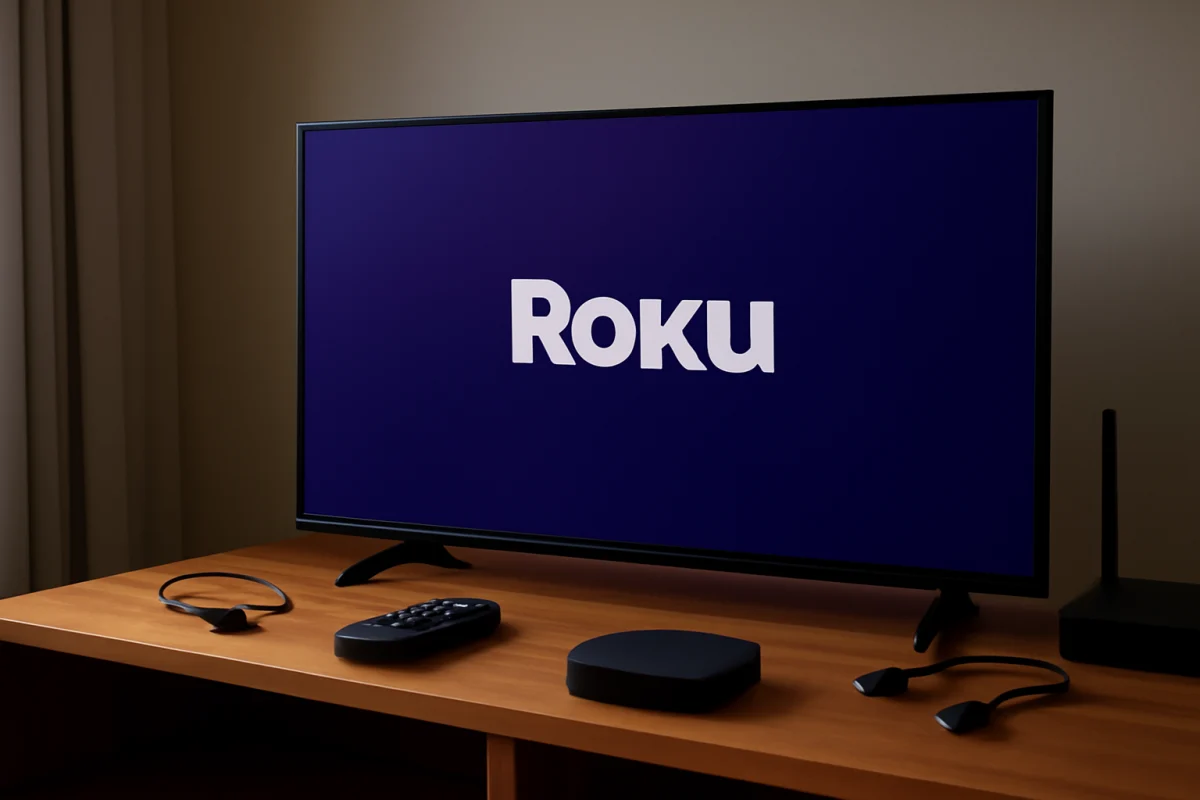
If your Roku TV is stuck on the Roku logo, start with a complete power cycle: turn the TV off, unplug it from the wall, disconnect external devices, wait several minutes, and plug it directly into a working outlet. If the logo still does not disappear, check the remote, HDMI devices, power connection, and recovery options before performing a factory reset.
A Roku logo that remains on screen usually means the television has not completed its startup process. The cause may be temporary software trouble, an unstable power connection, a connected device that is interfering with startup, or a hardware problem. Work through the low-risk steps below in order. The appearance of menus, buttons, and reset options can vary by Roku TV brand and model.
1. Give the TV time to finish starting
When a TV has just been unplugged, updated, or connected to a different outlet, it may take longer than usual to start. Leave the television on the Roku logo for several minutes without repeatedly pressing buttons on the remote.
If the screen eventually moves past the logo, watch for a pattern. A one-time delay may not indicate a serious fault. However, if the TV stays on the logo every time it starts, continue with the troubleshooting steps below.
2. Perform a full power cycle
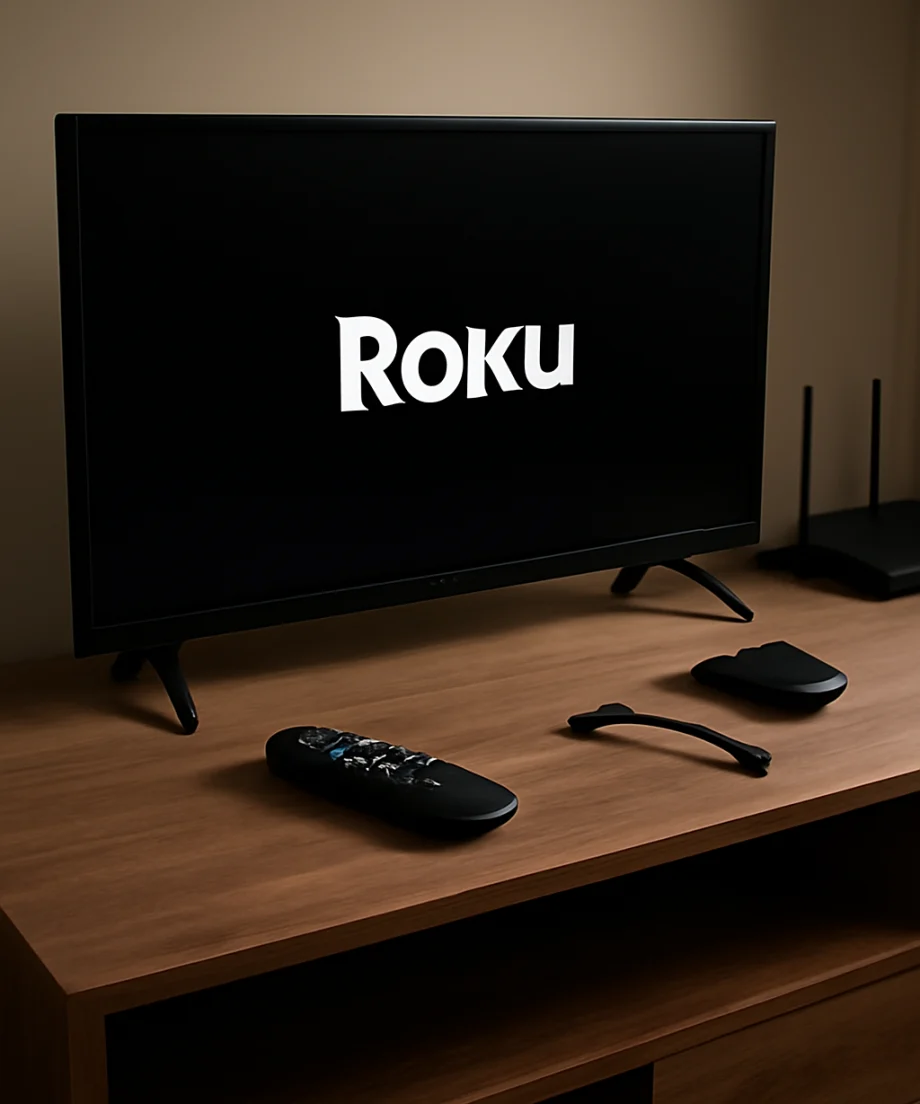
A normal press of the power button may place the TV in standby rather than fully restarting it. A power cycle removes temporary electrical and software states without deleting your settings.
- Turn the Roku TV off if it responds to the remote or the physical control.
- Unplug the TV power cord from the wall outlet. If the cord is detachable, leave the end connected to the TV unless the manufacturer’s instructions say otherwise.
- Disconnect all external devices, including streaming sticks, game consoles, Blu-ray players, USB storage, soundbars, antennas, and cable or satellite boxes.
- Wait at least two to five minutes. While the TV is unplugged, hold the TV’s physical power button for about 15 seconds if your model has one.
- Plug the TV directly into a known-good wall outlet, not a power strip or surge protector.
- Turn the TV on using its physical power button if possible, then wait several minutes.
Do not repeatedly unplug and reconnect the TV in quick succession. That makes it harder to tell whether the restart helped and can interrupt startup again.
3. Check the power connection and outlet
A loose plug or unreliable outlet can leave a TV stuck during startup. Confirm that the power cord is firmly seated at the wall and at the TV if the cord connects separately. Look for cuts, crushed sections, exposed wires, bent contacts, or signs of heat damage. Do not use a visibly damaged cord.
Test the wall outlet with a lamp or another simple device. If the outlet is controlled by a wall switch, make sure the switch is on. Try another outlet in the same room only if it is safe to do so, and avoid extension cords while testing.
If the TV turns on normally when connected directly to the wall, the power strip or surge protector may be involved. Replace or inspect that accessory before reconnecting the television.
4. Disconnect every external device
External equipment can sometimes interfere with startup, especially when HDMI control features or USB accessories are involved. A connected device may send a power command, fail to initialize correctly, or cause the TV to pause while detecting it.
With the TV unplugged, remove all HDMI cables and USB devices. Also disconnect optical audio cables, Ethernet cables, antenna cables, and other accessories for the initial test. Plug the TV back into the wall and start it with nothing connected except power.
If the TV starts normally, reconnect devices one at a time. Turn the TV off before adding each device, then test it again. The device or cable that brings the problem back is a strong suspect. Try a different HDMI cable or input when appropriate, and check whether the issue follows the device or stays with one TV port.
5. Test the remote and the TV’s physical controls
A Roku TV can appear frozen when the remote is not communicating with it, although an unchanged Roku logo usually points to a startup issue rather than only a remote problem. Still, rule out simple control problems.
- Replace the remote batteries with a fresh, correctly installed pair.
- Remove objects that may block the remote’s signal path.
- Press the TV’s physical power button or control button instead of the remote.
- If you use a Roku voice remote or another paired remote, keep it close to the TV during testing.
The location and function of physical buttons vary widely. Some TVs have a single multi-function button, while others place controls underneath, on the side, or behind the panel. Do not press a button repeatedly or force a recessed control.
6. Try the reset control carefully
Many Roku TVs have a small reset button or pinhole on the back or side. On some models, pressing it briefly may restart the TV, while holding it for a longer period may begin a factory reset. Because the behavior and required timing can differ, check the television’s manual or the manufacturer’s support documentation before holding the button.
A factory reset erases personal settings and information stored on the TV. This can include network details, installed apps, account sign-in information, picture preferences, and antenna or channel settings. It may also require you to complete the initial setup again. Do not begin a factory reset unless you are comfortable losing those settings.
If the TV’s instructions identify a safe restart procedure that does not erase data, try that first. Keep the TV connected to stable power and do not interrupt it while it is restarting.
7. Use recovery or reset options only when necessary
If the Roku logo remains after a full power cycle and the TV starts with all external equipment disconnected, a reset may be the next practical software step. The exact process depends on the Roku TV manufacturer and model. Some sets provide an on-screen reset option when the menus are accessible. Others rely on a physical button.
If you can reach the Roku settings before the problem returns, look for the system reset section using the wording shown on your TV. Menu names can change between models, so do not assume that instructions for one brand apply exactly to another.
Before resetting, write down your Wi-Fi password and make sure you know the login details for any streaming services you use. If the TV has an antenna, note any channel settings that you may need to recreate. After the reset, allow the television to complete setup without turning it off.
8. Consider a failed update or interrupted startup
If the problem began immediately after a power interruption, network change, or software update, the TV may have been unable to complete its startup process. Keep it connected to reliable power and allow extra time during one restart attempt. Do not unplug it while an update or recovery process is visibly running.
If the TV repeatedly returns to the logo but never reaches the setup or home screen, do not keep forcing restarts for hours. Repeated interruptions are unlikely to fix a damaged installation and may make diagnosis more difficult. At this stage, the manufacturer’s model-specific recovery instructions are more useful than generic button combinations.
9. When the problem may be hardware-related
Service may be necessary when the logo remains after a direct-wall power test, a full power cycle, removal of all accessories, and an appropriate reset attempt. Hardware is more likely if the TV also shows any of these signs:
- The standby light flashes in an unusual pattern or the TV repeatedly clicks.
- The screen briefly goes dark, restarts, or cycles between the logo and a blank display.
- The TV has a burning smell, visible damage, liquid exposure, or unusual heat.
- The power cord or connector becomes hot or appears damaged.
- The TV cannot stay powered on even with all external devices removed.
Unplug the TV and stop testing if you smell burning, see smoke, notice arcing, or find liquid inside or around the set. Do not open the back panel. Television power components can retain dangerous electrical charge, and internal repair requires appropriate training and equipment.
What to tell support or a repair technician
Before contacting support, record the TV brand and model number from the label or paperwork, if it is accessible. Describe exactly what happens: whether the logo is static, whether the screen restarts, whether the standby light changes, and whether the TV responds to its physical button.
Also mention which steps you have already tried, whether the TV was recently moved or exposed to a power outage, and whether it starts with every HDMI and USB device disconnected. This information can help prevent repeated basic instructions and may identify the correct model-specific recovery procedure.
How to prevent the issue from returning
Once the TV is working again, reconnect accessories one at a time and avoid using damaged cables. Keep the television connected to stable power and leave ventilation openings unobstructed. If you use a surge protector, make sure it is in good condition and does not have a loose switch or overloaded connection.
When the TV is installing an update or restarting, avoid unplugging it unless it has clearly stopped responding for an extended period and the manufacturer’s instructions recommend a power cycle. Keeping the TV software and connected equipment reasonably current can also reduce compatibility problems, although update availability and procedures vary by model.
Quick recovery checklist
- Wait several minutes to see whether startup completes.
- Unplug the TV for two to five minutes.
- Disconnect HDMI, USB, antenna, Ethernet, audio, and other accessories.
- Plug the TV directly into a known-good wall outlet.
- Test the physical TV button and replace remote batteries.
- Use a reset button or factory reset only after checking model-specific instructions.
- Stop and seek service if there is heat, burning, liquid damage, or repeated restart cycling.
In many cases, a Roku TV stuck on its logo recovers after a proper power cycle or after a problematic accessory is removed. If those steps do not help, avoid guessing at button combinations or opening the TV. The safest next step is model-specific support or qualified service, especially when the set cannot reach its menus after a reset.



Comments
0No comments yet. Be the first to share a helpful note or question.
Leave a Comment
Your email address will not be published. Comments are reviewed before appearing on the site.