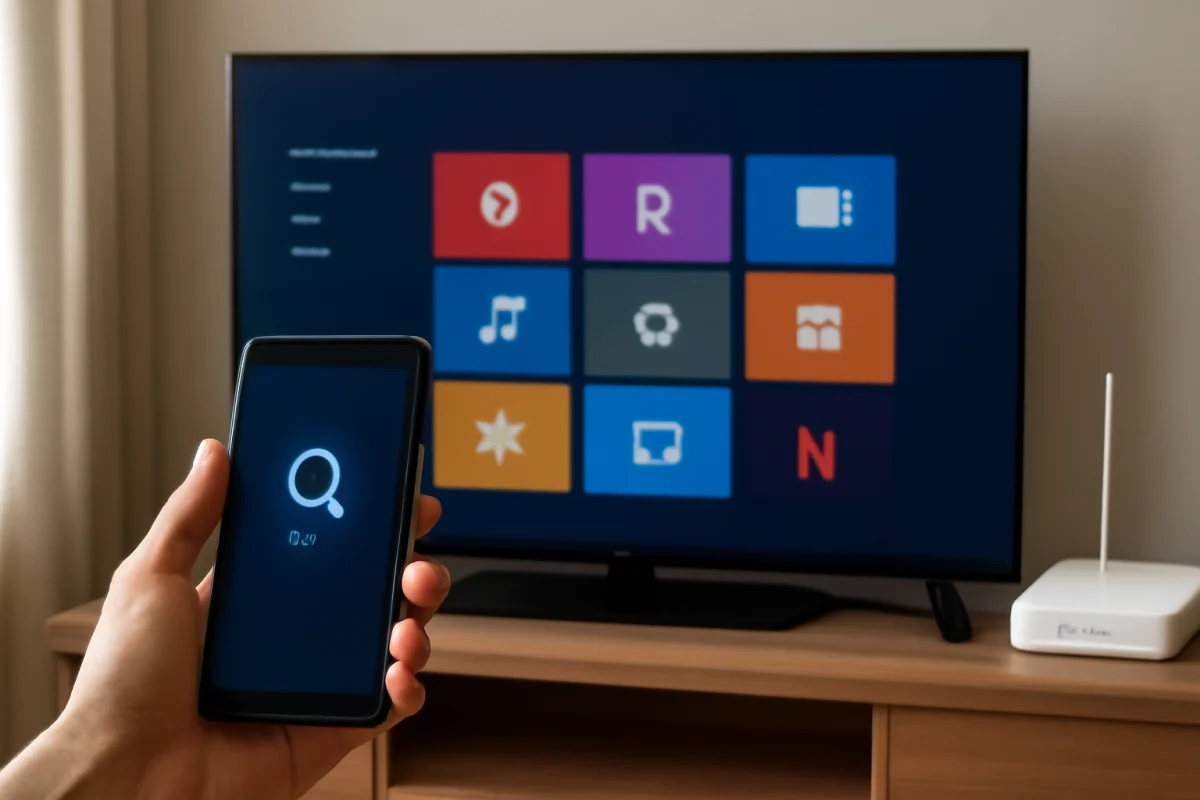
If the Roku mobile app cannot find your television, the most common cause is that the phone and Roku TV are not communicating on the same local network. Confirm that both devices are connected to the same home Wi-Fi, then check the app’s local-network permission, restart the network connection, and look for router settings that block communication between devices.
The Roku app does not normally discover a TV through the internet alone. Your phone and TV usually need to be connected to the same router and allowed to communicate with each other. A TV can appear to be online for streaming while remaining invisible to the mobile app because it is on a guest network, a different Wi-Fi band with isolation enabled, or a separate access point.
Start with the simplest checks
Make sure the TV is powered on and awake
Turn on the Roku TV with its physical button or regular remote before opening the mobile app. Some televisions reduce network activity while powered off, and discovery may not work until the TV is fully awake.
Keep the TV on the Roku home screen while testing. If it is stuck on an input screen, an app, or a loading state, wait briefly and then return to the home screen if possible. Also make sure the television is not in the middle of a restart or software update.
Check the phone’s Wi-Fi connection
On your phone, open the Wi-Fi settings and look at the connected network name. It should be the same network name used by the Roku TV. Do not rely only on the fact that both devices are in the same house; they may be connected to different networks managed by the same router.
For example, your phone may be connected to a guest network while the TV is on the main network. A phone using cellular data can also browse the internet normally but fail to discover local devices. Temporarily turn off cellular data, or enable airplane mode and then turn Wi-Fi back on, so the phone uses the intended home network while you test.
Open the Roku app again
Force-close the Roku mobile app and reopen it after confirming the network connection. On some phones, swipe the app away from the recent-apps screen. Then allow the app a little time to scan for nearby Roku devices.
If the app shows a list of devices, select the TV that matches the television in your home. If several Roku devices are nearby, temporarily turn off or disconnect the others so you can identify the correct one.
Confirm that both devices use the same network
Use the TV’s network settings to view the Wi-Fi network it is currently using. The exact menu wording can vary by Roku TV model and software version, but it is generally found in the TV’s settings under network or internet-related options. Check the connection status and network name rather than assuming the TV is still using the same Wi-Fi as before.
This matters if you recently changed your Wi-Fi password, replaced your router, renamed the network, or installed a mesh system. The TV may still remember an old network or may have connected to a different access point. If the TV is offline, reconnect it to the correct home network before trying the app again.
Likewise, check whether the phone has automatically joined a nearby extender, hotspot, or mesh guest network. Even when the network names look similar, the router may treat them as separate networks. Connect both devices to the same primary network for the initial pairing.
For more general connection checks, see our Wi-Fi and network troubleshooting guides.
Check permissions on your phone
The Roku app may need permission to find devices on the local network. If that permission was denied during setup, the app can open and stream content but fail to display your television.
On an iPhone
Open the phone’s Settings app and find the Roku app in the list of installed apps. Look for a Local Network permission and turn it on if it is disabled. The wording and location can change slightly between iOS versions, so use the Settings search field if necessary.
On an Android phone
Open Settings, choose Apps, select the Roku app, and review its permissions. The exact permission names vary by Android version and phone manufacturer. Look for nearby-device, local-network, or related access and allow it if the option is available. Also check whether the phone has restricted the app’s network activity or battery use in the background.
After changing a permission, close and reopen the app. If the app still cannot find the TV, restart the phone so the permission change is fully applied.
Restart the connection without resetting the TV
A temporary network discovery problem can often be cleared with a simple restart. First, close the Roku app. Then restart the phone and the router. Give the router time to restore internet service before testing the app again.
Next, restart the Roku TV using the restart option available in its settings if one is provided. If you cannot reach that option, unplug the TV from power, wait about a minute, and plug it back in. This is different from a factory reset: it does not erase your apps, accounts, or saved settings. Turn the TV on and wait until it is fully connected to Wi-Fi before opening the Roku app.
Restarting all three devices helps renew network addresses and clears a discovery process that may have stopped responding. It also makes the test more reliable than repeatedly tapping the app’s device-search button.
Look for router settings that block device discovery
If the phone and TV are definitely on the same network but the app still finds nothing, the router may be preventing devices from communicating locally. This is common on guest networks and can also happen when a security feature called wireless isolation, client isolation, or access-point isolation is enabled.
These settings are designed to prevent connected devices from seeing one another. That can improve privacy on a public or guest network, but it also prevents apps from discovering TVs, printers, speakers, and other devices at home.
Open the router’s management app or web interface and look for guest network settings, device isolation, wireless isolation, or similar options. The names vary by router brand, so do not change a setting unless you understand what it controls. For testing, connect both the phone and TV to the primary home network instead of the guest network. If you use a mesh system, check whether the phone and TV are being placed into separate network segments.
Some routers also offer separate 2.4 GHz and 5 GHz networks. Devices on different bands can often communicate normally, but certain router configurations prevent that communication. If you suspect this issue, temporarily connect both devices to the same band or combine the network names if your router supports that option.
Test whether the TV is actually online
Use the Roku TV to open a streaming app or another feature that requires an internet connection. If content cannot load, the issue may be the TV’s Wi-Fi connection rather than app discovery.
In that case, reconnect the TV to Wi-Fi and verify the password carefully. If the TV connects but streaming remains unreliable, move the router or TV closer together for testing, remove obvious sources of interference, and check whether other devices have the same problem.
If the TV streams normally but the mobile app cannot find it, focus on local discovery, permissions, and router isolation instead of repeatedly reconnecting the TV to Wi-Fi.
Check for a private network, VPN, or hotspot conflict
Turn off any VPN on the phone temporarily. Some VPN configurations route local traffic in a way that stops the app from reaching devices on your home network. Security or privacy apps can also restrict local-device discovery.
Make sure the phone is not acting as a hotspot and that the TV is not connected to the phone’s hotspot. A hotspot may provide internet access, but it is not always configured to allow the phone and connected TV to communicate in the way the Roku app requires.
If you use a work-managed phone, school network, or unusual privacy profile, local-network access may be restricted by the device administrator. Testing with another phone on the same home Wi-Fi can help determine whether the problem is limited to the original phone.
Try another phone to narrow down the cause
Install or open the Roku app on a second phone connected to the same primary Wi-Fi network. If the second phone finds the TV, the television and router are probably working, and the issue is likely related to permissions, VPN settings, or the original phone’s network connection.
If neither phone can find the TV, the problem is more likely to be the TV’s network status, router isolation, or a communication issue between the devices. This simple comparison can save time before you consider more disruptive troubleshooting.
Update the app and TV when appropriate
Check the phone’s app store for an available update to the Roku app. Also check the TV’s system settings for a software update option. Menu names and update controls can vary by Roku TV model, and an update may require the TV to restart.
Do not interrupt the TV during an update. If the TV reports that it is already up to date, continue with network troubleshooting rather than trying to install software manually from an unverified source.
When a factory reset is worth considering
A factory reset should be a last resort, not the first response to an app that cannot find the TV. Resetting the television removes saved network information, installed apps, accounts, and personal settings. You will need to complete the TV setup again afterward.
Consider a reset only when the TV repeatedly loses its network connection, refuses to join a known-working network, or remains undiscoverable after you have tested another phone and ruled out router isolation. Before resetting, write down the Wi-Fi password and make sure you can sign back in to any accounts used on the TV.
The reset procedure varies by model. Use the reset option in the TV’s settings when available, and follow the on-screen instructions. If the TV cannot be controlled normally, consult the documentation for that specific model rather than guessing which physical button sequence to use.
What to do if the Roku app still cannot find the TV
At this point, record what you have tested: the TV’s network name, the phone’s network name, whether another phone can discover the TV, and whether the TV can stream normally. This information helps identify whether the fault is in the phone, app, router, or television.
You can continue with the troubleshooting resources in our Roku guides or review related remote-control troubleshooting steps. If the TV is online but no device can discover it on a correctly configured primary network, contact the TV or router manufacturer using the model details and the results of these tests.
In most cases, the fix is straightforward: place the phone and TV on the same non-guest Wi-Fi network, grant the Roku app local-device access, disable isolation that blocks device-to-device traffic, and restart the connection. These checks address the common causes without erasing the TV’s settings.



Comments
0No comments yet. Be the first to share a helpful note or question.
Leave a Comment
Your email address will not be published. Comments are reviewed before appearing on the site.