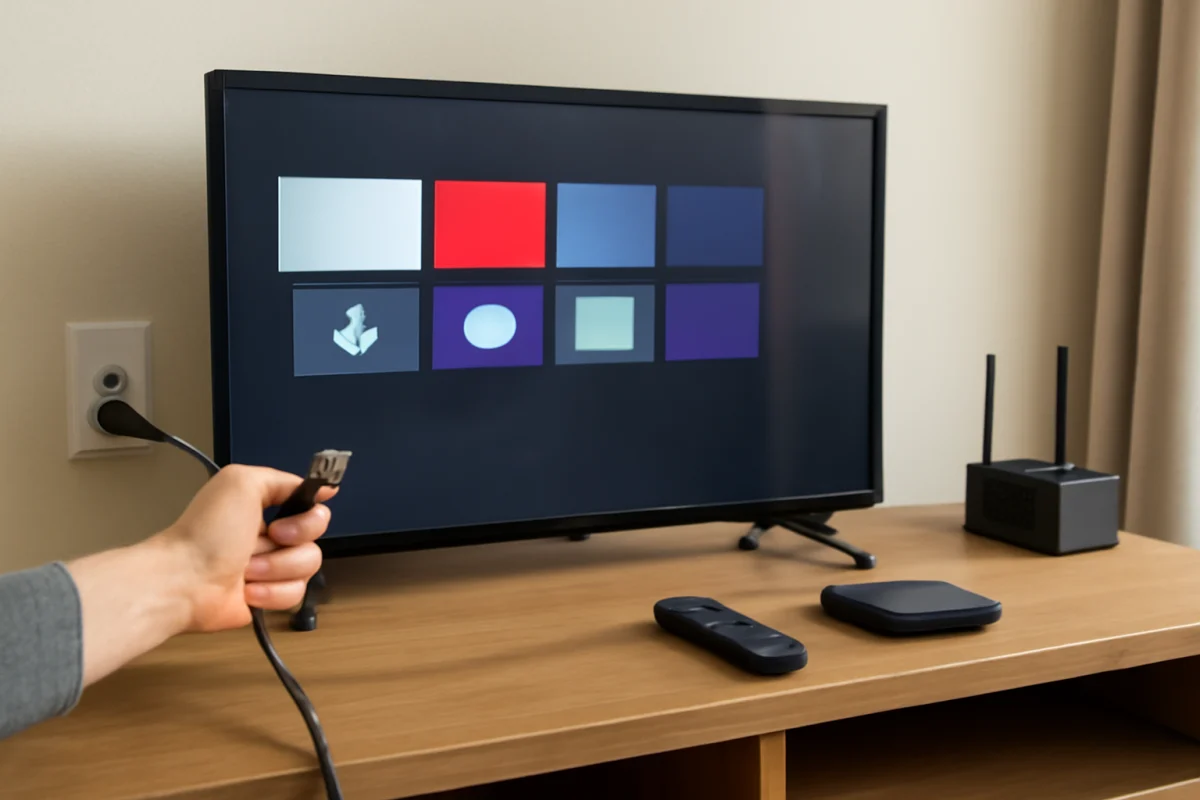
If your Roku TV screen is frozen, the safest first fix is a power cycle: unplug the TV from the wall, wait at least 60 seconds, and plug it back in. This clears temporary software and power-state problems without deleting your apps, accounts, or settings. If the remote still works, you can also try a restart from the Roku TV menus, but the exact menu wording may vary by TV brand and model.
Before trying a factory reset, work through the steps below in order. A frozen picture can come from the TV software, a connected device, the remote, or a temporary power problem. Identifying which part is actually stuck can prevent unnecessary resets and setup work.
First, check what is actually frozen
Look at the screen and try a few basic controls. Press the Home button on the Roku remote, then try the volume buttons. Watch the TV's status light if it has one, and listen for a response when you press a button.
- If the screen changes but one app is stuck, the problem may be limited to that app.
- If the Roku home screen, menus, and apps all ignore commands, the TV itself is probably unresponsive.
- If the TV responds to its physical controls but not the remote, check the remote before restarting the TV.
- If the screen is black but the TV appears to be on, the issue may involve power, input selection, or the display rather than a frozen Roku interface.
Also disconnect any device that may be causing confusion, such as a game console, cable box, soundbar, or streaming stick. You do not have to remove every cable immediately, but knowing whether the frozen image belongs to the Roku interface or an HDMI device is useful.
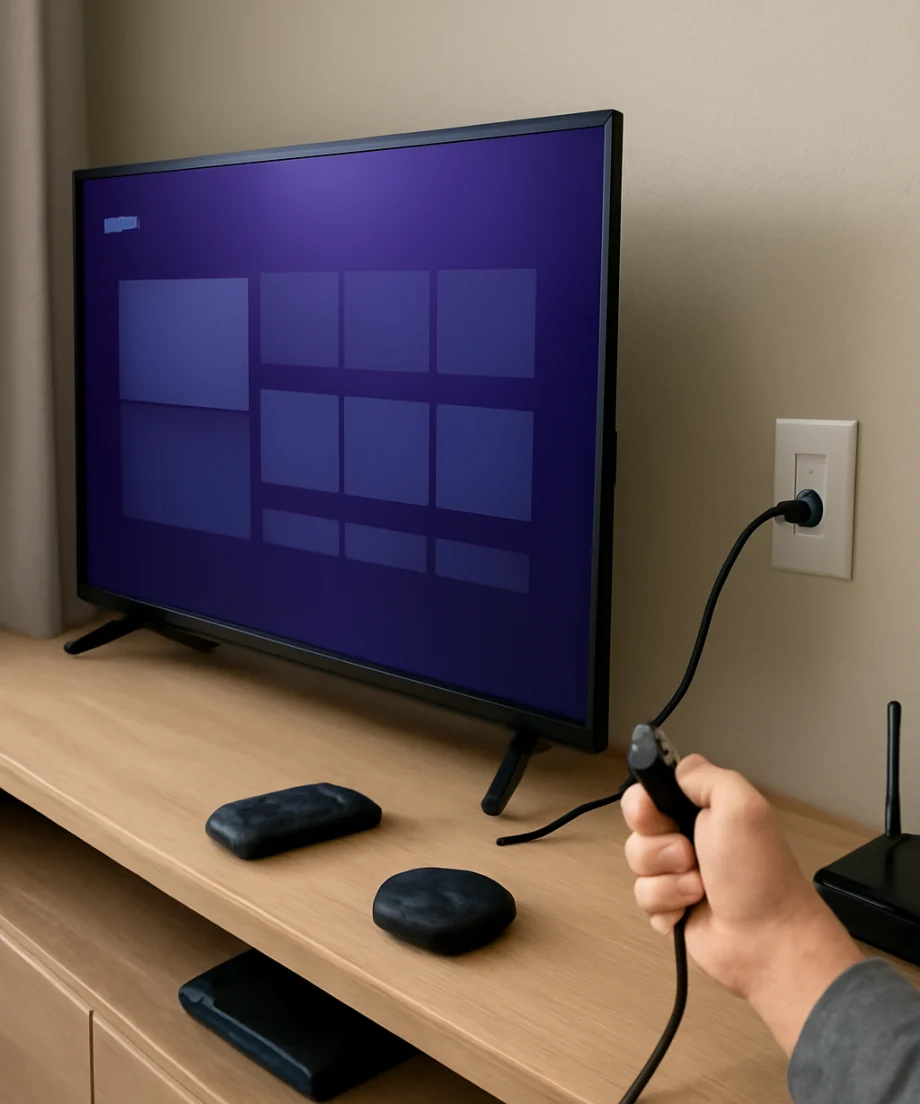
Restart a frozen Roku TV with a power cycle
When the remote and on-screen menus do not respond, use a full power cycle. This is different from simply pressing the power button on the remote. A TV in standby can retain part of its current software state, while removing power gives it a cleaner start.
- Turn off the TV with the remote if it still responds. If it does not respond, continue to the next step.
- Unplug the TV's power cord from the wall outlet or surge protector.
- Wait at least 60 seconds. Waiting longer is reasonable if the TV was hot or had been running for a long time.
- While the TV is unplugged, press and hold the TV's physical power button for about 10 to 15 seconds if your model has one. This is optional and is not available on every Roku TV.
- Plug the TV directly into a known-working wall outlet for this test. Avoid using a switched outlet that may be off.
- Wait for the TV to start. The Roku logo or startup screen may take longer than a normal wake-up.
Do not repeatedly unplug and reconnect the TV in quick succession. Give it time to complete its startup process. If the TV comes back normally, open a different app and move through a few menus to see whether the freeze returns.
Try a menu restart if the remote still responds
If you can move around the Roku interface, use the built-in restart option instead of cutting power. On many Roku TV models, it is found in a system or power section of Settings. Because manufacturers can change the layout and labels, the path may not be identical on every television.
Use the remote to open Settings, then look for a section related to System, Power, or restarting the TV. Choose the restart option and confirm it if prompted. Do not select a factory reset by mistake. A restart should preserve your installed channels and personal settings; a factory reset removes them.
If the screen is only partly responsive, allow several seconds after each button press. Sending many commands while the TV is busy can make it harder to tell whether the restart request was accepted.
Check the Roku remote before blaming the TV
A remote problem can look like a frozen Roku TV. Replace the batteries with a fresh pair, making sure they are installed in the correct direction. Try pointing the remote directly at the TV if it uses an infrared connection, and remove objects that may block the front sensor.
If your remote is paired wirelessly, the pairing process can vary by remote and TV model. Look for a pairing button inside the battery compartment or elsewhere on the remote, if one is present. Follow the instructions shown on the TV when possible. If the screen is frozen and you cannot see those instructions, complete the power cycle first and then try pairing again.
A Roku mobile app can sometimes act as a temporary remote, but it generally requires the phone and TV to be connected to the same local network. It will not help if the TV is completely unresponsive, disconnected from Wi-Fi, or still starting up.
For more remote-specific checks, see the TV Fix Guide remote controls section.
Disconnect HDMI devices and accessories
If the TV freezes when you switch to a particular input, start a console, or wake a cable box, an attached HDMI device may be involved. Turn off the TV, unplug its power, and disconnect external HDMI equipment. Leave only the TV's power connected, then perform the 60-second power cycle.
If the Roku interface works normally with the accessories removed, reconnect them one at a time. This can identify the device or cable that triggers the problem. Try a different HDMI input if one is available, and check that the cable is firmly connected at both ends.
Some HDMI features allow connected devices and the TV to turn one another on or change inputs. The setting names vary by brand, so check the TV's device-control or HDMI settings if the problem returns whenever an external device wakes up. You can also temporarily disable those features for testing.
What to do if the TV freezes again
A single freeze does not necessarily mean the TV is failing. Temporary software conditions, a problem inside one app, or an unstable network connection can all cause an isolated lockup. If freezing happens repeatedly, note what you were doing immediately beforehand.
Useful details include:
- Whether the freeze affects the home screen or only one streaming app
- Whether the remote, physical buttons, or volume controls still work
- Whether the TV freezes after waking from standby
- Whether an HDMI device was connected or recently turned on
- Whether the issue occurs during streaming, live TV, or all inputs
If one app is consistently responsible, restart the TV and then check that app for an available update. You can also remove and reinstall the app if the TV allows it. The exact options differ by Roku TV model and app, so read each confirmation screen carefully.
If several apps freeze, check the TV's system update area while it is working normally. Roku TV update controls and menu labels can vary, but keeping the software current may resolve problems already addressed by a later release. Do not unplug the TV while it is installing an update.
Network instability can also appear as an app freeze, especially when video stops but the rest of the interface remains usable. Restart your router, confirm that other devices can use the same network, and test the TV again. More network troubleshooting is available in the Wi-Fi and network troubleshooting guide.
When a factory reset may be appropriate
A factory reset should be a last resort, not the first response to a frozen screen. It removes installed apps, account information, network settings, picture preferences, and other personal setup details. You will need to go through the Roku TV setup process again afterward.
Consider it only after repeated power cycles, remote checks, app troubleshooting, and system updates have failed. Before resetting, write down your Wi-Fi password and make sure you know the sign-in details for the services you use. If the TV freezes before you can open its menus, do not guess at a button combination unless the TV's documentation specifically supports it. Reset procedures can differ between Roku TV manufacturers and models.
Signs the problem may be hardware-related
Contact the TV manufacturer or a qualified repair professional if the television will not power on after testing a known-working outlet, repeatedly shuts down, shows persistent lines or flickering, produces a burning smell, or makes unusual clicking sounds. Stop using the TV if there is a smell of overheating or visible damage.
If the TV restarts successfully but freezes again within minutes, especially across the home screen and multiple inputs, record the pattern before seeking support. Include the brand and model, what appears on screen, whether the physical button works, and which troubleshooting steps you already tried. These details can help support staff distinguish a software issue from a power or hardware fault.
The safest order to follow
For most frozen Roku TVs, use this order: check whether the remote or only one app is affected, perform a 60-second power cycle, test the TV with HDMI devices disconnected, check the remote and network, and then look for system or app updates. Reserve a factory reset for persistent problems and follow the instructions for your exact TV model.
These steps solve many temporary freezes without erasing your setup. If the TV remains unresponsive after a proper power cycle and behaves abnormally across every input, the next step is manufacturer support rather than repeated resets.



Comments
0No comments yet. Be the first to share a helpful note or question.
Leave a Comment
Your email address will not be published. Comments are reviewed before appearing on the site.