A black screen on a Westinghouse TV does not always mean the panel has failed. Start by checking whether the TV has power, whether the correct input is selected, and whether the on-screen menu appears. These simple checks can separate a source or connection problem from a problem inside the TV.
Work through the steps below in order. Avoid opening the television or changing advanced settings until you have completed the basic checks. Menu names and reset options can vary between Westinghouse models, so use the labels shown on your own screen and consult the manual for model-specific instructions.
First, check whether the TV is actually on
Press the power button on the TV itself, not only the remote. Depending on the model, the button may be underneath the lower edge, on the back, or along one side. Watch for a status light, a brief logo, a startup sound, or any change in the screen.
- If the standby light does not appear, check the outlet and power connection first.
- If the light changes but the screen remains dark, continue with the picture and input checks.
- If the TV turns on and then immediately shuts off, unplug external devices and continue testing with only the TV connected.
Make sure the power cord is firmly connected at both ends. If the cord is removable, disconnect it and reconnect it securely. Plug a lamp or another small device into the same outlet to confirm that the outlet works. If the TV is connected to a surge protector, power strip, or wall switch, temporarily connect it directly to a known-working wall outlet.
Perform a safe power cycle
A complete power cycle can clear a temporary startup or communication problem without erasing your settings.
- Turn the TV off.
- Unplug the TV from the wall outlet.
- Wait at least 60 seconds.
- While the TV is unplugged, press and hold its physical power button for about 15 seconds if the button is easy to access.
- Reconnect the TV directly to the wall outlet.
- Turn it on using the TV's physical button.
If the picture returns after this process, the problem may have been a temporary power or software state. If the screen stays black, continue rather than repeatedly cycling the power.
Press Home or Menu to test the TV's own picture
Press the Home, Menu, or Input button on the remote. You can also try the corresponding physical button on the television. This test is important because it shows whether the TV can display its own interface.
If the menu appears
The panel is producing a picture, so the issue is probably related to the selected input, an HDMI device, or a cable. Select the input that matches the device you want to use, then check that device separately.
If the menu does not appear
The problem may involve the TV's backlight, display electronics, power system, or internal software. Before assuming a hardware failure, complete the flashlight test and the remaining low-risk checks below.
Try every input and check the source device
A blank screen can occur when the TV is set to an empty HDMI port or when a connected device is asleep. Press the Input or Source button and move through the available inputs one at a time. Pause briefly on each input to see whether a signal appears.
For an HDMI source, confirm that the device is powered on. A streaming player, game console, cable box, or Blu-ray player may need its own power button pressed. Check for a light on the device, and try waking it with its remote.
Disconnect the HDMI cable from both the TV and the source, then reconnect it firmly. If possible, test a different HDMI cable and a different HDMI port. Do not assume that a cable is good simply because it worked previously; cables and ports can develop intermittent faults.
For this test, disconnect all other devices from the TV. Leave only the power cord connected, then open the TV menu. If the menu works with the external equipment removed, reconnect devices one at a time to identify the source of the problem.
Check the remote and brightness controls
If the TV responds slowly or not at all, replace the remote batteries and make sure no object is blocking the remote sensor. Use the physical buttons on the TV to rule out a remote-control problem. A remote issue will not normally cause a true loss of picture, but it can prevent you from selecting the correct input or changing a setting.
If the menu is visible but video is extremely dark, open the picture settings and look for brightness, backlight, energy-saving, or picture mode controls. The exact names and available options differ by model. Raise the brightness or backlight gradually and check the result. Avoid changing multiple advanced picture options at once, because that makes the cause harder to identify.
Use a flashlight test for a very dark screen
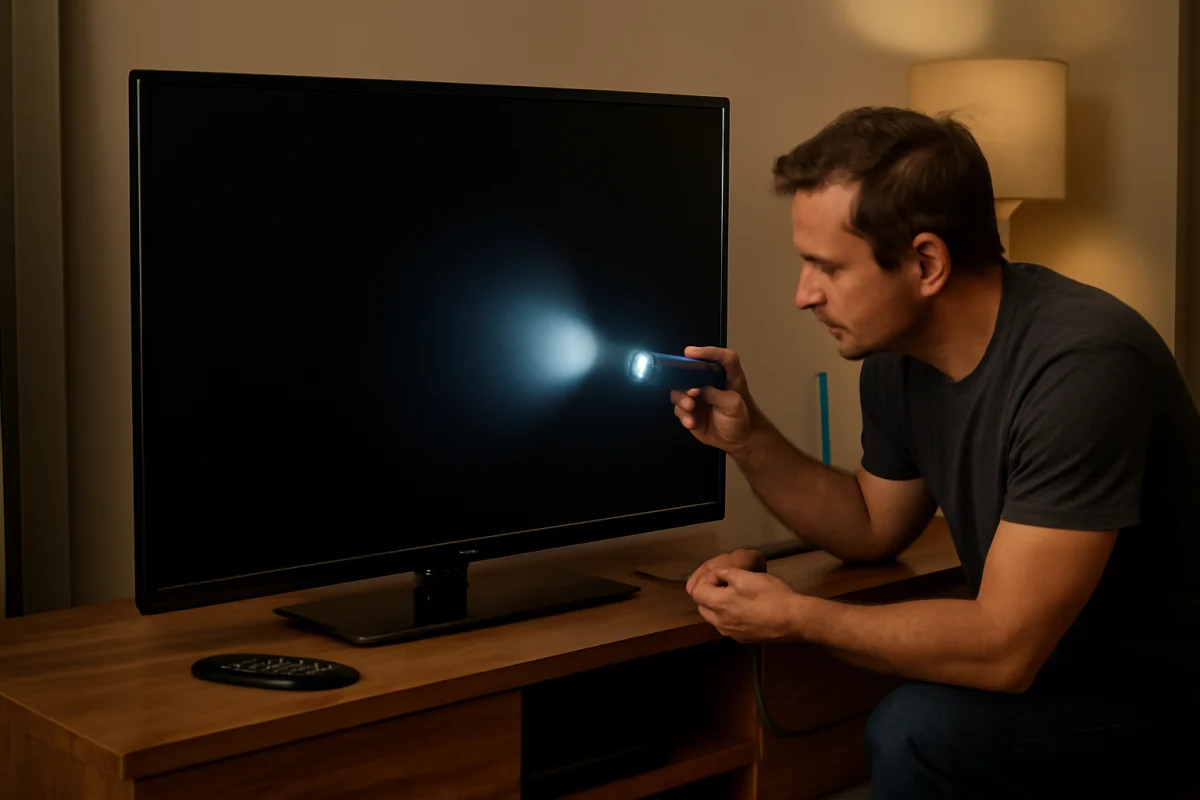
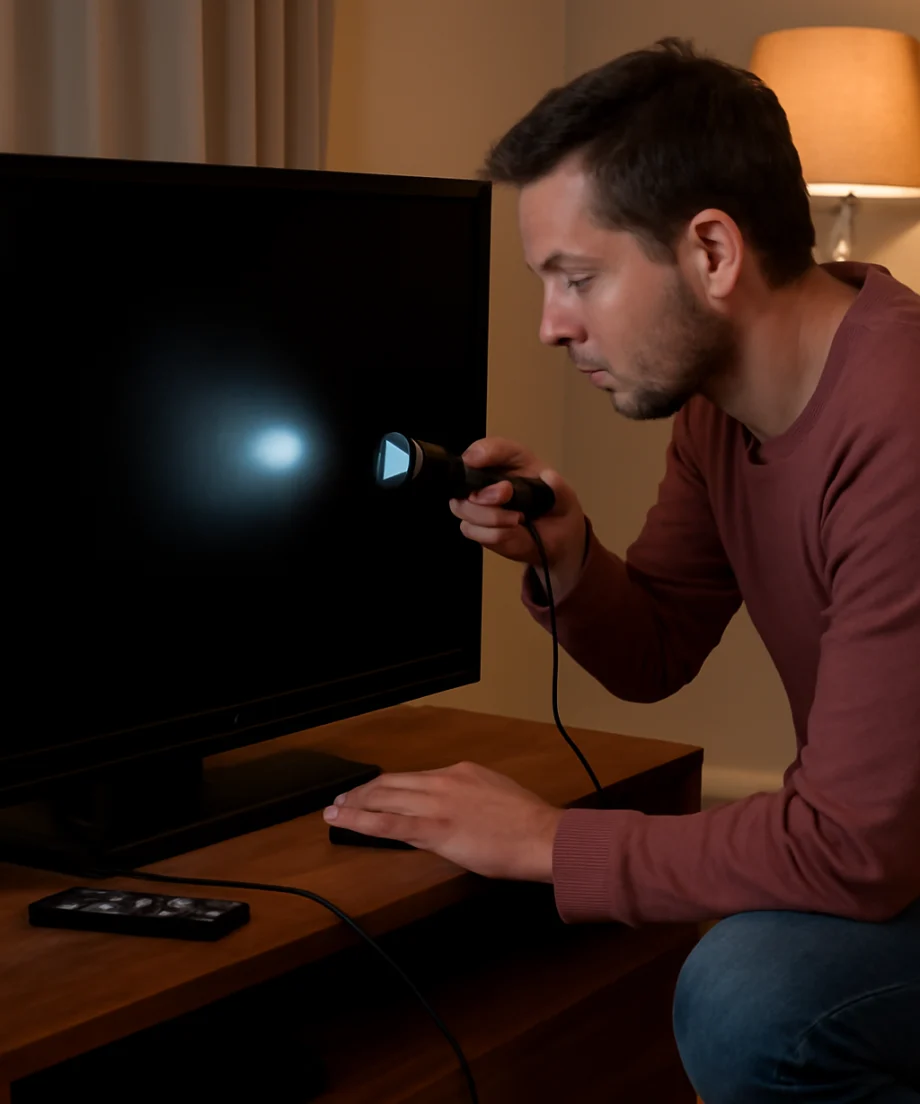
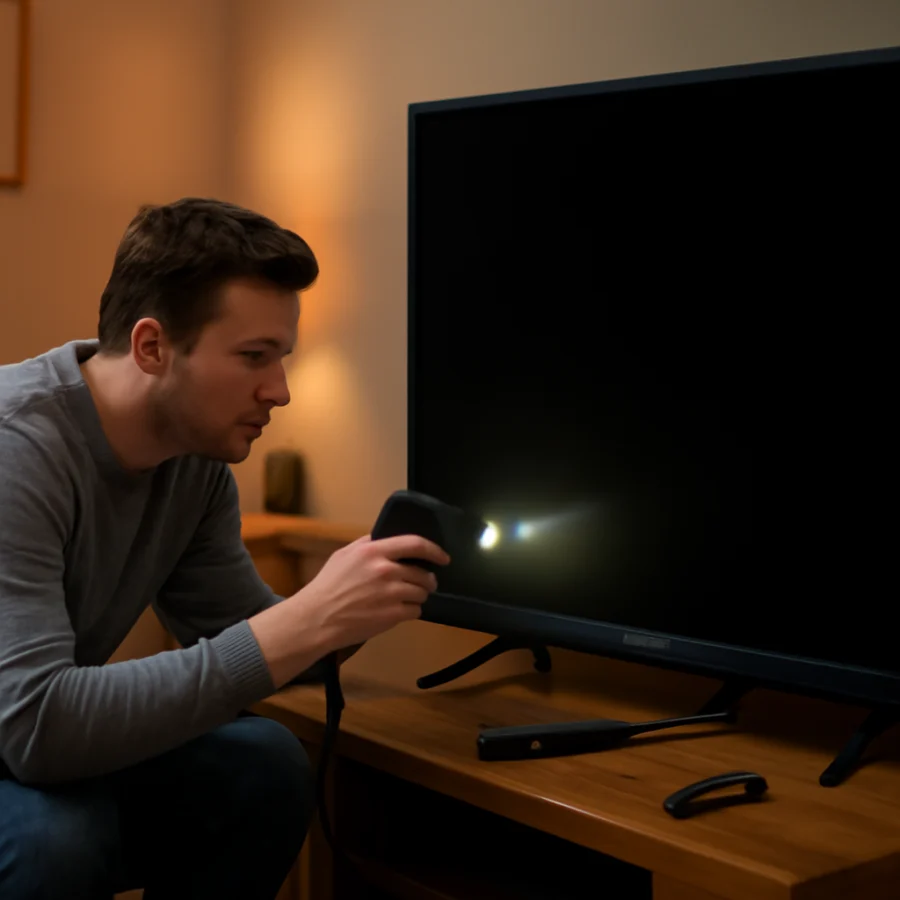
If you can hear sound but the screen appears completely black, the TV may have a backlight problem. In a dim room, turn the TV on and play a source that should produce moving video. Shine a flashlight at an angle against the screen, rather than directly into it. Look closely for a faint image, menu, or moving shapes.
If a very faint picture is visible, the LCD panel may be working while the backlight system is not. This can point to failed LED strips, a backlight power problem, or another internal fault. The exact cause cannot be confirmed safely from outside the TV.
If you do not see any image during the test, the problem may still be inside the TV, but it could involve a different part of the display system or the source signal. Do not press hard on the screen or remove the back cover. Internal components can retain hazardous electrical energy even after the TV has been unplugged.
Check whether sound is present
Sound helps narrow the diagnosis:
- Sound with no visible picture: Check the flashlight test and brightness settings. A backlight or display problem becomes more likely.
- No sound and no picture: Recheck power, the outlet, the selected input, and the TV's response to its physical buttons.
- Picture appears briefly and then disappears: A backlight, overheating, power, or internal hardware issue may be involved.
- Only one external device has a black screen: Focus on that device, its cable, and its input port.
If the TV's menu is visible but an app or connected device is black, the display itself is probably not the main problem. In that situation, troubleshoot the specific source or review our streaming app troubleshooting guides when the issue occurs inside an app.
Disconnect accessories and test the TV by itself
USB drives, soundbars, receivers, game consoles, HDMI switches, and streaming devices can sometimes interfere with startup or input detection. Turn the TV off, unplug every accessory, and leave only the TV's power cord connected. Turn it on and try to open the menu.
If the picture returns, reconnect one accessory at a time. The screen may go black again when you reconnect the device causing the conflict. Pay particular attention to HDMI receivers and switches, because they can route a blank signal even when the source device is operating.
Consider a software reset only after basic checks
If the TV displays its menu but behaves incorrectly, a software restart or factory reset may help. Look in the settings for a restart, reboot, reset, or restore option, but do not assume every Westinghouse model uses the same menu path. A factory reset usually removes saved Wi-Fi details, installed apps, picture settings, and other personal preferences.
Use a factory reset only when you can navigate the menu and understand what will be erased. If the screen is completely black and you cannot see the instructions, avoid guessing at button combinations. Reset procedures can differ by model, and an incorrect sequence may make troubleshooting more difficult.
Do not install firmware from an unofficial website or from a different model. If the TV can access its settings, check whether an update is available through the TV's built-in update feature or follow the instructions for your exact model. If the TV cannot display a menu, contact Westinghouse support or use the model manual before attempting any update.
When the black screen likely needs repair
Professional service is the safer next step when the TV has no picture after a power cycle, shows a faint image during the flashlight test, clicks repeatedly, shuts off, or displays a picture for only a few seconds. A failed backlight, power board, main board, or display connection can produce similar symptoms, so replacing parts based only on the symptom may waste money.
Also arrange service if the TV smells burnt, makes unusual buzzing sounds, shows signs of liquid damage, or has visible damage to the screen or power cord. Unplug it and do not continue testing if there is smoke, a burning smell, or a damaged cord.
Record the model number from the label on the back of the TV and note exactly what happens: whether the standby light is on, whether sound works, whether the menu appears, and whether a flashlight reveals a faint picture. This information can help a technician identify the likely circuit more quickly.
What to do next
In many cases, a black Westinghouse TV screen is caused by the wrong input, a disconnected HDMI cable, a sleeping source device, or a temporary power state. Those problems can often be corrected without changing advanced settings. If the TV's own menu never appears, or if the flashlight test reveals a faint image, the issue is more likely to require inspection of the TV's internal hardware.
For related television troubleshooting, visit the Westinghouse TV repair section. If other devices in your home are also losing their connection or streaming quality, see our Wi-Fi and network troubleshooting guides before blaming the television.
Comments
0No comments yet. Be the first to share a helpful note or question.
Leave a Comment
Your email address will not be published. Comments are reviewed before appearing on the site.