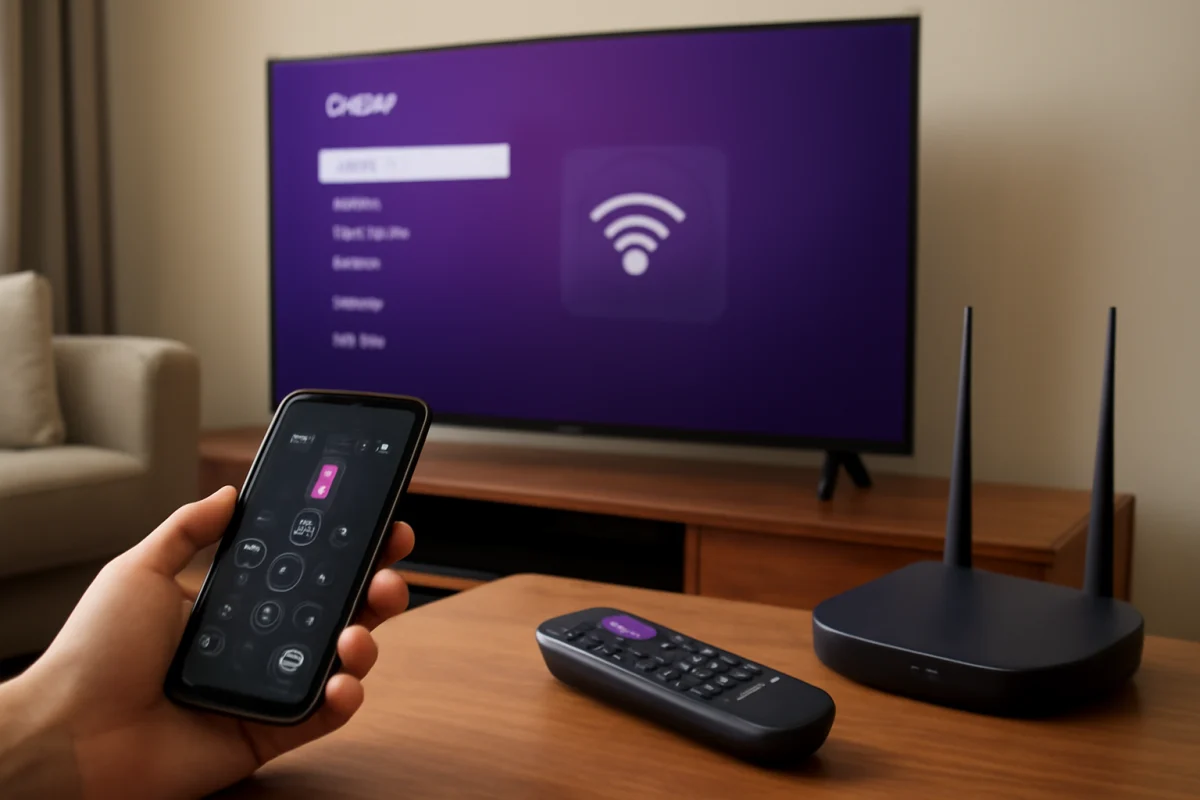
You can connect a Roku TV to Wi-Fi without the original remote, but the best method depends on whether the TV is already connected to a network and whether your phone can join that same network. Start with the least disruptive option: use the official Roku mobile app. If the TV is offline and the app cannot find it, recreate the last Wi-Fi network the TV remembers with a phone hotspot, use an Ethernet connection if your model supports it, or borrow a compatible Roku remote.
Roku TVs differ by brand and model, so button locations, network settings, and wired-network support are not identical. Do not factory-reset the TV as a first step. A reset can remove the TV's saved network information and may leave you needing a remote during setup.
First, identify which situation applies
Before trying a workaround, check these three details:
- Is the TV already connected to Wi-Fi? If it is, the Roku app may control it immediately.
- Does your phone connect to the same home network? The phone and Roku TV generally need to be on the same local network for app control.
- Does the TV remember an older network? If the TV was connected to a router that is now unavailable, you may be able to recreate that network temporarily.
Also make sure the TV is powered on, not just in standby. A physical power button can turn the set on, but it usually does not replace the full Roku remote interface.
Method 1: Use the Roku mobile app
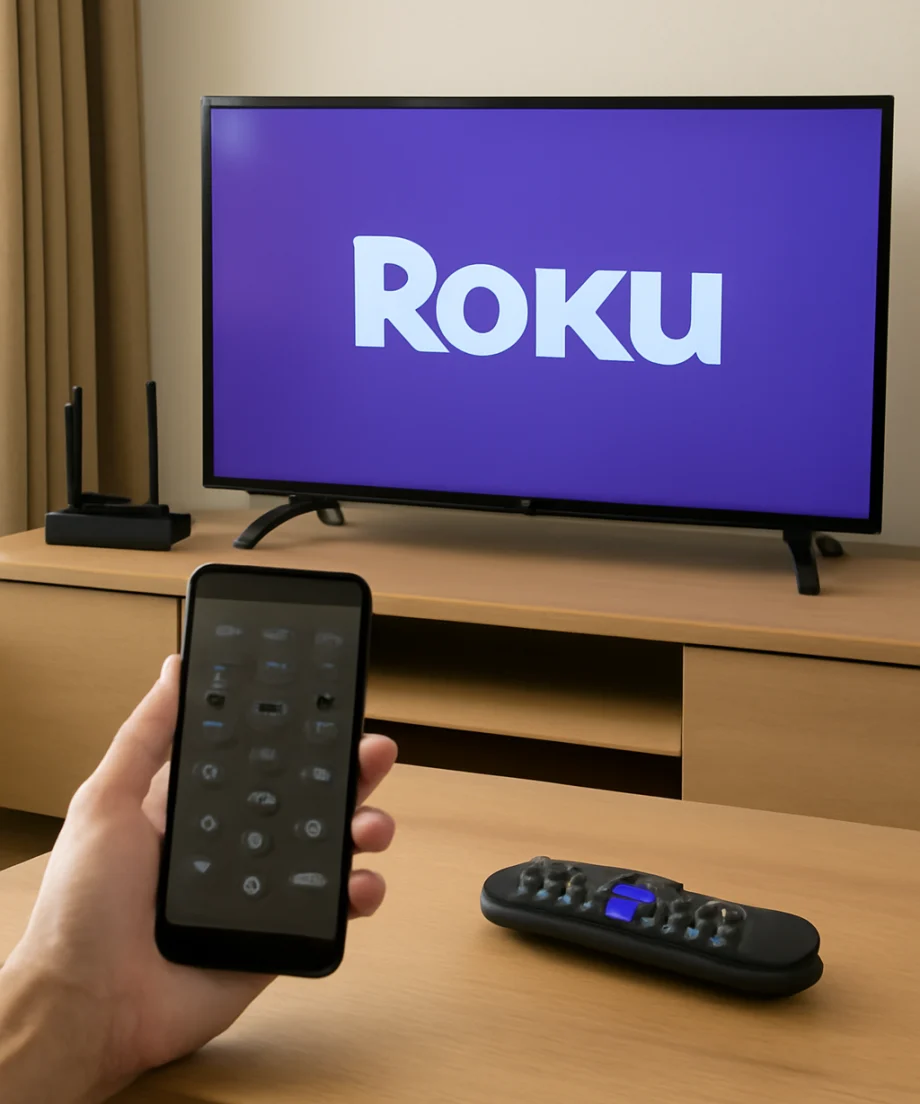
The Roku mobile app is usually the simplest replacement for a missing remote. Install the official Roku app on an iPhone or Android phone, then connect the phone to the same Wi-Fi network used by the TV. Open the app and allow it to search for nearby Roku devices.
If the TV appears in the app
- Open the device list in the Roku app.
- Select the Roku TV.
- Open the remote control screen.
- Use the on-screen directional buttons to open the TV's network settings.
- Select the available wireless network and enter its password.
The exact wording and location of network options can vary between Roku TV brands and software versions. Look for a settings area related to network, internet, or connection rather than relying on one exact menu label.
If the TV is connected by Ethernet, it may appear in the app even when your phone is using Wi-Fi, provided both connections lead to the same home network. Guest networks, wireless isolation, and some mesh-network configurations can prevent the phone from discovering the TV.
If the app cannot find the TV
The app cannot normally control an offline TV over the internet. It needs a local network path to the TV, and the TV must be powered on. Check that your phone is not using cellular data instead of Wi-Fi, then temporarily turn off any VPN or privacy setting that may interfere with local-device discovery.
Restart both the phone and the TV, if possible. You can usually power-cycle the TV by unplugging it for about a minute, reconnecting it, and turning it on with the physical button. Avoid repeatedly pressing buttons if the TV displays a setup screen; the available controls may be limited.
For more general connection checks, see our Wi-Fi and network troubleshooting guide.
Method 2: Recreate the old Wi-Fi network with a phone hotspot
This workaround can help when the TV is offline but still remembers the name and password of a previous Wi-Fi network. The idea is to make a phone hotspot use the same network name and password that the TV used before. The TV may then connect automatically, allowing the Roku app to find it.
What you need
- A phone or hotspot device that lets you change the hotspot name and password
- The exact Wi-Fi network name previously used by the TV
- The exact Wi-Fi password previously saved on the TV
- A second phone, tablet, or computer for controlling the TV, if the hotspot device cannot run the Roku app at the same time
How to try it
- Open the hotspot settings on the phone or device providing the connection.
- Change the hotspot name to match the old Wi-Fi network name exactly, including capitalization and spaces.
- Set the hotspot password to the old Wi-Fi password exactly.
- Enable the hotspot and wait several minutes for the TV to attempt reconnection.
- Connect your control phone to that hotspot, or use a second device connected to it.
- Open the Roku mobile app and check whether the TV appears.
This method is not guaranteed. Some phones limit hotspot compatibility, use a separate band, or prevent the hotspot device from communicating with connected clients. Mobile data charges or data limits may also apply, so do not stream through the hotspot longer than necessary.
Once you regain control, use the Roku network settings to connect the TV to your normal home Wi-Fi. After that, return the hotspot device to its usual settings.
Method 3: Connect the TV to your router with Ethernet
Some Roku TVs include a wired network port, while others do not. If your TV has an Ethernet port and your router is nearby, connect the TV directly to the router with a network cable. A wired connection may place the TV on the same local network as your phone, allowing the Roku app to discover it without entering Wi-Fi details on the TV.
Check the back or side of the TV for a port labeled Ethernet or LAN. Do not force a cable into an HDMI, USB, or service port. After connecting the cable, turn the TV off and back on if it does not appear in the app immediately.
Ethernet support and network behavior vary by model. If the TV does not have a network port, this option is not available. Once the app works, you can use it to choose a wireless network if you prefer not to keep the cable connected.
Method 4: Use a compatible replacement remote
A replacement remote is often the most dependable solution when the TV is offline and the old Wi-Fi details are unknown. Look for a remote specifically described as compatible with Roku TVs, not merely a Roku streaming-stick remote. Roku TV remotes can differ from remotes made for separate Roku players.
Many basic infrared replacement remotes can operate core TV menus without Wi-Fi pairing. Other remotes use wireless pairing and may require a pairing procedure. Compatibility depends on the TV brand, model, and remote type, so check the replacement remote's compatibility information before buying or borrowing one.
If you have another Roku TV remote at home, you can try it, but do not assume every Roku remote works with every Roku TV. A remote made for a different device may power the TV or operate only some functions.
Once the replacement remote works, open the TV's network settings, select your home network, and enter the password. Then you can use the Roku app as a convenient backup.
Can the buttons on the TV connect it to Wi-Fi?
Usually, the physical buttons on a Roku TV are intended for power and limited control. Depending on the model, one button or a small button panel may allow basic navigation, but entering a wireless password with those controls can be slow or impossible. The button layout is not consistent across Roku TV brands.
Try the physical controls only for simple actions such as turning the TV on or confirming whether a picture appears. Avoid assuming that holding a button will open a hidden network menu. Unpublished button combinations can change settings or trigger a reset.
What about a universal remote or a cable remote?
A universal remote may work if it includes a code or setup option for the specific Roku TV brand. A cable, satellite, or streaming-device remote may also control basic television functions if it has been programmed correctly. However, support for Roku menus is not universal.
If a remote can move through menus but cannot enter text, it may still be enough to reach network settings, but you will need a reliable way to type the Wi-Fi password. Some remotes include an on-screen keyboard control; others do not. Test the remote before changing settings or resetting the TV.
Why a factory reset should be your last resort
A factory reset erases saved settings and returns the TV to its initial setup process. It does not solve the immediate problem of having no remote unless you also have a way to complete setup afterward. In some cases, resetting makes the situation harder because the TV no longer remembers a network that could have been recreated with a hotspot.
Only consider a reset after you have a compatible remote or another reliable control method, and after you have confirmed that the TV's network problem is not caused by the router or a temporary outage. The reset process varies by model and may be started from a menu or with a physical control, so use instructions intended for the exact TV model.
If none of these methods works
Check the TV's model number on its label or in any information shown on the screen. Then use that model information when looking for a replacement remote or model-specific support instructions. A local electronics shop, TV installer, or the TV brand's support service may be able to confirm remote compatibility.
If the TV repeatedly loses its connection after you regain access, troubleshoot the network separately. Restart the router, test another device in the same location, and check whether the TV is joining a guest network or a network with device isolation enabled. For additional Roku-related fixes, visit our Roku troubleshooting section.
The practical order is straightforward: try the Roku app if the TV is already on your network, recreate the old network with a hotspot if you know its details, try Ethernet when the model supports it, and use a compatible replacement remote when the TV is completely offline. Keep a working remote or the Roku app available after reconnecting so the next network change does not leave you locked out again.



Comments
0No comments yet. Be the first to share a helpful note or question.
Leave a Comment
Your email address will not be published. Comments are reviewed before appearing on the site.